By: Ray Barley | Comments (23) | Related: > FILESTREAM
Problem
SQL Server 2008 provides the capability of storing BLOBs (e.g. MP3, Word, Excel, PDF, etc.) in the NTFS file system rather than in a database file. I am interested in how to configure the FILESTREAM technology in Management Studio. Could you help us to understand the benefits and provide details on how to implement this new feature in SQL Server 2008? Further, I am interested in how to use this functionality with the C# programming language.
Solution
A BLOB is a binary large object. Video, audio, image and document files (e.g. MP3, Word, Excel, PDF, etc.) are all examples of BLOBs. Applications often want to store and retrieve these various BLOBs together with the typical relational data. SQL Server has supported storing BLOBs in the database for quite some time. SQL Server 2008 provides a new option for storing BLOBs on the NTFS file system in lieu of in a database file. According to Books on Line use FILESTREAM when:
- You are storing BLOBs with an average size of 1 megabyte or more
- Fast read access is important
- You want to access BLOBs from your application's middle tier code
The advantages of using FILESTREAM are:
- You store and retrieve your BLOBs together with your relational data in a single data store
- The BLOBs are included in database backups and restores
- Inserting, updating and deleting BLOBs and your relational data happens in the same database transaction
- The 2 GB max size for a varbinary(max) column doesn't apply; you are only limited by the available space on the NTFS file system
- The SQL Server buffer pool memory is not used to operate on BLOBs; in previous versions large BLOBs could consume a lot of this memory
- All BLOB access can be performed from .NET code, allowing your middle tier code to easily work with these objects
- The NTFS file system can save and retrieve large BLOBs faster than SQL Server
There are several configuration steps that need to be performed in order to use FILESTREAM. The main one is creating a filegroup specifically for storing BLOBs. As BLOBs are inserted, updated or deleted, the action is transparently performed on the NTFS file system rather than in a database file. You will typically perform these actions on the BLOBs from .NET code rather than T-SQL.
In this tip we are going to gain an understanding of FILESTREAM by walking through a simple code sample to demonstrate the steps to:
- Configure FILESTREAM
- Add a BLOB from T-SQL code
- Add a BLOB from C# code
The demo code below was only tested on the February, 2008 Community Technology Preview (CTP) of SQL Server 2008.
Configure FILESTREAM
There are a couple of configuration steps required in order to use the FILESTREAM feature:
- Enable FILESTREAM for the database instance
- Create a filegroup for BLOB storage
- Create a table with a BLOB column
To enable FILESTREAM for the database instance, execute the system stored procedure sp_filestream_configure:
EXEC sp_filestream_configure
  @enable_level = 3
, @share_name = N'FS';
The valid values for the @enable_level parameter are:
- 0 = disabled (this is the default)
- 1 = enabled only for T-SQL access
- 2 = enabled for T-SQL access and local file system access
- 3 = enabled for T-SQL access, local file system access, and remote file system access
The @share_name parameter is used to create a file share that can be used to access the BLOBs via the file system.
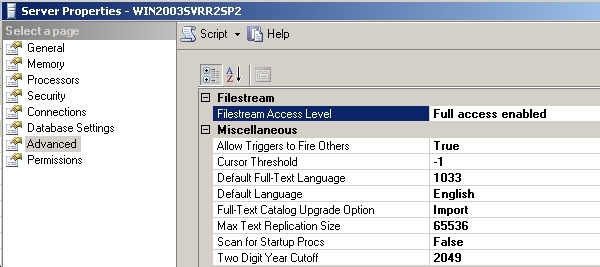
You can also enable FILESTREAM for the database instance from SQL Server Management Studio (SSMS). Right click on the database instance (i.e. root node) in the Object Explorer, then select Properties from the context menu. Click Advanced and set the Filestream Access Level to Full access enabled.
You can examine the status of FILESTREAM support on the database instance by executing this query:
SELECT
 SERVERPROPERTY ('FilestreamShareName') ShareName
,SERVERPROPERTY ('FilestreamConfiguredLevel') ConfiguredLevel
,SERVERPROPERTY ('FilestreamEffectiveLevel') EffectiveLevel
You should see the ConfiguredLevel =3 and EffectiveLevel = 3. As of this writing (February 2008 CTP) changing the Filestream Access Level requires a restart of the database instance. When you enable FILESTREAM you would see the ConfiguredLevel = the value you specified for the @enable_level parameter and EffectiveLevel would be 0. Right click on the database instance in Object Explorer then select Restart from the context menu.
In order to store BLOBs on the NTFS file system you need to create a filegroup with the CONTAINS FILESTREAM attribute. Execute the following script to add a filegroup to an existing database (change the database name and filename as appropriate):
ALTER DATABASE fs
ADD FILEGROUP fs_fg_filestream CONTAINS FILESTREAM
GO
ALTER DATABASE fs
ADD FILE
(
    NAME= 'fs_filestream',
    FILENAME = 'C:\db\fs'
)
TO FILEGROUP fs_fg_filestream
GO
Note that for a FILE that is added to a FILESTREAM filegroup, the FILENAME parameter is actually a path. In the example above C:\db must already exist; a folder named fs cannot already exist; it will be created under C:\db.
The final configuration step for FILESTREAM is to create a table to hold the BLOBs. For example:
CREATE TABLE dbo.BLOB (
 ID UNIQUEIDENTIFIER ROWGUIDCOL NOT NULL UNIQUE,
 BLOB VARBINARY(MAX) FILESTREAM NULL
)
To store a BLOB using FILESTREAM you must have a column of type VARBINARY(MAX) with the FILESTREAM attribute specified. In addition the table must have a UNIQUEIDENTIFIER column with the ROWGUIDCOL attribute.
Add a BLOB from T-SQL
To add a BLOB from T-SQL, you execute an INSERT statement, and simply CAST the BLOB contents to VARBINARY(MAX). Since the BLOB column type is VARBINARY(MAX), selecting it will render in hexadecimal. The PathName() function will return the UNC path to the BLOB file. Notice that the last part of the path is the value of the UNIQUEIDENTIFIER column.
DECLARE @ID UNIQUEIDENTIFIER
SET @ID = NEWID()
INSERT INTO dbo.BLOB
 (ID, BLOB)
VALUES
 (@ID, CAST('BLOB Placeholder' AS VARBINARY(MAX)))
SELECT ID, BLOB
FROM dbo.BLOB
WHERE ID = @ID
SELECT BLOB.PathName()
FROM dbo.BLOB
WHERE ID = @ID
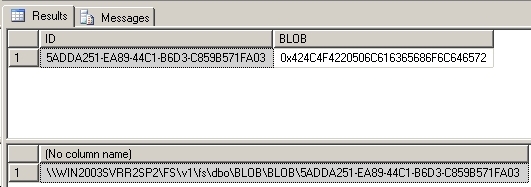
You can use the T-SQL UPDATE statement to replace the contents of the BLOB. You can use the T-SQL DELETE statement to delete it. Even though you are issuing T-SQL commands, the action on the BLOB is being performed on the NTFS file system.
Add a BLOB from C#
Probably the most likely scenario for using FILESTREAM is where you will be manipulating the BLOBs from your application's middle tier code. For demonstration purposes we'll create a simple example in C# that can save a BLOB and retrieve a BLOB. To keep the demo code simple, we'll create a console application where you specify command line arguments; for example:
BLOB [ get | put ] filename [id]
- Get is used to retrieve a BLOB; you must also specify id which is the UNIQUEIDENTIFIER that identifies the row to retrieve
- Put is used to save a BLOB
- Filename is the full path to the BLOB file; put will read the file from the file system and save it as a BLOB in the database, get will retrieve the BLOB from the database using the id and write it out to this filename on the NTFS file system
Let's review a few snippets from the sample code (the full Visual Studio 2008 project is available here). The declaration below is used to call the OpenSqlFilestream API function from C# code. OpenSqlFilestream is not part of the .NET Framework, therefore you need the declaration below to call it from .NET code. This function is used to both retrieve and save the BLOB. Note that this API function is actually contained in sqlncli10.dll, which is the SQL 2008 Native Client DLL.
[DllImport("sqlncli10.dll", SetLastError = true,
              CharSet = CharSet.Unicode)]
static extern SafeFileHandle OpenSqlFilestream(
        string FilestreamPath,
        UInt32 DesiredAccess,
        UInt32 OpenOptions,
        byte[] FilestreamTransactionContext,
        UInt32 FilestreamTransactionContextLength,
        Int64 AllocationSize);
The main parameters for OpenSqlFilestream are as follows (you can review the complete description in Books on Line here):
- FilestreamPath is the path to the BLOB; call the PathName() function on the actual BLOB column in the database table to get this path.
- DesiredAccess is a hexadecimal value that specifies whether you want to read, read and write, or write the BLOB.
- FilestreamTransactionContext is the transaction context; you get this by executing the T-SQL function GET_FILESTREAM_TRANSACTION_CONTEXT(). This function is new to SQL Server 2008.
Next we are going to write two stored procedures that we will call from our C# code to add and retrieve BLOBs.
CREATE PROCEDURE dbo.stp_AddBLOB
AS
BEGIN
  DECLARE @ID UNIQUEIDENTIFIER
  SET @ID = NEWID()
  INSERT INTO dbo.BLOB
    (ID, BLOB)
  VALUES
    (@ID, CAST('' AS VARBINARY(MAX)))
  SELECT ID, BLOB.PathName()
  FROM dbo.BLOB
  WHERE ID = @ID
END
GO
CREATE PROCEDURE dbo.stp_GetBLOB
@ID UNIQUEIDENTIFIER
AS
BEGIN
  SELECT BLOB.PathName()
  FROM dbo.BLOB
  WHERE ID = @ID
END
GO
To add a BLOB we will execute the stored procedure dbo.stp_AddBLOB. This procedure inserts a row into our BLOB table with an empty BLOB column, then returns a result set with the UNIQUEIDENTIFIER value for the row and the path to the BLOB. The path is what we need to pass to the OpenSqlFilestream API function in order to read or write the BLOB from our C# code.
To retrieve a BLOB we will call the stored procedure dbo.stp_GetBLOB. It requires the UNIQUEIDENTIFIER value for the row as a parameter then returns the path for the BLOB.
Let's review the key points in the C# code that saves and retrieves the BLOBs. The partial code snippet below saves a BLOB:
  // (1) read in the file to be saved as a blob in the database
  FileStream input = new FileStream(filename, FileMode.Open,
                                         FileAccess.Read);
  byte[] buffer = new byte[(int)input.Length];
  input.Read(buffer, 0, buffer.Length);
  // (2) insert empty blob in the database
  cn = GetConnection();
  tx = cn.BeginTransaction();
  cmd = new SqlCommand("dbo.stp_AddBLOB", cn, tx);
  cmd.CommandType = System.Data.CommandType.StoredProcedure;
  SqlDataReader r = cmd.ExecuteReader(
      System.Data.CommandBehavior.SingleRow);
  r.Read();
  string id = r[0].ToString();
  string path = r[1].ToString();
  r.Close();
  // (3) get the transaction context
  cmd2 = new SqlCommand("SELECT GET_FILESTREAM_TRANSACTION_CONTEXT()",
                cn, tx);
  Object obj = cmd2.ExecuteScalar();
  byte[] txCtx = (byte[])obj;
  // (4) open the filestream to the blob
  SafeFileHandle handle = OpenSqlFilestream(
      path,
      DESIRED_ACCESS_WRITE,
      SQL_FILESTREAM_OPEN_NO_FLAGS,
      txCtx,
      (UInt32)txCtx.Length,
      0);
  // (5) open a Filestream to write the blob
  FileStream output = new FileStream(
      handle,
      FileAccess.Write,
      buffer.Length,
      false);
  output.Write(
      buffer,
      0,
      buffer.Length);
      output.Close();
The numbered comments in the above code identify the key points for discussion:
-
Read the filename specified on the command line into a byte array.
-
Invoke the dbo.stp_AddBLOB stored procedure to add an empty BLOB to the database and return the path to the BLOB. Note that this call is made inside of a transaction.
-
Get the transaction context. This value will be passed as a parameter to the OpenSqlFilestream function call, allowing it to participate in the current transaction.
-
Call the OpenSqlFilestream function to create the handle necessary to write the BLOB to the NTFS file system.
-
Create a FileStream object which will use the handle from step 4 and actually write the BLOB to the NTFS file system. The FileStream object is part of the .NET Framework and is used for reading and writing files.
The code snippet below is used to retrieve a BLOB based on the value of the UNIQUEIDENTIFIER column in the row:
  // (1) retrieve path of BLOB
  cn = GetConnection();
  tx = cn.BeginTransaction();
  cmd = new SqlCommand("dbo.stp_GetBLOB", cn, tx);
  cmd.CommandType = System.Data.CommandType.StoredProcedure;
  cmd.Parameters.AddWithValue("@ID", new System.Guid(blobID));
  SqlDataReader r = cmd.ExecuteReader(
     System.Data.CommandBehavior.SingleRow);
  r.Read();
  string path = r[0].ToString();
  r.Close();
  // (2) get the transaction context
  cmd = new SqlCommand("SELECT GET_FILESTREAM_TRANSACTION_CONTEXT()",
               cn, tx);
  Object obj = cmd.ExecuteScalar();
  byte[] txCtx = (byte[])obj;
  // (3) open the filestream to the blob
  SafeFileHandle handle = OpenSqlFilestream(
      path,
      DESIRED_ACCESS_READ,
      SQL_FILESTREAM_OPEN_NO_FLAGS,
      txCtx,
      (UInt32)txCtx.Length,
      0);
  // (4) open a Filestream and read the blob
  FileStream blob = new FileStream(
      handle,
      FileAccess.Read);
  byte[] buffer = new byte[(int)blob.Length];
  blob.Read(buffer, 0, buffer.Length);
  blob.Close();
  if (handle != null && !handle.IsClosed)
      handle.Close();
  // (5) write out the blob to a file
  FileStream output = new FileStream(
      filename,
      FileMode.CreateNew);
  output.Write(buffer, 0, buffer.Length);
  output.Close();
The numbered comments in the above code identify the key points for discussion:
-
Invoke the stored procedure dbo.stp_GetBLOB to get the path for the BLOB identified by the blobID which is a UNIQUEIDENTIFIER passed in on the command line. Note that this call is made inside of a transaction.
-
Get the transaction context. This value will be passed as a parameter to the OpenSqlFilestream function call, allowing it to participate in the current transaction.
-
Call the OpenSqlFilestream function to create the handle necessary to read the BLOB from the NTFS file system.
-
Create a FileStream object which will use the handle from step 3 and actually read the BLOB from the NTFS file system. The FileStream object is part of the .NET Framework and is used for reading and writing files.
-
Write the BLOB out to a file. This is done to validate that we have successfully retrieved the BLOB.
Next Steps
- Download a copy of the latest Community Technology Preview of SQL Server 2008 from this site. The above examples were created using the February, 2008 CTP.
- Download a copy of the sample code here and experiment with FILESTREAM.
- Review the SQL Server 2008 Books on Line content for FILESTREAM for additional information.






About the author
 Ray Barley is a Principal Architect at IT Resource Partners and a MSSQLTips.com BI Expert.
This author pledges the content of this article is based on professional experience and not AI generated.
View all my tips
