By: Ashish Kumar Mehta | Comments (8) | Related: > FILESTREAM
Problem
A new feature in SQL Server 2008 is the FILESTREAM feature which allows you to store BLOBs in the NTFS file system instead of in the database. In order to use this new feature it has to be enabled. In this tip I go over four different options to enable the FILESTREAM feature.
Solution
In SQL Server 2008 one can store BLOBs (e.g. Images, video, word, excel, PDF, MP3, etc) in the NTFS file system rather than in a database file. This can be done by using the new FILESTREAM feature which was introduced in SQL Server 2008. However, in order to enable the FILESTREAM feature you need to be a member of the SYSADMIN or SERVERADMIN fixed server roles.
There are different ways in which one can enable FILESTREAM feature in SQL Server 2008. Let us go through each option one by one.
Enable FILESTREAM Feature Using SQL Server Configuration Manager
1. Click Start | All Programs | Microsoft SQL Server 2008 | Configuration Tools | SQL Server Configuration Manager.
This will open up SQL Server Configuration Manager as shown in the below snippet
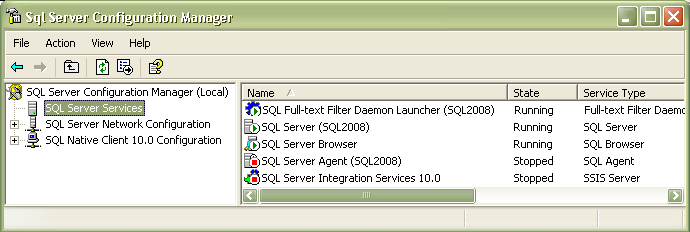
2. In the left panel of SQL Server Configuration Manger, click on SQL Server Services, this will list all the SQL Server 2008 related services on the right side panel.
3. Click on SQL Server (MSSQLSERVER) service instance in case of a default installation. However, in case of a named instance you need to choose SQL Server (Instance Name) service and right click the same to see the properties for the service.
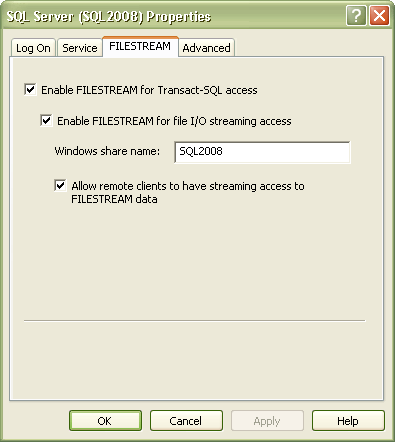
4. In SQL Server Properties dialog box, you need to click on FILESTREAM tab and Enable FILESTREAM for Transact-SQL access checkbox, this will enable the rest of the options.
5. If you are interested in enabling read and write FILESTREAM data from windows, then click Enable FILESTREAM for file I/O streaming access and specify the name of the windows file share in the Windows Share Name textbox.
6. If you require remote clients to access the FILESTREAM data that is stored in the share, then select Allow remote clients to have streaming access to FILESTREAM data option as shown in the below snippet.
7. Finally click OK to save the changes.
Enable FILESTREAM Feature Using Transact SQL (TSQL)
The FILESTREAM feature of SQL Server 2008 can also be enabled using the Transact SQL (TSQL).
In the SQL Server 2008 Management Studio, open a new query window and type the below TSQL Query to enable FILESTREAM feature.
USE master Go EXEC sp_configure 'show advanced options' GO EXEC sp_configure filestream_access_level, 1 GO RECONFIGURE WITH OVERRIDE GO |
There are 3 levels of FILESTREAM access which are supported in SQL Server 2008 and they are mentioned below for your reference.
- When the value specified is 0 then, FILESTREAM support for the instance is Disabled
- When the value specified is 1 then, FILESTREAM for Transact-SQL Access is Enabled
- When the value specified is 2 then, FILESTREAM for Transact-SQL and Windows streaming access is Enabled
Enable FILESTREAM Feature at SQL Server Instance Level using SQL Server 2008 Management Studio (SSMS)
The FILESTREAM feature of SQL Server 2008 can also be enabled at the SQL Server Instance level using SQL Server Management Studio by following the below mentioned steps.
1. Connect to SQL Server 2008 Database Instance using SQL Server 2008 Management Studio
2. In the Object Explorer, right click the database instance and select Properties to view the Server Properties
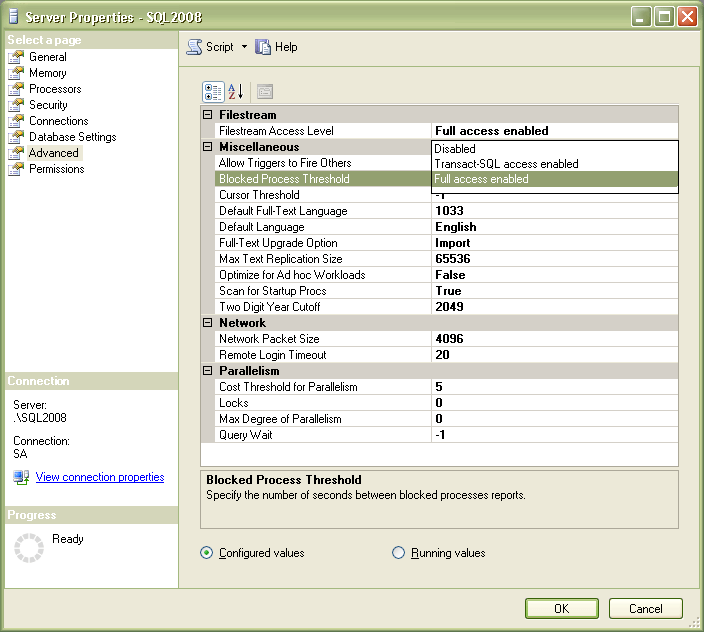
3. On the left panel click on the Advanced tab, then click on the drop down list next to Filestream Access Level and select Full access enabled option as shown in the below snippet
4. Finally click OK to save the changes.
Enable FILESTREAM Feature during the Installation of SQL Server 2008
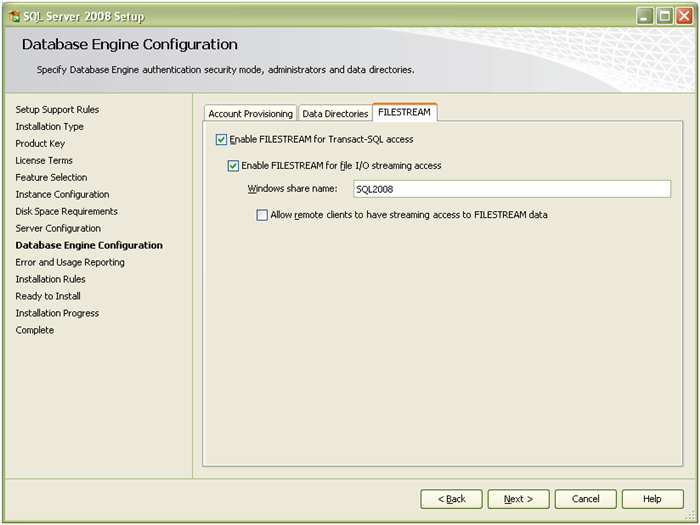
The FILESTREAM feature can also be enabled during the installation of SQL Server 2008. A DBA can enable this feature by clicking on the FILESTREAM tab of the Database Engine Configuration screen and can choose all the available options as per his requirement as shown in the snippet below.
Next Steps:
- If you haven't started working with SQL Sever 2008, download a 180 day evaluation from this site to get started on these new topics
- Here is another tip related to this topic - Using FILESTREAM to Store BLOBs in the NTFS File System in SQL Server 2008
- Review the SQL Server 2008 Books on Line content for FILESTREAM for additional information
- More SQL Server 2008 tips






About the author
 Ashish Kumar Mehta has been contributing to the MSSQLTips.com community since 2009 with over 60 tips.
This author pledges the content of this article is based on professional experience and not AI generated.
View all my tips
