![]() |
|
|
By: Jugal Shah | Read Comments (7) | Print Jugal has 8+ years of extensive SQL Server experience and has worked on SQL Server 2000, 2005, 2008 and 2008 R2. Related Tips: More |
|
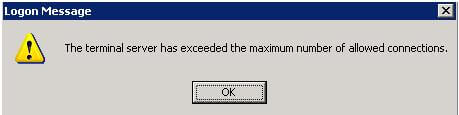
As DBAs, we are supporting production servers as well a number of development boxes. On the development boxes apart from DBAs, developers probably also have Admin rights and may sometimes connect to the server remotely. There could be times when developers or other DBAs are not disconnecting their remote desktop sessions or they are connecting to the server using MSTSC. Due to this, we sometimes get the "The terminal server has exceeded the maximum number of allowed connections" message.
To resolve this so we can connect, we need to disconnect in-active sessions through terminal service manager, but what can we do in the case where all sessions are still active? To resolve this you can follow the below simple solution.
When trying to connect using a remote desktop session you may get this Login Failure Message, because there are too many remote sessions.
To resolve the exceeded connection issue execute “mstsc /admin” command from the command prompt as shown below.
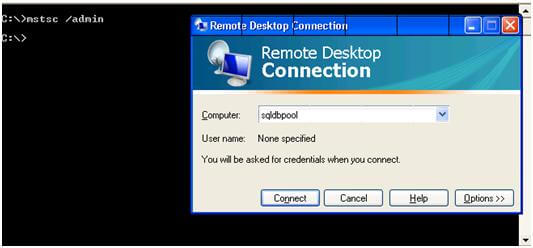
If a terminal server has exceed the maximum number of sessions an "/admin" session can still be created and this will allow you to still connect to the server.
The /admin sessions don't count towards the session limit that may be configured on a terminal server to limit the number of remote sessions, so this will give you a back door into the server if you get the message "The terminal server has exceeded the maximum number of allows connections".
| Share: | Share | Tweet |
|
![]() |
![]() |
Connect with MSSQLTips.com |
| Friday, April 09, 2010 - 1:52:52 AM - diebieeee | Read The Tip |
|
True, but keep this in mind when you're on a (db)administrators team: /admin only allows *1* user at a time since this uses the console connection. I found that (W2K3 at least) doesn't warn about an already active /admin connection. If user A is already using this connection and user B runs mstsc /admin then user A is kicked off unceremoniously and user B doesn't get a warning that this will happen/has happened, |
|
| Friday, April 09, 2010 - 5:59:05 AM - urcuterajendra | Read The Tip |
|
Thanks Jugal, We are getting max connection issue daily, this is the simple solution. I am also getting warning for the kicking off another session.
|
|
| Friday, April 09, 2010 - 6:00:04 AM - DJS | Read The Tip |
|
Diebieeee, I am able to get waring in Windows Server 2003. When i tried mstsc / admin command, i received warning that "there is already user A is connected to box, would you like to end this(Current) session or not". Command did not kick off user A without the warning. |
|
| Friday, April 09, 2010 - 6:08:14 AM - jshah.sqldbpool | Read The Tip |
|
This is totally depend on the configuration of WIN2k3, its policies, max connections etc... |
|
| Friday, April 09, 2010 - 6:11:01 AM - diebieeee | Read The Tip |
|
That must be a contributing factor, since I'm 100% sure that I did NOT get a warning that another user was connected to the admin connection.
|
|
| Friday, April 09, 2010 - 8:08:44 AM - GaryW | Read The Tip |
|
There's also another way I came across some time ago it is very handy. Open a command window and type in qwinsta /server:<server name or IP address> If RDP is running it will show the logged in users and also have an ID (0,1,2, or 3 generally). Note which one you want to disconnect and type on a new line in the command window: rwinsta /server:<server name or IP address> ID# {for example say it's ID 1 you want to end because it's a disconnected session, you would type in rwinsta /server:myservername 1 The session will end and you can then log in normally. Of course, you've got to have admin rights to the server or global admin rights to the domain to do it to other servers, but it's another handy method you can use! It still works in Windows 7 and Server 2008 which is also nice! HTH! Gary |
|
| Friday, April 09, 2010 - 8:32:10 AM - Chuck Hottle | Read The Tip |
|
I usually just log on to a different server and start Terminal Services manager. From there, you can connect to the server that is maxed out and decide who to kill or contact about logging off. You can see the date and time of their last activity, so deciding who to logg off is usually pretty easy. |
|
|
privacy | disclaimer | copyright | advertise | about authors | contribute | feedback | giveaways | user groups Some names and products listed are the registered trademarks of their respective owners. Edgewood Solutions LLC | MSSharePointTips.com | MSSQLTips.com |