By: Ashish Kumar Mehta | Comments (1) | Related: 1 | 2 | > SQL Server Management Studio Configuration
Problem
While looking through the new features and improvements in SQL Server Management Studio (SSMS) we found a potentially interesting one to Hide System Objects in Object Explorer in SQL Server Management Studio. In this tip we will take a look at how to Hide System Objects in Object Explorer.
Solution
You may have noticed that once you are connected to a SQL Server Instance using SQL Server Management Studio, in the Databases node of Object Explorer you can see system objects such as the system databases as shown in the snippet below.
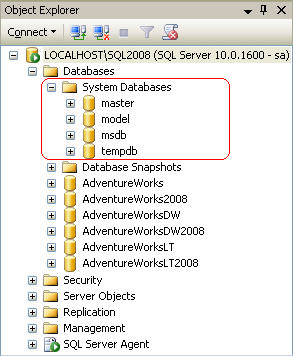
You can hide system objects in Object Explorer by following the below mentioned steps:
1. In SQL Server Management Studio, under Tools menu, click Options as shown in the snippet below.
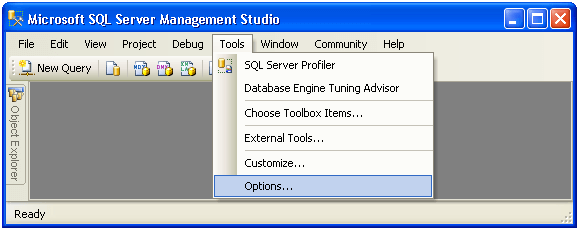
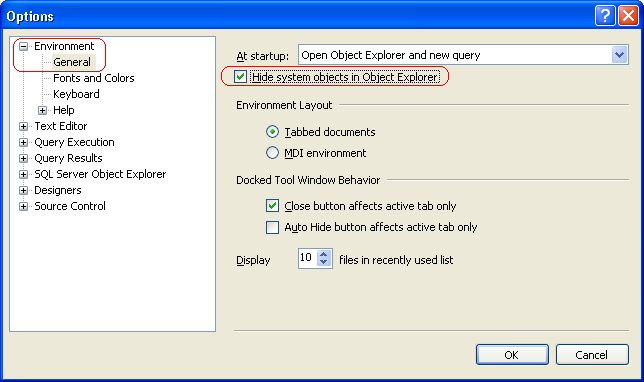
2. In the Options dialog box, expand Environment and then select the General tab as shown in the snippet below. Select Hide system objects in Object Explorer and then click OK.
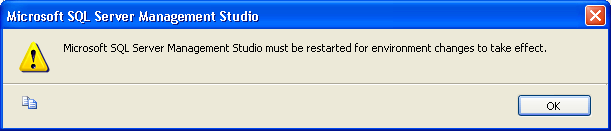
3. In the Microsoft SQL Server Management Studio dialog box, click OK to acknowledge that the changes will come into effect once you restart SQL Server Management Studio.
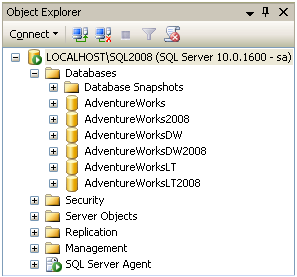
4. Next, go ahead and close SQL Server Management Studio. When you reopen SQL Server Management Studio once you are connected to SQL Server Instance you will not see the System Objects in Object Explorer in SQL Server Management Studio as shown in the snippet below.
Next Steps
- Read Using Object Explorer Details and Object Search Feature of SQL Server 2008 Management Studio
- Read Performance Analysis Using SQL Server 2008 Activity Monitor
- Read more tips on SQL Server Management Studio Tips






About the author
 Ashish Kumar Mehta has been contributing to the MSSQLTips.com community since 2009 with over 60 tips.
This author pledges the content of this article is based on professional experience and not AI generated.
View all my tips
