By: Jugal Shah | Comments (9) | Related: > SQL Server Management Studio Configuration
Problem
As a best practice, most companies follow a standard comment format at the beginning of stored procedures and functions. In addition, it is also a good idea to include comments in all scripts you write even if they are just save as .sql or .txt files. Manually we often add a standard comment block to the header of our scripts using copy and paste, but in this tip we look at how to automate adding a standard comment block for every set of code we write using SSMS.
Solution
As a best practice you should create a standard comment format at the beginning of your T-SQL codes such as the below example. If you are SQL Developer and your job is to only write stored procedures and functions, you can automate adding a standard comment header when you open a new Query window.
--Sample Comment format
/*
*************************************************************************************
 [OBJECT NAME]: Stored Procedure Name
 [DESCRIPTION]: SP Description
 Copyright by Company Name
 [NOTES]:

 [PARAMETER BREAKDOWN]:
  @parameter name - Parameter description
  @parameter name - Parameter description
 [SAMPLE CALL]:

 exec spName @parameter1 = 'MSSQLTips',
 @parameter2 = 'Jugal',

 [SQL Version Support]: SQL Server 2000, 2005, 2008

 [MODIFICATION HISTORY]:
 Date        Author                  Comment
 ----------- ----------------------  -----------------------------------------
 6/8/2009 Jugal Shah    Inception
 6/23/2009 Jugal Shah   add dbmail feature
*************************************************************************************
*/
If you don't want a standard comment block another option it so include frequently used T-SQL statements such as the below commands.
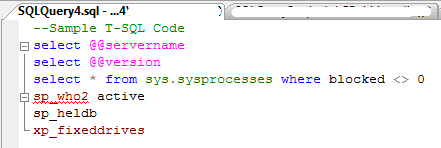
--Sample T-SQL Code
select @@servername
select @@version
select * from sys.sysprocesses where blocked <> 0
sp_who2 active
sp_heldb
xp_fixeddrives
So if I use the second example, when I open a new query window in SSMS I get these commands every time as shown below.
To automate the comment/T-SQL in all new query windows, you have to modify the SQLFile.sql file which is located in:
- On 32-bit machine "C:\Program Files\Microsoft SQL Server\100\Tools\Binn\VSShell\Common7\IDE\SqlWorkbenchProjectItems\Sql" folder.
- On 64-bit machine "C:\Program Files (x86)\Microsoft SQL Server\100\Tools\Binn\VSShell\Common7\IDE\SqlWorkbenchProjectItems\Sql" folder.
You could also do a search for SQLFile.sql as well. The below image shows the file.
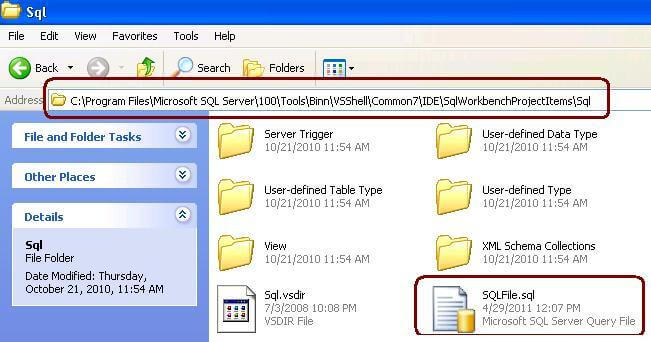
Once you find the file, you can edit the SQLFile.sql with any text editor (i.e. notepad) and add your own standard comment format or T-SQL code and save the file. Then whenever you open a new Query window you will see the comments/T-SQL that you entered into the SQLFile.sql file.
Note that you must have the proper permission to edit SQLFile.sql. I used Notepad and used the "Run as administrator" option to edit and save the file. This just depends on the security that was setup on your desktop. Also, since this file is saved locally each person that wants this has to do this on thier machine.
Next Steps
- Look at creative ways that this can be used
- Read these related tips:
- Read these other SSMS tips






About the author
 Jugal Shah has 8+ years of extensive SQL Server experience and has worked on SQL Server 2000, 2005, 2008 and 2008 R2.
This author pledges the content of this article is based on professional experience and not AI generated.
View all my tips
