By: Ashish Kumar Mehta | Comments (7) | Related: 1 | 2 | 3 | 4 | > Contained Databases
Problem
While looking through the new features and improvements in SQL Server 2012, we found a potentially interesting feature called Contained Databases. A contained database basically includes all database settings and the metadata within itself thereby resulting in no configuration dependencies on the instance of the SQL Server Database Engine where the database is actually installed. Users will be able to connect to a contained database without authenticating a login at the Database Engine level. This feature really helps to isolate the database from the Database Engine thereby making it possible to easily move the database from one instance of SQL Server to another. In this tip we will take a look at how to configure and use this feature of SQL Server 2012.
Solution
Let us go through an example to configure a Contained Database in SQL Server 2012. Below are the steps to configure and use this feature.
1. Enable Contained Database Feature in SQL Server 2012 Instance Level
2. Create a Contained Database in SQL Server 2012
3. Create an SQL Server User to Access the Contained Database
4. Login and Verify the User Permission on the Contained Database
Enable Contained Database Feature in SQL Server 2012 Instance Level
Execute the T-SQL code below to enable the Contained Database feature at the SQL Server instance level.
Use master
GO
sp_configure 'show advanced options', 1
GO
RECONFIGURE WITH OVERRIDE
GO
sp_configure 'contained database authentication', 1
GO
RECONFIGURE WITH OVERRIDE
GO
sp_configure 'show advanced options', 0
GO
RECONFIGURE WITH OVERRIDE
GO
Create a Contained Database in SQL Server 2012 Using SQL Server Management Studio
Once the Contained Database Feature is enabled at the SQL Server instance level, then create a Contained Database.
1. In the Object Explorer, right click the Databases and select New Database... option from the drop down list.
2. In the General Page you can provide the name of the database as DemoContainedDB and then click on Options page on the left side pane.
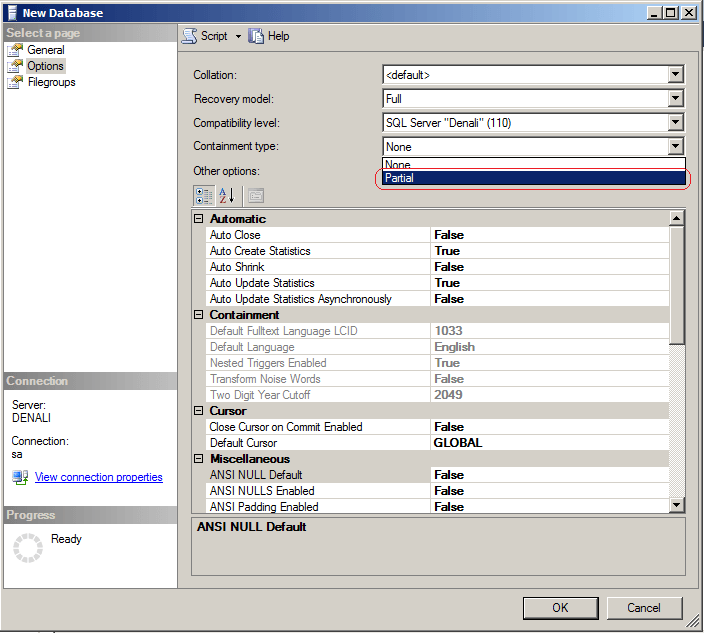
3. In the Options Page, to create a Contained Database you need to choose the value as Partial in the Other Options drop down list as highlighted in the screen shot below.
4. Finally, click OK to create the Contained Database.
Create a Contained Database in SQL Server 2012 Using T-SQL code
You can create a Contained Database by executing the T-SQL code below.
Use master
GO
CREATE DATABASE [DemoContainedDB]
CONTAINMENT = PARTIAL
ON PRIMARY
(
NAME = N'DemoContainedDB',
FILENAME = N'C:\Program Files\Microsoft SQL Server\MSSQL11.MSSQLSERVER\MSSQL\DATA\DemoContainedDB.mdf' ,
SIZE = 3072KB ,
FILEGROWTH = 1024KB
)
LOG ON
(
NAME = N'DemoContainedDB_log',
FILENAME = N'C:\Program Files\Microsoft SQL Server\MSSQL11.MSSQLSERVER\MSSQL\DATA\DemoContainedDB_log.ldf' ,
SIZE = 1024KB ,
FILEGROWTH = 10%
)
GO
Create a SQL Server User to Access the Contained Database
Once the contained database is created successfully, next create an SQL Server or Windows User, which will have access to the newly created contained database. Follow these steps to create a SQL Server User within the contained database.
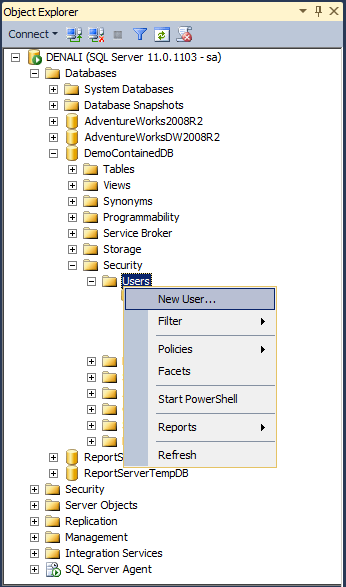
1. In the Object Explorer, expand Databases, expand DemoContainedDB Database which was created earlier, expand Security and then right click Users and choose New User... option from the drop down list as shown in the screen shot below.
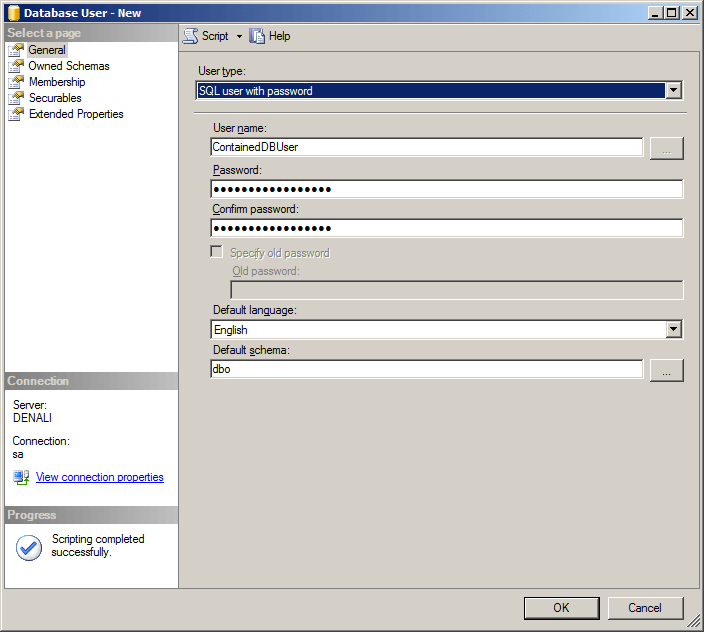
2. In Database User - New window, you need to choose the User Type value as SQL User with Password and provide the SQL Server User Name and Password. You also have the option to select the Default language and Default schema. Finally, to create the user click the OK button.
3. You can also create the user by executing the T-SQL code below.
USE [DemoContainedDB]
GO
CREATE USER [ContainedDBUser] WITH PASSWORD=N'Contained$DBUser@5',
 DEFAULT_LANGUAGE=[English],
 DEFAULT_SCHEMA=[dbo]
GO
Login and Verify the User Permissions on a Contained Database
Let's try connecting to the newly created Contained Database using the SQL Server Login.
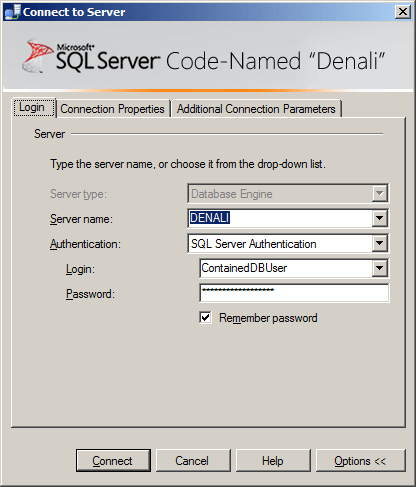
1. In the Login tab you need to provide the Server name, choose the Authentication type as "SQL Server Authentication" and specify the Login and Password.
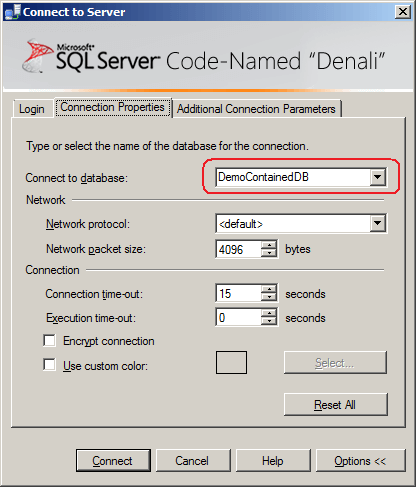
2. In Connection Properties tab, you need to specify the database name as highlighted in the screen shot below in the Connect to database option and then click the Connect button to get connected to the Contained Database.
3. In the screen shot below, you can see that you were able to successfully get connected to the Contained Database using the newly created SQL Server Login which doesn't have access to the Database Engine.
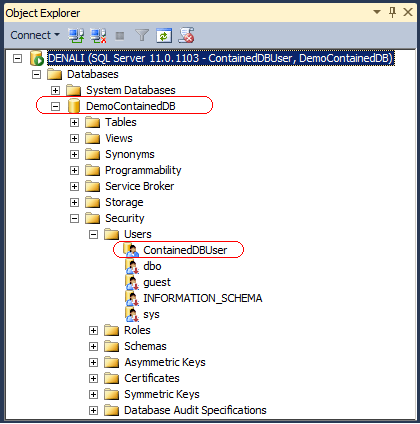
4. You can also see in the screen shot above that the SQL Server Login (Contained User) only has access to the newly Contained Database.
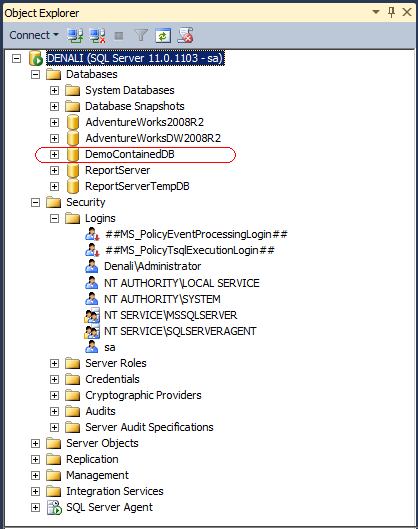
5. Now let us try connecting to the SQL Server Instance using System Administrator (SA) privileges. Here you will be able to see all the databases. However, you will not be able to see the Contained Database User under Server Logins as shown in the screen shot below.
Next Steps
- As you learn about SQL Server 2012, consider the security options available with the Contained Database feature and think about how this security paradigm could be leveraged in your environment.
- Stay tuned for more tips on SQL Server 2012 and check out these related tips:






About the author
 Ashish Kumar Mehta has been contributing to the MSSQLTips.com community since 2009 with over 60 tips.
This author pledges the content of this article is based on professional experience and not AI generated.
View all my tips
