By: Edwin Sarmiento | Comments (8) | Related: 1 | 2 | 3 | 4 | > PowerShell
Problem
In a previous tip on Monitor Your SQL Server Virtual Log Files with Policy Based Management, we have seen how we can use Policy Based Management to monitor the number of virtual log files (VLFs) in our SQL Server databases. However, even with that most of the solutions I see online involve the creation of temporary tables and/or a combination of using cursors to get the total number of VLFs in a transaction log file. Is there a much easier solution?
Solution
We SQL Server DBAs know the importance of monitoring the number of VLFs in our transaction log files and the need to keep them well maintained. All of the approaches provided online use the undocumented command DBCC LOGINFO to check the number of VLFs in a transaction log file. But the combination of temporary tables and/or cursors just to get this information is sometimes overwhelming. Take, for instance, this sample code that consists of 50 lines of T-SQL code, including the comments and spacing. Thankfully, we have PowerShell available for us to use with SQL Management Objects (SMO) to make this task a bit simpler. While we do not have an equivalent method in SMO for the DBCC LOGINFO command (after all, it is still undocumented), we can take advantage of the ExecuteWithResults method of the Database class.
Let's see how we can simplify this task by using PowerShell and SMO. We'll start by loading the appropriate .NET assemblies used by SMO as defined in this previous tip.
[System.Reflection.Assembly]::LoadWithPartialName("Microsoft.SqlServer.SMO")Next, we'll create an instance of the Server class to represent the SQL Server instance that you will be connecting to, passing the SQL Server instance name. I will be assigning the results to a variable named $serverInstance so we can access the different properties and methods of the Server class.
$serverInstance = New-Object ("Microsoft.SqlServer.Management.Smo.Server") "InstanceName"We will, then, iterate thru all of the databases in the SQL Server instance by accessing the Databases property of the Server class. This property represents a collection of database objects defined in the SQL Server instance we've specified. While iterating thru the collection of databases, we will use the ExecuteWithResults method of the Database class to execute the DBCC LOGINFO command in the context of the current database. The results of this method is a .NET object type called a DataSet which is commonly used in ADO.NET. A DataSet is an in-memory cache of data with a collection of DataTable objects. Think of it as an in-memory version of a database with different tables, columns, relationships, etc. If there are multiple tables in the resultset, we can access each table using an index in an array. However, since the results of the DBCC LOGINFO command is a single resultset that mimics a table, think of the results of the ExecuteWithResults method as an in-memory table.
The PowerShell code to accomplish all of these tasks is shown below.
foreach($db in $serverInstance.Databases)
{
$db.ExecuteWithResults("DBCC LOGINFO").Tables[0]
}
In order to access the table results, I used the zero index since I did not explicitly define the name of the DataTable that will hold the results of the DBCC LOGINFO command. The results of running the script are shown below.
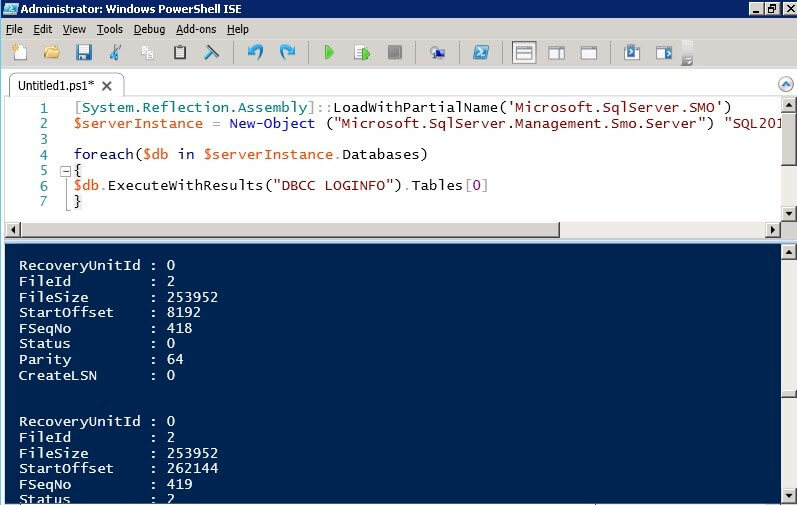
Notice that the results are similar to running DBCC LOGINFO using T-SQL. In order to find the number of VLFs, we need to count the number of VLFs per transaction log file. This is where the temporary tables and/or cursors start appearing in most of the solutions we see online. Fortunately, PowerShell has the Measure-Object cmdlet to generate statistics (sum, average, count, minimum and maximum values) for an object. We can use the Measure-Object cmdlet to count the number of items returned by the ExecuteWithResults method for a particular database. To make it easier, we will pipe the results of the ExecuteWithResults method to the Measure-Object cmdlet.
foreach($db in $serverInstance.Databases)
{
$db.ExecuteWithResults("DBCC LOGINFO").Tables[0] | Measure-Object
}
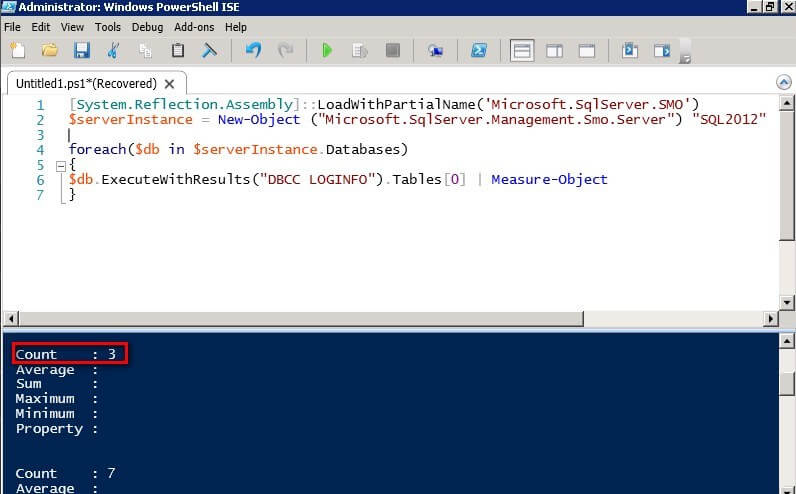
If you look at the new output from the script, you can now see a property named Count that maps to the result returned by the ExecuteWithResults method of the Database class. This refers to the number of VLFs for a specific database. However, we still don't know the database for which this value is associated with. In order to do that, we will define the name of the database as part of the result using the Select-Object cmdlet, again, piping the results to this cmdlet.
foreach($db in $serverInstance.Databases)
{
$db.ExecuteWithResults("DBCC LOGINFO").Tables[0] | Measure-Object | Select-Object $db.Name, Count
}
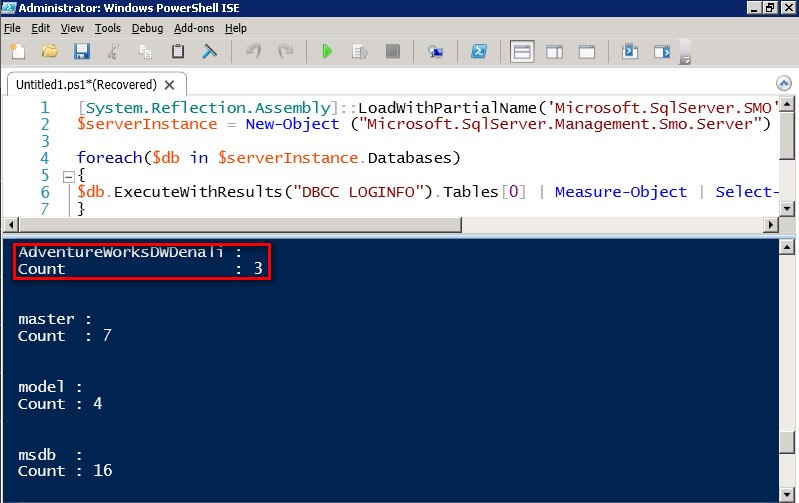
The result now displays what I want - the name of the database and the number of VLFs for that particular database - in just 7 lines of PowerShell code (I can even write this in 3 lines and have the entire foreach loop in a single line but that would be annoying and hard to read) that does not use temporary tables and/or cursors. You can even format the results in a tabular format using the Format-Table cmdlet, save the results in a text file using the Out-File cmdlet, query the results if there are any values higher than 50 using the Select-String cmdlet, send an email alert if it finds one using the Send-MailMessage cmdlet, etc. I could go on and on and list the possibilities that you can do with Windows PowerShell and SMO.
Here is the complete code listing:
[System.Reflection.Assembly]::LoadWithPartialName("Microsoft.SqlServer.SMO")
$serverInstance = New-Object ("Microsoft.SqlServer.Management.Smo.Server") "InstanceName"

foreach($db in $serverInstance.Databases)
{
$db.ExecuteWithResults("DBCC LOGINFO").Tables[0] | Measure-Object | Select-Object $db.Name, Count
}
Next Steps
- Review the previous tip on Using PowerShell with SQL Server Management Objects and all PowerShell-related tips.






About the author
 Edwin M Sarmiento is a Microsoft SQL Server MVP and Microsoft Certified Master from Ottawa, Canada specializing in high availability, disaster recovery and system infrastructures.
This author pledges the content of this article is based on professional experience and not AI generated.
View all my tips
