By: Jugal Shah | Comments (8) | Related: > SQL Server Management Studio Configuration
Problem
While working with the Results to Text option in SSMS, you may come across a situation where the output from dynamically generated data is truncated. In this article I will guide you on how to fix this issue and print all the text for the Results to Text option.
Solution
SQL Server Management Studio supports query execution results to be displayed in three different ways:
- Results to Grid
- Results to Text
- Results to File
Results to Grid is the default format for SSMS. but in this tip we will use the Results To Text format.
Results to Text format is very useful for the below scenarios:
- Generating and Printing Dynamic Data
- Reading Long Text data without having to scroll
- Dragging Text from the Results to a Query window
- Selecting a particular string from the result
To get started, we will first change the default Results To Grid format to Results to Text using the below steps.
Step 1
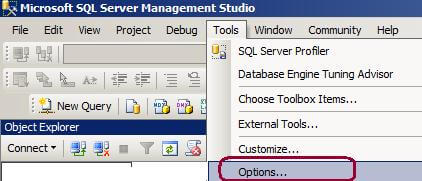
In SQL Server Management Studio, under the Tools menu, click Options as shown in the image below:
Step 2
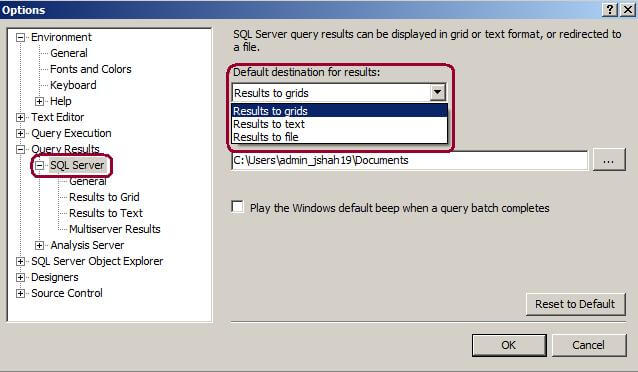
In the Options dialog box, expand Query Results, expand SQL Server and then select General as shown in the image below. In the right side panel choose Results To Text option from the Default destination for results drop down list.
Click OK to save the changes as shown in the image below. The changes will go into effect once you open a New Query window.
Another way to change the Results to text option is go to View > Toolbars > select SQL Editor (If not selected). Then select the below highlighted button to enable Results To Text option. You can also use the shortcut CTRL+T.

Example of Results to Text Option
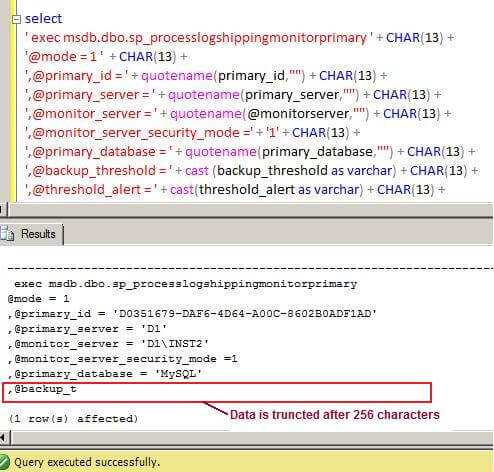
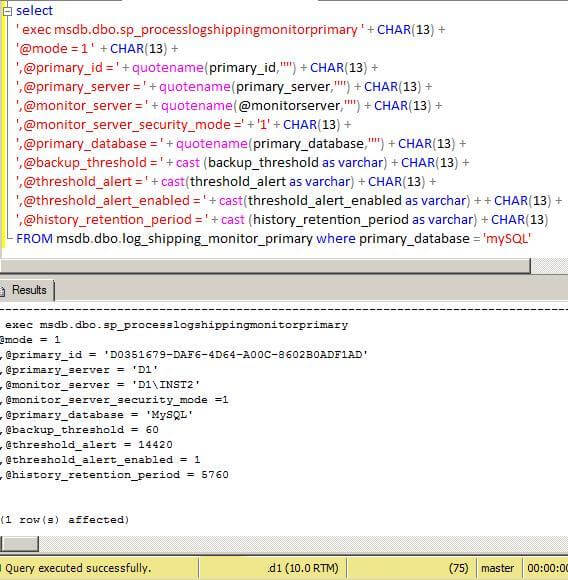
In the below query I am generating the output query for the log-shipping monitor, but it is not showing the full output. You can see that the output command that I am dynamically generating is getting cut off. The reason for this is that the default Results to Text option's maximum number of characters displayed is set to 256 characters. That's why the rest of the text output is truncated.
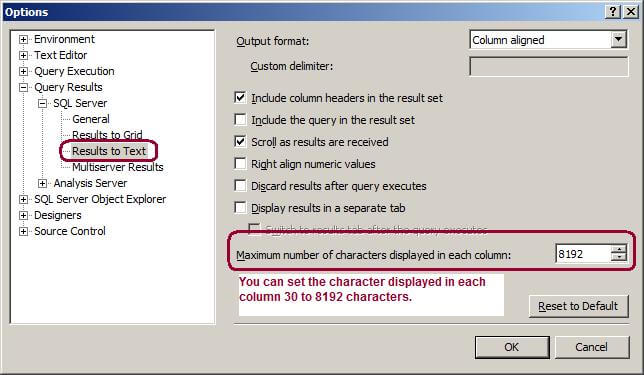
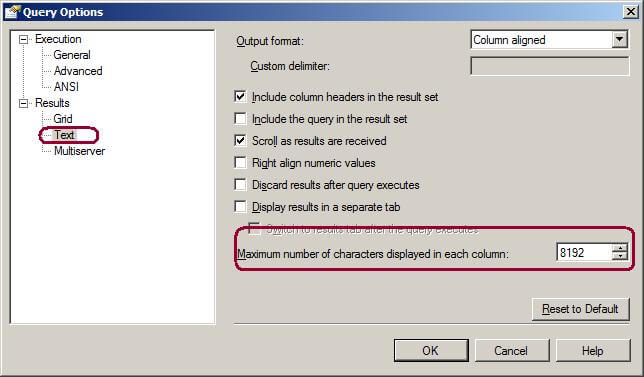
To prevent truncation of the output for the Results to Text option, you have to change the Maximum number of characters displayed in each column option to 8192 as shown below.
Changing the Setting From The Tools Menu
In the Options dialog box of Tools Menu, expand Query Results, expand SQL Server and then select Results to Text as shown in the image below. In the right side panel change the value of Maximum number of characters displayed in each column to 8192. Click OK to save the changes as shown in the image below. The changes will go into effect once you open a new query window.
Changing the Setting From The Query Menu
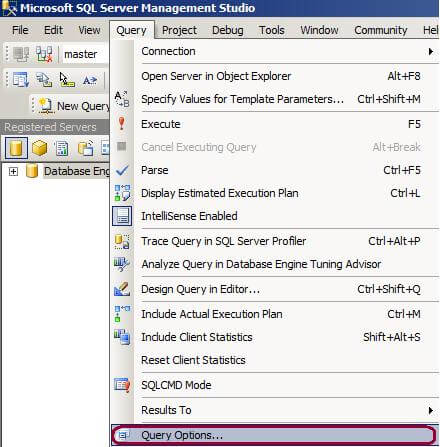
Changing the Maximum Number of characters displayed in each column from the Query menu will give you advantage of setting the maximum characters for the current query window only. The Query menu only appear in SSMS if you have a Query window open and the window is active. If you have selected the Object Explorer Pane or other options, the Query menu will not appear.
To change the max characters setting for the Results to Text options using the Query menu, first you have to click on the Query window, click on Query menu and go to Query Options... as shown below.
In the Query Options... window click on Result > Text and change the Maximum Number of characters displayed in each column to 8192.
Getting the Full Output
Executing the query again will show the full output without truncation.
Next Steps
- Check the Maximum number of characters setting when running queries that generate dynamic output
- Once you have the output displayed in the Results pane, you can simplify drag the text to a query window
- Try the other SSMS results options as well






About the author
 Jugal Shah has 8+ years of extensive SQL Server experience and has worked on SQL Server 2000, 2005, 2008 and 2008 R2.
This author pledges the content of this article is based on professional experience and not AI generated.
View all my tips
