By: Ray Barley | Comments (2) | Related: > Tools
Problem
SQL Server Data Tools (SSDT) comes with SQL Server 2012 and is the replacement for Business Intelligence Development Studio (BIDS). In the earlier tip Introduction to SQL Server Data Tools I covered what is referred to as "Project-Oriented Offline Database Development" in the MSDN documentation. As the name implies you work on database objects in an offline mode then publish your changes to a SQL Server database. In this tip I am going to cover what is referred to as "Connected Database Development" in the MSDN documentation.
Solution
You can think of the connected database development capabilities in SSDT as a subset of what you get in SQL Server Management Studio (SSMS). With these new capabilities it is possible that you can do everything you need with SSDT in terms of developing a database; i.e. creating tables, views, stored procedures, etc. I emphasize "possible" because you may still wind up using SSMS for some things. However, SSDT provides a good bit of the capability that you need as well as some useful things that are not provided in SSMS.
SSDT provides the following capabilities to enable connected database development:
- SQL Server Object Explorer
- Transact-SQL Editor
- Schema Compare
I will walk through each of these capabilities in the following sections.
SQL Server Object Explorer
SQL Server Object Explorer provides a subset of the functionality that you get in the Object Explorer in SQL Server Management Studio (SSMS) and some new capabilities as well. Click View, SQL Server Object Explorer from the top-level menu in SSDT to launch SQL Server Object Explorer and you will see something similar to what I have in my development environment as shown below:
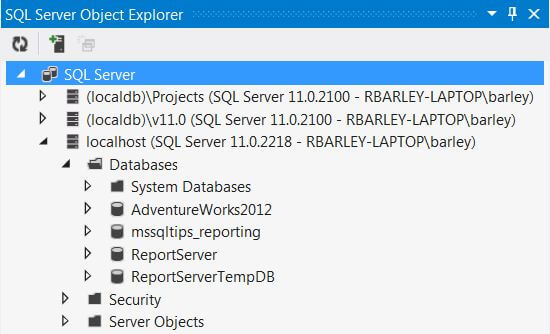
The first thing you will notice is the two (localdb) SQL Servers. When you create a database project (as explained in the Introduction to SQL Server Data Tools tip), SSDT creates a SQL Server Express Local Database Runtime which is essentially a SQL Server Express database that is used to validate the SQL Server objects that you are editing in your project. As an example if you save changes to a stored procedure, SSDT executes an ALTER PROCEDURE command in the (localdb) database and reports any errors.
I'm going to quickly cover a number of things you can do in SQL Server Object Explorer then drill in to more detail in the sections that follow:
- Add a SQL Server instance - right click the SQL Server node, select Add SQL Server, and fill in the familiar Connect to Server dialog.
- Create a new database - right click the Databases node underneath a SQL Server instance, click Add New Database from the context menu, and fill in the database name.
- Create a new database project - right click a database, select Create New Project from the context menu, and fill in the Create New Project - Import Database dialog (this was covered in the Introduction to SQL Server Data Tools tip).
- Perform a database schema compare - right click a database, select Schema Compare from the context menu, and specify the compare target which can be a database project, a SQL Server database, or a Data-tier Application file. Creating a Data-tier application file was covered in the Introduction to SQL Server Data Tools tip.
Table Designer
The table designer allows you to create a new table as well as unique keys, check constraints, indexes, foreign keys, and triggers. To launch the table designer, first click the icon next to the database to show the nodes beneath the database as shown below:
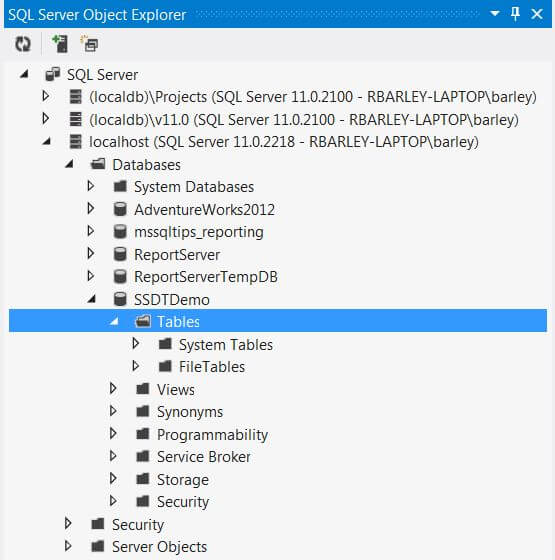
Right click on the Tables node and select Add New Table. You will see the table designer as shown below:
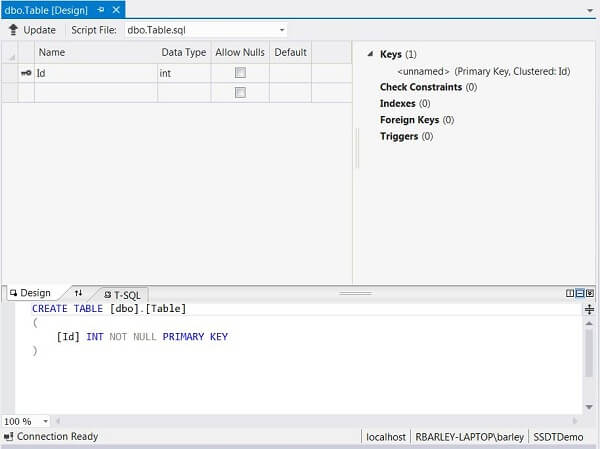
The following are the main points on the table designer:
-
The Id column and primary key gets added for you automatically
-
Use the grid (design tab) to enter, update or delete the table columns; as you make changes in the grid, the T-SQL tab is updated automatically
-
You can make changes directly in the T-SQL tab and the grid will update automatically
-
You can add keys, check constraints, indexes, foreign keys, and triggers by right clicking on the appropriate item in the design tab. In most cases you will name the object in the design tab, the appropriate T-SQL will be added to the T-SQL tab, and you will have to complete the definition of the object in the T-SQL tab
The following is a screen shot of a simple table:
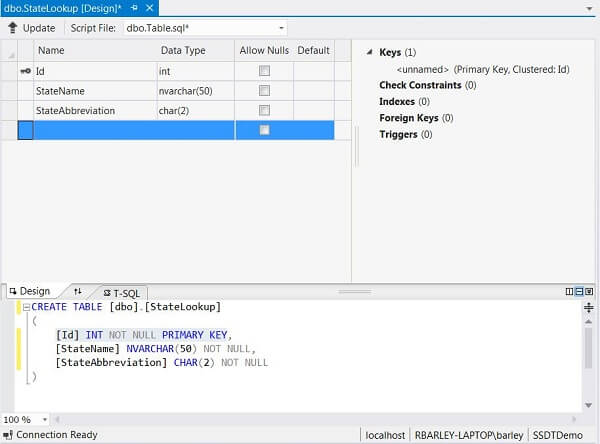
Click the Update button in the top left corner of the table designer to save your changes to the database or generate a script that you can run manually. If you choose update database you will see the new table in the SQL Server Object Explorer.
In addition to creating new tables, you can modify existing tables. Right click a table and select View Designer from the context menu; the table designer will be shown and you can make changes then click Update to save to the database.
You can edit the data in a table by right clicking on the table in the SQL Server Object Explorer and selecting View Data from the context menu. The table editor will be displayed as shown below:
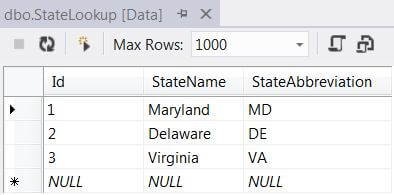
You can edit data in the table via the grid. From the toolbar you can refresh the data in the grid, add a new row, set the maximum number of rows displayed, and generate an insert script for each row of data.
Transact-SQL Editor
The Transact-SQL editor allows you to enter, debug and execute T-SQL commands from within SSDT. You can launch the editor by clicking the SQL top level menu and selecting Transact-SQL Editor, New Query from the context menu. You can also launch the editor by right clicking on a database in the SQL Server Object Explorer and selecting New Query from the context menu. The following is a screen shot of the Transact-SQL editor upon launch:
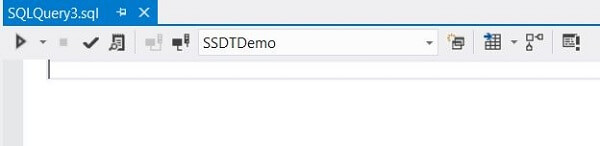
The following are the details about the toolbar options on Transact-SQL editor (from left to right):
-
Execute or debug script
-
Stop execution
-
Check syntax
-
Display estimated execution plan
-
Connect to database
-
Disconnect from database
-
Select database
-
New query (launches a new Transact-SQL editor window)
-
Results as grid, results as text, results to file (select from dropdown)
-
Include actual execution plan
-
Set / unset SQLCMD mode
All of the above options are pretty much the same as what you get with the New Query button in SQL Server Management Studio.
Schema Compare
Schema compare allows you to compare your database schema to a database project, another SQL Server database, or a Data-tier application file (aka DACPAC file). The result of a schema compare is a T-SQL script that will synchronize the target database schema with the source database schema. For example if I add or change a database object to a SQL Server database, I can right click on the database in SQL Server Object Explorer, select Schema Compare from the context menu, specify a target, get the results of the schema compare, and execute the T-SQL to synchronize the target with the source.
To demonstrate this capability I will create a database project from my SSDTDemo database, make a change to the database, and perform the schema compare with the SSDTDemo database as the source and the database project as the target. To create the database project, right click on the SSTDDemo database in the SQL Server Object Explorer and select Create New Project from the context menu. Fill in the Create New Project - Import Database dialog as shown below (your location will default to your user folder):
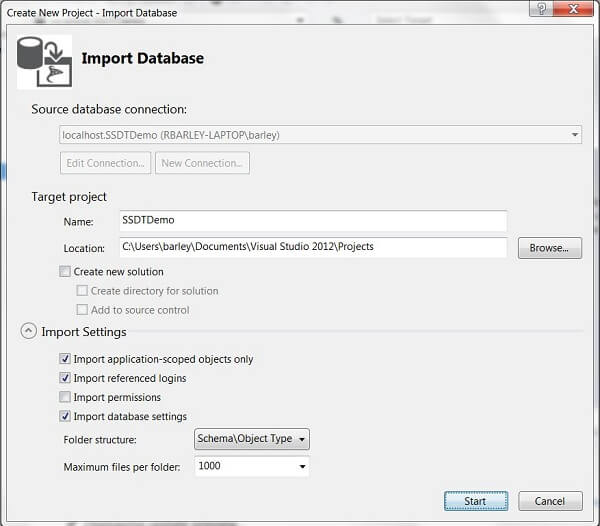
Click Start to create the database project. When complete use the SQL Server Object Explorer to make a change to the database; e.g. add a table, modify a table schema, etc. I'm going to add a new table named Customer using the table designer.
After saving the new table to the database, click the SSDTDemo database in the SQL Server Object Explorer and select Schema Compare from the context menu. The schema compare dialog will be displayed as shown below:
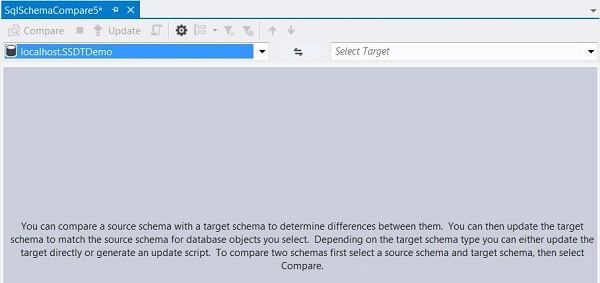
Click Select Target and fill in the dialog as shown below:
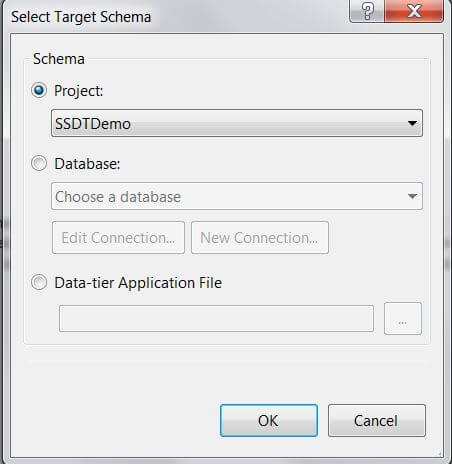
In this case I want to compare my database to my database project. Click OK on the Select Target Schema dialog and click the Compare button on the schema compare dialog; the schema comparison will be displayed as shown below:
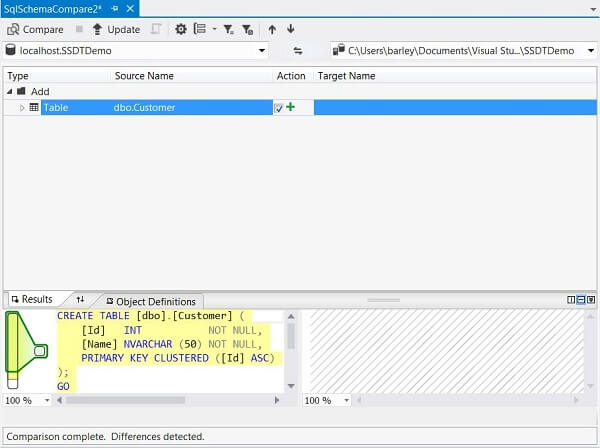
The schema comparison output shows the database objects that differ between the source and target. In addition for each object that is different the T-SQL command to synchronize the target with the source is shown. By default each object is selected to be synchronized. You can uncheck any that you want to skip (the checkbox is under the Action column).
The following are the main points on the toolbar options (from left to right):
-
The Compare button performs the schema compare
-
Stop processing
-
Click the Update button to synchronize the target with the source; note in this case the target is a database project so clicking Update will get the database project in sync with the source database
-
Generate a script to perform the synchronization
-
Set schema compare options
-
Group results by Action, Schema or Type
-
Show equal objects
-
Show actions not supported for update
-
Show previous
-
Show next
Next Steps
- If you are doing database development you should take a look at SQL Server Data Tools. I think you will be pleasantly surprised. SSDT supports online and offline modes of development.
- Take a look at the Microsoft SQL Server Data Tools page in the MSDN library. You can download the tool, watch videos, read the documentation, etc.
- The SQL Server Data Tools Team Blog is another good source of information to keep up to date on new features and how to articles.






About the author
 Ray Barley is a Principal Architect at IT Resource Partners and a MSSQLTips.com BI Expert.
This author pledges the content of this article is based on professional experience and not AI generated.
View all my tips
