By: Tim Smith | Comments (29) | Related: More > Integration Services Development
Problem
Several executives tell us that they will be collecting data from thousands CSV or text files and we should expect to see at least ten new files a day. Instead of trying to import each file one by one, how can we create an SSIS package that pulls the data from each file into SQL Server while being able to handle a large number of files and data? Check out this tip to learn more.
Solution
Before we get address the solution for this tip, I want to be clear that this tip solely addresses CSV and text files, not Excel. Excel requires a similar process to this, which is not covered, and also assumes that the Excel file formats are identical (Excel allows users to change formats, often creating a headache with SSIS). Click here and here to learn more about working with Excel.
Now to the solution, we can load CSV and text files easily in SQL Server Integration Services (SSIS) without requiring much time, energy and also in a way that's constructed to handle more data growth. Let's jump right into the Business Intelligence Development Studio or Visual Studio to get started. Here are the SSIS Packages I have created for this tip, feel free to use them as a point of reference as you read this tip (note that one adds a derived column to also import the file name, the other is generic and allows you to adjust as you need).
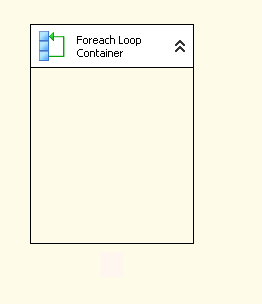
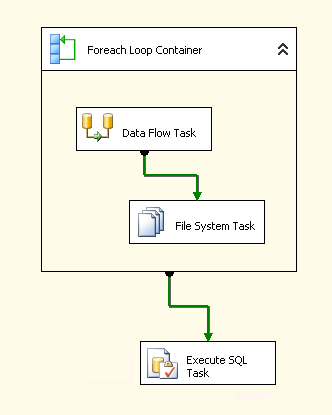
1. Start with a Foreach Loop Container as shown in the first image below. We will place a few tasks inside of this container momentarily. Also, we'll create two string variables, one called ArchiveFolder and the other CurrentFile as shown in the second image below. The CurrentFile variable should be empty, while the ArchiveFolder variable should have the location where we want our files to be moved after the data are imported. To access the variables window navigate to View | Other Windows | Variables.

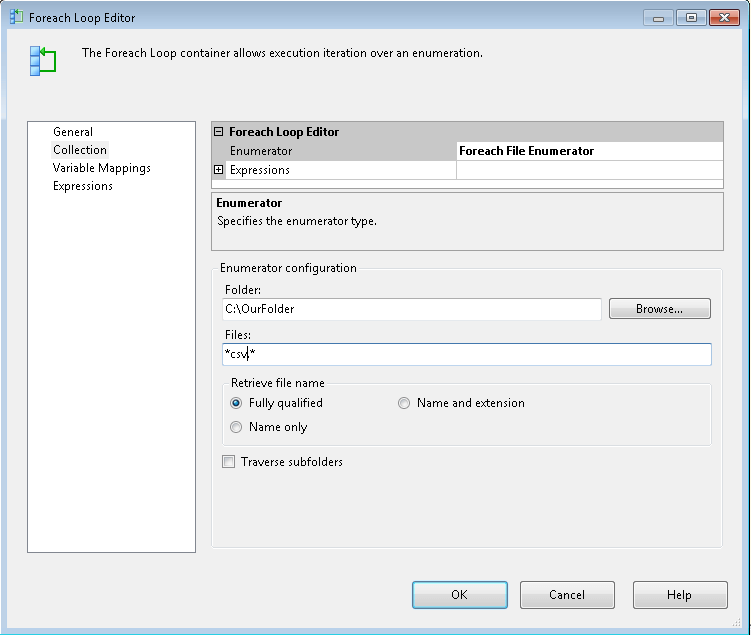
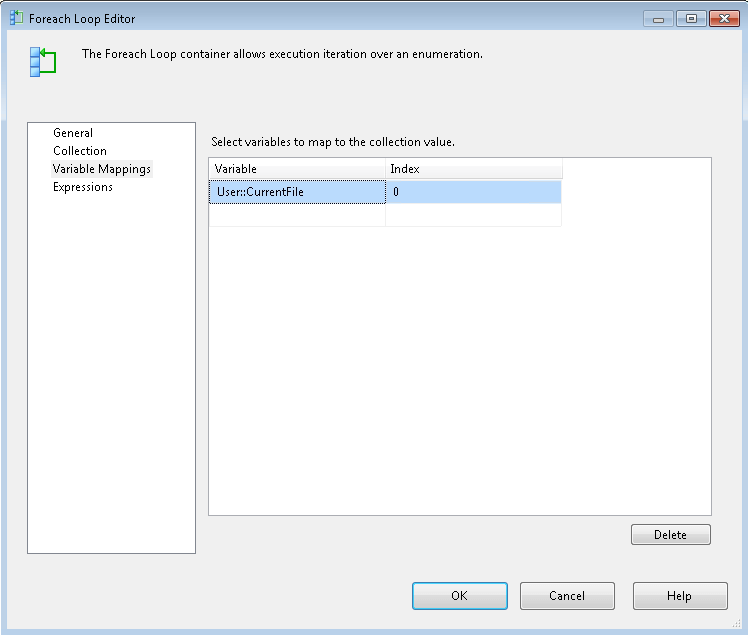
2. Next, we double click the For each Loop Container. On the Collection tab (the first image below), we'll enter the path where we are going to import the files from (in the Folder text box) - for instance, C:\OurFolder. In the Files text box, we'll enter the extension of the files (and select the "Fully qualified" radio button) - for instance, *.csv* would mean that we're importing CSV files. Next click we'll, click Variable Mappings tab (in the second image below), and insert the variable CurrentFile with an Index of 0 (should be default on the index).
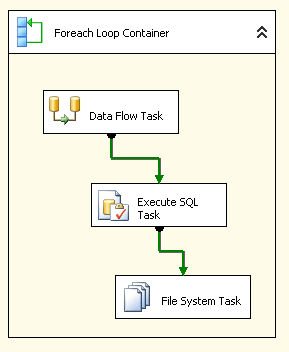
3. Next, we'll insert three other tasks inside the For each Loop Container: a Data Flow Task, an Execute SQL Task, and a File System Task (as shown in the first image). All of these tasks should have the green arrows pointed to the next task as this will be our process as the looping begins. Note that the Execute SQL Task can go outside of the loop as well (meaning, that we'll manipulate the data after the import process as shown in the second image). While we can perform data manipulation inside of SSIS, depending on our experience, we can also manipulate it through code. The advantage of code is that it can handle changes better - for instance, executives telling us that they want the date formatted differently.
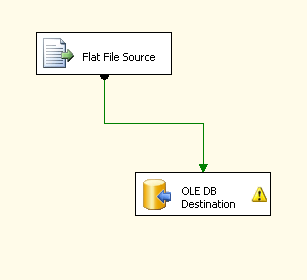
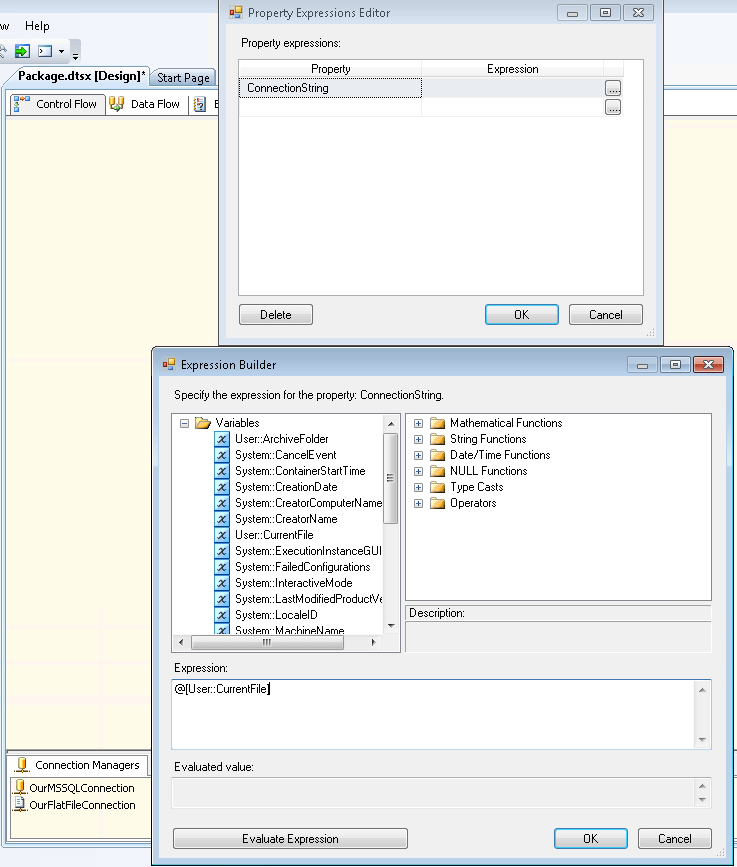
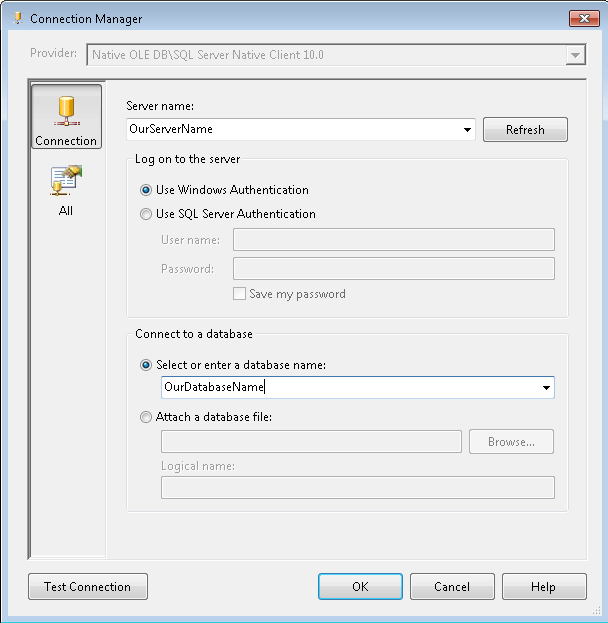
4. Inside of the Data Flow Task, add a Flat File Source and an OLE DB Destination. For the Flat File Source, we are going to initially select one of our flat files and use that as a guideline to create flat file connection. Once the Flat File Connection is listed under the Connection Managers (at the bottom, in this example called "OurFlatFileConnection"), we will change the Connection String Expression to "CurrentFile" so that it points to the current file during the loop. For "OurMSSQLConnection", we'll enter our server and database name and inside of the OLE DB Destination, point the flow to the right table.
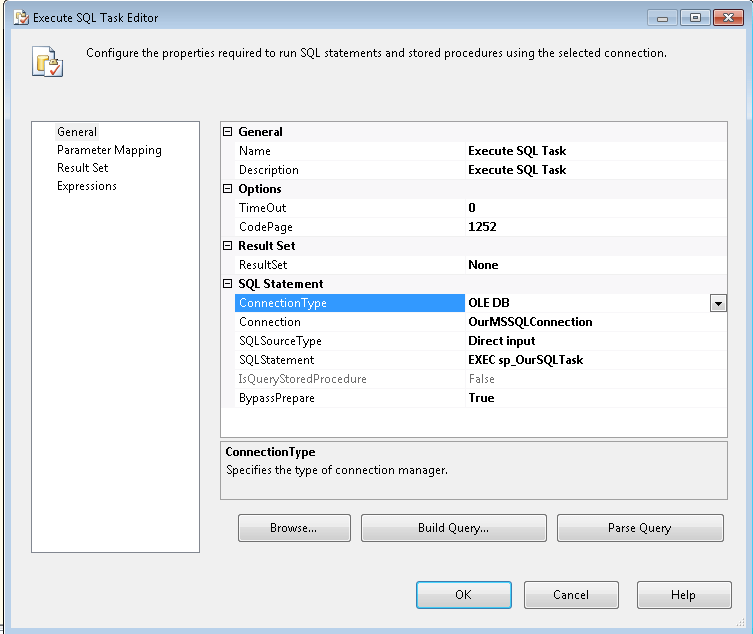
5. Depending on where we set our Execute SQL Task, we'll adjust its properties as well - in this case calling our stored procedure to clean up the data. For instance, if we have chemical data that only need to show the fourth decimal place, and our text or CSV files have seven decimals places, we can clean the data with a stored procedure to round to the nearest fourth decimal place (for instance: CAST(ROUND(chemicals,4) AS DECIMAL(7,4)). We could also have the stored procedure transfer data from a staging (or temporary) table into a main table to ensure that our data is good, as well as keep a receipt of bad data.
With SSIS and data imports, keeping receipts of bad data will also help us communicate with the data sources where bad data are originating and this may help them identify problems in their systems.
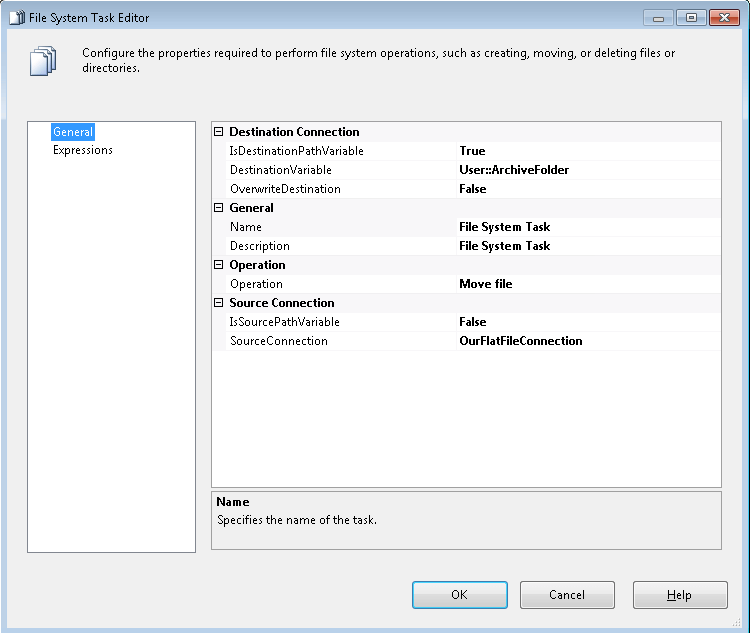
6. The final step, we'll move the file to our archive folder. We do this by selecting the Destination Connection as the variable ArchiveFolder and setting the Source Connection as OurFlatFileConnection. Whatever the current file is during the loop process, that will be the file that is moved into the archive folder.
Next Steps
- Download the packages and test them.
- SSISLoopWithFileName will import test data (provided) along with the file name
- SSISFlatFileLoop provides a fungible format for you to play with - all you have to do is change a few items (shown above) and you can begin your own import.
- Either use your own flat files or create your own flat files and test an import.
- Check out these additional resources:






About the author
 Tim Smith works as a DBA and developer and also teaches Automating ETL on Udemy.
This author pledges the content of this article is based on professional experience and not AI generated.
View all my tips
