By: Greg Robidoux | Comments (11) | Related: 1 | 2 | 3 | 4 | 5 | 6 | > Locking and Blocking
Problem
One thing that will you most certainly face at some time as a DBA is dealing with deadlocks. A deadlock occurs when two processes are trying to update the same record or set of records, but the processing is done in a different order and therefore SQL Server selects one of the processes as a deadlock victim and rolls back the statements.
For example, you have two sessions that are updating the same data, session 1 starts a transaction updates table A and then session 2 starts a transaction and updates table B and then updates the same records in table A. Session 1 then tries to update the same records in table B. At this point it is impossible for the transactions to be committed, because the data was updated in a different order and SQL Server selects one of the processes as a deadlock victim.
Solution
In this tip we will look at how to capture deadlock information.
Creating a deadlock
To illustrate how deadlocks work you can run the following code.
Step 1
--open a query window (window 1) and run these commands
begin tran
update products set supplierid = 2
Step 2
-- open another query window (window 2) and run these commands
begin tran
update employees set firstname = 'Bob'
update products set supplierid = 1
Step 3
-- go back to query window (window 1) and run these commands
update employees set firstname = 'Greg'
At this point SQL Server will select one of the process as a deadlock victim and roll back the statement
Step 4
--issue this command in query window (window 1) to undo all of the changes
rollback
Step 5
--go back to query window (window 2) and run these commands to undo changes
rollback
Capturing Deadlocks
The only solution for handling deadlocks is to find the problem in your code and then modify your processing to avoid deadlock situations. The first thing you need to do is find the deadlock situations and then investigate the problem. There are a couple of ways of doing this.
The first approach is to turn on the trace flag to find the deadlocks. This can be done with the following statement run in Query Analyzer.
DBCC TRACEON (1204)
When a deadlock occurs the information like the following will be captured in the SQL Server Error Log.
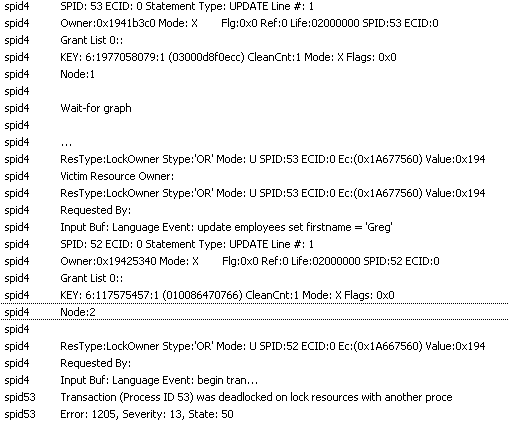
From this output we can see that SPID 53: was updating object 1977058079 and SPID 52: was updating object 117575457. But what do these numbers mean. These numbers are the objectIDs. To determine what table is affected you will need to query the sysobjects table in the user database where the deadlock occurred. Use the following command and find the ID that matches the ID from the deadlock information.
SELECT id, name
FROM sysobjects
WHERE xtype = 'U'
ORDER BY id

--Another option to find the tables is to use the object_name function:
SELECT object_name(1977058079) --(returns Employees)
SELECT object_name(117575457) --(returns Products)

--Thanks goes out to Armando P. for pointing out the error as well as using the object_name function.
With this information it is possible to see what tables were part of the deadlock process, but trying to figure out what statements caused the problem is much more difficult. To provide further information about the deadlock process you will need to run a Trace to capture all of the information and then try to decipher what is going on. This can be done by either using Profiler or by using a Server Side Trace. With the trace there are a couple of additional items that need to be captured to help figure out what is going on and with what objects.
Use Profiler to find deadlock
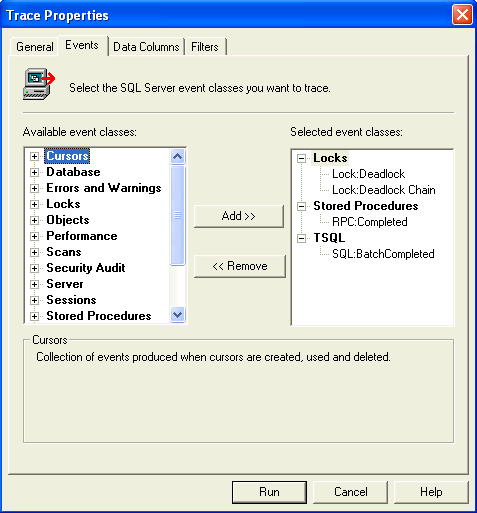
To do this using SQL Profiler, you will need to capture the Lock Events Lock:Deadlock and Lock:Deadlock Chain.
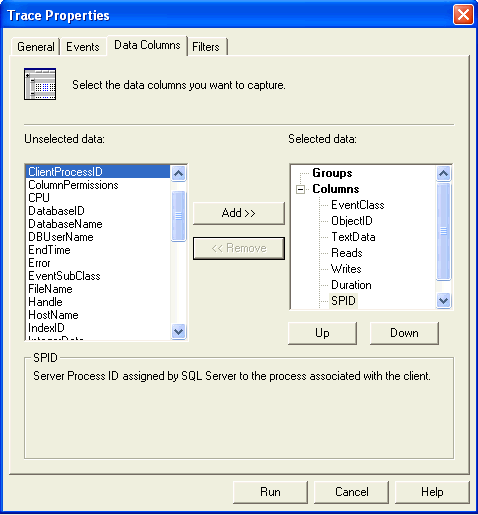
And also capture the ObjectId data column.
Using a Server Side Trace to find deadlock
For a Server Side Trace the following additional information will need to collected to capture the deadlock information.
| EventNumber | Event | Description |
|---|---|---|
| 25 | Lock:Deadlock | Indicates that two concurrent transactions have deadlocked each other by trying to obtain incompatible locks on resources the other transaction owns. |
| 59 | Lock:Deadlock Chain | Produced for each of the events leading up to the deadlock. |
In addition, you will also need to capture this additional column to see what objects are part of the deadlock chain.
| ColumnNumber | Column | Description |
|---|---|---|
| 22 | ObjectID | System-assigned ID of the object. |
The output from our trace would show the following information:

From here we can see what was occurring at the time of the deadlock. This is a very simple example, but you can see how this additional information from a trace can help solve the problem.
When you have a lot of information to go through it is easier to load the data into a SQL Server table and then query the data for the particular timeframe and SPIDs in question. This was covered in a Server Side Trace tip. Here is a sample query that you can run after loading the trace data into a table that can help you narrow down the timeframe when the deadlock occurred. By changing the date values and the SPIDs, you can narrow down what was occurring at the time or right around the time that the deadlock occurred.
DECLARE @lowDate AS datetime, @highDate AS datetime

SET @lowDate = '2006-08-01 13:47:17.000'
SET @highDate = '2006-08-01 13:47:18.999'

SELECT
   TextData,
   StartTime,
   EndTime,
   SPID,
   Duration,
   Reads,
   Writes,
   EventClass
FROM TraceFile
WHERE
SPID IN (52,53,4) -- specify the SPIDs we want to investigate
AND (StartTime BETWEEN @lowDate AND @highDate
   OR EndTime BETWEEN @lowDate AND @highDate
   OR StartTime < @lowDate AND EndTime > @lowDate)
ORDER BY
StartTime
Next Steps
- Take the time to learn more about how to capture and troubleshoot deadlocks.
- Use the sample script to understand how they occur and what you can do to solve deadlock issues in your environment
- Learn how a Server Side Trace and loading the data to a SQL table can help troubleshoot this type of problem






About the author
 Greg Robidoux is the President and founder of Edgewood Solutions, a technology services company delivering services and solutions for Microsoft SQL Server. He is also one of the co-founders of MSSQLTips.com. Greg has been working with SQL Server since 1999, has authored numerous database-related articles, and delivered several presentations related to SQL Server. Before SQL Server, he worked on many data platforms such as DB2, Oracle, Sybase, and Informix.
This author pledges the content of this article is based on professional experience and not AI generated.
View all my tips
