By: MSSQLTips | Comments (22) | Related: More > Integration Services Connection Managers
Problem
In SQL Server 2000 DTS, creating a connection to an object is relatively straightforward, but limited. Making a connection to a file, particularly if you need a dynamic connection string, likely requires a global variable, a dynamic properties task, and ActiveX scripting. Using ActiveX scripts in DTS packages tends to slow the package down because the code needs to be compiled at run-time. In SQL Server 2005 SSIS a connection to a flat file is much easier and makes use of new programming techniques, making the package run more efficiently and smoothly.
Solution
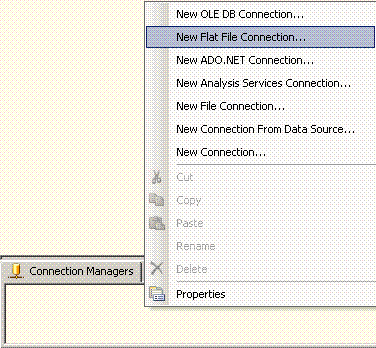
Connection Manager is a way of communicating with a variety of interfaces. It is located on the bottom portion of the Designer window after opening a new or existing package. You create flat file connections by right-clicking the Connection Manager area and choosing New Flat File Connection:
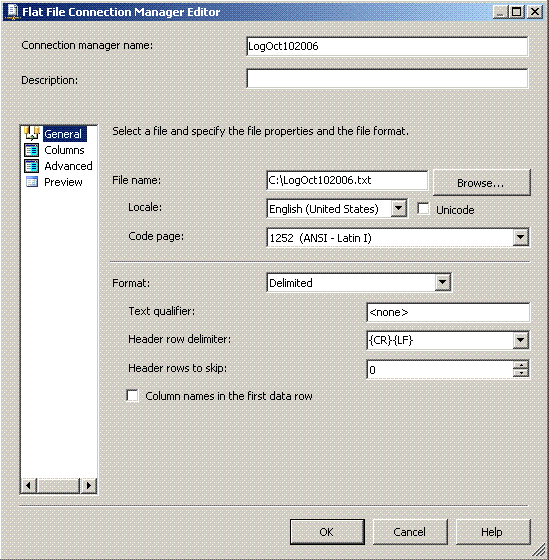
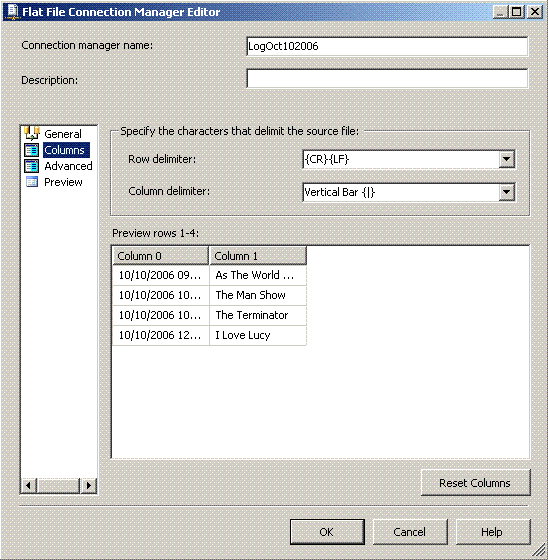
When you click on the Columns section you should see the actual data from the file (as well as in the Preview section):
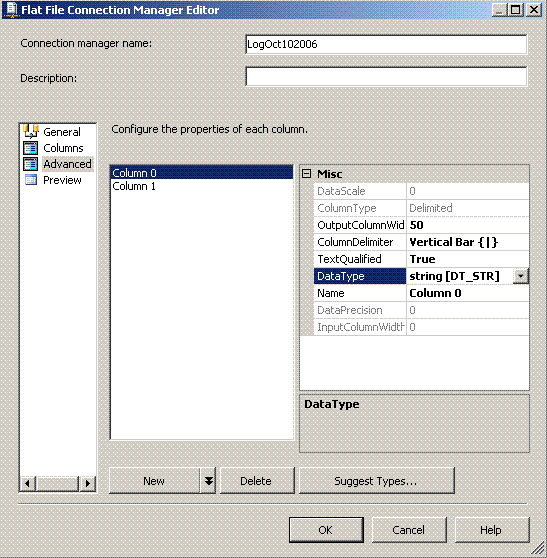
The Advanced section is the area where you can rename the incoming column, change the data type and length of string:
In addition to making a static connection, you can also create a dynamic connection using Expressions. In SQL Server 2000 DTS you had to create a global variable, use the Dynamic Properties task to get the value, and ActiveX scripting to assign the value to the connection.
Here is an example of creating a dynamic flat file connection in SSIS. Let's
say that every morning we load a textfile from the Receiving Department's network
share into a database (for this we will use C:\backups\). The file is always processed
the day after the receiving process and is named "DataLoad"+"month"+ "day"+"year.txt"
(i.e., DataLoad10112006.txt). We are setting up an SSIS package that retrieves the
data from the file and moves it to the database.
There are a couple of ways
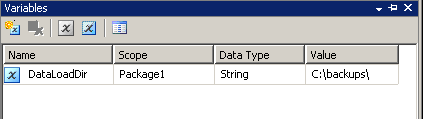
of doing this, but we decide to create a package variable called "DataLoadDir" to
hold the folder location. We open the Variables window and click on Add Variable.
The variables window may have to be expanded by dragging the right side of it out.
We change the Data Type to String, then type in the string value "C:\backups\":
Right-click the new Flat File connection and choose Properties. The Properties window on the right side will open. There you will see an area called Expressions. Click the ellipse on the side and it will open the Property Expressions Editor:
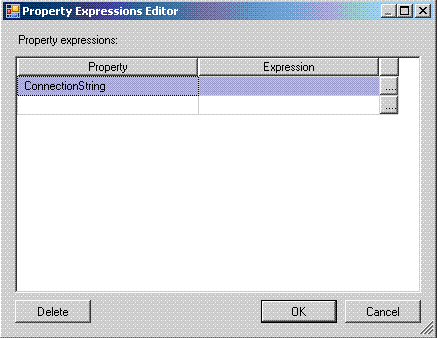
Select ConnectionString in the Property area and click the ellipse at the end of the row and the Expression Builder opens. You can drag expressions from the right side to the Expression textbox. The expression can be previewed once built by clicking Evaluate Expression:
With the Expression Builder open again, we will assign the variable for the ConnectionString property. We first add the package variable DataLoadDir by expanding the Variables tree on the left and then do a drag and drop into the Expression textbox. Then we had a + sign to concatenate. We add the string "DataLoad" in double quotes and another + sign. The next three phrases capture yesterday's date:
- (DT_STR,4,1252)MONTH( DATEADD( "dd", -1, getdate() )) gets the month
- (DT_STR,4,1252)DAY( DATEADD( "dd", -1, getdate() )) gets the day
- (DT_STR,4,1252)YEAR( DATEADD( "dd", -1, getdate() )) gets the year
The above statements can either be typed in or dragged down from their respective location on the right side. In the case of DATEADD statements, when you drag and drop the statement into the text file it appears in the following way: "DATEADD( «datepart», «number», «date» )". We merely replace the various unknowns with the information we want.The last part is to add the extension ".txt" to the end of the string. Once we have everything in place we can click Evaluate Expression to see the results:

To save the Expression, click on OK and this expression will now be saved with your connectionString property and be resolved automatically each time it is run.
Next Steps
- Review the information on Integration Services Connections
- Review the information on Integration Services Variables
- Review the process for Deploying a SQL 2000 DTS vs. a SQL 2005 SSIS package






About the author
 MSSQLTips.com was started in 2006 to provide SQL Server content about various aspects of SQL Server and other database platforms.
This author pledges the content of this article is based on professional experience and not AI generated.
View all my tips
