By: Greg Robidoux | Comments (32) | Related: More > Integration Services Data Flow Transformations
Problem
When loading data into SQL Server you have the option of using SQL Server Integration Services to handle more complex loading and data transforms then just doing a straight load such as using BCP. One problem that you may be faced with is that data is given to you in multiple files such as sales and sales orders, but the loading process requires you to join these flat files during the load instead of doing a preload and then later merging the data. What options exist and how can this be done?
Solution
SQL Server Integration Services (SSIS) offers a lot more features and options then DTS offered. One of these new options is the MERGE JOIN task. With this task you can merge multiple input files into one process and handle this source data as if it was from one source.
Let's take a look at an example of how to use this.
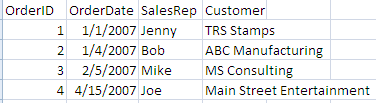
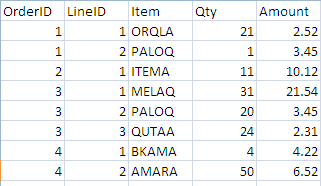
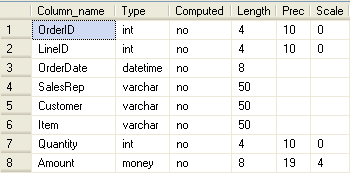
Here we have two source files an OrderHeader and an OrderDetail. We want to merge this data and load into one table in SQL Server called Orders.
OrderHeader source file
OrderDetail source file
Orders table
Building the SSIS Package
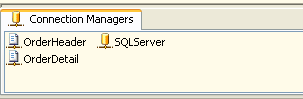
First create a new SSIS package and create the three Connections that we will need.
- Flat File Source 1 - OrderHeader
- Flat File Source 2 - OrderDetail
- OLE DB Destination - SQLServer
Then add a DATA FLOW task.
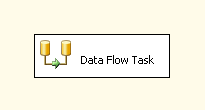
Next we need to build our load from these two flat file sources and then use the MERGE JOIN task to merge the data. So the Data Flow steps would look something like this.
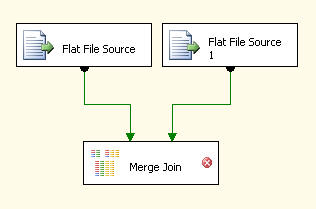
At this point if you try to edit the MERGE JOIN task you will get the below error. The reason for this is because the data needs to be sorted for the MERGE JOIN task to work. We will look at two options for handling this sorting need.
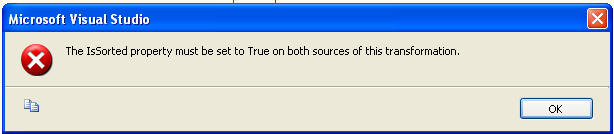
Option #1 - Data is presorted prior to loading the data.
Let's assume that are data is sorted prior to loading. We therefore need to tell SSIS this is the case as well as show which column the data is sorted on. First if you right click on "Flat File Source" and select the "Show Advanced Editor". On the Input and Output Properties tab you need to change the "IsSorted" to True for both of the Flat File Sources.
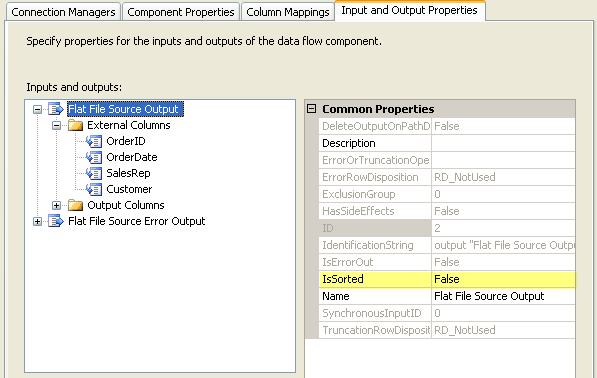
Next you need to let SSIS know which column is the SortKey. Here we are specifying the OrderID column. This also needs to be done for both of the flat file sources.
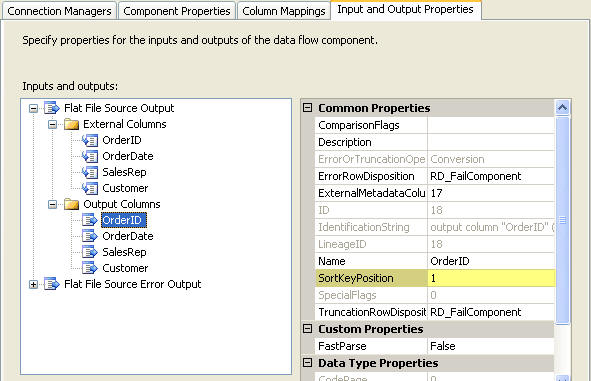
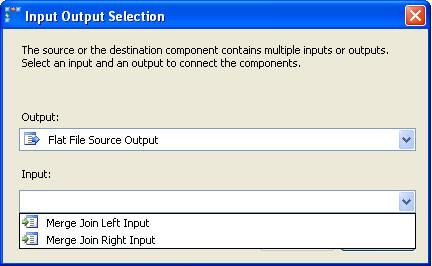
Once this is complete you will be able to move on with the setup and select the input process as shown below.
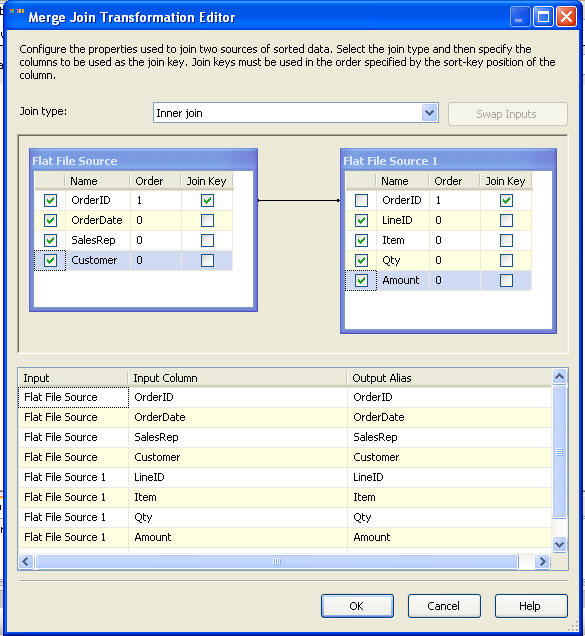
From here you can select the columns that you want to have for output as well as determine what type of join you want to employ between these two files.
Lastly you would need to add your OLE Destination, select the table and map the columns to finish the process.
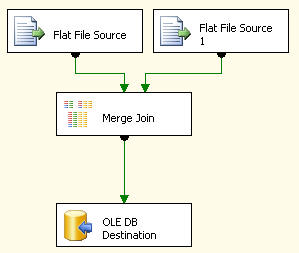
Option #2 - Source data is not sorted
With this load process, let's assume the source data is not sorted first, so we need to use the SORT task to sort the data prior to using the MERGE JOIN task. The following shows our Flat File sources and then a SORT task after each one of these and then lastly our MERGE JOIN task.
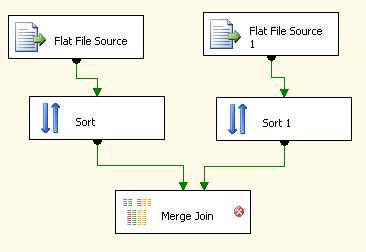
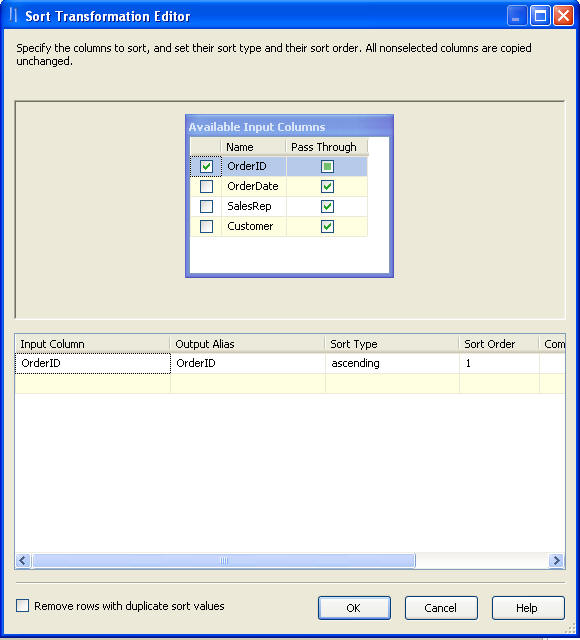
If you right click the Sort task and select Edit you will get a screen such as following. Here you need to select which column the data should be sorted on. This needs to be done for both of the flat source files.
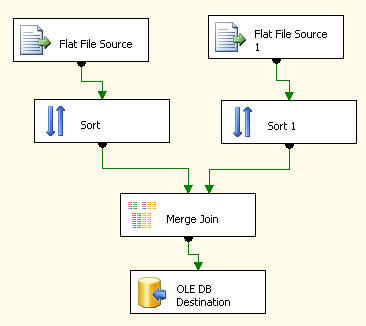
After this is done you can move on and finish the load process. The MERGE JOIN works just like it was stated above as well as the OLE DB Destination.
Next Steps
- As you can see this process is not all that complicated, but not knowing where and how to set the IsSorted parameter could get frustrating.
- This gives you two different options that you can use to employ the MERGE JOIN task. The ideal process would be to presort the data, so this extra step can be eliminated when loading your data. Also, if the files are large the Sort task could be a time consuming task.






About the author
 Greg Robidoux is the President and founder of Edgewood Solutions, a technology services company delivering services and solutions for Microsoft SQL Server. He is also one of the co-founders of MSSQLTips.com. Greg has been working with SQL Server since 1999, has authored numerous database-related articles, and delivered several presentations related to SQL Server. Before SQL Server, he worked on many data platforms such as DB2, Oracle, Sybase, and Informix.
This author pledges the content of this article is based on professional experience and not AI generated.
View all my tips
