By: Ray Barley | Comments (9) | Related: > PowerShell
Problem
In my organization we write scripts to perform all sorts of administrative functions on our many SQL Server instances as well as other server products. We are just getting started with using PowerShell and have heard that SQL Server 2008 provides some built-in support for executing T-SQL commands from within PowerShell. Can you provide some details and examples?
Solution
PowerShell is a relatively new interactive shell and scripting tool from Microsoft that combines the capabilities of the MS-DOS Command Prompt, batch files, Windows Scripting Host and even the popular Unix shells.
PowerShell includes an impressive array of commands (called cmdlets) and the ability to extend the tool with your own custom cmdlets. Probably the best feature of PowerShell is the pipeline, which allows you to execute a cmdlet and pipe its output to another cmdlet. Since PowerShell is built on the Microsoft.NET framework, the pipeline works with .NET objects rather than just text. For an overview of PowerShell please refer to our earlier tip Introduction to Windows PowerShell for the SQL Server DBA Part 1.
SQL Server 2008 includes a cmdlet named Invoke-Sqlcmd. As the name suggests, this cmdlet provides capabilities similar to the SQLCMD command-line tool that has been part of SQL Server since the 2005 release. When you install SQL Server 2008, you can access PowerShell via "C:\Program Files\Microsoft SQL Server\100\Tools\Binn\SQLPS.exe" (assuming the default installation location).
SQLPS is PowerShell 1.0 with the SQL Server 2008 goodies added. Note that if you launch Windows PowerShell 1.0, the SQL Server 2008 tools will not be available; you can install them by issuing the following commands in PowerShell:
add-pssnapin sqlserverprovidersnapin100 add-pssnapin sqlservercmdletsnapin100 |
For purposes of this tip, we will assume that you are using SQLPS.
PowerShell has built-in documentation. To get the details on the Invoke-Sqlcmd cmdlet enter the following command in PowerShell:
get-help invoke-sqlcmd -detailed |
The output from the above command will include a detailed description of the cmdlet, the available parameters, and a few examples. In our examples we will use the following parameters:
- -Database <database name> - the name of the database to use
- -ServerInstance <computer name\instance name> - I have SQL Server 2008 installed as a named instance on my machine; i.e. localhost\sql2008
- -Query "<T-SQL command>" - the T-SQL command to execute
There are a number of other parameters available; check the output from the get-help command above. We'll use Windows Authentication in our examples; you can use SQL authentication by specifying the -Username and -Password parameters.
Let's walk through some examples of what we can do with PowerShell and the Invoke-Sqlcmd cmdlet using the AdventureWorks2008 sample database which is available here. In each of the examples, the Invoke-Sqlcmd command is shown along with the results.
I added the following stored procedure to the AdventureWorks2008 database to get the list of products where the quantity on hand is less than the reorder point:
create procedure production.get_products_to_reorder as begin set nocount on select p.productnumber, p.reorderpoint, q.qtyoh from Production.Product p join ( select productid, sum(quantity) qtyoh from Production.ProductInventory group by productid ) q on q.productid = p.productid where q.qtyoh < p.reorderpoint end |
Example 1: Execute a stored procedure and display the results
Enter the following command in PowerShell (all on one line):
| invoke-sqlcmd -query "exec production.get_products_to_reorder" -database adventureworks2008 -serverinstance localhost\sql2008 |
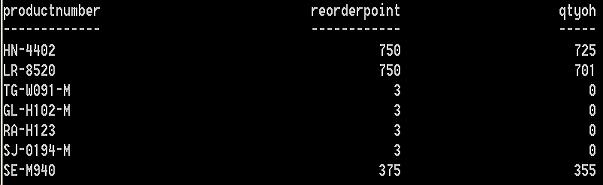
Example 2: Execute a stored procedure and write the results to a CSV file
Enter the following command in PowerShell (all on one line):
| invoke-sqlcmd -query "exec production.get_products_to_reorder" -database adventureworks2008 -serverinstance localhost\sql2008 | export-csv -path c:\pstest\reorder.csv |
The above command displays no output; the results from the stored procedure are written to a CSV file. Note the use of the pipe ( | ) character in the above command. This allows us to take the output of one cmdlet and "pipe" it to the next cmdlet. The Export-CSV cmdlet takes whatever you give it, puts commas between each column, and writes it out to the file specified by the path parameter.
To view the contents of the CSV file, use the following command in PowerShell:
| get-content c:\pstest\reorder.csv |
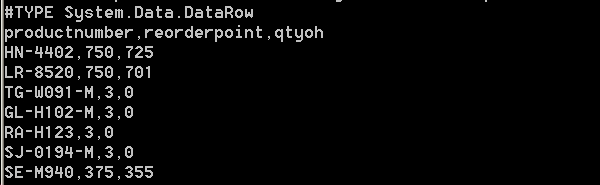
Note the first line in the CSV file. It's the .NET type for each row in the file. Add the notypeinformation parameter to the command to suppress it; e.g.:
| invoke-sqlcmd -query "exec production.get_products_to_reorder" -database adventureworks2008 -serverinstance localhost\sql2008 | export-csv -notypeinformation -path c:\pstest\reorder.csv |
This example is one that you might typically do with a SQL Server Integration Services (SSIS) package. While I wouldn't recommend you abandon SSIS, there are some tasks that are so simple that you could certainly use PowerShell in lieu of SSIS.
Example 3: Use SQL Server navigation
PowerShell has a cmdlet called Set-Location that navigates the file system, registry, etc. For instance to change to a particular directory in the file system you can use the command:
| set-location c:\pstest |
You can also use Set-Location to navigate in the registry; e.g.:
| set-location hklm:\software\idera |
You can display the contents of a location with this command:
| get-childitem |
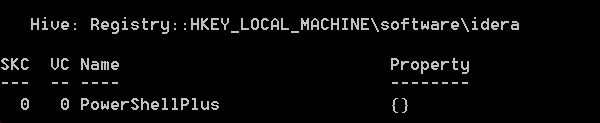
To see the complete list of providers run the following command in PowerShell:
|
get-psdrive |
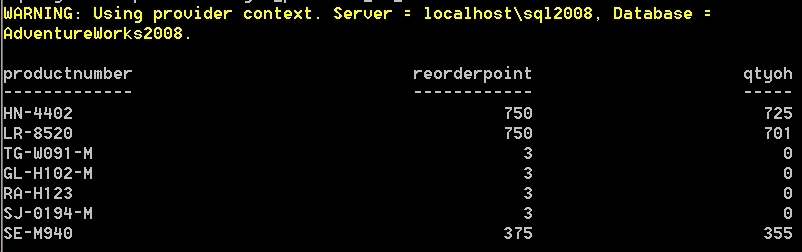
SQL Server 2008 adds a provider to allow the Set-Location cmdlet to navigate the SQL Server object hierarchy. Think of what you see in the SQL Server Management Studio Object Explorer. You can navigate to the AdventureWorks2008 database then run the Invoke-Sqlcmd cmdlet without specifying the -Database and -ServerInstance parameters. For example:
| set-location sqlserver:\sql\localhost\sql2008\databases\adventureworks2008 |
The initial sqlserver:\sql\ is required; localhost\sql2008 is the server \ instance of my SQL Server 2008 database; \databases\adventureworks2008 navigates to the AdventureWorks2008 database.
Run the same command as example 1 above (without the -Database and -ServerInstance parameters):
| invoke-sqlcmd -query "exec production.get_products_to_reorder" |
Example 4: Execute a PowerShell command in a SQL Agent job step
SQL Server 2008 adds PowerShell as a new SQL Agent job step type. As an example we will simply execute our example 2 above in a SQL Agent job step:
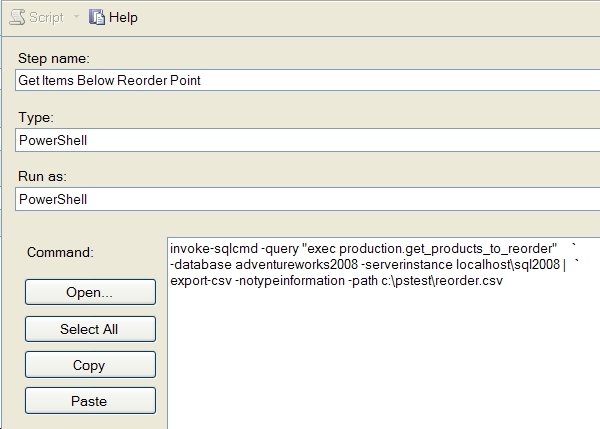
Note the Run as PowerShell. This is not a built-in feature. I created a SQL Server Agent proxy for the PowerShell subsystem and named the proxy PowerShell. The proxy allows you to specify a credential to be used to run the job step. The alternative would be to run the job step using the credential of the SQL Server Agent service. Since that credential would typically be one with limited privileges, you may need to create a proxy so that your PowerShell job steps can run with the necessary privileges. For more details on proxies please refer to our earlier tip SQL Server Agent Proxies.
NOTE: One other thing is that in order to extend a PowerShell command over multiple lines, you have to use the back-tick character. This is a little hard to see in the above screen shot. The back-tick character is the one to the left of the number 1 on your keyboard whose shifted value is the tilda (~) character.
Next Steps
- Take a look at the SQL Server PowerShell Overview in Books on Line for additional details on the built-in PowerShell support in SQL Server 2008.
- There are a number of PowerShell webcasts available here. Check them out to quickly get a basic understanding of the tool.






About the author
 Ray Barley is a Principal Architect at IT Resource Partners and a MSSQLTips.com BI Expert.
This author pledges the content of this article is based on professional experience and not AI generated.
View all my tips
