By: Tim Cullen | Comments (1) | Related: 1 | 2 | 3 | 4 | > Install and Uninstall
Problem
Our company has decided to migrate to SQL Server 2008. In a previous tip you discussed the initial options and tools available for preparation for, and installation of, SQL Server 2008. What else has changed with the installation process?
Solution
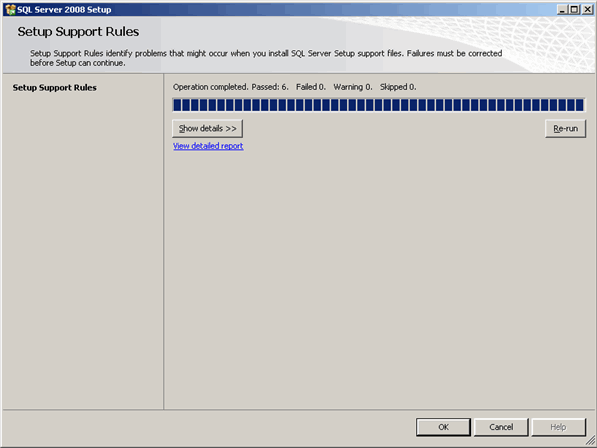
The installation described in this tip was performed using the DVD from the Microsoft Action Pack subscription, so there may be subtle differences in the first part of the installation. The first part of the installation involves running the System Configuration Checker. As a review, the System Configuration Checker evaluates the current machine for conditions that may negatively impact the installation process.
One screen that appears quite often during the installation process is the status window, indicating that the current operation is being processed:
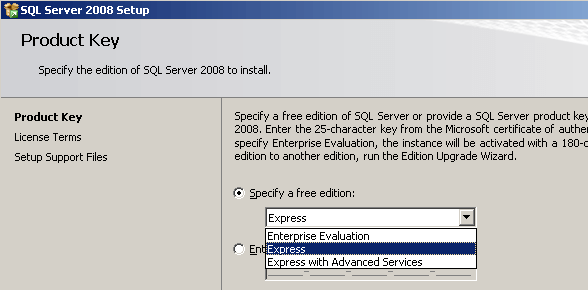
Once the System Configuration Checker has completed it evaluation, I was asked for which installation type I wanted. The DVD had a number of options on it, including an evaluation copy of SQL Server 2008 Enterprise, and SQL Server 2008 Express with and without the Advanced Services. If the Enterprise Edition is chosen, you can enter the Product Key on this page:
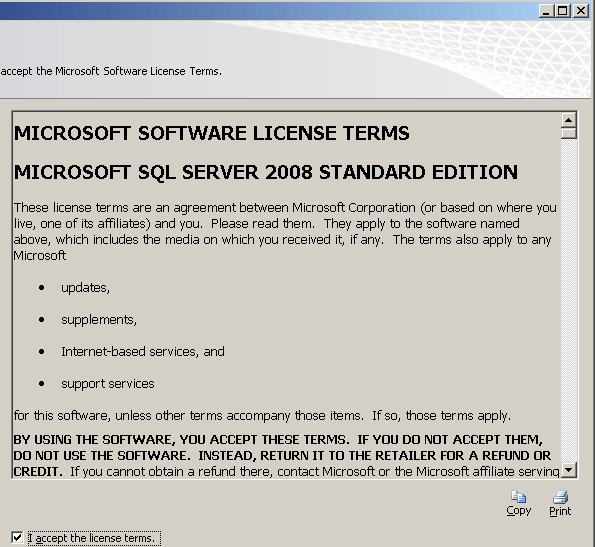
As usual, the Terms and Conditions window:
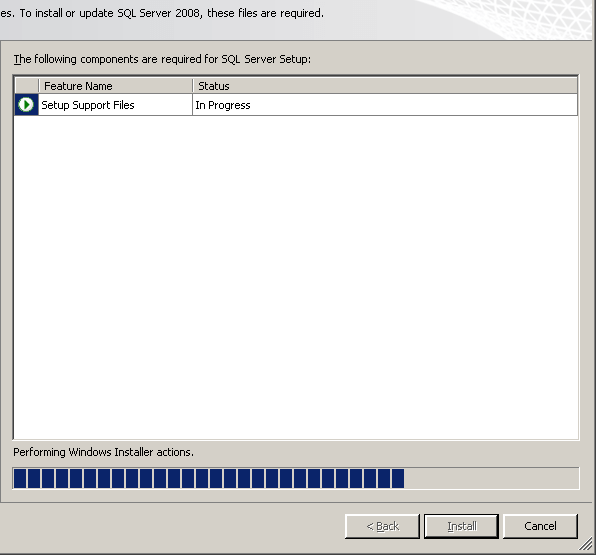
As with SQL Server 2005, there are a number of Support files that must be installed prior to the main installation point:
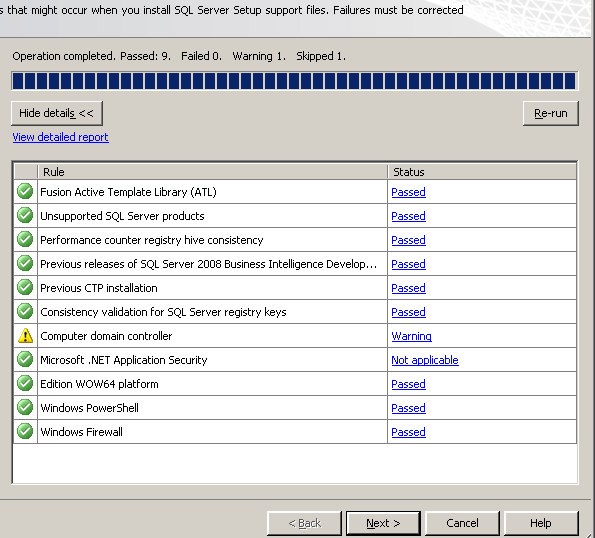
Another evaluation of the System Configuration Checker/Setup Support Rules is performed to make sure there are no recurring issues prior to installation:
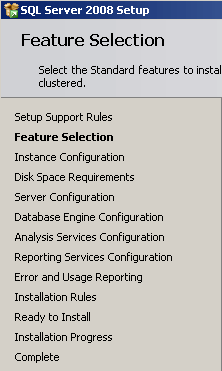
Microsoft included as part of the SQL Server 2008 installation a progress area on the left side of the installation screen so you can determine where you are the installation process. It is present from the current step to the end of the installation:
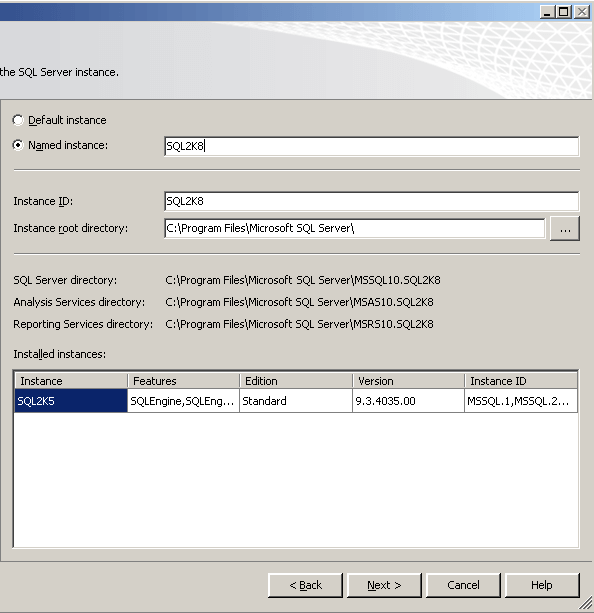
The next part of the installation involves specifying whether to install a named or default instance, as well as the location of the instance root directory. Notice on this page that there is an "Instance ID". The instance ID is used during folder creation and naming to help identify the instance folder. By default, it is named the same as the instance name:
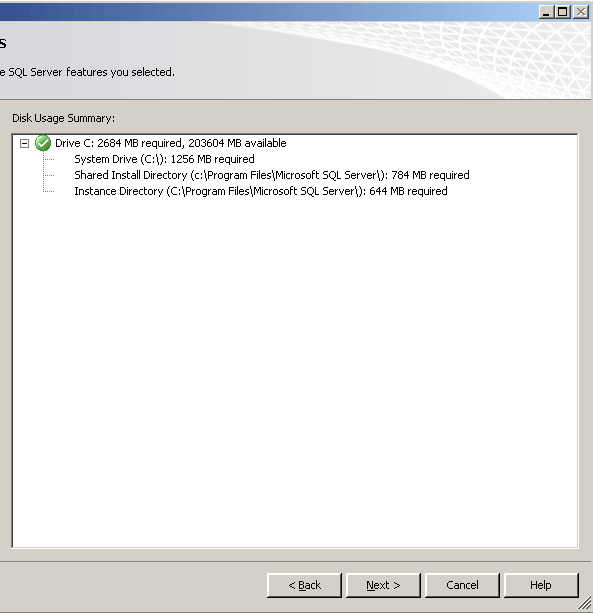
Once the instance and folder installation information has been specified, a confirmation screen appears so you can review the information and modify, if necessary:
The next part of the installation allows you to specify which account will run each service, as well as the collation to be used. As with SQL Server 2005, there are a number of services involved, and Microsoft recommends that you use a different account for each service. In my particular instance, I chose to use one account for all services, since this is a small environment. A window is presented so that you can select an account from either the local machine or domain:
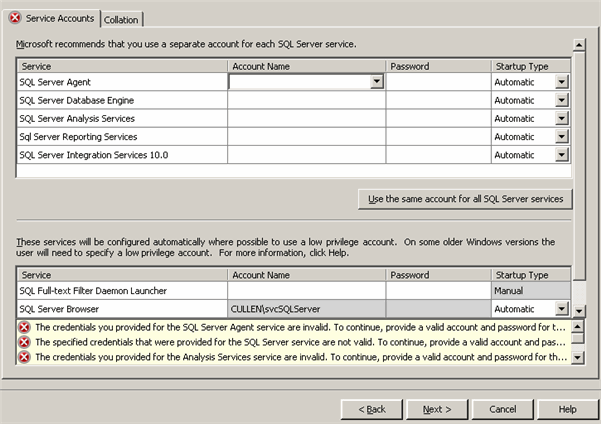
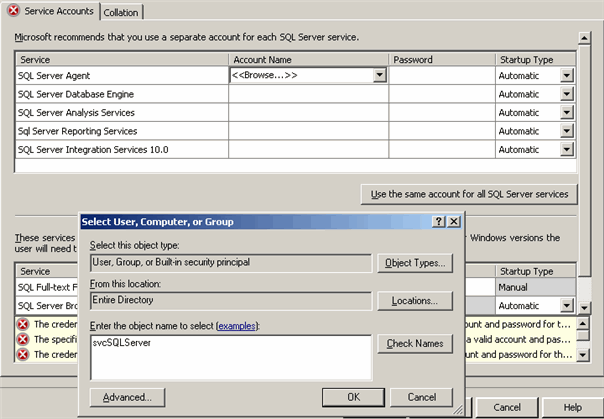
Once you choose the account you wish to use, another screen will appear that allows you to enter the password for the account.
As you can see, there are a number of differences in the initial process for installing SQL Server 2008. In the last tip on generic SQL Server 2008 installation we will discuss the rest of the installation, including specifying where data files are installed, FILESTREAM configuration, and configuration of ancillary services like Integration Services, Analysis Services, and Reporting Services.
Next Steps
- Read a detailed comparison of SQL Server 2008 editions from Microsoft
- Read about how to better secure a SQL Server instance
- Download the Evalution version of SQL Server 2008 from Microsoft
- Read Part1, Part3






About the author
 Tim Cullen has been working in the IT industry since 2003 and currently works as a SQL Server Reports Developer.
This author pledges the content of this article is based on professional experience and not AI generated.
View all my tips
