By: Bru Medishetty | Comments (6) | Related: > Indexing
Problem
Every database user, be it an end user, a developer or an administrator knows that indexes are one of the primary ways of making a query perform better. It is known that having indexes on large tables helps the Database Management System by using the existing indexes when queries need them by doing index seeks vs scans. When creating or rebuilding indexes you have the option of specifying a fill factor. What is an index fill factor? What is the significance of the value, when and why should it be changed? I was asked these questions quite a few times in training sessions and also found these questions in many forum posts. In this tip I will go over what fill factor is and how it impacts performance.
Solution
Introduction to Fill Factor
The Fill Factor specifies the % of fullness of the leaf level pages of an index. When an index is created or rebuilt the leaf level pages are written to the level where the pages are filled up to the fill factor value and the remainder of the page is left blank for future usage. This is the case when a value other than 0 or 100 is specified. For example, if a fill factor value of 70 is chosen, the index pages are all written with the pages being 70 % full, leaving 30 % of space for future usage.
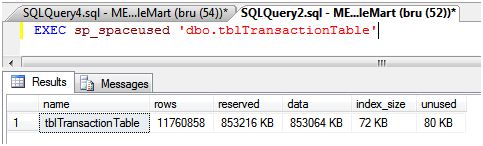
For this example I am using a table named tblTransactionTable. The image below displays the sp_spaceused command and the output from the command to display table information such as space used for the table and the underlying indexes. This table has 11.7 million rows and there are no indexes currently on this table.
Step 1 - High Fill Factor Value
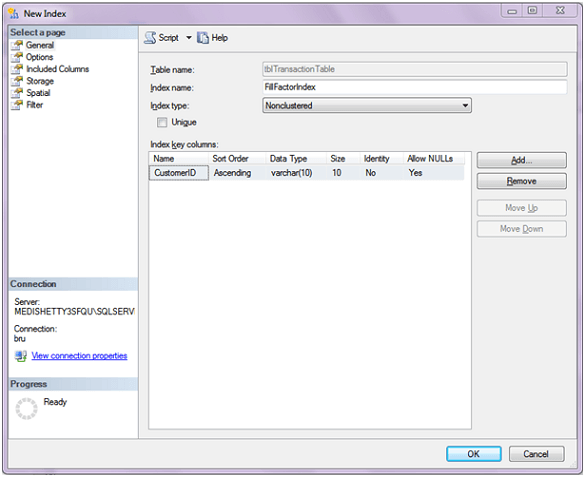
From SQL Server Management Studio, I am creating a non-clustered index with one column, CustomerID, as the Index Key.
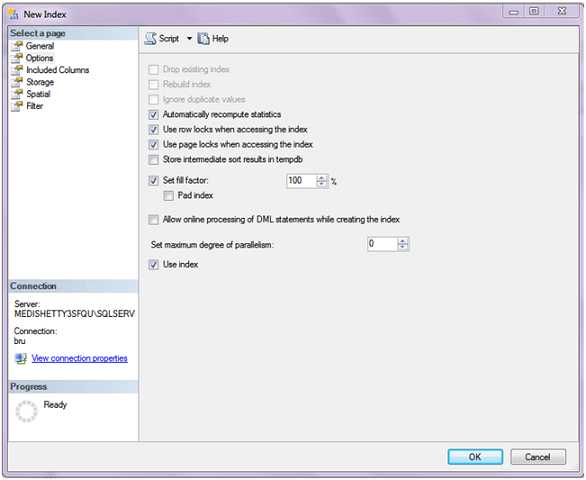
I then move to the Options page and set the Fill Factor to 100 %. If the value for the fill factor is not set, the index is created using the value from the default index fill factor value set at the instance level. Remember that a value of 0 and 100 are both same and the page will be completely filled. For this example we will ignore the other options on this page. I finish creating the index by clicking OK.
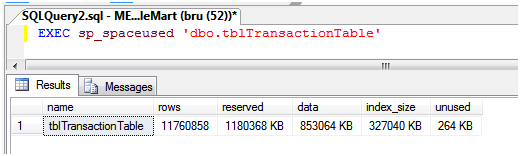
After creating the index, I run sp_spaceused again to view the table information and find that the index size is now 327040 KB, where before it was 72KB before we created the index.
You might choose a high fill factor value when there is very little or no change in the underlying table's data, such as a decision support system where data modification is not frequent, but on a regular and scheduled basis. Such a fill factor value would be better, since it creates an index smaller in size and hence queries can retrieve the required data with less disk I/O operations since it has to read less pages.
On the other hand if you have an index that is constantly changing you would want to have a lower value to keep some free space available for new index entries. Otherwise SQL Server would have to constantly do page splits to fit the new values into the index pages.
Step 2 - Low Fill Factor Value
Next, I drop the index and create the same index with a change in the fill factor value set to 50. When I created the index earlier (in Step 1), I chose to script the create index task which is used in this step (image below) which will change the fill factor value to 50%.
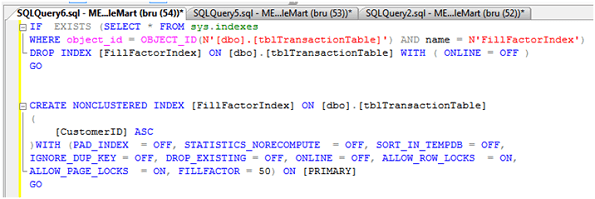
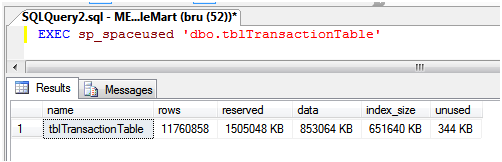
The resulting index will be created with pages being 50% full. I check and confirm this by running sp_spaceused again which displays the table details. The image below is the result set displayed when the query is executed. Notice that the index size is now 651640 KB which is approximately twice the size of the index created earlier using fill factor as 100. Which makes sense since we left the pages half empty.
Using a fill factor value of less than 100 would be necessary in situations where data is added to the underlying indexes more frequently. With new data records added, the index pages need to have sufficient space to take the new entries. When there is not enough space a page split needs to occur which could impact performance depending on how frequently page splits need to occur.
Some points to be remembered
- When 0 or 100 is specified, the page is filled to the maximum possible, not 100 % since a page may not accommodate the Index Key the final time and results in leaving that much empty space unused.
- The size of the index is proportional to the columns that are used in the index, hence more columns (the limit being 16) will create a larger index and therefore require more index pages to store the index
- Since indexes need storage space, creating an appropriate index along with the fill factor should be well planned.
- Before finalizing a fill factor value, it should be tested and analyzed before deploying on the actual SQL Server.
Next Steps
- Read this tip about SQL Server Indexing Basics
- Read this tip SQL Server Index Checklist
- For more information on Fill Factor and Page Splits look at Books Online






About the author
 Bru Medishetty focuses on Performance Monitoring and Tuning as well as planning and implementing Disaster Recovery solutions.
This author pledges the content of this article is based on professional experience and not AI generated.
View all my tips
