By: Greg Robidoux | Comments | Related: > SQL Server Configurations
Problem
SQL Server offers the ability to use startup parameters when your SQL Server instance starts. The default items include:
- location of master database data file (-d)
- location of master database log file (-l)
- location of SQL server error logs (-e)
In addition, you can set startup parameters that use trace flags that affect the SQL Server behavior. Here is a link to startup options for SQL Server.
Solution
Setting Startup Parameters in SQL Server 2000
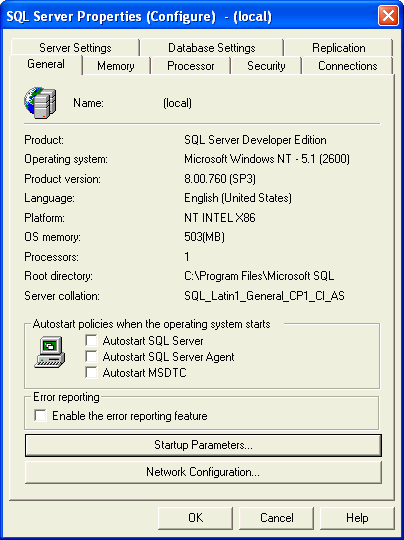
With SQL Sever 2000 access to the startup parameters is available right within Enterprise Manager. You can get to the startup parameters by right clicking on the server name and selecting "Properties". The following screen appears and there is a great big button "Startup Parameters..." which you can click and it will allow to see and set the startup parameters.
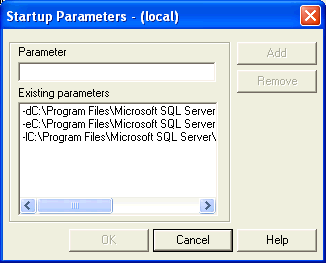
After clicking on "Startup Parameters" you get the following window. From here you can click on the parameter and click "Remove" to remove it or click on "Add" to add a new parameter. It is pretty straight forward.
Setting Startup Parameters in SQL Server 2005 and later
With SQL Server 2005 and later, to find the startup parameters you need to go to the SQL Server Configuration Manager tool. This can be found in the menus through: Microsoft SQL Server > Configuration Tools > SQL Server Configuration Manager.
Once the application is launched you will see the following screen.
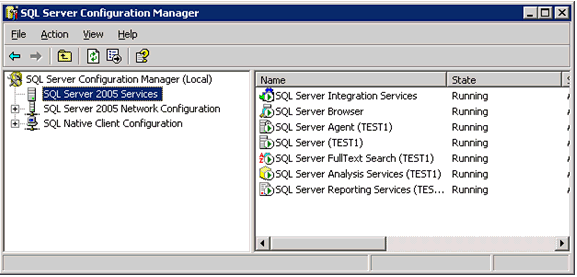
- Select the SQL Server service that you want to set the startup parameters for such as "SQL Server (TEST1)" for our example
- Right click and select "Properties" and the following window will pop up
- Go to the "Advanced" tab
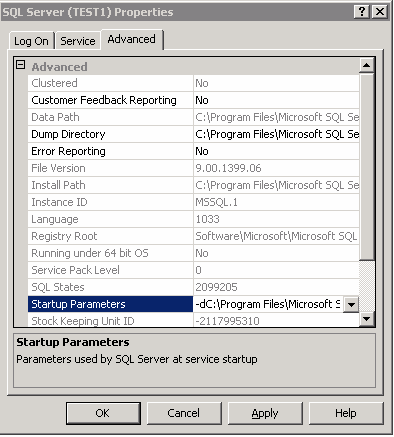
- Select "Startup Properties" and the following window will pop up
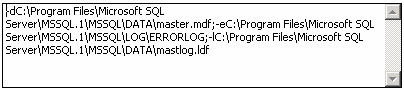
- From here you can add, change or remove your startup properties
- Note: each startup parameter is separated by a semicolon (;)
- Once you are done click "Apply" to save your changes
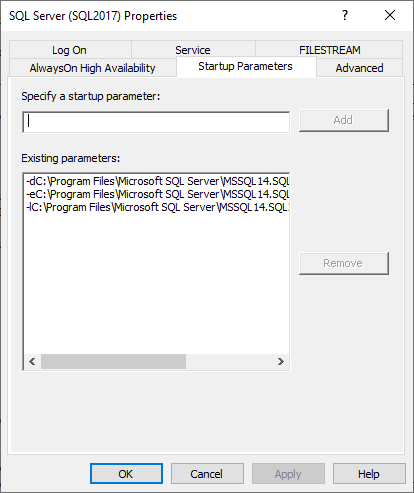
In later versions of SQL Server Configuration Manager, there are additional tabs and a new tab "Startup Parameters" that breaks out the parameters from the other settings as shown below. Also, each parameter is on its own separate line, so you don't need to worry about using a semicolon as a delimiter anymore.
Next Steps
- If you need to add, change or delete startup paramters, know you know where to find them
- Get familiar with setting startup parameters, these come in handy for setting trace flags and if you need to set the instance in single user mode






About the author
 Greg Robidoux is the President and founder of Edgewood Solutions, a technology services company delivering services and solutions for Microsoft SQL Server. He is also one of the co-founders of MSSQLTips.com. Greg has been working with SQL Server since 1999, has authored numerous database-related articles, and delivered several presentations related to SQL Server. Before SQL Server, he worked on many data platforms such as DB2, Oracle, Sybase, and Informix.
This author pledges the content of this article is based on professional experience and not AI generated.
View all my tips
