solving sql server problems for millions of dbas and developers since 2006


SQL Server DBA Tips SQL Server Developer Tips SQL Server Business Intelligence Tips SQL Server Career Tips SQL Server Tip Categories SQL Server Tutorials SQL Server Webcasts SQL Server Whitepapers SQL Server Tools SQL Server Questions and Answers MSSQLTips Authors About MSSQLTips SQL Server User Groups MSSLQTips Giveaways MSSQLTips Advertising Options

MSSQLTips Facebook Page MSSQLTips LinkedIn Page MSSQLTips RSS Feed MSSQLTips Twitter Page MSSQLTips Google+ Page

SQL Product Highlight

Red Gate Software - SQL Monitor

SQL Server performance monitoring and alerting - SQL Monitor offers an easy entrance to advanced server monitoring with a simple design that's a refreshing change from the status quo. Red Gate have added custom metrics and user roles to the product without spoiling its ease-of-use, to help you answer that timeless question, 'How healthy are your servers?'

Learn more!


SQL Server 2005 Log File Viewer

By: | Read Comments (9) | Print

Jeremy is the CTO @ Edgewood Solutions, co-founder of MSSQLTips.com and SQL Server MVP since 2009.


Related Tips: More

Problem
System and application log data is essential when troubleshooting a new or complex SQL Server issue.  Unfortunately, in SQL Server 2000 this was a bit cumbersome because critical data had to be reviewed from multiple logs and from different interfaces.  Determining the sequence of events among the multiple logs became tedious when comparing the data across multiple sources and in different formats.  The complexity grows when the logs have thousands or tens of thousands of entries with limited filtering capabilities to only review the needed data for the issue at hand.

Solution
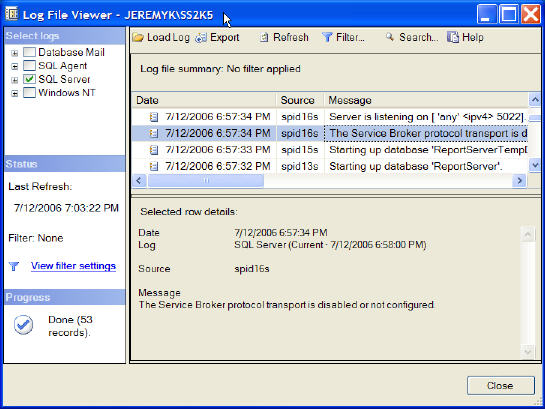
With SQL Server 2005 the rules have changed significantly.  Management Studio ships with the Log File Viewer which gives DBAs and Developers insight into the SQL Server 2005 and Windows Event Logs (Application, Security and System) all in one interface.  In this interface each of the needed logs can be selected with the ability to filter the data and export as needed.  In this tip we will answer common questions for those of you that are new to the tool which correspond to the tool's primary functionality.

How do I access the Log File Viewer?

  1. Launch SQL Server Management Studio.
  2. Navigate to your SQL Server 2005 instance.
  3. Expand the instance, then expand the Management folder followed by the SQL Server Logs folder.
  4. Double click on any of the log files.
  5. Below is the default Log File Viewer interface that will be loaded.
What are the available data sources for the Log File Viewer?

  • Database Mail
  • SQL Server Agent Logs
  • SQL Server Error Logs
  • Windows Event Logs (Application, Security and System)

How can I filter the data?

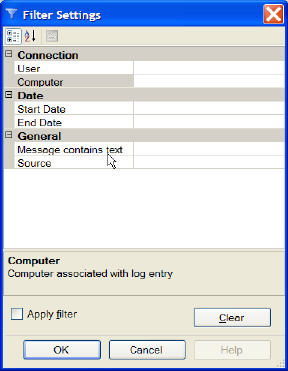
Just click on the 'Filter' button which will load the interface below.  In this interface it is possible to fine tune the data that is being reviewed.  At the highest level the filtering could be based on the start and end date\time stamp. At the lowest level you could look for the exact error message.
How do I search for an error message?

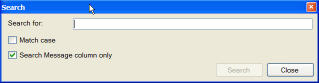
Just click on the 'Search' button which will load the interface below.  In this interface you can search the results for the specific error message.
How can I export data?

Click the 'Export' button which will save the current contents of the Log File Viewer to a *.log, *.csv or *.txt file.   This file can be reviewed later by clicking the 'Load Log' icon and reviewing the file contents in the Log File Viewer.

Does the Log File Viewer work with a SQL Server 2000 instance that I have registered with Management Studio (SQL Server 2005)?

Yes, the compatible SQL Server 2000 logs, such as SQL Server Agent Logs, SQL Server Error Logs and Windows Event Logs, can be viewed. You can consider the Log File Viewer one of those valuable features that Management Studio (SQL Server 2005) offers over Enterprise Manager (SQL Server 2000), so start using it today!

Next Steps

  • The next time one of your SQL Server 2000 or 2005 servers acts up, be sure to make the Log File Viewer your first stop to research the issue.
  • From a best practices perspective the SQL Server and Windows logs should be reviewed regularly to ensure unexpected issues are not occurring.  This review could be on a daily or weekly basis if you do not already have an automated tool that reviews the logs in real time and notifies your team of current issues.
  • Ensure a sufficient number of logs and amount of storage is configured to support your SQL Server and Windows logs for a specified amount of time such as 30, 60 or 90 days.



Related Tips: More | Become a paid author


Last Update: 7/14/2006

Share: Share 


Comments and Feedback:

Thursday, April 03, 2008 - 10:05:22 PM - tushar_kanaujia Read The Tip

Hi,

My query is regarding MS SQL Server Log Files.

As we know one of the difference between Delete and Truncate is after Delete, all the deleted data logs to log file which is not in case of Truncate.

If on Delete date goes to log file how we can retrive from it...

 I can find some software available on internet but is there any way from where we can retrive by sql query.


Friday, April 04, 2008 - 7:06:09 AM - admin Read The Tip

tushar_kanaujia,

Thank you for the post.

This tip relates to the Management Studio tool to review SQL Server, SQL Server Agent, Database Mail and Windows logs, not how truncate or delete statements are logged in a user defined database transaction log.

To the best of my knowledge vendors have tools to review and/or recover data in a user defined database transaction log.

This forum post also has some information on the topic - http://blogs.mssqltips.com/forums/t/514.aspx.

Thank you,
The MSSQLTips.com Team


Wednesday, February 23, 2011 - 10:58:21 AM - Martin Read The Tip

I have a question related the "Log File Viewer" (2005 version).

Why some jobs show the current execution status (what step they are into, the elapsed time till the checking moment, etc) and some other dont, instead they just show the last ended execution?.

Thanks


Monday, February 28, 2011 - 12:35:07 PM - Jeremy Kadlec Read The Tip

Martin,

Sorry for my latent response.  Without seeing any screen shots, I assume your are seeing two types of jobs in SQL Server Agent Job Activity Monitor not the Log File Viewer. 

If you are using the SQL Server Agent Job Activity Monitor, then I assume the first set of jobs are actively running while the second set are not running.

Please let me know if this makes sense.

Thank you,
Jeremy Kadlec


Tuesday, March 01, 2011 - 12:45:03 PM - Martin Read The Tip

Jeremy,

Thanks for your reply and don't worry about the elapsed time!. This is not urgent but is something I want to figure out.

Let me rephrase my question with more details to put you in the whole picture (since I don't have screen shoot right now). I may have them in the following days. If so, and if it is still needed, I'll add it here.

Situation: when checking at the "Job Activity Monitor" for SQL 2005 I'm able to see a general status of all jobs installed on the sql instance I'm working with. The activity monitor will tell me if any job is currently in "idle" or "executing" status (among other things). The action of right clicking on any of these jobs and choose the "View History" option, will open the "Log File Viewer" screen showing me the history of the right clicked job.

Now my question is.. would you know the reason why when I right click on a job in the activity monitor that is currently in "executing" status (which leads me to the "Log File Viewer" screen) it only sometimes show me the current execution progress (plus all previous execution) and some other times it just show me all previous executions? 

If still this is unclear, please let me know.

Thanks!


Tuesday, March 01, 2011 - 8:23:39 PM - Jeremy Kadlec Read The Tip

Martin,


Thank you for the detailed question.  I have a better understanding of what you mean now.


I took a look at one environment and I was able to see both active jobs with a current status and active jobs without a current status.  The common characteristic between these jobs was the number job steps, but I am not sure if that is the root cause or not.


Based on my observations, when a job had multiple job steps and one or more steps was finished and one or more steps needed to complete, I could see the status for the current job execution and the status for the completed job steps.


Based on my observations, when a job only has one job step, I could not see the status of the current execution.


Please let me know if that is the case for you as well.


Wednesday, March 02, 2011 - 9:02:53 AM - Martin Read The Tip

Hey Jeremy,

Thanks for the reply!!.

That was exaclty what I have observed as well... but I'm still not that sure or actually the word is I'm not that convinced that SQL is taking this for paramater to show/no show the current progress... seems so silly!! :)

I'm not sure how far I can go into this matter.. since as you, I've faced the same things of the jobs steps.

Again, thanks for taking the time for trying/testing and answer back.

Take care!


Wednesday, March 14, 2012 - 12:39:48 PM - Mike Read The Tip


I'm using SSMS 2008 R2.  Any idea on how to filter out the source "Backup"?  I can't find anything on the web about filter options.  I can specify the source that I want to look for but I can't filter out a specific source.  So my log file viewer is filled with "Backup" source events and I can't find a way to hide those events to focus on the other type events.


Wednesday, March 14, 2012 - 1:51:00 PM - Greg Robidoux Read The Tip

Hi Mike, the front end is pretty limited on what you can fliter.

Take a look at these tips to see if they help:

http://www.mssqltips.com/sqlservertip/1476/reading-the-sql-server-log-files-using-tsql/

Also, you can use this Trace Flag to stop logging all of the successful backups:

http://www.mssqltips.com/sqlservertip/1457/stop-logging-all-successful-backups-in-your-sql-server-error-logs/


Post a Comment or Question

Keep it clean and stay on the subject or we may delete your comment.
Your email address is not published. Required fields are marked with an asterisk (*)

*Name   *Email   Notify for updates
Comments
*Enter Code refresh code


Sponsor Information
Try the award winning SQL diagnostic manager as a free 14-day trial!

Write, edit, and explore SQL effortlessly with SQL Prompt.

SQL Servers keeping you up at night? Contact expert SQL Server consultants for a Health Check.

Find and Fix SQL issues with Foglight Performance Analysis. Get a free copy.

Join the over million SQL Server Professionals who get their issues resolved daily.

Valuable SQL Server web casts on Performance Tuning, Development, Administration, SSIS and more...


Copyright (c) 2006-2012 Edgewood Solutions, LLC All rights reserved
privacy | disclaimer | copyright | advertise | about
authors | contribute | feedback | giveaways | user groups
Some names and products listed are the registered trademarks of their respective owners.


Edgewood Solutions LLC | MSSharePointTips.com | MSSQLTips.com