By: Andy Novick | Comments (3) | Related: > Azure
Problem
SQL Azure provides relational database capability in the cloud. One of the features that is missing is a way to move databases up or down from your in-house SQL server. So how do you move a database schema and data up to the cloud? In this tip I will walk through a utility that will help make the migration much easier.
Solution
SQL Azure is Microsoft's relational database that is part of its Windows Azure Cloud Platform as a Service offering. While it includes most of the features of SQL Server 2008 it doesn't include any backup or restore capabilities that allow for hoisting schema and data from an on-premises database up to SQL Azure. The documentation refers to using SQL Server Management Studio's (SSMS) scripting capability for this task.
While SSMS has the ability to script both schema and data there are several problems with this approach:
- SSMS scripts all database features, but there are some features that SQL Azure doesn't support
- SSMS doesn't always get the order of objects correct
- SSMS scripts data as individual insert statements, which can be very slow
Recognizing that the SSMS approach doesn't work very well, two programmers, George Huey and Wade Wegner created the SQL Azure Migration (SAMW) wizard and posted it on CodePlex. You'll find the project on the SQL Azure Migration Wizard page where you can download the program including the source code, engage in discussions and even post a patch if you're interested in contributing to the project.
You'll need the SQL Server R2 client tools (November CTP or later) and the .Net Framework on the machine where you unzip the download file. There's no install program, at least not yet, just the SQLAzureMW.exe program and configuration files.
SAMW is a wizard style Windows Forms program. When the SAMW is started the first task is to select a process to apply. The available options, shown below, allow you to analyze and move schema and data between databases on the local network and SQL Azure databases. For the purposes of this article we'll follow the Analyze and Migrate Wizard shown selected here.
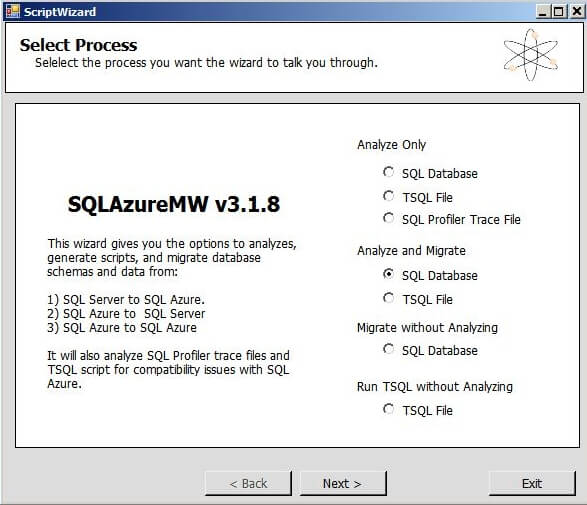
One of the features that makes SAMW much more than a scripting tool is the optional analysis step. SQL Azure is based on SQL Server 2008, but the features that Azure supports are not identical to terrestrial SQL Server 2008. The Azure T-SQL is a subset of the full 2008 T-SQL. The analysis step examines scripts looking for features or syntax that doesn't work in SQL Azure. Some typical issues are:
- Tables without clustered indexes
- Cross database references
- use of SQLCLR or one of the built-in data types that depend on the CLR such as hierarchyid
SAMW will find these issues and many more by examining the T-SQL using regular expressions and can in addition, suggest or make changes. In particular, it does a good job of adding clustered indexes to tables that don't have them.
As you can see from the choices above there are three places that the T-SQL used for the analysis can come from:
- The Database
- A file of T-SQL code
- A SQL Profiler Trace file
Any of these sources is analyzed by applying a set of regular expressions that live in SAMW's NotSupportedByAzureFile.Config file. The top of the file, formatted for visibility, is shown here with its first rule that removes "NOT FOR REPLICATION" clauses.
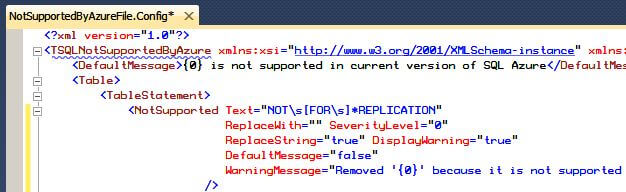
The NotSupportedbyAzureFile can be customized to make additional changes, add additional messages, or to relax restrictions as SQL Azure evolves.
Once we've chosen the "Analyze and Migrate\SQL Database" wizard and press "Next >" the standard select a server dialog appears and a source database must be selected as seen here:
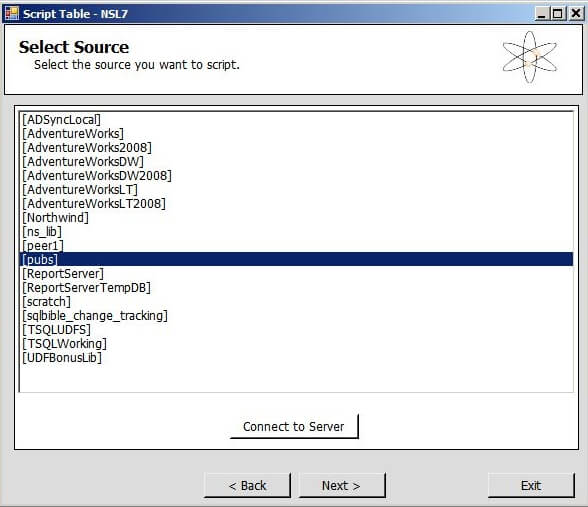
The screen above shows picking the old pubs database. It's still possible to download the pubs and Northwind databases from the Microsoft download site. Just search for "SQL Server 2000 Northwind and pubs".
Once a database is chosen it's possible to select all objects or a subset of the database objects to analyze and move. In this case I've chosen to move all objects
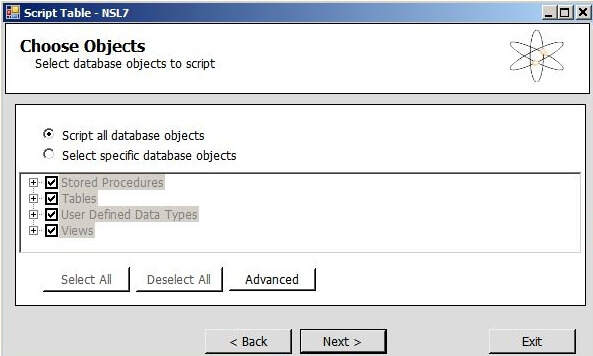
A summary screen is displayed and then SAMW goes to work scripting the selected database objects and analyzing them for issues based on the NotSupportedByAzureFile and then BCPing the data out to temporary files.
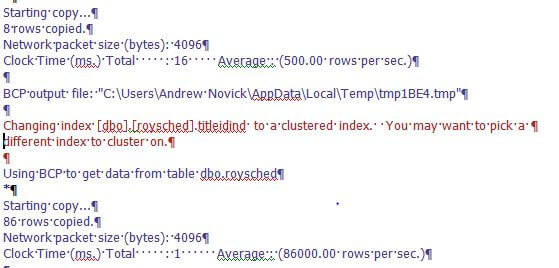
The pubs database is pretty simple and the only problems that it found were missing clustered indexes on two tables: dbo.discounts and dbo.roysched. SAMW picks a column to cluster on arbitrarily and moves forward to the BCP step. This screen shot illustrates how the report shows what its done:
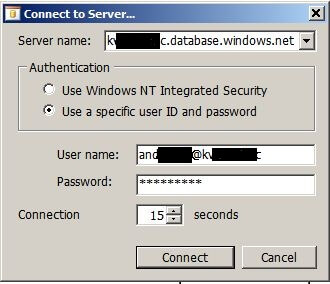
After the analysis is done the user must proceed to connect to SQL Azure as shown below. Notice the server name is followed by ".database.windows.net" and the server name, preceded by an @ sign, must go in the User name field after the actual user name. This extra server name is necessary because some connection methods need the server name in the UserID field of the connection string. Parts of the server name and user name below have been obscured for privacy reasons.
The final step is to create the target database for migration and push the trigger. The upload process for pubs isn't very long because the database is so small. Notice the upload rows per second that are reported below: 14.21, 551.28 and 190.91.
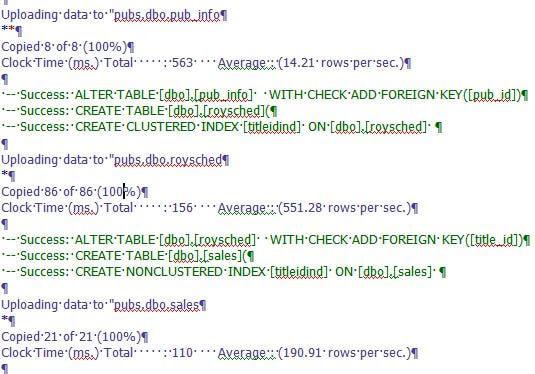
The upload rates are much slower that I've come to expect from BCP. Even going to a slow server I'd expect ten times the number of rows per second. The slower performance may have a lot to do with the transmission over the internet, but it also may be due, in part, to two SQL Azure features:
- The data is written two three copies of the database
- Clustered Indexes are required instead of heaps, which are best for BCP
All in all the SQL Azure Migration Wizard is a necessary tool for anyone working with SQL Azure in the short term. When additional features are added to SQL Azure, such as SQL Server backup and restore, SAMW may not be necessary.
Next Steps
- Sign-up for a Windows Azure account and get online with SQL Azure
- Download the SQL Azure Migration Wizard
- Modify the Azure side database and try moving the data down from the cloud to a local database
- Read these related SQL Azure tips






About the author
 Andy Novick is a SQL Server Developer in the Boston area with 25 years of database and application development experience.
This author pledges the content of this article is based on professional experience and not AI generated.
View all my tips
