Problem
You need to periodically ascertain if there are any databases in your production environment which are not using the Full Recovery Model. In this tip we cover the step by step process for setting up a policy to identify databases that are not using the full recovery model.
Solution
Database Administrator can use the Policy Based Management (PBM) to identify databases which are not in Full Recovery Model. You can follow the below mentioned steps to create and evaluate the policy which can be used to identify the list of all the production databases which are not using full recovery model.
If you are not familiar with Policy Based Management (PBM) then you can start with the following tip: Using Policy-Based Management in SQL Server 2008.
1. Connect to a SQL Server 2008 Instance using SQL Server 2008 Management Studio and expand Management -> Policy Management and then right click Policies and select New Policy… as shown in the snippet below.

2. In Create New Policy window provide the name of the policy as “Identify Databases Not in Full Recovery Model”. In Check condition you need to click the New condition…. option to open up the Create New Condition window.

3. In Create New Condition window you need to provide the name of the condition as “Databases Not in Full Recovery Model” and then select the Facet “Database Maintenance”. Under Expression select Field value as @RecoveryModel and choose operator value as ‘ = ‘ and then value as Full as shown in the below snippet. Click OK to save the condition and to return to the parent Create New Policy window.

4. In Create New Policy, by default “Every Database” option under “Against targets” will be checked as shown in the below snippet. Click OK to create the policy.

5. Once your policy is created, the next step will be to evaluate the policy. Right click the policy and select the Evaluate option from the drop down list as shown in the below snippet.

6. The below snippet shows the result set returned by the policy. We can see that most of the databases failed the policy.
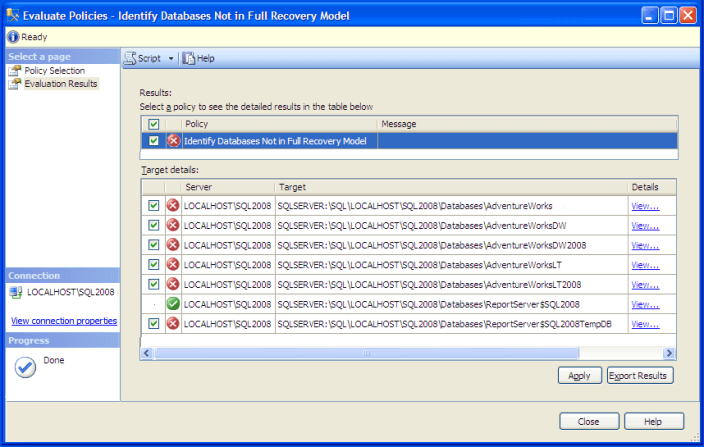
7. When you click a “View…” link under details, you will be able to see a detailed result for a particular database. For this database the expected value was Full, however the current recovery model used by the database is Simple.

8. If you want to change the recovery model for databases that are not set to Full, check the target databases and click the Apply button. This action will pop up a Policy Evaluation Warning as shown in the below snippet. Click Yes to change the recovery model of all the databases to Full that were selected.

9. Once the policy suggestion is applied you will be able to see the below screen that shows all are in compliance now. Click Close to exit.

Next Steps
- Review a href=”/sqlservertip/1492/using-policy-based-management-in-sql-server-2008/”> Using Policy-Based Management in SQL Server 2008
- Read more tips on Policy Based Management
- Read all my previous tips

Ashish Kumar Mehta has been contributing to the MSSQLTips.com community since 2009 with over 60 tips.
- MSSQLTips Awards: Achiever (75+ tips) – 2013