By: Daniel Calbimonte | Comments (9) | Related: > Analysis Services Administration
Problem
When you have SSAS cubes with millions of rows of data, it is very helpful to create partitions. If you have a few cubes you could probably do this manually, but if there are many or if you want to automate this process you should look for smarter solutions such as programming the creation of partitions dynamically.
Solution
This tutorial will show how to create partitions using the AdventureWorks database using AMO (Analysis Management Object).
In this sample we are going to create a partition according to the current date. For example, if today is September 21, 2012 the T-SQL script will create a partition named Internet_Sales_2012 as shown below.
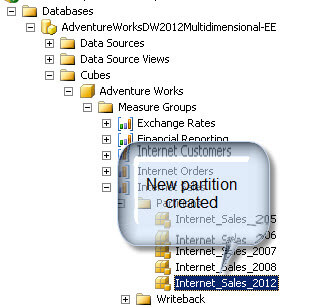
If it were the year 2013, the partition name would be Internet_Sales_2013.
The idea for this tip is to create partitions automatically using XMLA and variables. In this tip we are going to use SSIS and Visual Basic, but you can also use C# to automate the partition process in SSIS.
Requirements
I am assuming that you already have the following components installed:
- The multidimensional database AdventureWorks Multidimensional Model 2012 (you can apply this tip to SQL 2008 or 2005 as well): http://msftdbprodsamples.codeplex.com/downloads/get/258486
- A SQL Server with SSIS and SSAS installed
- The AMO libraries installed:
- X86 Package (SQL_AS_AMO.msi)
- X64 Package SQL_AS_AMO.msi)
Getting Started
In this example, we are going to create a Script Task with code to create the partitions dynamically.
To start open the SSDT or BIDS and create a new SSIS project.
Once you have a new project started, in the Toolbar choose Script Task and drag and drop to the design pane.
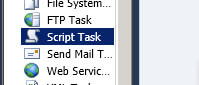
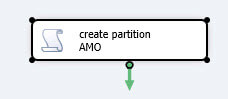
Write a descriptive name for the Script Task.
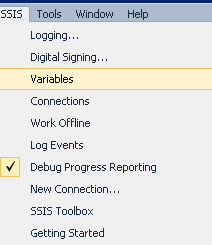
Create two variables, go to the SSIS menu and choose Variables:
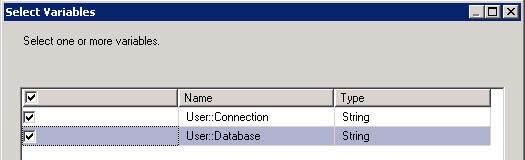
Create two variables named Connection and Database as shown below. These variables are going to be used to store the SSAS connection information and send it to our code in the script. Type "ssas" for the Connection and "AdventureWorksDW2012Multidimensional-EE" for the Database as shown below.

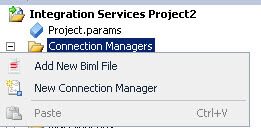
In the Solution Explorer, we are going to create a connection to the SSAS Server. Go to Connection Manager > New Connection Manager:
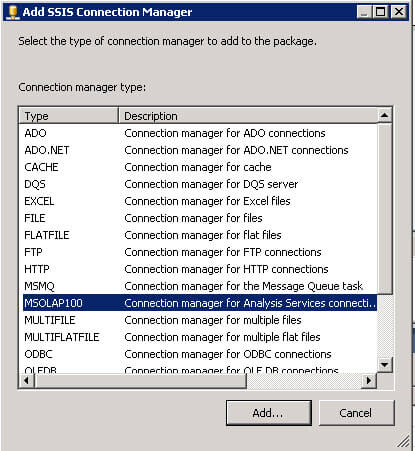
In the Add SSIS Connection Manager, choose MSOLAP100.
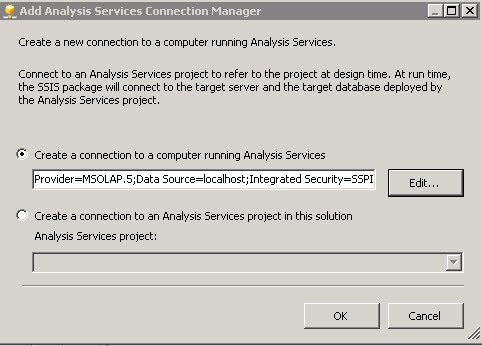
In the Add Analysis Services Connection Manager press the Edit button.
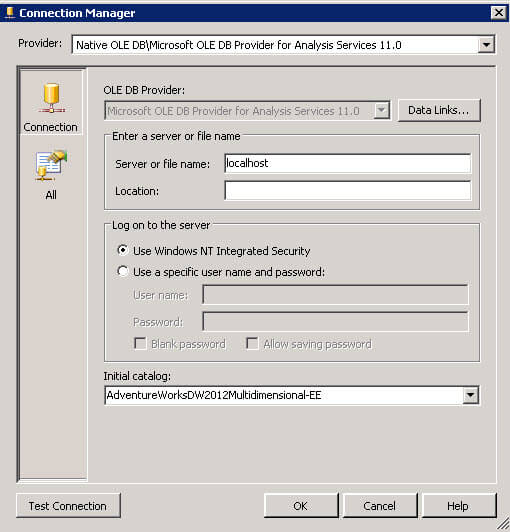
In the Connection Manager type the SSAS Server Name and select the AdventureWorsDW2012 database.
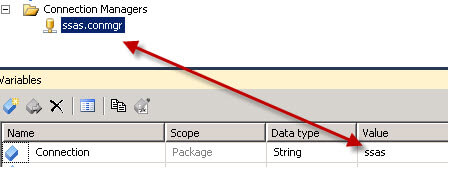
Rename the connection from "ssas.conmgr" to "ssas" in order to match with the variable that was created.
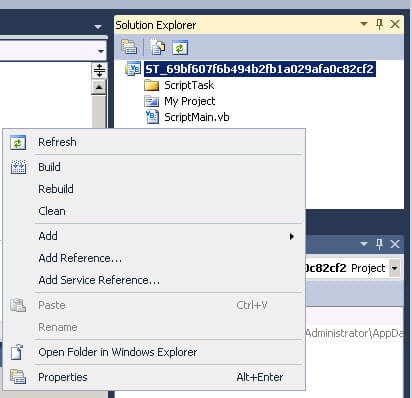
In the Solution Explorer, select Add Reference.
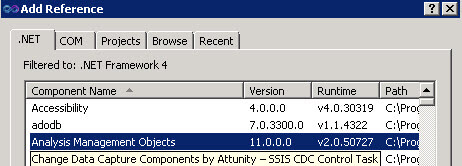
In the Add Reference window, go to .NET and select Analysis Management Objects. What we are doing is adding the AMO libraries to the VB code.
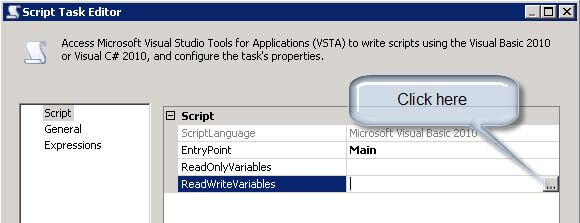
Now edit the ScriptTask and in the ScriptLanguage, select Microsoft Visual Basic 2010 (that is what we are using for this example) then click on the ellipsis near ReadWriteVariables.
In the Select Variables windows select the User::Connection and User::Database variables as shown below.
Click on the Edit Script... button and paste the code below into the script. Below I explain the code.
Imports Microsoft.AnalysisServices


Shared myServer As New Server()
Public Sub Main()
'
' Add your code here
'
Dim olapConnection As ConnectionManager
olapConnection = Dts.Connections(CStr(Dts.Variables("Connection").Value))


Dim Server_Name As String = CStr(olapConnection.Properties("ServerName").GetValue(olapConnection))
Dim Database_Name As String = CStr(olapConnection.Properties("InitialCatalog").GetValue(olapConnection))
Dim db_name As String = CStr(Dts.Variables("Database").Value)


Dim objCube As Cube
Dim objMeasureGroup As MeasureGroup
Dim oPartition As Partition
Dim oDataSourceView As New DataSourceView
Dim sdate, syear As String
sdate = Format(Now,"yyyyMMdd")
syear = Format(Now,"yyyy")
myServer.Connect(Server_Name)


Dim db As Database = myServer.Databases.GetByName(db_name)
oDataSourceView = db.DataSourceViews("Adventure Works DW")
objCube = db.Cubes.FindByName("Adventure Works")
objMeasureGroup = objCube.MeasureGroups("Fact Internet Sales 1")
oPartition = objMeasureGroup.Partitions.Add("Internet_Sales_" + syear)
oPartition.Source = _
New QueryBinding(oDataSourceView.DataSourceID, _
"SELECT * FROM [dbo].[FactInternetSales]  _
WHERE OrderDateKey = '" + sdate + "'")


oPartition.StorageMode = StorageMode.Molap
oPartition.ProcessingMode = ProcessingMode.Regular
oPartition.Update(UpdateOptions.ExpandFull)
oPartition.Process(ProcessType.ProcessFull)
myServer.Disconnect()


Dts.TaskResult =ScriptResults.Success


End Sub
The first line allows us to reference the AMO components.
Imports Microsoft.AnalysisServices
In the next line we create the server:
Shared myServer As New Server()
Then we create the connection using the Connection and Database variables created above. We are also populating the Server Name and Database Name are obtained from the values of the connection that was created above.
Dim olapConnection As ConnectionManager
olapConnection = Dts.Connections(CStr(Dts.Variables("Connection").Value))
Dim Server_Name As String = CStr(olapConnection.Properties("ServerName").GetValue(olapConnection))
Dim Database_Name As String = CStr(olapConnection.Properties("InitialCatalog").GetValue(olapConnection))
Dim db_name As String = CStr(Dts.Variables("Database").Value)
In the next section we are defining the variables used for the SSAS cube, the measure group, the partition and the source view. The values for sdate and syear are used to store the current date and current year in a specific date format.
Dim objCube As Cube
Dim objMeasureGroup As MeasureGroup
Dim oPartition As Partition
Dim oDataSourceView As New DataSourceView
Dim sdate, syear As String
sdate = Format(Now,"yyyyMMdd")
syear = Format(Now,"yyyy")
myServer.Connect(Server_Name)
In this section you have to specify the Database, DataSourceView, Cube, MeasureGroup and Partition names. In addition, we specify the Source.
Dim db As Database = myServer.Databases.GetByName(db_name)
oDataSourceView = db.DataSourceViews("Adventure Works DW")
objCube = db.Cubes.FindByName("Adventure Works")
objMeasureGroup = objCube.MeasureGroups("Fact Internet Sales 1")
oPartition = objMeasureGroup.Partitions.Add("Internet_Sales_" + syear)
oPartition.Source = _
New QueryBinding(oDataSourceView.DataSourceID, _
"SELECT * FROM [dbo].[FactInternetSales]  _
WHERE OrderDateKey <= '" + sdate + "'")
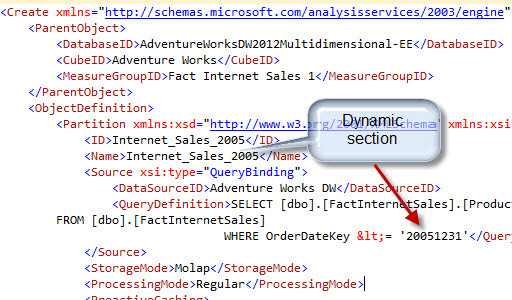
If you are unsure of the values for these items you can generate the XMLA from an existing partition using SQL Server Management Studio. To do this, connect to SQL Server Analysis Services and right click on an existing database partition for this database and select Script Partition as > CREATE To > New Query Editor Window. This will generate XML like the image below. The values can be pulled from this as follows:
- DataSourceID (Adventure Works DW) is the DataSourceView
- CubeID (Adventure Works) is the Cube
- MeasureGroupID (Fact Internet Sales 1) is the MeasureGroup
- Partition / Name (Internet_Sales_2005) is the Partition. We are using just "Internet_Sales_" and will make the year dynamic.
Finally, you have to choose the Storage Mode. MOLAP, ROLAP or HOLAP.
- MOLAP is a multidimensional storage which is faster.
- ROLAP is a relational database store which is slower
- and finally HOLAP is an Hybrid of both methods.
You can find more information about Storage Modes here. The Processing Mode refers to the index and aggregation process. It is regular if it the index and process are created during processing and it is LazyOptimization if it is created after processing. The Update option is used to update the changes. Also the Process Method is used to process to Process the partition. You can process all (ProcessFull), you can process data (ProcessData), perform an incremental update (ProcessAdd). For the complete list of Process options click here.
oPartition.StorageMode =StorageMode.Molap
oPartition.ProcessingMode =ProcessingMode.Regular
oPartition.Update(UpdateOptions.ExpandFull)
oPartition.Process(ProcessType.ProcessFull)
myServer.Disconnect()


Dts.TaskResult =ScriptResults.Success
Once you have the script ready, save it and press OK in the Script Task editor.
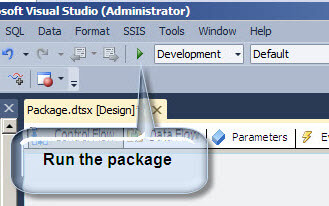
Run the SSIS package and verify the results.
Congratulations! You have just created a new partition using AMO in SSIS!
Next Steps
- You can automate backups, processing and a lot of other processes using AMO. This will let you automate anything in SSAS. For more information refer to this links:






About the author
 Daniel Calbimonte is a Microsoft SQL Server MVP, Microsoft Certified Trainer and 6-time Microsoft Certified IT Professional. Daniel started his career in 2001 and has worked with SQL Server 6.0 to 2022. Daniel is a DBA as well as specializes in Business Intelligence (SSIS, SSAS, SSRS) technologies.
This author pledges the content of this article is based on professional experience and not AI generated.
View all my tips
