By: Edwin Sarmiento | Comments (2) | Related: > Compression
Problem
Database backups and maintenance windows for very large database are very frustrating especially if we need to generate full database backups to initialize a database mirroring or transaction log shipping session. As we are looking through the new features in SQL Server 2008 we found a potentially interesting one called Database Backup Compression which we can use to significantly reduce our backup and restore operations. Can you give us a detailed explanation of how we go about using this one?
Solution
Database Backup Compression is a new feature in SQL Server 2008 which significantly reduces backup and restore operations. By default, backup compression is turned off on the server instance-level. Unlike other third-party software which provides different levels of compression, SQL Server 2008 provides only one level.
In this tip we are going to look at how to implement database backup compression and compare the time it takes to do backups and restore for a normal database backup versus the compressed one as well as the backup file size. Let's start by creating a full backup of the AdventureWorks database, which is about 178.75 MB in size. I have chosen to use a TSQL script to do the backups and restore so I can take note of the amount of time it takes for the processes to complete. I am running the test on a VMWare image with a dedicated RAM of 2GB so results may vary when running on a physical server.
BACKUP DATABASE AdventureWorks |
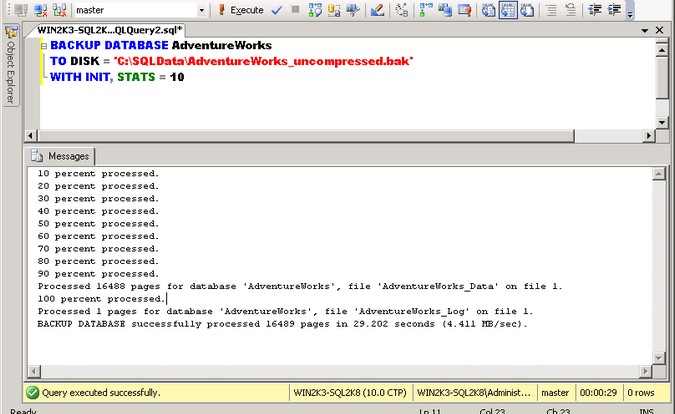
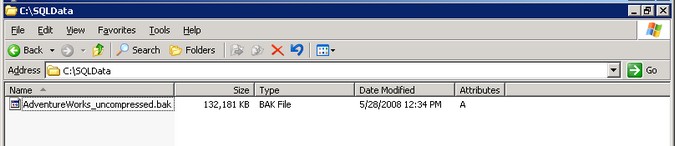
The default, uncompressed backup database process took about 29.20 seconds on my instance while the backup size is about 132 MB.
|
|
Now, let's implement database backup compression on our AdventureWorks database.
BACKUP DATABASE AdventureWorks |
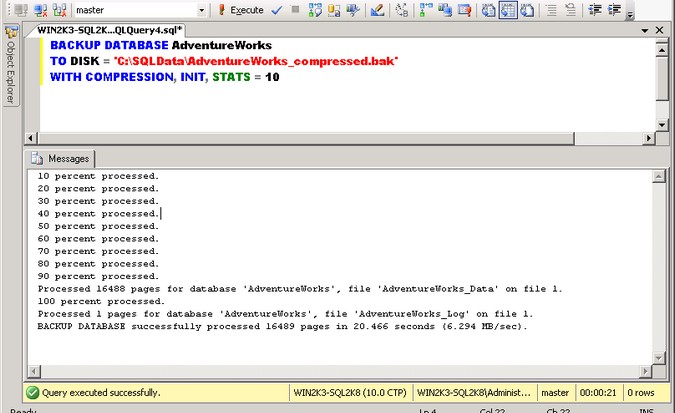
Notice that there is really nothing new in the BACKUP DATABASE command except for the inclusion of the COMPRESSION keyword in the WITH clause. This tells SQL Server to compress the database backup since compression is turned off by default. The compressed backup database process took about 20.47 seconds while the backup size is about 35.31 MB - quite a significant reduction in size and in process time as well.
 |
You can compare the difference in processing time between performing a compressed versus an uncompressed backup using the script below:
DECLARE @timeDiff DATETIME |
You can examine the backupmediaset and the backupset tables in the msdb database for the new columns that pertain to backup compression. In the backupset table, you can see the compressed_backup_size column which pertains to the total byte count of the backup stored on disk. You can calculate the compression ratio by using the backup_size and the compressed_backup_size columns:
SELECT backup_size/compressed_backup_size AS compression_ratio, * |
In the backupmediaset table, the is_compressed column tells you whether or not the backup is compressed. Although you can rely on these columns to determine whether or not a backup media is compressed, it is recommended to name the backup media properly so as not to get confused on which media to use when disaster strikes. You can also use backup compression when creating database maintenance plans.
Let's compare the restore process for both the compressed and the uncompressed backup. I'll start restoring the uncompressed backup using a different name and the MOVE option so I don't overwrite the existing MDF and LDF files for the original AdventureWorks database.
USE master |
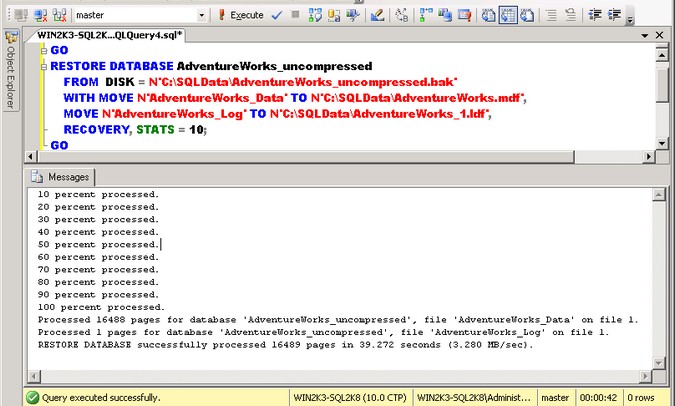
The restore process for the uncompressed database took around 39.72 seconds.
 |
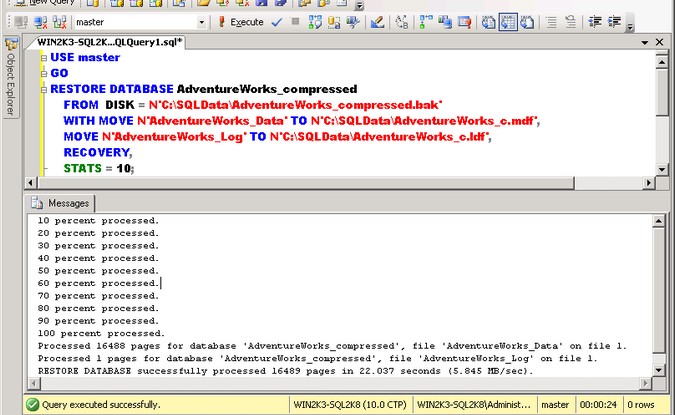
We'll restore the compressed database backup this time. Note that it is the exact same RESTORE DATABASE command we used for an uncompressed database backup as SQL Server knows from the backup media metadata whether or not it is compressed.
USE master |
The restore process for the compressed database took around 22.03 seconds. That's about 45% reduction in restore time.
|
|
Enabling Database Backup Compression on the server instance level
As database backup compression is turned off by default, you can choose to enable it on the server instance level by using the sp_configure system stored procedure.
USE master |
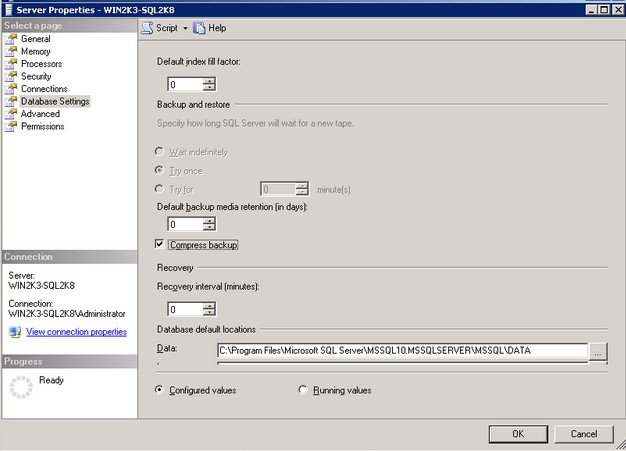
You can also do so by setting the server instance properties using SQL Server Management Studio. On the Database Settings section of the Server Properties window, just click the Compress Backup checkbox and this feature will be enabled on the server instance level.
|
|
NOTE: While database backup compression feature is only available in the Enterprise Edition, restoring a compressed database backup can be can be done on all editions of SQL Server 2008.
Next Steps
You have seen how you can implement database backup compression in SQL Server 2008 to reduce the duration of both backup and restore operations which can be very helpful in very large databases.
- Download a copy of the latest Community Technology Preview of SQL Server 2008 from this site. The above examples were created using the February 2008 CTP.
- You can get the AdventureWorks database used in the sample here (click on AdventureWorksDB.msi).
- To view the SQL Server 2008 Books Online content on Database Backup Compression, go to this site.






About the author
 Edwin M Sarmiento is a Microsoft SQL Server MVP and Microsoft Certified Master from Ottawa, Canada specializing in high availability, disaster recovery and system infrastructures.
This author pledges the content of this article is based on professional experience and not AI generated.
View all my tips
