By: Edwin Sarmiento | Comments (10) | Related: > PowerShell
Problem
Checking for SQL Server Agent jobs and their status is part of your daily task as a DBA. How do we use Windows PowerShell to check for SQL Server Agent jobs?
Solution
Similar to the task described in the tip Check the Last SQL Server Backup Date using Windows PowerShell, it would require reading the tables in the msdb database and joining them appropriately to find out which jobs failed. Two tables in particular are of interest to us to check for job execution information like job name, execution status, run date, run time, etc. - the sysjobs and sysjobhistory tables.
The script below displays a list of jobs on your SQL Server instance with there status.
USE msdb
GO
SELECT
   j.[name] AS [JobName],
   run_status = CASE h.run_status
   WHEN 0 THEN 'Failed'
   WHEN 1 THEN 'Succeeded'
   WHEN 2 THEN 'Retry'
   WHEN 3 THEN 'Canceled'
   WHEN 4 THEN 'In progress'
   END,
   h.run_date AS LastRunDate,
   h.run_time AS LastRunTime
FROM sysjobhistory h
   INNER JOIN sysjobs j ON h.job_id = j.job_id
       WHERE j.enabled = 1
       AND h.instance_id IN
       (SELECT MAX(h.instance_id)
           FROM sysjobhistory h GROUP BY (h.job_id))
GO
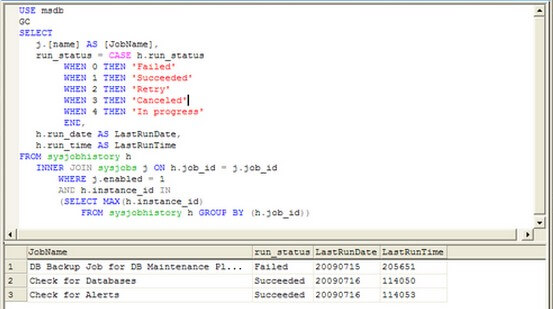
Notice that the run_date and run_time columns of the sysjobhistory table are of type int and would be a bit challenging to convert the columns to their appropriate data types. Server Management Objects (SMO) exposes these properties when using Windows PowerShell. The JobServer property of the Server object represents the SQL Server Agent associated with an instance of SQL Server. This includes the SQL Server jobs, operators and alerts.
When translating the T-SQL query above to Windows PowerShell, we would be interested in the Name, LastRunDate and LastRunOutcome properties of the Jobs object. What's really good to note is that the LastRunDate property is in a datetime format that no longer requires conversion to the appropriate data type, similar to what we get from the sysjobhistory table in the msdb database. I keep trying to highlight this for every tip I've written that uses PowerShell with SMO. The only aspect of the code that we have changed from the scripts in the previous tips is the last line, i.e. adding new properties for the new objects we are working with. This highlights the power and simplicity of Windows PowerShell from the script.
[System.Reflection.Assembly]::LoadWithPartialName('Microsoft.SqlServer.SMO') | out-null
$rvs = New-Object ('Microsoft.SqlServer.Management.Smo.Server') "LOCALHOST\SQL2000"

#Create an instance of the Jobs object collection from the JobServer property
#And pipes that to the filter Where-Object cmdlet to retrieve only those jobs that are enabled but failed
$srv.JobServer.Jobs | Where-Object {$_.IsEnabled -eq $TRUE} | Select Name,LastRunOutcome, LastRunDate
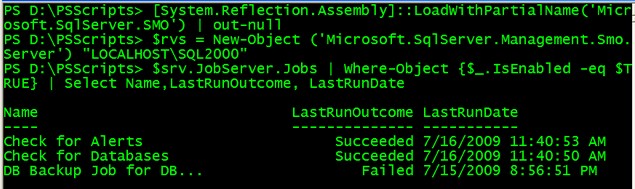
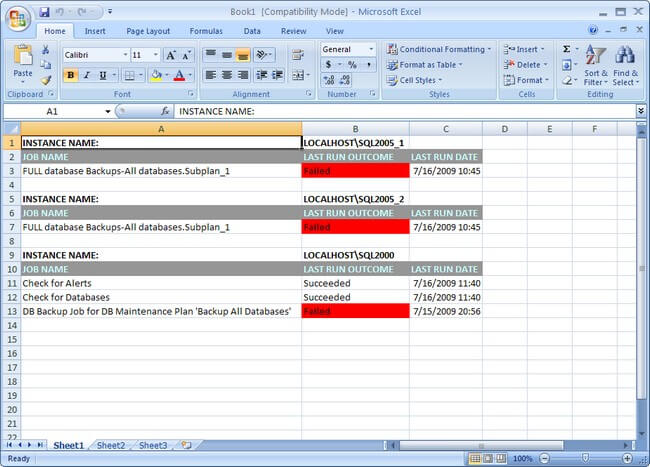
Notice that the LastRunDate property is in the correct data type. The LastRunOutcome property is returned as they are without the need for further translations as in the T-SQL script above. Let's call to the Excel object as we did in the previous tips to format the results. Again, the script above is more than enough for what we need.
#Create a new Excel object using COM
$Excel = New-Object -ComObject Excel.Application
$Excel.visible = $True
$Excel = $Excel.Workbooks.Add()
$Sheet = $Excel.Worksheets.Item(1)

#Counter variable for rows
$intRow = 1
#Read thru the contents of the SQL_Servers.txt file
foreach ($instance in get-content "D:\SQL_Servers.txt")
{
     #Create column headers
     $Sheet.Cells.Item($intRow,1) = "INSTANCE NAME:"
     $Sheet.Cells.Item($intRow,2) = $instance
     $Sheet.Cells.Item($intRow,1).Font.Bold = $True
     $Sheet.Cells.Item($intRow,2).Font.Bold = $True
     $intRow++
      $Sheet.Cells.Item($intRow,1) = "JOB NAME"
      $Sheet.Cells.Item($intRow,2) = "LAST RUN OUTCOME"
      $Sheet.Cells.Item($intRow,3) = "LAST RUN DATE"
     #Format the column headers
     for ($col = 1; $col -le 3; $col++)
     {
          $Sheet.Cells.Item($intRow,$col).Font.Bold = $True
          $Sheet.Cells.Item($intRow,$col).Interior.ColorIndex = 48
          $Sheet.Cells.Item($intRow,$col).Font.ColorIndex = 34
     }
     $intRow++
      #######################################################
     #This script gets SQL Server Agent job status information using PowerShell
     [System.Reflection.Assembly]::LoadWithPartialName('Microsoft.SqlServer.SMO') | out-null
     # Create an SMO connection to the instance
     $srv = New-Object ('Microsoft.SqlServer.Management.Smo.Server') $instance
     $jobs=$srv.JobServer.Jobs
     #Formatting using Excel

ForEach ($job in $jobs)
{
       # Formatting for the failed jobs
       if ($job.LastRunOutcome -eq 0)
       {
           $fgColor = 3
       }
       else
       {
           $fgColor = 0
       }

       $Sheet.Cells.Item($intRow, 1) =  $job.Name
       $Sheet.Cells.Item($intRow, 2) = $job.LastRunOutcome.ToString()
       $Sheet.Cells.item($intRow, 2).Interior.ColorIndex = $fgColor
       $Sheet.Cells.Item($intRow, 3) =  $job.LastRunDate

       $intRow ++
}
   $intRow ++
}
$Sheet.UsedRange.EntireColumn.AutoFit()
cls
Next Steps
- Try converting your T-SQL DBA scripts to Windows PowerShell
- Read more on the SMO Class Library to translate SQL Server objects that we are already familiar with to SMO objects
- Check out some recent PowerShell scripts:
- Check the Last SQL Server Backup Date using Windows PowerShell
- Retrieve List of Databases and their Properties using PowerShell
- Using PowerShell with SQL Server Management Objects (SMO)
- Introduction to Windows PowerShell for the SQL Server DBA Part 1
- Introduction to Windows PowerShell for the SQL Server DBA Part 2






About the author
 Edwin M Sarmiento is a Microsoft SQL Server MVP and Microsoft Certified Master from Ottawa, Canada specializing in high availability, disaster recovery and system infrastructures.
This author pledges the content of this article is based on professional experience and not AI generated.
View all my tips
