By: Brady Upton | Comments (23) | Related: > Monitoring
Problem
I would like to monitor table size growth and build a report that will help me monitor table growth. Is there any way I can automate this without buying a third party tool?
Solution
There are a few tools that monitor table size growth, but with the use of sp_spaceused and SQL Server Reporting Services (SSRS) you can make custom reports.
Using sp_spaceused
The system stored procedure sp_spaceused displays the number of rows, disk space reserved, and disk space used by a table, indexed view, or Service Broker queue in the current database in an object is provided or it displays the disk space reserved and used by the whole database.
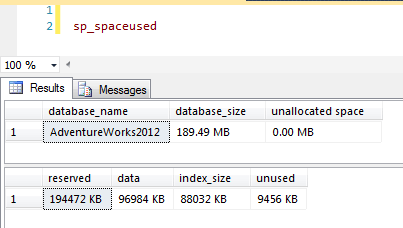
This procedure, sp_spaceused can be used at the database or table level. For example, sp_spaceused at the database level returns the following:
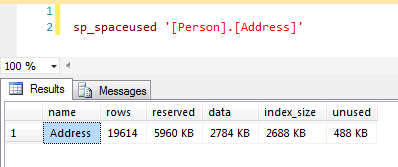
And sp_spaceused at the table level displays:
Creating the Report
To create our custom report, first we will need to create a table that will store the data from sp_spaceused. For this example, I'll create a table named TableSizeGrowth.
CREATE TABLE [dbo].[TableSizeGrowth](
[id] [int] IDENTITY(1,1) NOT NULL,
[table_schema] [nvarchar](256) NULL,
[table_name] [nvarchar](256) NULL,
[table_rows] [int] NULL,
[reserved_space] [int] NULL,
[data_space] [int] NULL,
[index_space] [int] NULL,
[unused_space] [int] NULL,
[date] [datetime] NULL
) ON [PRIMARY]
I'm also going to add a default constraint that will automatically update the date column to the current date for each new row.
ALTER TABLE [dbo].[TableSizeGrowth] ADD CONSTRAINT [DF_TableSizeGrowth_date]
DEFAULT (dateadd(day,(0),datediff(day,(0),getdate()))) FOR [date]
GO
Next, we need to create a stored procedure that moves the data from sp_spaceused to the table we created above. I have put comments throughout the stored procedure to help you figure out what is going on. Also make sure you change the table names to match your tables. For this example, I want to monitor HumanResources.Employee, Production.Product, and Purchasing.Vendor tables.
SET ANSI_NULLS ON
GO
SET QUOTED_IDENTIFIER ON
GO
CREATE PROCEDURE [dbo].[sp_TableSizeGrowth]
AS
BEGIN
 SET NOCOUNT ON

 --DECLARE VARIABLES
 DECLARE
 @max INT,
 @min INT,
 @table_name NVARCHAR(256),
 @table_schema NVARCHAR(256),
 @sql NVARCHAR(4000)

 --DECLARE TABLE VARIABLE
 DECLARE @table TABLE(
 id INT IDENTITY(1,1) PRIMARY KEY,
 table_name NVARCHAR(256),
 table_schema NVARCHAR(256))

 --CREATE TEMP TABLE THAT STORES INFORMATION FROM SP_SPACEUSED
 IF (SELECT OBJECT_ID('tempdb..#results')) IS NOT NULL
 BEGIN
  DROP TABLE #results
 END

 CREATE TABLE #results
 (
  [table_schema] [nvarchar](256) NULL,
  [table_name] [nvarchar](256) NULL,
  [table_rows] [int] NULL,
  [reserved_space] [nvarchar](55) NULL,
  [data_space] [nvarchar](55) NULL,
  [index_space] [nvarchar](55) NULL,
  [unused_space] [nvarchar](55) NULL
 )

 --LOOP THROUGH STATISTICS FOR EACH TABLE
 INSERT @table(table_schema, table_name)
 SELECT
  table_schema, table_name
 FROM
  information_schema.tables
 WHERE table_schema + '.' + table_name IN ('HumanResources.Employee','Production.Product', 'Purchasing.Vendor') --INSERT TABLE NAMES TO MONITOR

 SELECT
  @min = 1,
  @max = (SELECT MAX(id) FROM @table)

 WHILE @min < @max + 1
 BEGIN
  SELECT
   @table_name = table_name,
   @table_schema = table_schema
  FROM
   @table
  WHERE
   id = @min

  --DYNAMIC SQL
  SELECT @sql = 'EXEC sp_spaceused ''[' + @table_schema + '].[' + @table_name + ']'''

  --INSERT RESULTS FROM SP_SPACEUSED TO TEMP TABLE
  INSERT #results(table_name, table_rows, reserved_space, data_space, index_space, unused_space)
  EXEC (@sql)

  --UPDATE SCHEMA NAME
  UPDATE #results
  SET table_schema = @table_schema
  WHERE table_name = @table_name
  SELECT @min = @min + 1
 END

 --REMOVE "KB" FROM RESULTS FOR REPORTING (GRAPH) PURPOSES
 UPDATE #results SET data_space = SUBSTRING(data_space, 1, (LEN(data_space)-3))
 UPDATE #results SET reserved_space = SUBSTRING(reserved_space, 1, (LEN(reserved_space)-3))
 UPDATE #results SET index_space = SUBSTRING(index_space, 1, (LEN(index_space)-3))
 UPDATE #results SET unused_space = SUBSTRING(unused_space, 1, (LEN(unused_space)-3))

 --INSERT RESULTS INTO TABLESIZEGROWTH
 INSERT INTO TableSizeGrowth (table_schema, table_name, table_rows, reserved_space, data_space, index_space, unused_space)
 SELECT * FROM #results

 DROP TABLE #results
END
Now that the stored procedure has been created, let's go ahead and execute it.
Once the stored procedure finishes we can view the table:
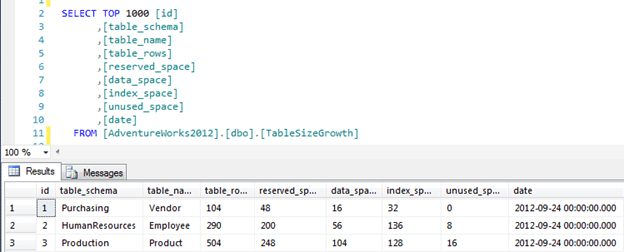
As you can see above our table is now populated with our three tables that we need to monitor as well as the number of rows in each table, reserved space, data space, index space, unused space, and date.
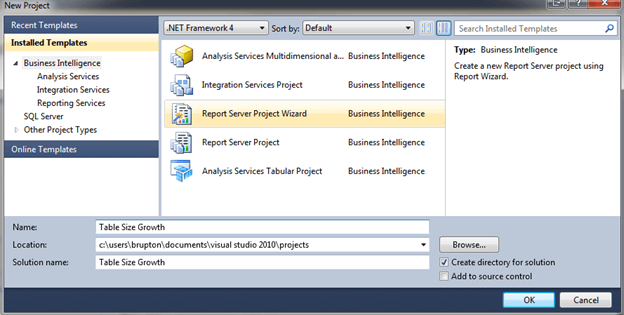
To create a report we need to open Business Intelligence Studio (SQL 2008 and below) or SQL Server Data Tools (SQL 2012). Choose File, New Project. On the New Project dialog choose Report Server Project Wizard and name the project:
Next, create a data source. For this example, I'll use localhost:
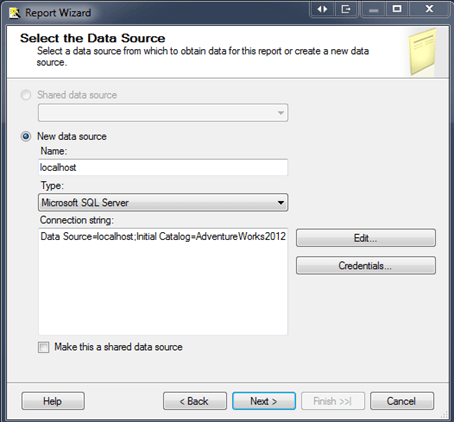
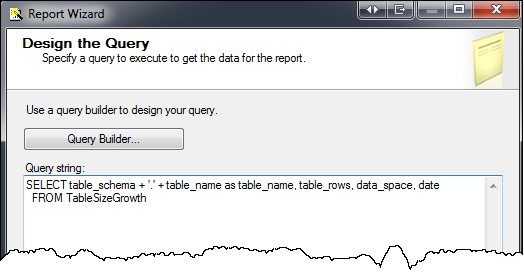
The next screen is where you will build the query that you want to use in your report. For this example, I only want to monitor number of rows and data space so I'll add them to my SELECT statement along with table name and date and click Next:
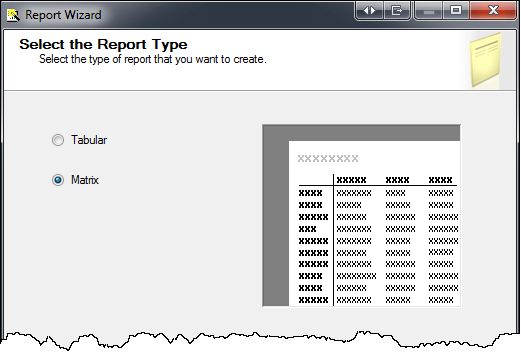
Next, I'll choose a Matrix report type:
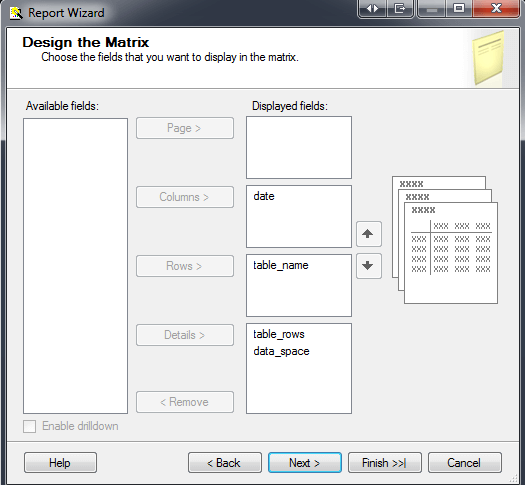
To design the Matrix, I'll choose the following:
Choose a Matrix style and name the report and click Finish.
Once the report opens in Design view we can choose Preview to see how it looks:
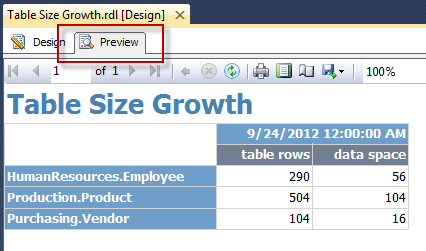
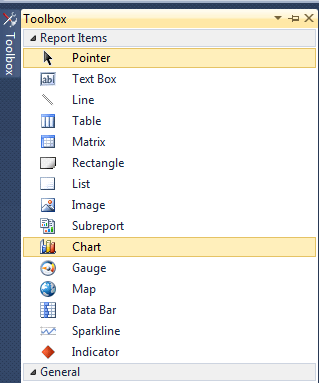
Looks good, right? But why stop there? Let's add this data to a chart. Open up the Toolbox and drag the Chart control into the Design view:
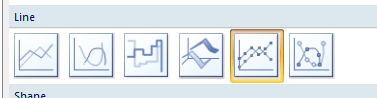
For this example, I'm going to use the Line with Markers chart type:
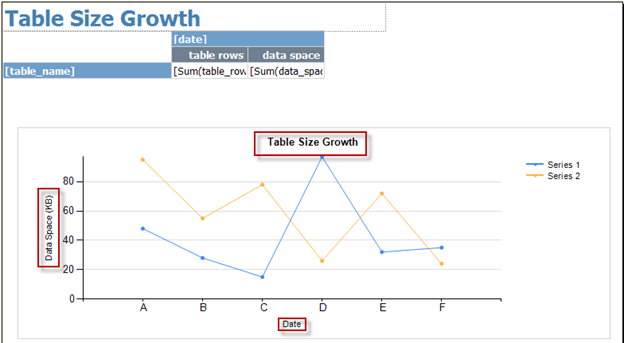
Once the chart is added to the design view we can make a few customizations such as resizing it and renaming some of the Titles:
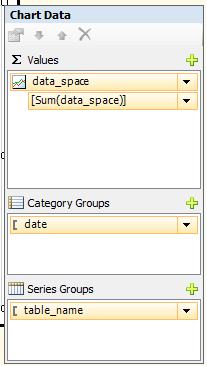
Next, when you click inside the chart, the Chart Data box should appear. Here is where we can define our values for the chart. I'll use the following for this example:
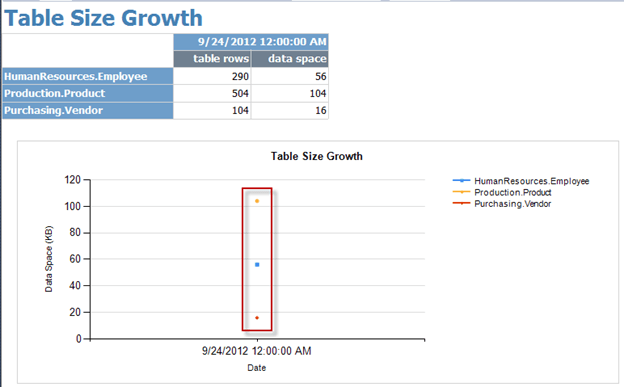
If we click Preview again, we now see the data in our chart matches the data in our table:
Scheduling Data Collection and Final Review
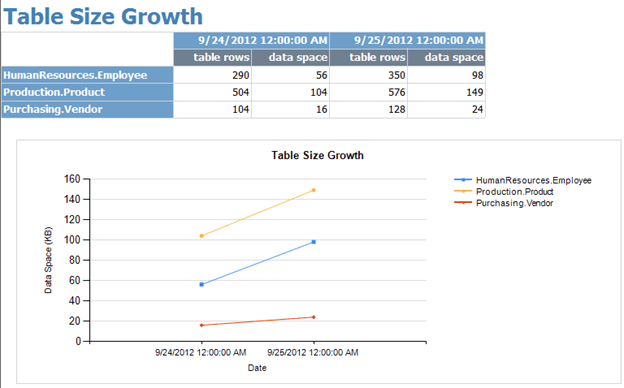
I'll schedule my stored procedure to execute nightly using a SQL Server Agent Job. When I come into work the next day I notice that data has been added to my tables since the last stored procedure execution:
Next Steps
- You can experiment with different chart types to determine what works best for you.
- To see more tips on SSRS click here
- Click here to download all of the components for this tip
- In my example I hardcoded the tables to monitor, but you could also create another table and make this table driven or capture this data for all tables.






About the author
 Brady Upton is a Database Administrator and SharePoint superstar in Nashville, TN.
This author pledges the content of this article is based on professional experience and not AI generated.
View all my tips
