By: Edwin Sarmiento | Comments (44) | Related: > Express Edition
Problem
As a lot of line-of-business applications are being built with SQL Server Express Edition as their backend database, we need to make sure that we backup the system and the user databases running on these instances. Unfortunately, SQL Server Express Edition does not come with SQL Agent which we would normally use to create a database maintenance plan to backup all the databases. How do we perform a backup of our system and user databases in SQL Server Express Edition similar to how we do it in other editions?
Solution
We can use a combination of VBScript and TSQL with Task Manager in Windows to automate the creation of user and system database backups in SQL Server Express Edition.
Note: All files should be saved in folder E:\SQL_Backup\scripts. This can be changed, but this example is setup for this folder. If you save to a different folder you will need to update the scripts accordingly.
Step 1 - Create the TSQL script
The TSQL script below generates a database backup similar to the formatting generated by the database maintenance plan, taking into account the date and time the backup files were generated. We save the script as a .sql file, E:\SQL_Backup\scripts\backupDB.sql, which we will call from a batch file using sqlcmd.
DECLARE @dateString CHAR(12), @dayStr CHAR(2), @monthStr CHAR(2), @hourStr CHAR(2), @minStr CHAR(2)
--month variable
IF (SELECT LEN(CAST(MONTH(GETDATE()) AS CHAR(2))))=2
   SET @monthSTR=CAST(MONTH(GETDATE()) AS CHAR(2))
ELSE
   SET @monthSTR= '0' + CAST(MONTH(GETDATE()) AS CHAR(2))
--day variable
IF (SELECT LEN(CAST(DAY(GETDATE()) AS CHAR(2))))=2
   SET @daySTR=CAST(DAY(GETDATE()) AS CHAR(2))
ELSE
   SET @daySTR='0' + CAST(DAY(GETDATE()) AS CHAR(2))
--hour variable
IF (SELECT LEN(DATEPART(hh, GETDATE())))=2
   SET @hourStr=CAST(DATEPART(hh, GETDATE()) AS CHAR(2))
ELSE
   SET @hourStr= '0' + CAST(DATEPART(hh, GETDATE()) AS CHAR(2))
--minute variable
IF (SELECT LEN(DATEPART(mi, GETDATE())))=2
   SET @minStr=CAST(DATEPART(mi, GETDATE()) AS CHAR(2))
ELSE
   SET @minStr= '0' + CAST(DATEPART(mi, GETDATE()) AS CHAR(2))
--name variable based on time stamp
SET @dateString=CAST(YEAR(GETDATE()) AS CHAR(4)) + @monthStr + @dayStr + @hourStr + @minStr
--=================================================================
DECLARE @IDENT INT, @sql VARCHAR(1000), @DBNAME VARCHAR(200)
SELECT @IDENT=MIN(database_id) FROM SYS.DATABASES WHERE [database_id] > 0 AND NAME NOT IN ('TEMPDB')
WHILE @IDENT IS NOT NULL
BEGIN
   SELECT @DBNAME = NAME FROM SYS.DATABASES WHERE database_id = @IDENT
/*Change disk location here as required*/
   SELECT @SQL = 'BACKUP DATABASE '+@DBNAME+' TO DISK = ''E:\SQL_Backup\'+@DBNAME+'_db_' + @dateString +'.BAK'' WITH INIT'
   EXEC (@SQL)
   SELECT @IDENT=MIN(database_id) FROM SYS.DATABASES WHERE [database_id] > 0 AND database_id>@IDENT AND NAME NOT IN ('TEMPDB')
END
Step 2 - Create the VBScript file
Next, we will need to create a VBScript file which will be responsible for cleaning up old copies of the database backups. The script also writes to a log file which records the database backup files.
- You do need to create an empty file named E:\SQL_Backup\scripts\LOG.txt to save a log of the deleted files.
- Also copy the below script and save as E:\SQL_Backup\scripts\deleteBAK.vbs
On Error Resume Next

Dim fso, folder, files, sFolder, sFolderTarget

Set fso = CreateObject("Scripting.FileSystemObject")


'location of the database backup files

sFolder = "E:\SQL_Backup\"


Set folder = fso.GetFolder(sFolder)

Set files = folder.Files


'used for writing to textfile - generate report on database backups deleted

Const ForAppending = 8


'you need to create a folder named "scripts" for ease of file management &

'a file inside it named "LOG.txt" for delete activity logging

Set objFile = fso.OpenTextFile(sFolder & "\scripts\LOG.txt", ForAppending)


objFile.Write "================================================================" & VBCRLF & VBCRLF

objFile.Write "                     DATABASE BACKUP FILE REPORT                " & VBCRLF

objFile.Write "                     DATE:  " &    FormatDateTime(Now(),1)   & "" & VBCRLF

objFile.Write "                     TIME:  " &    FormatDateTime(Now(),3)   & "" & VBCRLF & VBCRLF

objFile.Write "================================================================" & VBCRLF


'iterate thru each of the files in the database backup folder

For Each itemFiles In files

   'retrieve complete path of file for the DeleteFile method and to extract

        'file extension using the GetExtensionName method

   a=sFolder & itemFiles.Name


   'retrieve file extension

   b = fso.GetExtensionName(a)

       'check if the file extension is BAK

       If uCase(b)="BAK" Then


           'check if the database backups are older than 3 days

           If DateDiff("d",itemFiles.DateCreated,Now()) >= 3 Then


               'Delete any old BACKUP files to cleanup folder

               fso.DeleteFile a

               objFile.WriteLine "BACKUP FILE DELETED: " & a

           End If

       End If
Next


objFile.WriteLine "================================================================" & VBCRLF & VBCRLF


objFile.Close

Set objFile = Nothing

Set fso = Nothing

Set folder = Nothing

Set files = Nothing
Step 3 - Create the batch file that will call the TSQL script and the VBScript file
We need to create the batch file which will call both the TSQL script and the VBScript file. The contents of the batch file will be a simple call to the sqlcmd.exe and a call to the VBScript file using either wscript.exe or simply calling the file. Save the file as E:\SQL_Backup\scripts\databaseBackup.cmd and save it in the scripts subfolder
REM Run TSQL Script to backup databases
sqlcmd -S<INSTANCENAME>-E -i"E:\SQL_Backup\scripts\backupDB.sql"
REM Run database backup cleanup script
E:\SQL_Backup\scripts\deleteBAK.vbs
Step 4 - Create a task in Windows Task Scheduler
Create a daily task in Windows Task Scheduler that will call the batch file created in the previous step. This can be found in the Control Panel > Scheduled Tasks or under Start > All Programs > Accessories > System Tools > Scheduled Tasks.
Since we are using Windows authentication to run the TSQL script, use a Windows account that is a member of the db_backupoperator role of all the databases
- Launch "Scheduled Tasks"
- Click on Add Scheduled Task
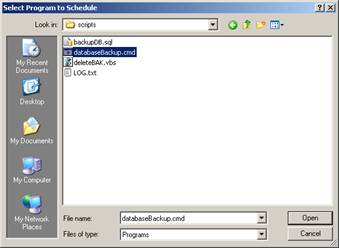
- Browse to the "E:\SQL_Backup\scripts" folder and select databaseBackup.cmd
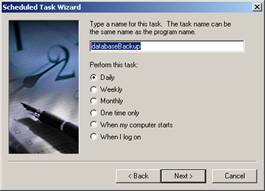
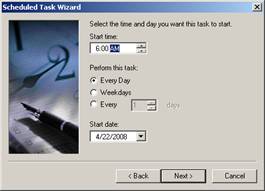
- Pick the frequency and time for the backups to run
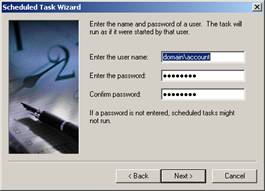
- Lastly, enter a Windows account that has at least db_backupoperator role privileges for all of the databases
- See screenshots below
Next Steps
- Implement this solution for your SQL Server Express implementations






About the author
 Edwin M Sarmiento is a Microsoft SQL Server MVP and Microsoft Certified Master from Ottawa, Canada specializing in high availability, disaster recovery and system infrastructures.
This author pledges the content of this article is based on professional experience and not AI generated.
View all my tips
