By: Atif Shehzad | Comments (5) | Related: > SQL Server Management Studio
Problem
As a part of my best practices, I always save the T-SQL scripts used for creation and modification of objects in SQL Server. When creating and modifying tables using SQL Server Management Studio designer it is easy to right click in the designer and select "Generate Change Script...", but is there a way to automatically script the creation and/or modification of tables made through of SQL Server Management Studio (SSMS) designer? This tip shows you an option that exists within SSMS to automatically generate these scripts for all table changes when using the table designer.
Solution
Within SQL Server Management Studio (SSMS) there is an option to automatically generate scripts for your changes done through the GUI. The solution for this problem is provided in SSMS and works with both SQL Server 2005 and SQL Server 2008, but by default this option that we will discuss is disabled.
To enable the option
- From the SSMS menus click on "Tools"
- Click on "Options..."
- Click on "Designers"
- Check the checkbox "Auto generate change scripts" as highlighted below
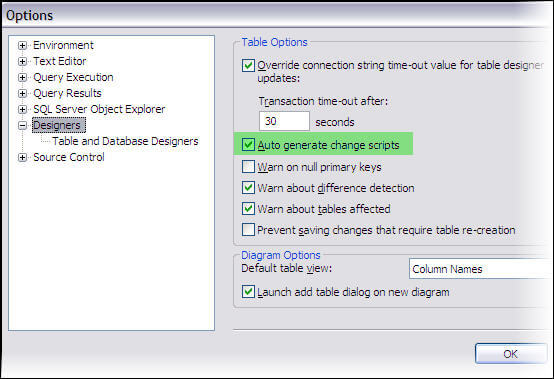
After checking the specified checkbox, SSMS is now able to generate scripts for the creation and/or modification of any table when you use the designer.
Testing It Out
Let's confirm the script generation for the creation of a new table.
- In SSMS select a database and expand the tree
- Right click on the tables folder inside and click on "New Table".
- A designer will appear for the creation of new table.
- Create a single column for this table, I have created a column named TestCol1 as nchar(10)
- Save the new table and give the table a name and click OK
- Another window will popup that includes the actual script for creating this new table as shown below
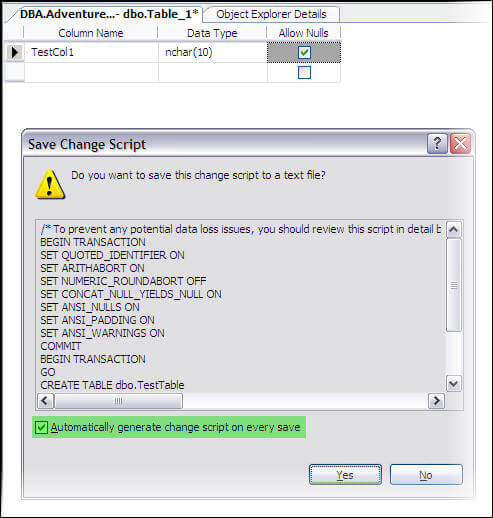
- Click on "Yes" to save the script and you will be prompted to specify the location. The file name by default will be the name of the table such as "tableName.sql", but this can be changed to anything you like.
- If you do not want to save the script then click "No", clicking "No" will not roll back the implemented changes, but the script will not be saved
Notes:
- It is important to mention here that unchecking the box in this frame as highlighted above "Automatically generate change script on every save" will cause this change to be undone in the options that we first configured.
- Also scripts are not automatically generated for deletion of a table
- While working on views through designers no script is generated, however the code for views operation is provided inside the designer and may be copied and saved.
Next Steps
- By implementing script auto generation for your SSMS designer you will be able to save changes made through designers easily, which will allow you to have change scripts for changes made through SSMS designer.






About the author
 Atif Shehzad is a passionate SQL Server DBA, technical reviewer and article author.
This author pledges the content of this article is based on professional experience and not AI generated.
View all my tips
