By: Greg Robidoux | Comments (16) | Related: > Integration Services Configuration Options
Problem
When using SQL Server Integration Services (SSIS) the ideal situation is to make the code as re-useable as possible, so the same code-set can be used to handle multiple situations instead of having a hard-coded solution. In a previous tip, "Dynamic Flat File Connections in SQL Server Integration Services" we looked at how to create a dynamic file source based on some variable settings within the SSIS package. This solution was great, but how do I take this further and pass in a dynamic value into an SSIS package?
Solution
As with Data Transformation Services (DTS) in SQL Server 2000, SSIS also gives you the ability to pass in parameter values directly to the SSIS package at run time. With SSIS the syntax is different than with DTS, but the options that you have are much greater than what was available in DTS.
To show you some simple examples we are going to create a flat file source that will import data into a SQL Server table. The first solution will be a hardcoded option and then we will call the SSIS package from the command line and pass in new parameter values for multiple parts of the package.
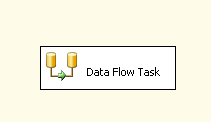
We first create a new SSIS package and use a "Data Flow Task".
Then we add a "Flat File Source" and an "OLE DB Destination". The flat file source is a CSV file that has these columns ID, Name, Address, City, State and Zip. The SQL Server table has these exact same columns.
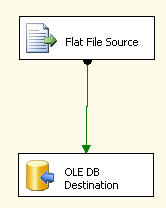
With the values hardcoded the package executes without a problem.
To take advantage of the dynamic aspects of an SSIS package we create a new variable called "fileName' which will take the path and the name of the file we are passing into the SSIS package. For more information on setting up a dynamic flat file source take a look at this tip "Dynamic Flat File Connections in SQL Server Integration Services".
First we create a new variable called "fileName".
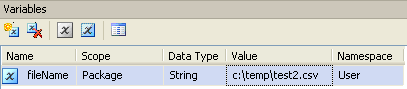
After the variable has been created we create an Expression for the flat file connection, which is shown below.
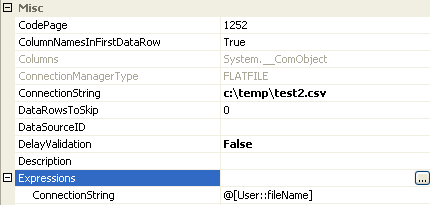
At this point our filename that we are importing is called "c:\temp\test2.csv" (which is a non-existent file) this is based on the variable that we just set . If we execute the package now the package fails with the following message.

The reason the variable was set to this non-existent file was just to illustrate that the package will fail, but will run when we pass in a good file name. The following is syntax to execute the SSIS package along with passing in the variable value for the fileName variable.
This syntax creates the command to run the SSIS package, but uses the 'C:\temp\test.csv" filename instead of "C:\temp\test2.csv.
This code can be pasted into a query window and executed. (note: you must have xp_cmdshell enabled to run the following code. Take a look at this tip on how to enable xp_cmshell in SQL Server.)
declare @cmd varchar(1000)
declare @ssispath varchar(1000)
declare @fileName varchar(1000)

set @ssispath = 'C:\temp\Package.dtsx'
set @fileName = 'C:\temp\test.csv'

select @cmd = 'dtexec /F "' + @ssispath + '"'
select @cmd = @cmd + ' /SET \Package.Variables[User::fileName].Properties[Value];"' + @fileName + '"'

exec master..xp_cmdshell @cmd
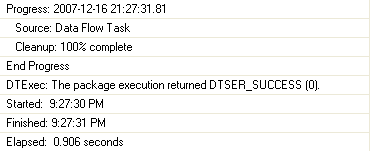
When this code is run the end of the query output will look something like this, to show the package ran successfully.
To take this a step further, let's say you want to pass two variables to the package. You need to do pretty much the same thing.
Here we now have a variable for fileName and another one for filePath.
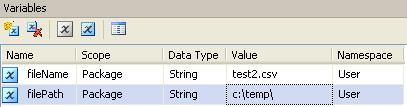
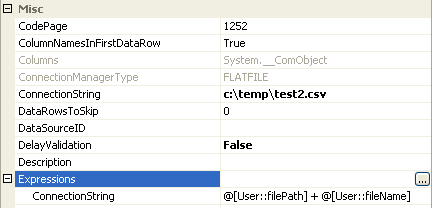
If we look at the expression, it still works the same way, but we have both variables making up the expression now.
The code to pass the two variables to the package is shown below. For the most part the syntax is identical. We now have two /SET commands to pass in each variable.
(Note: notice that we had to use a \\ at the end of the filePath. If you only use one such as "C:\temp\" the package will give you an execution error.
At this point you can execute the package and the two variables we be passed into the SSIS package.
declare @cmd varchar(1000)
declare @ssispath varchar(1000)
declare @filePath varchar(1000)
declare @fileName varchar(1000)

set @ssispath = 'C:\temp\Package2.dtsx'
set @filePath = 'C:\temp\\'
set @fileName = 'test.csv'

select @cmd = 'dtexec /F "' + @ssispath + '"'
select @cmd = @cmd + ' /SET \Package.Variables[User::filePath].Properties[Value];"' + @filePath + '"'
select @cmd = @cmd + ' /SET \Package.Variables[User::fileName].Properties[Value];"' + @fileName + '"'

exec master..xp_cmdshell @cmd
We only hit upon passing user defined variables to a package, but you can pass all sorts of different values dynamically to control how your SSIS package behaves.
Next Steps
- Start making your SSIS packages as reusable and portable as possible by passing in dynamic variable values
- Take a look at these other SSIS tips






About the author
 Greg Robidoux is the President and founder of Edgewood Solutions, a technology services company delivering services and solutions for Microsoft SQL Server. He is also one of the co-founders of MSSQLTips.com. Greg has been working with SQL Server since 1999, has authored numerous database-related articles, and delivered several presentations related to SQL Server. Before SQL Server, he worked on many data platforms such as DB2, Oracle, Sybase, and Informix.
This author pledges the content of this article is based on professional experience and not AI generated.
View all my tips
