By: Jeremy Kadlec | Comments (22) | Related: 1 | 2 | 3 | 4 | > Install and Uninstall
Problem
I have seen your recent tips (SQL Server 2008 Installation Process) on SQL Server 2008 installations. I think these are great for installing an instance of SQL Server. How do I just install the client tools (SQL Server Management Studio, Business Intelligence Management Studio, etc.) on DBA and Developer workstations? I have reviewed the options in the SQL Server Installation Center, but I am missing that piece of the puzzle to install the client tools.
Solution
The SQL Server 2008 installation process has changed and Microsoft has provided a number of new options and resources for completing the installation. These options have simplified a number of installation aspects and probably opened up some new opportunities that the SQL Server community was not aware of previously. For more information on the general SQL Server installation process check out the following tips:
- SQL Server 2008 Installation Process
- SQL Server 2008 Installation Process - Part 2
- SQL Server 2008 Installation Process - Part 3
- Steps to Install SQL Server 2008 Service Pack 1 (SP1)
With that baseline set of information covered, let's jump into the process for installing the SQL Server 2008 client tools (SQL Server Management Studio, Business Intelligence Management Studio, etc.). In a nutshell, once you run the setup application on your installation media the SQL Server Installation Center will load. Then navigate to the installation option then select the option to install a new stand-alone instance. Once you begin this installation process you can just select the client tools to complete the process. With that being said, here are the detailed steps:
SQL Server 2008 Client Tools Installation
Run the setup program from the installation media to load the SQL Server Installation Center.
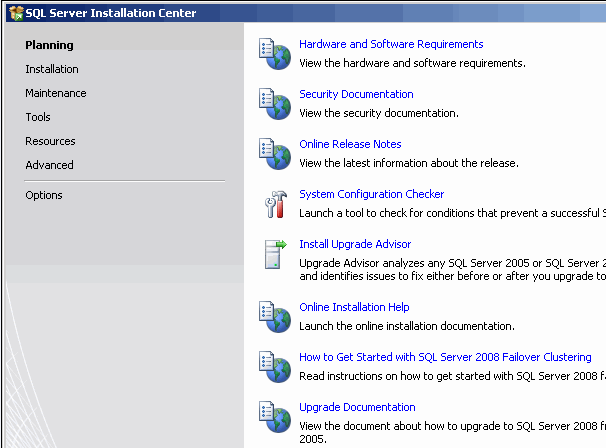
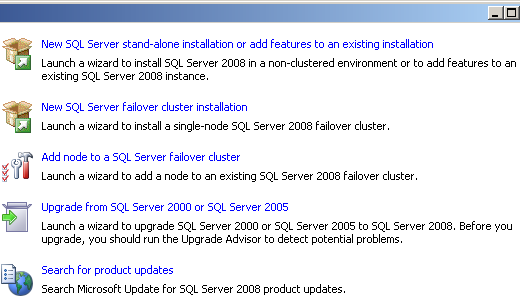
Once the SQL Server Installation Center loads navigate to the 'Installation' option and select the 'New SQL Server stand-alone installation or add features to an existing installation' option. To me this is the key step in the process, i.e. knowing where to start the installation process for the client tools because it is not 100% intuitive.
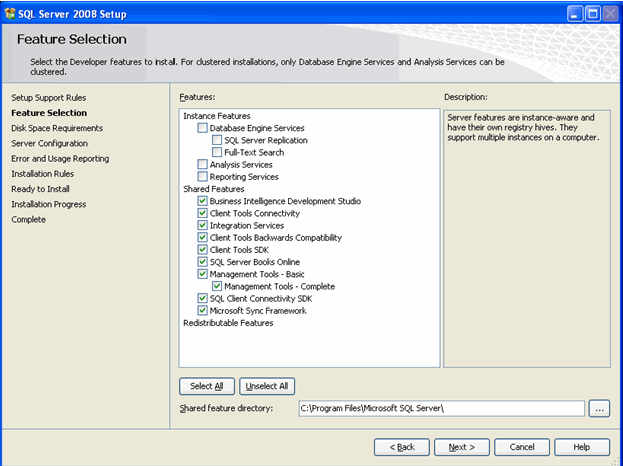
Many of the screen shots to complete the process are listed in the SQL Server 2008 Installation Process - Part 2 tip. For the sake of brevity, once you being the installation process the Feature Selection screen is where you have the option to just install the client tools as shown below.
As you complete the process you will be able to confirm your selections by reviewing the options in the Ready to Install screen as shown below.
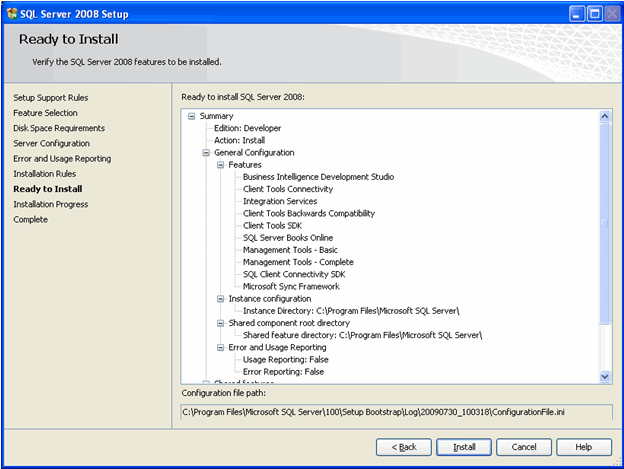
In this circumstance, the tools are installed in the C:\Program Files\Microsoft SQL Server\ directory. The tools can also be accessed by navigating to Start | All Programs | Microsoft SQL Server 2008.
Next Steps
- Check out these tips for additional information on the SQL Server 2008 installation process:
- Check out more information about SQL Server Management Studio.
- Check out more information about SQL Server Integration Services.






About the author
 Jeremy Kadlec is a Co-Founder, Editor and Author at MSSQLTips.com with more than 300 contributions. He is also the CTO @ Edgewood Solutions and a six-time SQL Server MVP. Jeremy brings 20+ years of SQL Server DBA and Developer experience to the community after earning a bachelor's degree from SSU and master's from UMBC.
This author pledges the content of this article is based on professional experience and not AI generated.
View all my tips
