solving sql server problems for millions of dbas and developers since 2006


SQL Server DBA Tips SQL Server Developer Tips SQL Server Business Intelligence Tips SQL Server Career Tips SQL Server Tip Categories SQL Server Tutorials SQL Server Webcasts SQL Server Whitepapers SQL Server Tools SQL Server Questions and Answers MSSQLTips Authors About MSSQLTips SQL Server User Groups MSSLQTips Giveaways MSSQLTips Advertising Options

MSSQLTips Facebook Page MSSQLTips LinkedIn Page MSSQLTips RSS Feed MSSQLTips Twitter Page MSSQLTips Google+ Page

SQL Product Highlight

Red Gate Software - SQL Monitor

SQL Server performance monitoring and alerting - SQL Monitor offers an easy entrance to advanced server monitoring with a simple design that's a refreshing change from the status quo. Red Gate have added custom metrics and user roles to the product without spoiling its ease-of-use, to help you answer that timeless question, 'How healthy are your servers?'

Learn more!


Change Setting for Recently Used Files in SQL Server Management Studio SSMS

By: | Read Comments | Print

Jugal has 8+ years of extensive SQL Server experience and has worked on SQL Server 2000, 2005, 2008 and 2008 R2.

Related Tips: More

Problem

I noticed in SSMS that there is the ability to show recently used files. Is there a way to configure this to show more or less recently used files?

Solution

Often we have a set list of files containing queries that we use. You could use the File > Open option in SSMS, but there is also File > Recent Files through which we can open recently used files directly without going to the particular location of the file. The below screenshot shows my recently used files. In this tip I will show how we can increase or decrease the number of files shown under Recent Files.
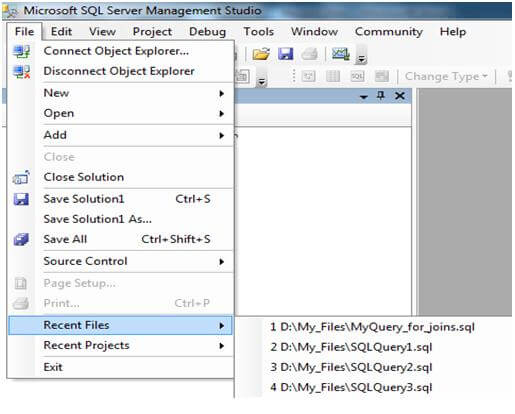
how to increase or decrease the number of files shown under recent files in ssms


Steps to change Recent Files number

Step 1
First check the current value for the Recent File option. Go to Tools > Options > General. You can see Display files in recently used list option as shown below. On my machine the value is 4 filest that can be displayed in Recent Files. This value can be changed from 1 to 24. That means we can display 1 to 24 recently used files.
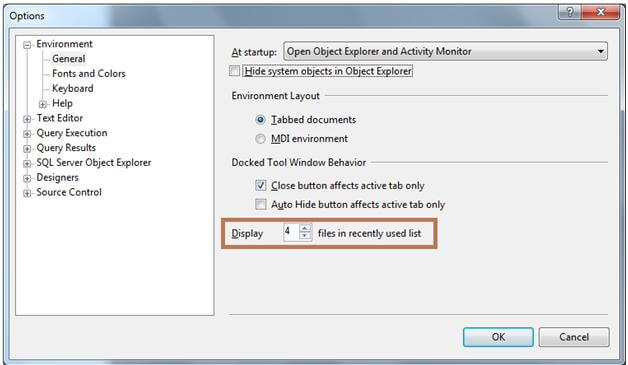
steps to change the recent files number in ssms

We can validate this by checking the recently used file list through Files > Recent Files.

steps to change the recent files in ssms

Step 2
Customize this number as per your requirement. Here I am changing this value to 12 for my needs.
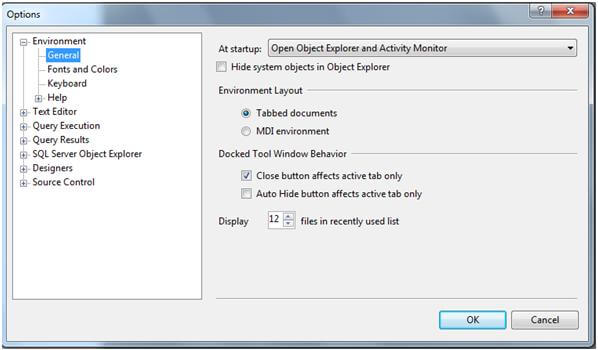
if you opened less files than the number you have set, ssms will only show those opened via ssms

Step 3
Verify that the Recent Files option now shows 12 files. (Note: if you have opened less files than the number you have set, SSMS will only show those files that you opened via SSMS.)
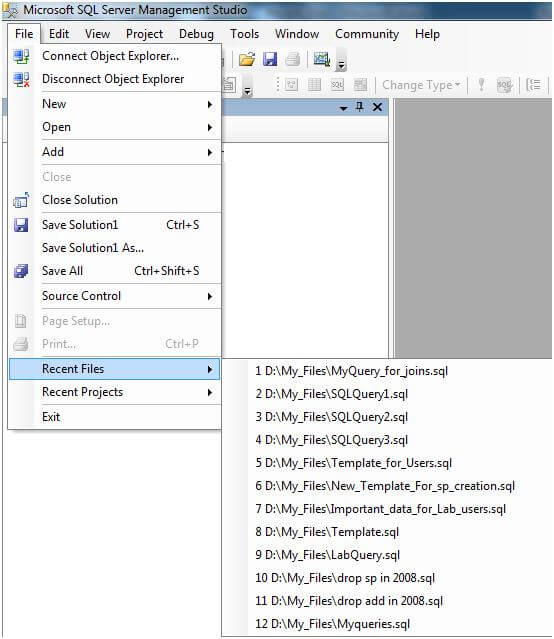
verify that the recent files option shows the value you set


Next Steps


Related Tips: More | Become a paid author


Last Update: 4/8/2011

Share: Share 


Comments and Feedback:


Post a Comment or Question

Keep it clean and stay on the subject or we may delete your comment.
Your email address is not published. Required fields are marked with an asterisk (*)

*Name   *Email   Notify for updates
Comments
*Enter Code refresh code


Sponsor Information
"Amazing, Amazing, Amazing! SQL doctor is truly one of the most powerful tools I have seen."

It takes just 5 minutes to connect your SQL Databases to source control. Got 5 minutes? Get started now.

SQL Servers keeping you up at night? Contact expert SQL Server consultants for a Health Check.

Find and Fix SQL issues with Foglight Performance Analysis. Get a free copy.

Solving SQL Server problems for millions of DBAs and Devs since 2006. Join now.

Demystify TempDB Performance and Manageability


Copyright (c) 2006-2012 Edgewood Solutions, LLC All rights reserved
privacy | disclaimer | copyright | advertise | about
authors | contribute | feedback | giveaways | user groups
Some names and products listed are the registered trademarks of their respective owners.


Edgewood Solutions LLC | MSSharePointTips.com | MSSQLTips.com