solving sql server problems for millions of dbas and developers since 2006


SQL Server DBA Tips SQL Server Developer Tips SQL Server Business Intelligence Tips SQL Server Career Tips SQL Server Tip Categories SQL Server Tutorials SQL Server Webcasts SQL Server Whitepapers SQL Server Tools SQL Server Questions and Answers MSSQLTips Authors About MSSQLTips SQL Server User Groups MSSLQTips Giveaways MSSQLTips Advertising Options

MSSQLTips Facebook Page MSSQLTips LinkedIn Page MSSQLTips RSS Feed MSSQLTips Twitter Page MSSQLTips Google+ Page


Create a Shared Data Source  

Overview
We discussed the Shared Data Source in the earlier section on using the Report Wizard to create a new report.  The Data Source contains the information that Reporting Services needs to retrieve the data that we want to render on our report.  A Shared Data Source is one that can be used by any report in the same project.  In this section we will create a Shared Data Source.

Explanation
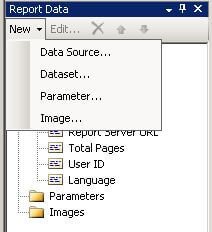
To create a Shared Data Source click on the New button in the Report Data area then select Data Source from the menu as shown below:
The Data Source Properties dialog will be displayed as shown below:
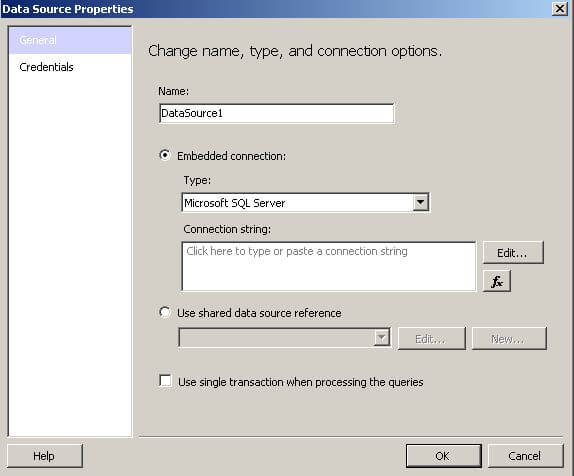
The first thing to do is to provide a name; enter AdventureWorksLT in the Name textbox.  Since we already defined a Shared Data Source in the earlier section on using the Report Wizard to create a new report, click the Use shared data source reference radio button and select AdventureWorksLT from the dropdown list.  The Data Source Properties dialog is shown below:
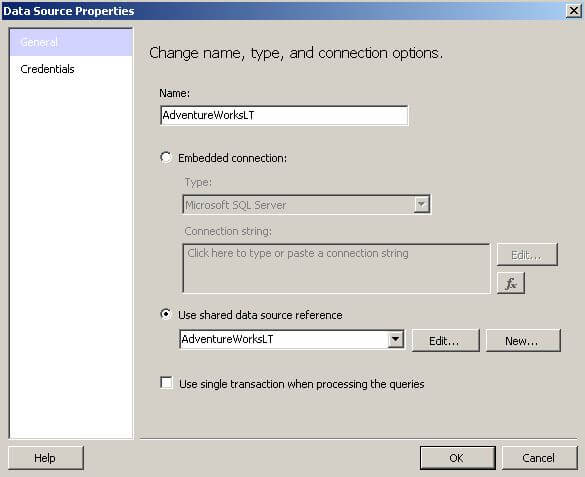
At this point we are done.  If you need to create a new Shared Data Source, you would click the New button and complete the Shared Data Source Properties dialog.  This is essentially the same thing we did back in the Report Wizard section of the tutorial.

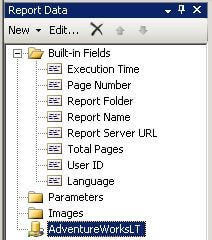
We can now see our Shared Data Source in the Report Data area as shown below:
We are now ready to continue on to the next section and create a Data Set.



Sponsor Information
"SQL doctor is the best SQL product on the market, by far. All of Idera's tools are great, but this is the icing on the cake!"

The 10 tools in the SQL Developer Bundle cut the time spent in dull and tedious tasks. Learn more.

Need SQL Server help and not sure where to turn? Reach out to the Edgewood consultants for a Health Check.

Find and Fix SQL issues with Foglight Performance Analysis. Get a free copy.

Join the over million SQL Server Professionals who get their issues resolved daily.

Are you waiting on SQL Server? Learn about these DMV's.


Copyright (c) 2006-2012 Edgewood Solutions, LLC All rights reserved
privacy | disclaimer | copyright | advertise | about
authors | contribute | feedback | giveaways | user groups
Some names and products listed are the registered trademarks of their respective owners.


Edgewood Solutions LLC | MSSharePointTips.com | MSSQLTips.com