By: Hal Hayes | Comments (13) | Related: More > Integration Services Connection Managers
Problem
As a portion of our daily data upload process, we receive data in the form of Microsoft Access files (*.mdb) which needs to get uploaded to a SQL Server 2005 database. We want to build a SQL Server 2005 Integration Services package that loads all our Microsoft Access files and uploads data based on parameters in a table in our database. We want to make this an automated process, but the number of Access files may change over time. Do you have any solutions on how to build the SSIS package such that we do not have to modify our SSIS package for each new file?
Solution
In this example, let us assume that our sales force sends their sales order information as an Access file and each each sales team has their file stored in a different folder. All available Access sales files need to be loaded in the same process to keep the sales information current. The company is continually adding new sales teams, but not all sales teams will submit a file, so we want to be able to indicate the files (by location) that we want processed dynamically when the SQL Server 2005 Integration Services (SSIS) Package is executed.
The first step is to build a listing of the Microsoft Access files that need to be processed. For this particular solution, the active Access file locations will be stored in a table in the SQL Server database. Here is the simple create table script to hold the file information.
--Sample Access Table Definition
CREATE TABLE [dbo].[AccessDataFiles](
      [ID] [int] IDENTITY(1,1) NOT NULL,
      [FileLocation] [varchar](500) NOT NULL,
      [Updated] [datetime] NOT NULL CONSTRAINT [DF_AccessDataFiles_Updated]  DEFAULT (GETDATE())
) ON [PRIMARY]
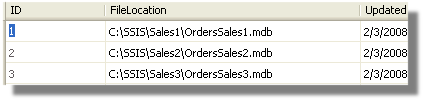
When populated, the table will look something like below.
SQL Server Integration Services Package
For the Integration Services Package, our solution include the following steps:
1. Execute a SQL query to select records containing the file locations.
2.
Iteration over the records returned, creating a connection string for each Access
file.
3. Set the variables that are assigned to the OLE DB connection object
for each the Access file.
4. Execution of the data flow operation to extract
data from an Access table into a SQL Server table.
To implement this solution, create an SSIS project in the SQL Server 2005 Business Intelligence Development Studio. Create a connection to one of the Access files (call it AccessOrderMDB). Next, create an OLE DB connection to the SQL Server database (call it AccessUploadDB). With our connections in place, we are ready to build the package.
Step 1. Retrieving the file locations
During this step, we will use SSIS to create a record set from a SQL statement
that will be used during the looping step.
Add a variable called "mAccessFiles"
at the package level with the data type of Object.
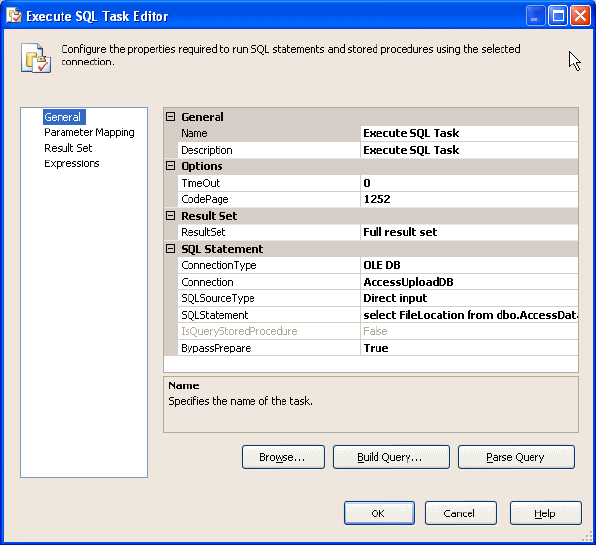
Add an Execute SQL Task to the Control Flow surface. Set the following properties in the General tab (double click on the object to launch the Execute SQL Task Editor):
| Parameter | Value |
|---|---|
| ResultSet | Full result set |
| Connection | AccessUploadDB |
| SQLSourceType | Direct input |
| SQLStatement | Select FileLocation From dbo.AccessDataFiles |
Select the "Result Set" tab on the Execute SQL Task Editor and set the following properties:
| Result Name | Variable Name |
|---|---|
| 0 | User::mAccessFiles |
Step 2. Configure the ForEach loop
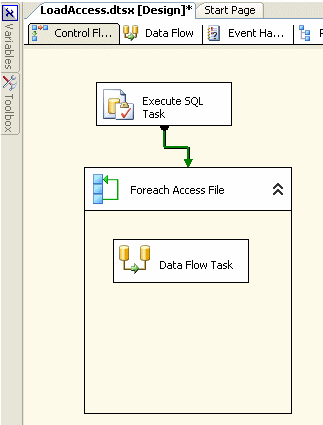
Add a Foreach task to the Control Flow design surface. Within the Foreach task
add a Data Flow task. Your solution should look like the following:
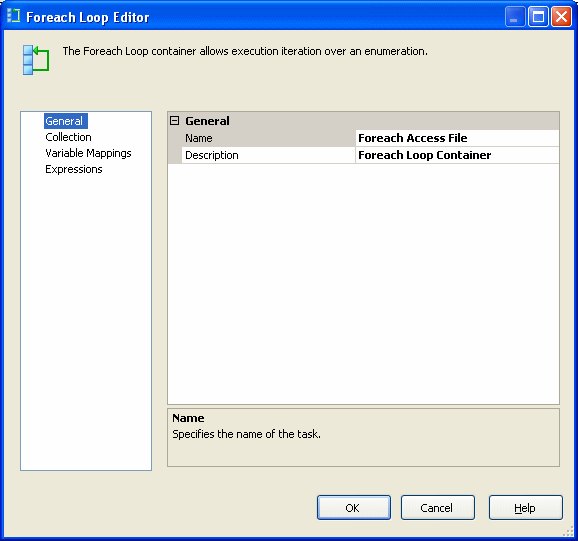
In the Foreach Loop task, select the Foreach Loop Editor (double click on the task or select "Edit" from the context menu).
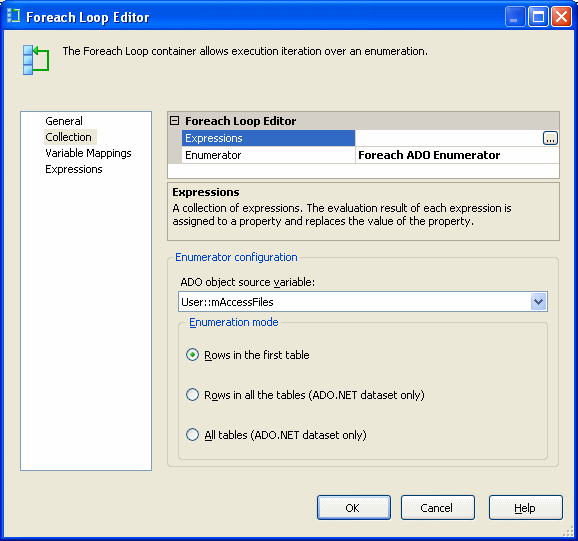
Select the Collection tab, and in the Enumerator property, set the drop down value to "Foreach ADO Enumerator". In the Enumeration configuration settings, under ADO object source variable, select the variable we previously set in the proceeding step, User::mAccessFiles. Also, select "Rows in the first table". This makes it possible to iterate over the returned rows stored in our variable as an ADO object.
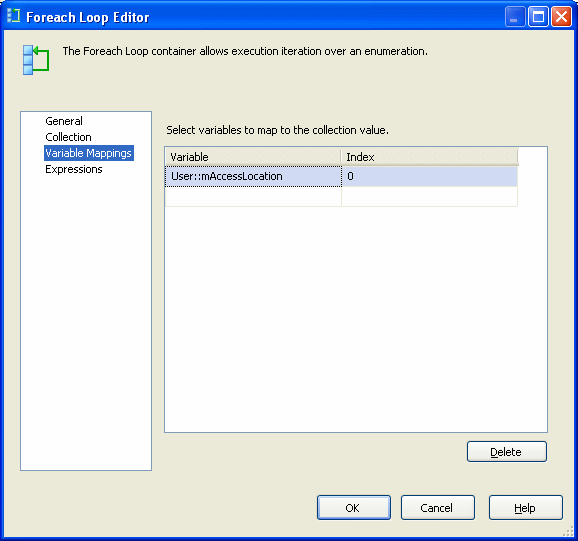
In the variable mappings map the variable as follows:
Step 3. Dynamically configure the Access connection object through Expressions
To successfully connect to an Access file both the connection string and ServerName values must be set correctly. When you use the connection wizard, these values are properly populated. Unfortunately, when you want to dynamically configure your connection to the Access files, you must set both. Note the Properties values below.
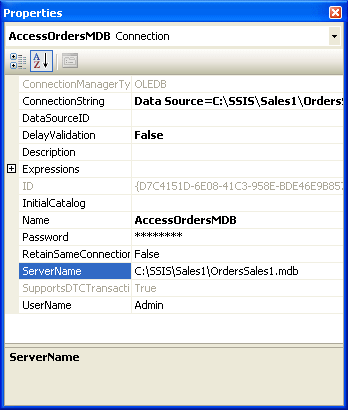
To set these values dynamically the properties should be changed as follows:
| Property | Value |
|---|---|
| ConnectionString | "Data Source=" + @[User::mAccessLocation] + ";Provider=Microsoft.Jet.OLEDB.4.0;User ID=Admin;Password=;" |
| ServerName | @[User::mAccessLocation] |
Step 4. Set Dataflow Properties
Now we simply configure our data flow using our OLE DB Source object from our Access table to pump data into our SQL Server database OLE DB Destination table. The OLE DB connection manager should point to our Access connection object. Since these steps are typical data flow operations, the details will be left to the reader.
Next Steps
- Configuring your SSIS package to support dynamic connections to multiple Access databases can be achieved, but it is important to remember that you need to set two properties to successfully connect to the Access files, the ConnectionString and the ServerName.






About the author
 Hal Hayes is a managing Consultant at Excella Consulting.
This author pledges the content of this article is based on professional experience and not AI generated.
View all my tips
