By: Ray Barley | Comments (18) | Related: 1 | 2 | 3 | > Integration Services Configuration Options
Problem
We have adopted XML configuration files as a standard development practice within our organization. We use them in ASP.NET web applications as well as Windows Forms applications. How can we use XML configuration files with our SSIS packages?
Solution
SSIS has built-in support for using XML files for package configuration. Just about any property setting in a package or task can be retrieved at runtime from an XML configuration file. A single XML configuration file can store as many configuration settings as you need, allowing you to use the same configuration file for multiple SSIS packages. However, every property that is specified in the XML configuration file must exist in the SSIS package else an error is raised when opened in BIDS (or Visual Studio). A simple work around for this behavior is to use multiple XML configuration files, each containing a group of properties that exist in every package that uses the XML configuration file.
Let's walk thru an example to demonstrate the steps required to setup an XML package configuration. Assume that we want to populate an Excel file with sales information from the AdventureWorks database. Ultimately we would like to execute this SSIS package from a SQL Agent job which will run on a scheduled basis. In addition we would like the ability to run the package for any date range on demand.
For our example we will specify the following configuration settings in our XML package configuration:
- Connection string for the AdventureWorks database
- Connection string (i.e. the file folder and file name) for the Excel file
- Begin date
- End Date
Now we are ready to setup an SSIS package to use XML package configuration. To begin, open Business Intelligence Developer Studio (BIDS) or Visual Studio and create a new Integration Services project. Add a new SSIS package to the project then perform the following steps:
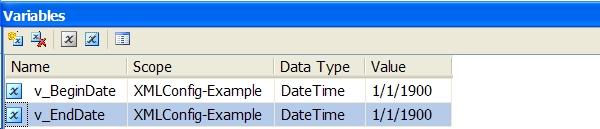
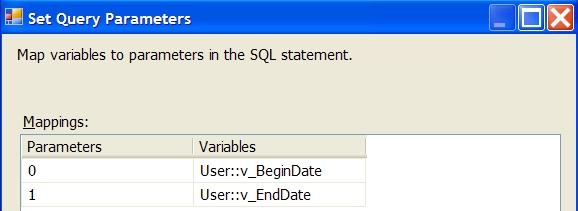
1. Add the Begin Date and End Date variables to the package; we will set these from the XML package configuration and use them as parameters in our SQL command (right click on the Control Flow and select Variables):
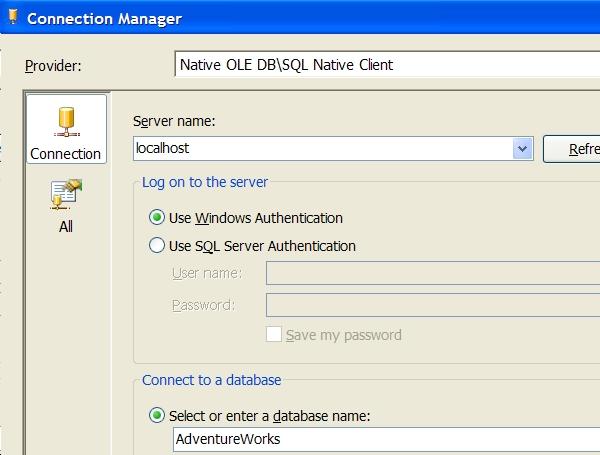
2. Add an OLE DB Connection Manager for AdventureWorks (right click in the Connection Managers area and add a new OLE DB connection):
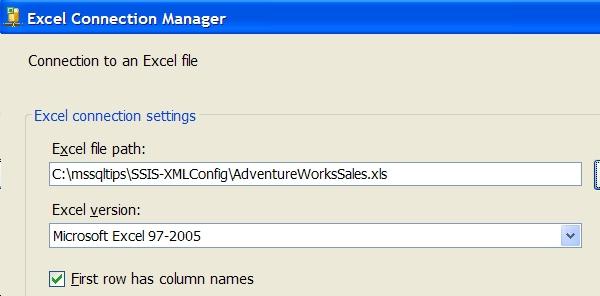
3. Add an Excel Connection Manager for our output file (right click in the Connection Managers area, select New Connection then Excel):
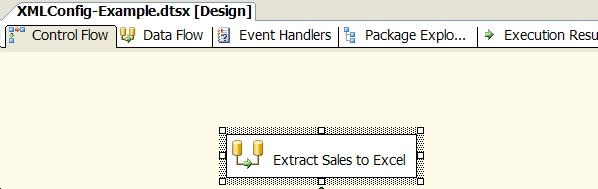
4. Add a Data Flow Task to the Control Flow (drag/drop Data Flow Task from the Toolbox onto the Control Flow):
5. Add an OLE DB Source and an Excel Destination to the Data Flow Task (right click the Data Flow Task then select edit; drag/drop source and destination from the Toolbox onto the Data Flow Task):
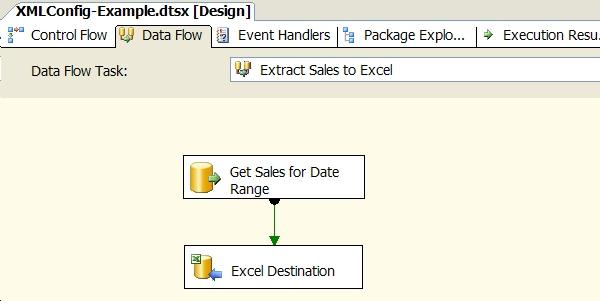
6. Configure the OLE DB Source (right click then select Edit):
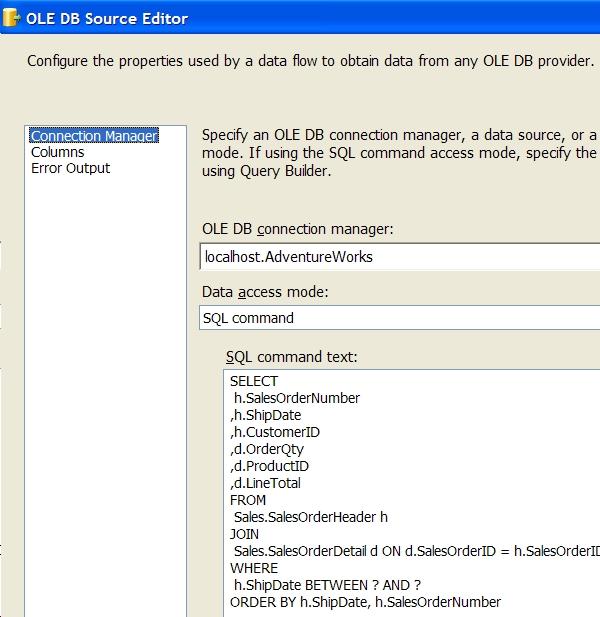
7. Set the parameters for the SQL command text (click the Parameters button in the OLE DB Source Editor):
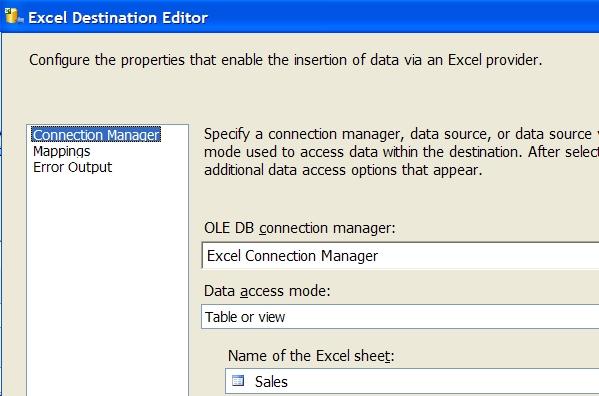
8. Configure the Excel Destination (right click and select Edit)
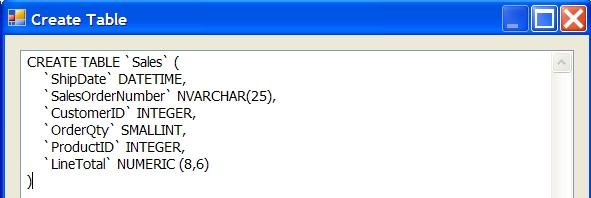
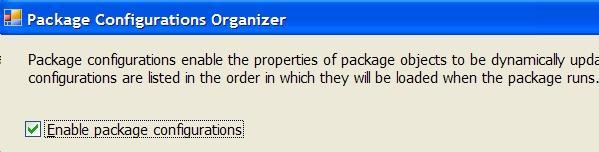
10. Enable Package Configuration (right click on the Control Flow, select Package Configurations, then check Enable package configurations):
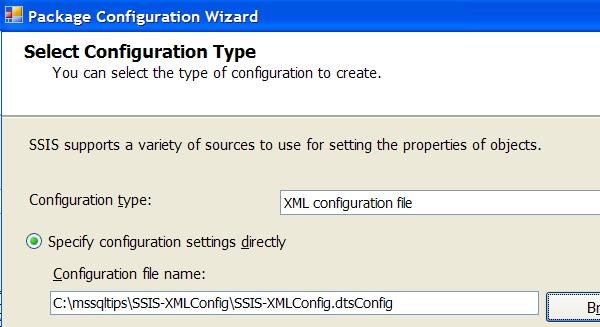
11. Add the XML Package Configuration (click Add on the Package Configurations Organizer):
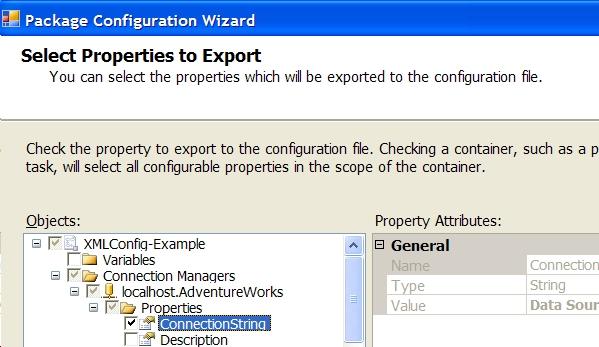
12. Select the properties to include in the XML Package Configuration file (drill in to the Objects and click the check boxes for the AdventureWorks ConnectionString, Excel Connection Manager ConnectionString, v_BeginDate and v_EndDate variable's Value):
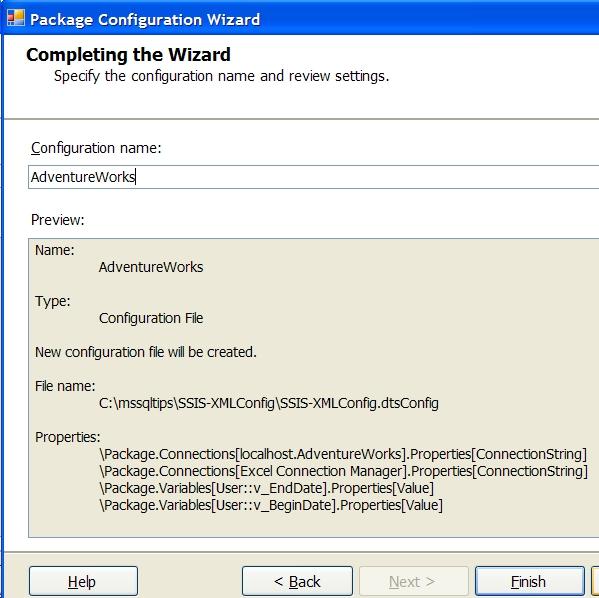
13. Complete the XML Package Configuration:
14. Review the XML Package Configuration file created (navigate to the file name as noted in Step 13 above and open it with Internet Explorer):
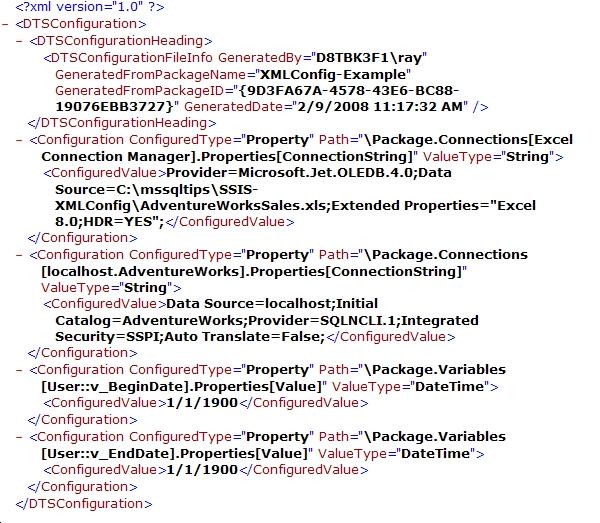
Note the following in the XML package configuration file (as shown in step 14 above) :
- Open the file using your XML editor of choice to make changes as necessary
- The Path element refers to the object in the SSIS package
- The ConfiguredValue element holds the value to be used in the package for the object specified in the Path element; this is the one that you need to edit
At this point the XML package configuration example is complete; you can edit the XML file as appropriate and run the SSIS package to see the results. However, the XML file name and path is hard-coded into the SSIS package. It would be nice to make this a variable that we can specify at runtime. Two options come to mind:
- Use an environment variable to specify the XML file name and path
- Set the XML file name and path as a command line parameter at runtime
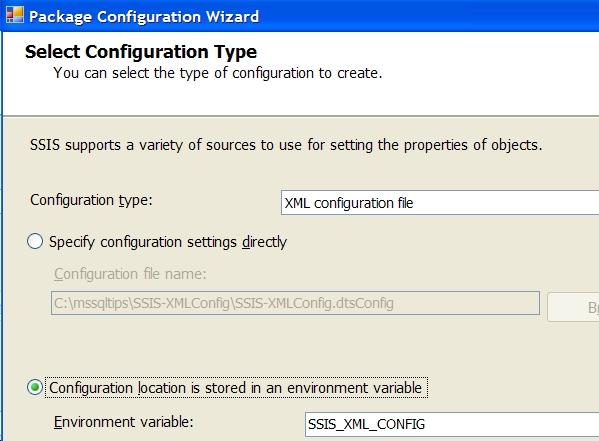
Step 11 above is where the XML file name and path was specified. We selected the radio button "Specify configuration settings directly" then entered the full path to the file. Instead we could specify the full path to the file in an environment variable, select the radio button "Configuration location is stored in an environment variable", and specify the environment variable. For example:
To specify the XML file name and path on the command line when executing the SSIS package, navigate to the SSIS package file using Windows Explorer and double click the file to launch the Execute Package Utility. Select Configurations and add the configuration file as shown below then click the Execute button to run the package:
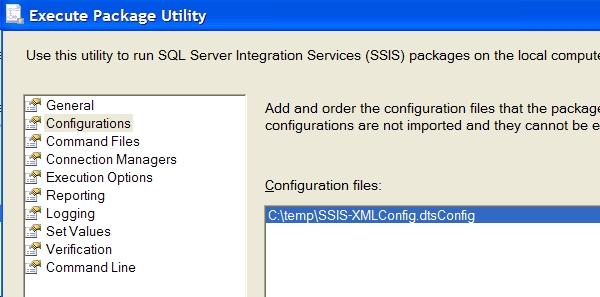
Clicking on Command Line will show the actual DTEXEC command line:

Caveats
- Remember that any environment variable that you add while BIDS (or Visual Studio) is open will not show up in the environment variable list (e.g. Select Configuration Type dialog above) until you close the application and reopen it.
- When you are working with an SSIS package in BIDS (or Visual Studio) , the package configuration is read when you open the package. Any changes made to the configuration will not be reflected until you close and reopen the SSIS package.
- When using an Excel destination the Excel file has to already exist. In addition the default behavior is to append rows to the worksheet. It's usually a good idea to make a backup copy of the Excel file that gets created when configuring the Excel destination (see steps 8 and 9 above). You can then copy/rename the backup to the original Excel file name to start out with an empty worksheet before rerunning your package.
Next Steps
- Experiment with the XML Package Configuration and see if it meets your configuration needs.
- Take a look at the sample package discussed in this tip here
- Refer to the Package Configurations topic in Books on Line for additional details.






About the author
 Ray Barley is a Principal Architect at IT Resource Partners and a MSSQLTips.com BI Expert.
This author pledges the content of this article is based on professional experience and not AI generated.
View all my tips
