By: Edwin Sarmiento | Comments (25) | Related: 1 | 2 | 3 | 4 | 5 | > Reporting Services Performance
Problem
Delivering reports is becoming more critical due to the increasing demand for business intelligence solutions. And while there are a lot of guides that walk us through building a highly available database engine, you'll rarely see one for SQL Server Reporting Services. How do I go about building a scale-out SQL Server 2008 R2 Reporting Services running on Windows Server 2008 R2? Check out this final tip in the series.
Solution
In the last part of this series, we will be configuring view state validation, hostname and URL for the NLB cluster as well as some registry hacks to workaround the HTTP 401 error message on all of the NLB cluster nodes.
Configuring View State Validation on all of the NLB Cluster Nodes
In the previous tip, we've managed to configure SQL Server 2008 R2 Reporting Services on the second node of the NLB cluster as well as joined it to the scale-out deployment. While the web service URLs work fine after testing access, we still need to take care of a few stuff. Note that SQL Server 2008 R2 Reporting Services still uses ASP.NET in it's core platform but without IIS. We also need to remember that, as reporting services is a web application, the web is stateless. This means that once a web page is processed on the server and rendered on the browser, the server no longer remembers the page anymore. In order for end users to be able to view web pages (or, in this case, HTML reports) interactively, some form of state management must occur. This can be done by ASP.NET's view state validation. While a full discussion of ASP.NET View State is beyond the scope of this tip, we will consider a few things to move forward (you can read more about ASP.NET State Management: View State from this article.) By default, view state validation in ASP.NET is enabled and uses automatically generated keys for both validation and encryption. For reporting services, view state validation uses the identity of the Report Server web service to perform the validation. However, since we are dealing with multiple machines in a NLB cluster, there will be multiple reporting services instances, hence, multiple Report Server web service identities to deal with. This would mean that we cannot simply rely on a single process identity to perform the view state validation. In order to workaround this situation, we can manually generate both the validation and encryption keys instead of relying on the autogenerated values provided by ASP.NET. We will use these key values across all of the nodes in the NLB cluster. This can be done by modifying the web.config files for both the Report Server as well as for the Report Manager. And while Microsoft KB article 312906 describes how you can create a .NET application that will generate these key values, I'm not about to open up Visual Studio just to write my own utility. Luckily, there are a lot of utilities out there that will do this for you. I've used this machineKey generator utility from aspnetresources.com to generate the key values for me.
Here is how to update the validation and encryption keys:
- Using any text editor, open the web.config file for the Report Manager. By default, this can be found in \Program Files\Microsoft SQL Server\MSRS10_50.MSSQLSERVER\Reporting Services\ReportManager\Web.config
- Look for the <system.web> section paste the <machineKey> element that you generated either from the machineKey generator utility from aspnetresources.com or your very own utility. The values I generated from the machineKey generator utility from aspnetresources.com is shown below and is pasted immediately after the <system.web> section just so I can easily find it later on should I need to do some troubleshooting.
<machineKey
validationKey="00A2CEAEF8A91B29F63399CBEE18F272159F114991EA7CF2FD78BC5D9BB0821825C7332C4A4C1698FA58E39634365A97DA8F720377B84F471A3A166CFCDD31DF"
decryptionKey="009CA6A1D48DC4DB59E54865C470DFB75FBC1B73AA4833523C9795B1FA88CBE3"
validation="SHA1" decryption="AES" />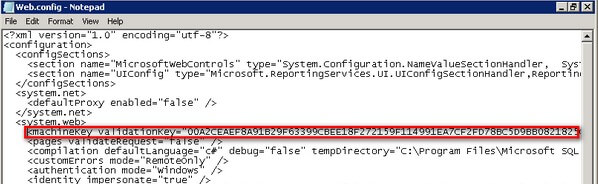
- Save the Web.config file
- Repeat the previous steps for the Report Server web.config file. By default, this can be found in \Program Files\Microsoft SQL Server\MSRS10_50.MSSQLSERVER\Reporting Services\ReportServer\web.config

- Repeat steps #1 to #4 on all of the nodes in the NLB cluster
- Verify that the <machineKey> element in the <system.web> section of the web.config files for both the Report Manager and Report Server are identical across all of the nodes in the NLB cluster
Configuring Hostname and UrlRoot on all of the NLB Cluster Nodes
These configuration items can be found in the RSReportServer.config file. The UrlRoot property is used by the report server delivery extensions to compose URLs that are used by reports delivered in e-mail and/or file share subscriptions. This property has to be set correctly to avoid having incorrect links generated by the reports. Since we are dealing with multiple nodes in the NLB cluster, you wouldn't want end users to see the physical computer name where the subscriptions were generated. You also wouldn't want the end user to be directed to the physical server and bypassing the NLB cluster as this would affect their session state information. We need to configure the UrlRoot property so that the subscribed reports would display the virtual server name of the NLB cluster instead of the physical server names of the NLB cluster nodes. The Hostname property defines how the network traffic to the reporting environment is directed. By default, this property is not defined and will use the physical server name. As we've mentioned in the UrlRoot property, we want the network traffic to be directed to the virtual server name so that the NLB cluster will be the one to handle and distribute the requests among the cluster nodes.
Here is how to configure the Hostname and UrlRoot properties:
- Using any text editor, open the RSReportServer.config file. By default, this can be found in \Program Files\Microsoft SQL Server\MSRS10_50.MSSQLSERVER\Reporting Services\ReportServer\RSReportServer.config.
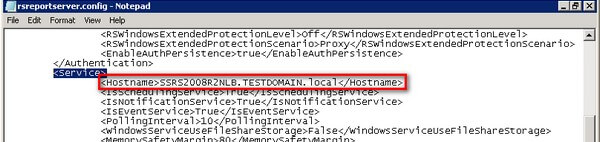
- Look for the <Service> section, and add the following information to the configuration file. Use the Hostname value of the virtual server name of your NLB server. For this example, we'll use SSRS2008R2NLB.TESTDOMAIN.local. Similar to what I've done in the <machineKey> element in the web.config file, I pasted it immediately after the <Service> section just so I can easily find it later on should I need to do some troubleshooting.
<Hostname>SSRS2008R2NLB.TESTDOMAIN.local</Hostname>
- Look for the <UrlRoot> element. By default, this has no value but the default value used is in the format http:// or https://<physicalServerName>/<reportserver>, where <reportserver> is the virtual directory name of the Report Server Web service.
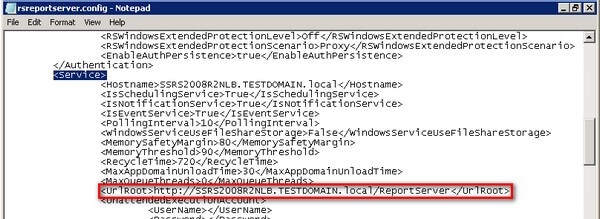
- Type a value for UrlRoot that includes the virtual server name in this format: http:// or https://<virtualServerName>/<reportserver>. For this example, we will use http://SSRS2008R2NLB.TESTDOMAIN.local/ReportServer
<UrlRoot>http://SSRS2008R2NLB.TESTDOMAIN.local/ReportServer</UrlRoot>
- Save the RSReportServer.config file
- Repeat steps #1 to #6 on all of the nodes in the NLB cluster
- Verify that the <Hostname> and <UrlRoot> elements in the <Service> section of the RSReportServer.config files are identical across all of the nodes in the NLB cluster
Workarounds for the HTTP 401 Error Message
At this point, you may you may be tempted to test access to the reporting services instance via the virtual server name. However, if you do so, you may get a HTTP 401 error similar to the one below.
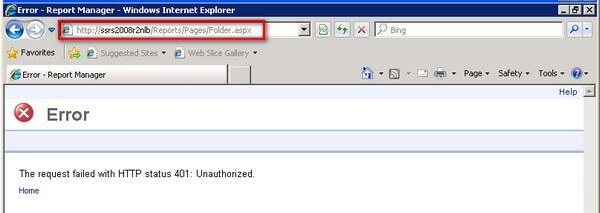
If you look closely, you will notice the user interface associated with SQL Server Reporting Services which tells us that the reporting services instance is working except that it encounters a HTTP 401 error. According to Microsoft KB article 896861, this behavior is by design if the fully qualified domain name or the custom host header does not match the local computer name, which is the case in a reporting services scale-out implementation. And while the Microsoft KB article describes the behavior for a web application running on IIS, it does apply to our scenario. You can implement any of the methods described in the KB article but Method 1 is the Microsoft recommended approach. You would need to reboot your server in order for the changes to take effect immediately as you do not have IIS on the NLB cluster nodes. Your BackConnectionHostNames key would look something like this for one of the nodes, considering to include both the hostnames and the fully qualified domain names for the physical computer name as well as the virtual server name.
SSRS2008R2NLB
SSRS2008R2A.TESTDOMAIN.local
SSRS2008R2NLB.TESTDOMAIN.local
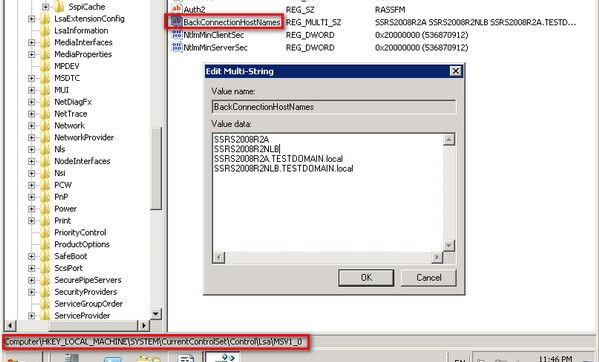
Make sure you make this registry change across all of the nodes in your NLB cluster, making the necessary changes to the Value Data box to reflect the corresponding physical server name for each node. Once all of the nodes in the NLB cluster have been rebooted, you should now be able to access the reporting services instance using the virtual server name.
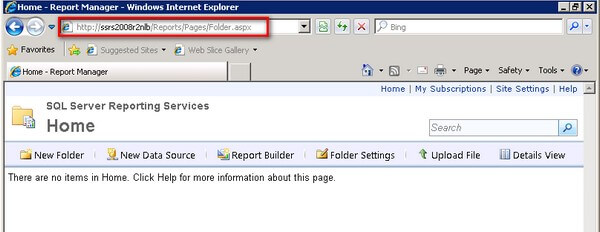
Congratulations! After going through all of the process outlined in the previous tips including this one, you now have a highly available, scale-out SQL Server 2008 R2 Reporting Services Farm running on a two-node Windows Network Load Balanced cluster.
Next Steps
- Prepare a test environment to apply this deployment scenario.
- Review the series of tips on Installing SQL Server 2008 on a Windows Server 2008 Cluster to create a highly available database engine for the report server database.
- Check out the previous tips in the series:






About the author
 Edwin M Sarmiento is a Microsoft SQL Server MVP and Microsoft Certified Master from Ottawa, Canada specializing in high availability, disaster recovery and system infrastructures.
This author pledges the content of this article is based on professional experience and not AI generated.
View all my tips
