Problem
We would like to have a single SQL Server Reporting Services (SSRS) report that will display SQL Servers versions for all of our SQL Servers that are registered in Central Management Server.
Solution
Sometimes it is not easy to have results from different data sources in one data set. To help with the solution we will create two reports – a parent report and a sub-report with a dynamic data source connection. The parent report will display current versions of all managed SQL Servers and it will look as though it is a single table.
Dynamic Connection String
In this report we will use a dynamic connection string. Starting with SQL Server 2005 Microsoft introduced Expression-based Connection Strings. You can have report parameters that will allow you to select different SQL Server names and use this parameter in the data source expression:
="data source=" & Parameters!ServerName.Value & ";initial catalog=AdventureWorks
Create the Subreport
- Create a blank report named “_Demo_SubReport_1”
- Add the new parameter to the report:
- Set name to “isp_SQLServer”
- Set “Select parameter visibility” to “Hidden”
- Set “Available Values” to – “None”
- “Default Value” – “None”
- Data type – “Text”
- Create the new Data Source:
- Give it any name (we will set it to “Dynamic_DataSource”)
- Select “Embedded connection” and click on the “Expression” button:

- Enter the following expression for the Connection string (note that we use the report’s parameter as Server Name in the connection string):
="data source=" & Parameters!isp_SQLServer.Value & ";initial catalog=master"
- Make sure that the Credentials are set to the authentication that you will be using to run the report
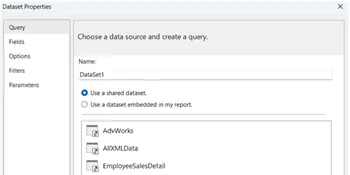
- Create the new Dataset using “Dynamic_DataSource” created in step 3:

- Use this query (or other query that you want to run against all SQL Servers):
SELECT @@SERVERNAME AS Server_Name, SERVERPROPERTY ('ProductVersion') AS [Version], SERVERPROPERTY ('Edition') AS [Edition] - Manually add fields under “Dataset Properties” (we have to add them manually because we are using a dynamic database connection):

- Use this query (or other query that you want to run against all SQL Servers):
- In the Design View of the report:
- Add a table with three columns using the Dataset created in the step 4:


- Resize the columns: “Version” to 1.5 inches, “Server_Name” and “Edition” to 3 inches (we will use these sizes later in the parent report)
- Delete the title (column names) row:
 
- Reduce the report’s area to fit the table’s height:

- Add a table with three columns using the Dataset created in the step 4:
- Save the report.
Creating the Parent Report
- Create the new blank report named “_Demo_Report_1”
- Add the new Shared Data Source to the project:

This could be connection to the msdb database on your Central Management Server (CMS) or connection to another data source that contains your SQL Servers’ names. In our example we will use connection to the CMS server.
- Create the new report’s Data Source using the Shared Data Source created in step 2:

- Add Dataset using the Data Source from step 3:

Use the query below to get SQL Server names registered in CMS (or use the query to your own data source with SQL Server names):
SELECT s.name FROM dbo.sysmanagement_shared_registered_servers s
- In design view add to the report a List from the Toolbox items. This will create a Tablix report item. Set the “DataSetName” to the “Servers_List” dataset created in the step 4 using the Tablix item’s property:
 
- Drag the “Subreport” item from the Toolbox to the Tablix area:

- Right click the “Subreport” and set the following properties:
- “All_Versions” as the “Name”
- Select “_Demo_SubReport_1” from the “Use this report as a subreport” drop-down list:

- Under the “Parameters” property add the new parameter and select “isp_SQLServer” under the “Name” column and select “[name]” as the “Value”:

- Set the height of the Subreport the same as the height of the Tablix.
- Add three textboxes above the Subreport. These textboxes will be the columns titles:
- Resize the textbox similar to the columns in Subreport: “Version” to 1.5 inches, “Server_Name” and “Edition” to 3 inches
- Select all three textboxes and set background color and borders:


- Save and preview the report:

Customizing the Report
To make the report more flexible you can add a parameter to the parent report and select a group or parent group in CMS:

In order to do this replace the “Servers_List” dataset’s query with this:
WITH RegServers (parent_id, server_group_id, name ) AS
(
    SELECT parent_id, server_group_id, name
     FROM dbo.sysmanagement_shared_server_groups
    WHERE parent_id IS NULL

    UNION ALL

    SELECT e.parent_id, e.server_group_id, e.name
     FROM dbo.sysmanagement_shared_server_groups AS e
         INNER JOIN RegServers AS d
         ON e.parent_id = d.server_group_id
)
SELECT s.name, g.parent_id, sg.name as parent_group_name, g.server_group_id, g.name as group_name
 FROM RegServers AS g JOIN dbo.sysmanagement_shared_registered_servers AS s
  ON s.server_group_id = g.server_group_id
 JOIN dbo.sysmanagement_shared_server_groups AS sg
  ON g.parent_id = sg.server_group_id
WHERE g.parent_id = @p_RegServer_ParentGroup -- OR g.server_group_id = @p_RegServer_Group
Use a similar dataset for the parameter’s query:
WITH RegServers (parent_id, server_group_id, name ) AS (
    SELECT parent_id, server_group_id, name
     FROM dbo.sysmanagement_shared_server_groups
    WHERE parent_id IS NULL

    UNION ALL

    SELECT e.parent_id, e.server_group_id, e.name
    FROM dbo.sysmanagement_shared_server_groups AS e
        INNER JOIN RegServers AS d
        ON e.parent_id = d.server_group_id
)
SELECT DISTINCT  g.parent_id, sg.name as parent_group_name
 -- OR g.server_group_id, g.name as group_name
 FROM RegServers AS g JOIN dbo.sysmanagement_shared_registered_servers AS s
  ON s.server_group_id = g.server_group_id
 JOIN dbo.sysmanagement_shared_server_groups AS sg
  ON g.parent_id = sg.server_group_id
Next Steps
- Run different queries in a Subreport (or use different Subreports) to gather information across your SQL Servers and display it as a single table in one report.
- Run multi-server queries using CMS as in this tip or using Registered Servers. This will give you similar results, but you would not be able to export the results to PDF, to schedule report, to use specific formatting or to use other SQL Server Reporting Services features.
- Read more about creating and using subreports here.
- Use this technique to generate the SSRS documentation for your databases. Schedule the report to run every month to have the most current configurations. Keep report snapshots to be able to review configuration changes.
- Download the RDL files for this tip.

Svetlana has been working in IT for more than 17 years. Most of her career has focused on Database Administration (both SQL Server and Oracle) and Database Development. Databases are Svetlana’s passion, but she also has fun helping co-workers and friends in troubleshooting non-database related issues. Svetlana tries to explore and learn as many SQL Server features as possible. Her favorite SQL Server features are Policy Based Management, SSIS, SSRS and Master Data Services. One of Svetlana’s areas of expertize is cross systems / database integration. Svetlana is currently a hands-on Database Team Lead in Calgary, Canada where she promotes SQL Server.
Svetlana likes to share her knowledge with others and enjoys learning herself. Her hobby is photography, but now she spends her free time away from Database Administration with her little girl who proudly wears her MSSQLTips shirt. Svetlana blogs at http://databaserefresh.com and posts her pictures to https://plus.google.com/u/0/111115767149899859037/posts. Her Twitter account is @magasvs.
- MSSQLTips Awards: Rising Star (50+ tips) – 2018 | Author of the Year Contender – 2015-2017

Thanks for the great tip! I couldn’t get the header to line up just right so I added the column header in the subreport with a visiblity expression on the header row to only show it if it was the first row (based on the server list query row order)