Problem
When installing Visual Studio 2022, most data professionals assume that SSRS report development is included as part of the standard setup. After the installation, they quickly realized that the Reporting Services project templates are nowhere to be found. This creates unnecessary confusion, especially for those who were used to older versions of Visual Studio where SSRS support was included automatically.
Solution
To use Visual Studio 2022 for SSRS development, the correct workloads must be selected during installation, and the Microsoft Reporting Services Projects extension must be added afterwards. Once this is done, Visual Studio becomes a fully functional environment for designing, developing, and deploying SSRS reports. The process is simple; you just need to know what to select and where to find it.
Installing Visual Studio 2022
We will be installing Visual Studio 2022. To make sure you download the correct version, go to the Visual Studio 2022 Release History page.
On this page, you will find the Release Notes for each update. Scroll down until you see the section called Evergreen bootstrappers. In the table below that heading, you will find the latest Community Edition installer for Visual Studio 2022. That is the version you should download.
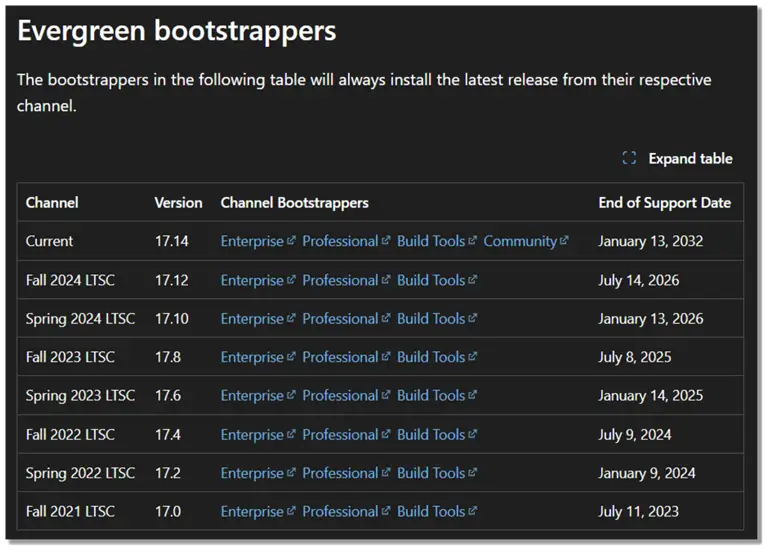
Select Version to Install
Click on the Community link of Version 17.14 which appears at the top of the list. This will download the vs_Community.exe file, the latest Community edition installer for Visual Studio 2022.
Once the file has been downloaded, just run it by double-clicking on it.

The Visual Studio Installer will open, from where you can begin to install Visual Studio 2022 Community edition.
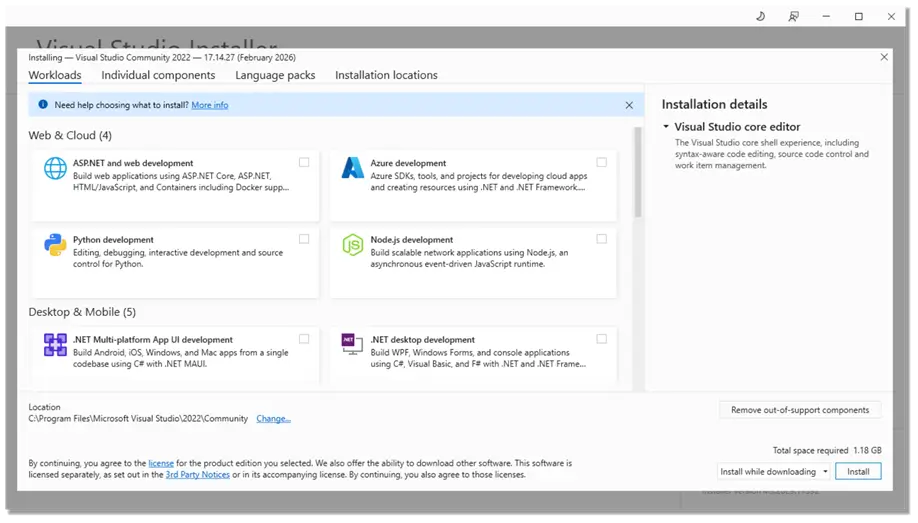
Select Workloads Types
On this screen, you need to select the workloads that will give you the necessary components for SSRS development.
For data professionals working with SQL Server and Reporting Services, I recommend selecting the following:
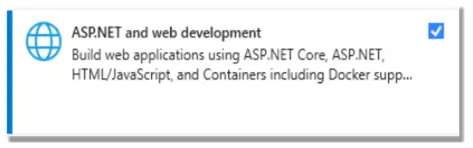
- ASP.NET and web development
- .NET desktop development
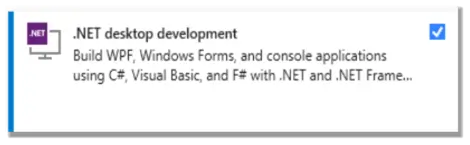
- Data storage and processing
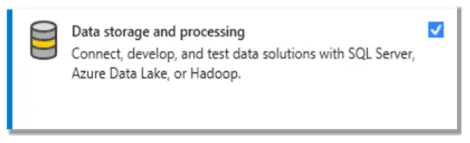
These workloads ensure that the required .NET frameworks, development tools, and SQL-related components are installed. SSRS report development itself will be added later via an extension. Selecting these workloads provides the correct foundation for working with database and reporting projects in Visual Studio 2022.
Review Settings and Install
After selecting the required workloads, you will notice that the right-hand side of the installer displays a summary of the components that will be installed, along with the total disk space required.
Review the selections to ensure everything is correct. Once you are satisfied, click Install while downloading (or Install, if the components have already been downloaded) at the bottom of the screen.
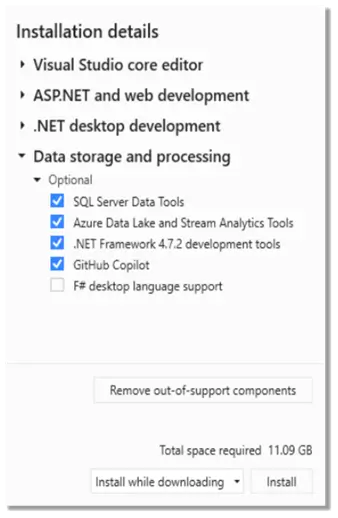
The installation process will then begin. Depending on your internet speed and system performance, this may take several minutes to complete.
Complete and Close Installer
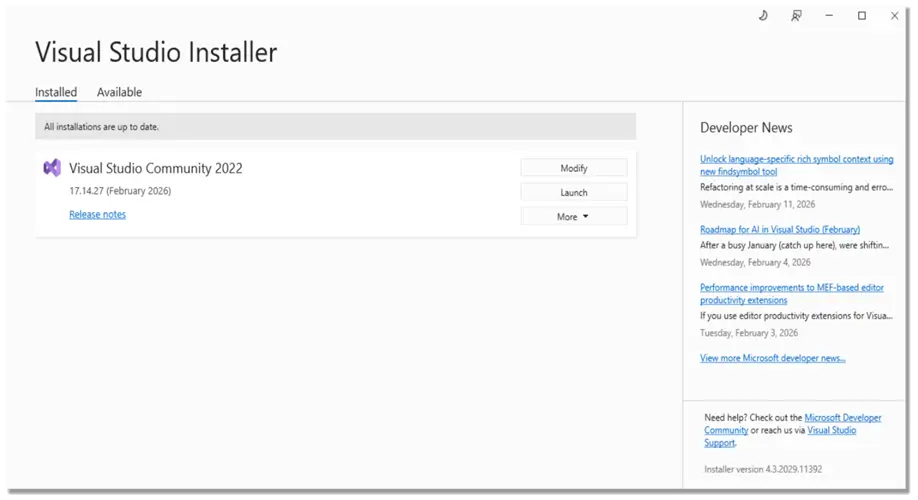
Once the installation has completed, the Visual Studio Installer will update and indicate that Visual Studio Community 2022 has been successfully installed.
You can now close the installer.
Open Visual Studio 2022
Click on the Windows Start button on your taskbar and open Visual Studio 2022 from the application list.
Create a New Project
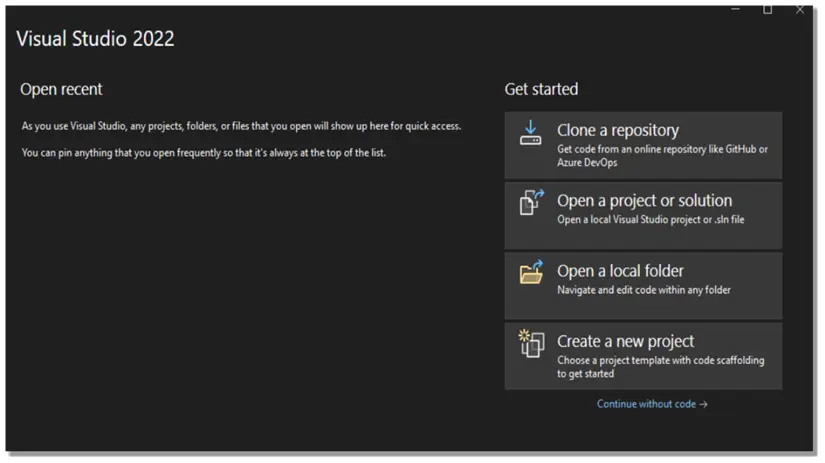
When Visual Studio opens, select Create a new project to begin the process of setting up your first project.
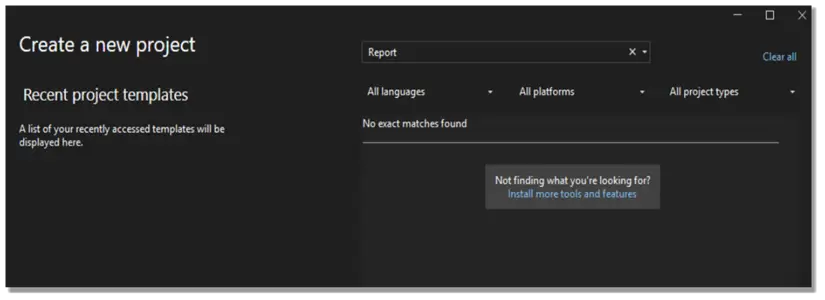
On the Create a new project screen, type Report in the search box. You will notice that no report project templates are displayed. This is expected, as SSRS project support is not installed by default.
Click the Back button, and then select Continue without code at the bottom right of the start screen. This will open Visual Studio without creating a project.
Adding Extensions for SSRS
Once Visual Studio is open, go to the top menu and click Extensions, then select Manage Extensions.
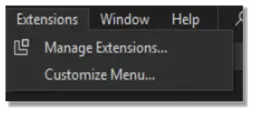
Visual Studio will open and display the What’s New tab. From the top menu, click Extensions, then select Manage Extensions.
The Extensions Manager window will open. Make sure you are on the Browse tab. In the search box, type Reporting. You should see Microsoft Reporting Services Projects 2022 listed in the results.
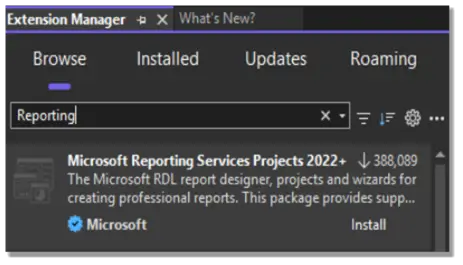
Click on the extension. On the right-hand side, below the description, click Install to begin installing the extension.
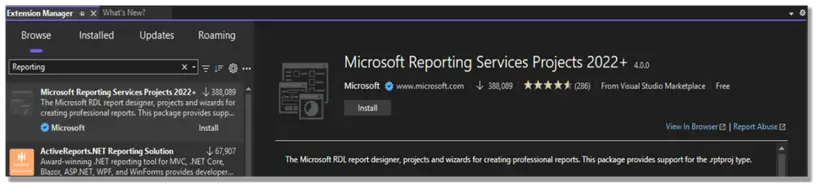
A browser window will open, showing that the Microsoft.DataTools.ReportingServices.vsix is being downloaded.
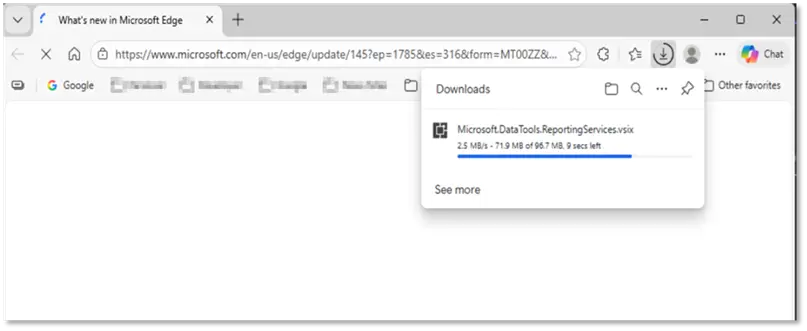
Once the extension file has been downloaded, you will find it in your Downloads folder.
Double-click the file to run it. The VSIX Installer window will open and display Microsoft Reporting Services Projects. You will see your installed version of Visual Studio Community 2022 listed with a checkbox next to it.
Ensure that Visual Studio is closed before continuing, as the installer will require this.
Click Install to proceed. The extension will then be installed into Visual Studio 2022.
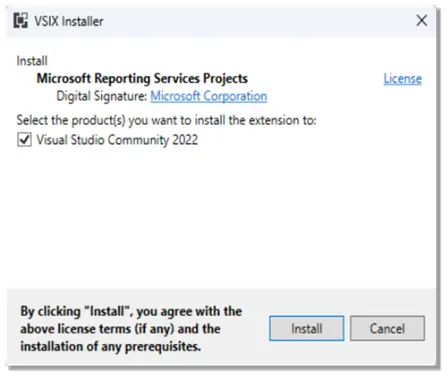
Once the installation is complete, the VSIX Installer will display a confirmation message indicating that Microsoft Reporting Services Projects have been successfully installed.
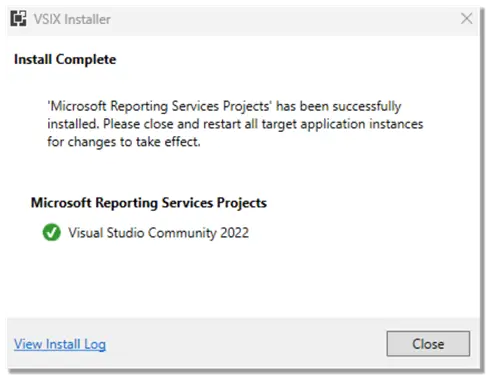
Click Close to exit the installer.
Launch Visual Studio 2022
You can now reopen Visual Studio 2022. The Reporting Services project templates will now be available for use.
Now, when you click Create a new project and search for Report, you should see the following two templates available:
- Report Server Project Wizard
- Report Server Project
This confirms that the Reporting Services extension has been installed correctly.
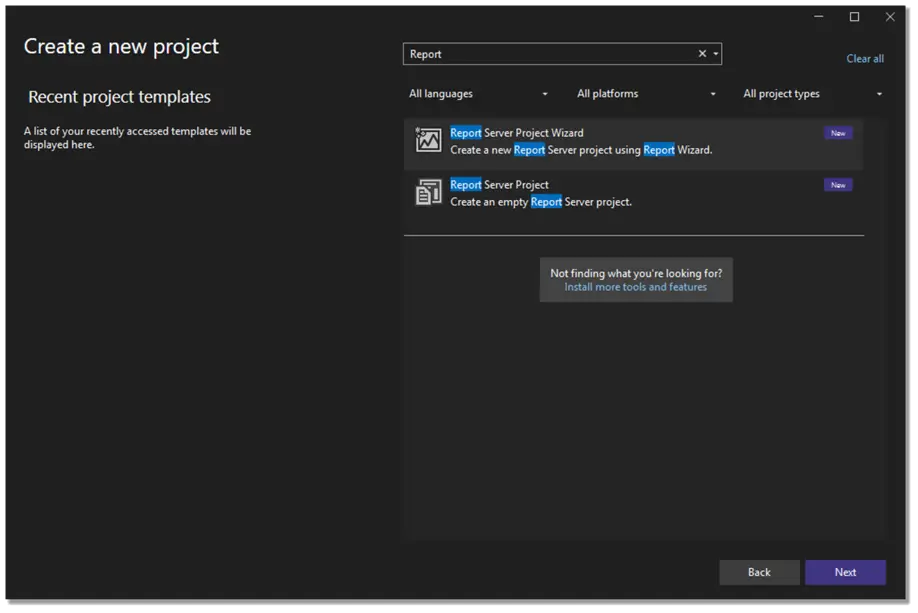
You can now select either template to start developing your SQL Server Reporting Services (SSRS) reports.
Next Steps
- In this tip we have worked through the process of installing Visual Studio 2022 Community edition that will enable you to develop some SSRS reports.
Check out the following sources where you can get more assistance in your data collection and distribution journey:

Jan has years of experience in Information Technology which ranges from Unix Administration through System Administration and development, Web and Database Development and Administration and applying Agile methodologies. Jan has been working with databases since 1996 when he had his first exposure to Sybase databases. He got involved with SQL Server in the early 2000’s and had exposure to SQL Server 2000, 2005, 2008 and all the rest. Jan likes to find easy and secure ways to host data and has been using Sybase, SQL Server, and MySQL. He has a great passion for working with data and believe the best way to become an expert in a field is by teaching the subject.
- MSSQLTips Awards: Rookie of the Year Contender – 2022