Problem
When using SQL Server running with Docker, whether in a standalone Docker container, or a Kubernetes cluster, we cannot install the sample AdventureWorks databases out-of-the-box. This is because the Docker images for SQL Server do not package the sample AdventureWorks databases in the image itself. How can this database be installed?
Solution
We have two options to install AdventureWorks sample databases in Docker/Kubernetes environment. In this article I will explain how to install AdventureWorks sample databases when we run SQL Server in a Docker container.
In the first method, I download the official Docker image for SQL Server 2025 on Linux (Ubuntu 24) and run a container initialized from it. Then, I copy the AdventureWorks.bak file into the container’s file system. Thereafter, I build a new Docker image from this container running SQL Server that has the AdventureWorks.bak backup file copied to its file system, and upload the image to Docker Hub. Subsequently, I download and use this Docker image to run a Pod on a Kubernetes cluster running on Docker Desktop. I connect to the SQL Server running in a Kubernetes/Pod from SQL Server Management Studio, and restore the AdventureWorks sample databases. We can use this Docker image that has the AdventureWorks.bak file copied to its file system in any Docker/Kubernetes environment, whether it is a bare-metal machine or a managed service.
We can use the second method for Docker Desktop, or any other platform that lets you import a file into a container’s file system with a one-click Import button. In the second method, I run a Kubernetes Pod created from the official Docker image for SQL Server 2025 on Docker Desktop. Then, I import the AdventureWorks.bak file into the running Docker container’s file system. Thereafter, I connected to the SQL Server from SQL Server Management Studio, and restored the AdventureWorks sample databases.
Setting the Environment
We will discuss two methods to install AdventureWorks sample databases in Docker. We need to set up the following environment for each of the methods, unless noted otherwise.
- For the first method, access a Linux/Ubuntu machine with Docker installed on it.
- Install Docker Desktop on a local machine – any supported platform (we use Windows 11).
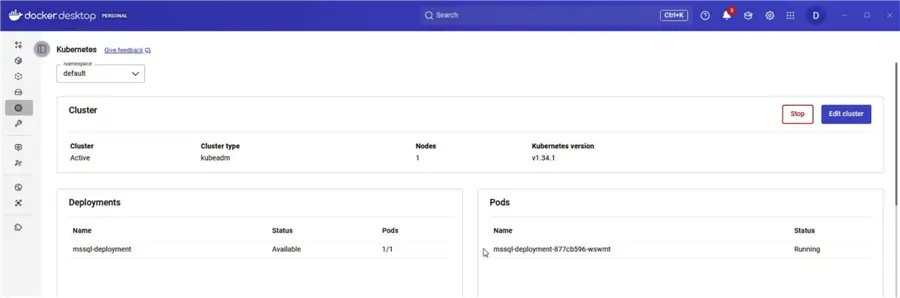
- Create a Kubernetes cluster on the Docker Desktop.
- Create a Docker account if you do not already have one.
- Download and install SQL Server Management Studio (SSMS) on the local machine, if not already installed.
- Download the AdventureWorks.bat Backup File (OLTP) for SQL Server 2025 to a folder on your local machine; C:/sqlserver-2025 for example. We need to perform this setup only for the second method.
Method 1 : Repackaging Docker Image with the AdventureWorks.bak File Included
Use this method when the Docker, or Kubernetes, is a managed service like Amazon ECS, Amazon EKS, or one provided by another cloud provider. Further, use this method when the Docker, or Kubernetes, is running on a bare-metal machine.
Downloading the SQL Server Docker Image
Let us first connect to our Linux machine that has Docker engine and Docker client installed on it; we do not need a managed service to get started with this approach. Run the following docker pull command to pull the official Docker image for SQL Server 2025:
--MSSQLTips.com (CMD)
docker pull mcr.microsoft.com/mssql/server:2025-latest
Running a Docker Container for SQL Server
Run a Docker container with the Docker image for SQL Server. Further, this is not the container we eventually use. This is the container we use to copy the AdventureWorks.bat backup file into. Run the following docker run command for it:
--MSSQLTips.com (CMD)
ubuntu@ip-172-30-2-219:~$ docker run -e "ACCEPT_EULA=Y" -e "MSSQL_SA_PASSWORD=SqlServer@2022" -e "MSSQL_PID=Standard" -p 1433:1433  --name sql2025 -d mcr.microsoft.com/mssql/server:2025-latest
8bb22aa5eefe1f115ca808578c4920ce7890b48e5497e4de6b4f678b31955b14
After a few seconds, we can list the running containers with the docker ps command:
--MSSQLTips.com (CMD)
ubuntu@ip-172-30-2-219:~$ docker ps
CONTAINER ID   IMAGE                                        COMMAND                  CREATED          STATUS          PORTS                                         NAMES
8bb22aa5eefe   mcr.microsoft.com/mssql/server:2025-latest   "/opt/mssql/bin/laun…"   12 seconds ago   Up 11 seconds   0.0.0.0:1433->1433/tcp, [::]:1433->1433/tcp   sql2025
Indeed, the container for SQL Server 2025 is running. Even so, let us verify, the SQL Server in the container is started by listing the logs with the docker logs command:
--MSSQLTips.com (CMD)
ubuntu@ip-172-30-2-219:~$ docker logs sql2025
The output should include this line:
--MSSQLTips.com (TEXT)
2026-03-23 21:38:14.29 spid37s     SQL Server is now ready for client connections. This is an informational message; no user action is required.
Copying the AdventureWorks.bat Backup File to the Container’s File System
We need to download the AdventureWorks.bat Backup File (OLTP) for SQL Server 2025.
Run a wget command to download it:
--MSSQLTips.com (CMD)
ubuntu@ip-172-30-2-219:~$ wget https://github.com/Microsoft/sql-server-samples/releases/download/adventureworks/AdventureWorks2025.bak
--2026-03-23 21:40:03--  https://github.com/Microsoft/sql-server-samples/releases/download/adventureworks/AdventureWorks2025.bak
Resolving github.com (github.com)... 140.82.112.4
Connecting to github.com (github.com)|140.82.112.4|:443... connected.
HTTP request sent, awaiting response... 302 Found
…
HTTP request sent, awaiting response... 200 OK
Length: 50229248 (48M) [application/octet-stream]
Saving to: ‘AdventureWorks2025.bak’
AdventureWorks2025. 100%[===================>]  47.90M   112MB/s    in 0.4s
2026-03-23 21:40:04 (112 MB/s) - ‘AdventureWorks2025.bak’ saved [50229248/50229248]
List the files to verify it downloads it.
--MSSQLTips.com (CMD)
ubuntu@ip-172-30-2-219:~$ ls -l
total 49052
-rw-rw-r-- 1 ubuntu ubuntu 50229248 Nov 18 16:00 AdventureWorks2025.bak
Notably, we should not copy this backup file to the SQL Server’s data directory /var/opt/mysql/data. This is because the data directory does not persist when we build an image from a container, and then run a new container from the rebuilt image. Further, each time we run a new container the data directory /var/opt/mysql/data is reinitialized. Therefore, we should use one of these directories to copy the AdventureWorks.bak backup file:
- The /opt/mssql directory, which has the application binaries and default libraries.
- The /opt directory.
- The /usr/bin and /bin directories, which have any custom scripts, shell utilities, or tools (like sqlcmd) you installed while the container was running.
- The /etc directory, which has configuration files for the OS, such as custom users, groups, or network settings.
- The /var directory, which has general system logs.
Let us run the docker cp command to copy the AdventureWorks.bak file to the /opt directory in the running container:
--MSSQLTips.com (CMD)
ubuntu@ip-172-30-2-219:~$ docker cp ~/AdventureWorks2025.bak sql2025:/opt
Successfully copied 50.2MB to sql2025:/optNOTE: We can use the docker cp command to copy any other files (database backups, data files, scripts, utilities, or tools) we may need into one of the directories listed earlier.
Creating a New Docker Image with AdventureWorks.bat Backup File Packaged
Thereafter, we can build a new image from the running container sql2025 with the docker commit command:
--MSSQLTips.com (CMD)
ubuntu@ip-172-30-2-219:~$ docker commit sql2025 mssql-server-2025-adventureworks-included
sha256:5d869c5523881800b3693d27e266805b8e6e4126d001a6c36c8374987abe900a
Next, tag the repackaged image with the docker tag command:
--MSSQLTips.com (CMD)
ubuntu@ip-172-30-2-219:~$ docker tag mssql-server-2025-adventureworks-included dvohra/mssql-server-2025-adventureworks-included:v2
List the Docker images, and it should list the repackaged image:
--MSSQLTips.com (CMD)
ubuntu@ip-172-30-2-219:~$ docker images
                                                            i Info →   U  In Use
IMAGE                           ID             DISK USAGE   CONTENT SIZE   EXTRA
dvohra/mssql-server-2025-adventureworks-included:v2
                                5d869c552388       2.95GB          808MB
mcr.microsoft.com/mssql/server:2025-latest
                                ca62ad2d7597        2.5GB          656MB    U
mssql-server-2025-adventureworks-included:latest
                                5d869c552388       2.95GB          808MB
Uploading the Repackaged Docker Image to Docker Hub
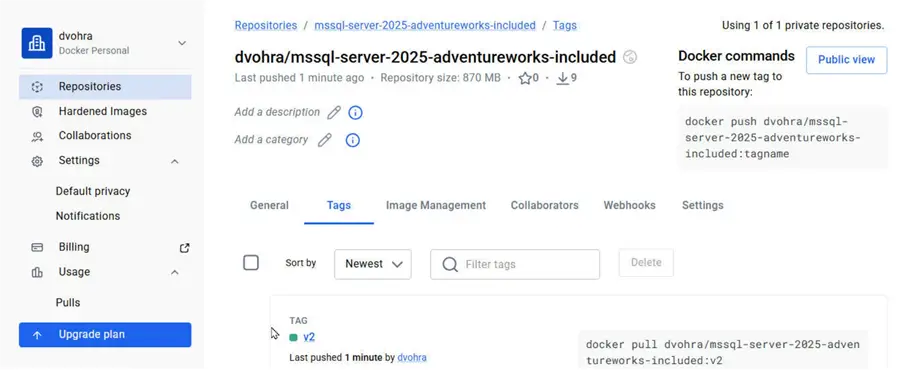
For subsequent use in any Docker environment, we can upload or push the repackaged image to Docker Hub, or some other registry. For this tutorial we upload it to Docker Hub. Run the docker login command to login to Docker Hub. Note that the username we provide with -u is different for different users. When prompted provide your Docker Hub password and press Enter:
--MSSQLTips.com (CMD)
ubuntu@ip-172-30-2-219:~$ docker login -u dvohra
i Info → A Personal Access Token (PAT) can be used instead.
         To create a PAT, visit https://app.docker.com/settings
Password:
Login Succeeded
Thereafter, push the Docker image to the Docker Hub with the docker push command:
--MSSQLTips.com (CMD)
ubuntu@ip-172-30-2-219:~$ docker push dvohra/mssql-server-2025-adventureworks-included:v2
The push refers to repository [docker.io/dvohra/mssql-server-2025-adventureworks-included]
3d40078f5dad: Pushed
901cdc4e17f1: Layer already exists
67e5582d1d96: Layer already exists
2d1cbbf6c62a: Layer already exists
v2: digest: sha256:5d869c5523881800b3693d27e266805b8e6e4126d001a6c36c8374987abe900a size: 1209
After it uploads the repackaged image, we should login to the Docker Hub in a browser to verify that it is in your repository.
Creating a Kubernetes Pod with the Repackaged Docker Image
With a Kubernetes cluster running, we use a configuration file for running SQL Server pod/s on it next. Configure three new Kubernetes resources:
- A PersistentVolumeClaim abstract resource as a user request for specific resources for SQL Server.
- A Deployment abstract resourcefor SQL Server deployment. Notably, we configure the repackaged Docker image, not the official image.
- A Service abstract resource of type LoadBalancer for the deployment.
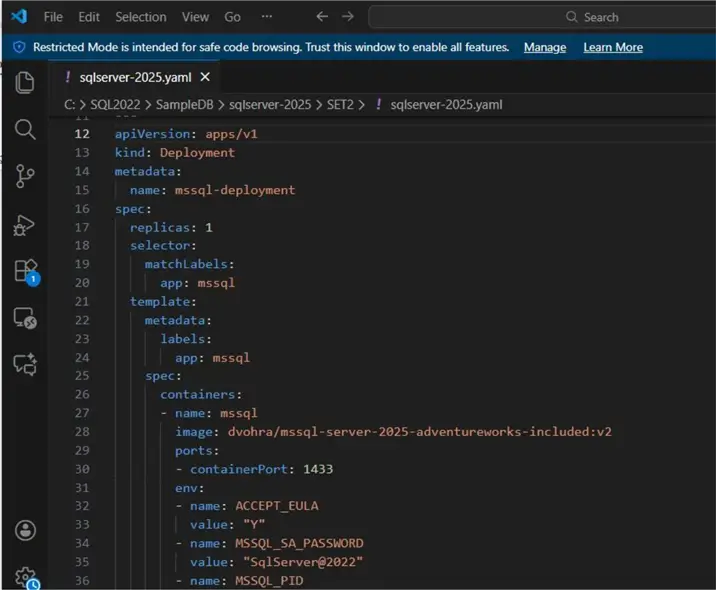
We use the following configuration file (sqlserver-2025.yaml) to declare all these resources.
--MSSQLTips.com (CMD)
apiVersion: v1
kind: PersistentVolumeClaim
metadata:
  name: mssql-data-pvc
spec:
  accessModes:
    - ReadWriteOnce
  resources:
    requests:
      storage: 2Gi
---
apiVersion: apps/v1
kind: Deployment
metadata:
  name: mssql-deployment
spec:
  replicas: 1
  selector:
    matchLabels:
      app: mssql
  template:
    metadata:
      labels:
        app: mssql
    spec:
      containers:
      - name: mssql
        image: dvohra/mssql-server-2025-adventureworks-included:v2
        ports:
        - containerPort: 1433
        env:
        - name: ACCEPT_EULA
          value: "Y"
        - name: MSSQL_SA_PASSWORD
          value: "SqlServer@2022"
        - name: MSSQL_PID
          value: "Standard" # Sets the Product ID to Standard edition
        volumeMounts:
        - name: mssql-storage
          mountPath: /var/opt/mssql
      volumes:
      - name: mssql-storage
        persistentVolumeClaim:
          claimName: mssql-data-pvc
---
apiVersion: v1
kind: Service
metadata:
  name: mssql-service
spec:
  selector:
    app: mssql
  ports:
    - protocol: TCP
      port: 1433
      targetPort: 1433
  type: LoadBalancer
We can use an editor such as the Visual Studio Code to create the configuration file.
Let us apply this configuration file to create the Kubernetes resources for SQL Server. The output lists the resources created. We should use PowerShell for running kubectl commands because of the color highlighting and formatting it provides.
--MSSQLTips.com (CMD)
PS C:\sqlserver-2025> kubectl apply -f sqlserver-2025.yaml
persistentvolumeclaim/mssql-data-pvc unchanged
deployment.apps/mssql-deployment configured
service/mssql-service unchanged
After a few seconds/minutes we can list the pods, and expect the new pod to be running.
--MSSQLTips.com (CMD)
PS C:\sqlserver-2025> kubectl get pods
NAME                                READY   STATUS    RESTARTS      AGE
mssql-deployment-764dc69c9d-7lhzd   1/1     Running   3 (10m ago)   12m
To access the Kubernetes service, we need its external IP address. Run the following command to list the service. Note the value under the EXTERNAL-IP column. The external IP address is localhost, for this article.
--MSSQLTips.com (CMD)
PS C:\sqlserver-2025> kubectl get services
NAME            TYPE           CLUSTER-IP       EXTERNAL-IP   PORT(S)          AGE
kubernetes      ClusterIP      10.96.0.1        <none>        443/TCP          4d22h
mssql-service   LoadBalancer   10.104.186.130   localhost     1433:31857/TCP   4d22h
Verifying the Kubernetes Resources in the Docker Desktop
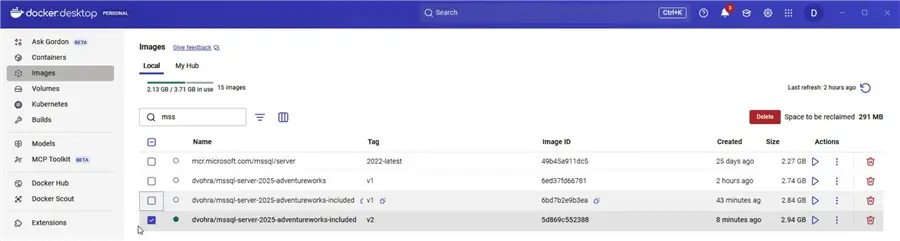
The Docker Desktop should list the repackaged Docker image as the active image (green dot) under Images.
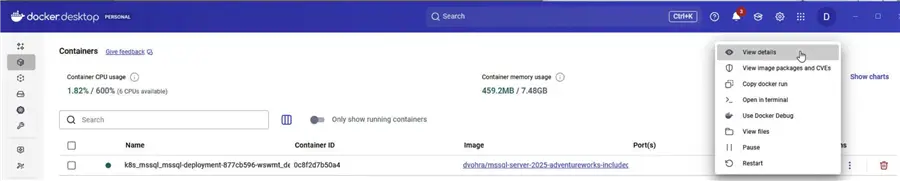
Let us verify that the container for SQL Server that is run from the repackaged image packages the AdventureWorks.bak file. Select the Containers tab in the margin; this tab is shown in the preceding picture. Select the running container for the new deployment and click the three vertical dots and select View details.
When it displays the container details, click the Files tab to list the container’s file system. Navigate to the /opt directory. You should find the AdventureWorks.bat file listed.
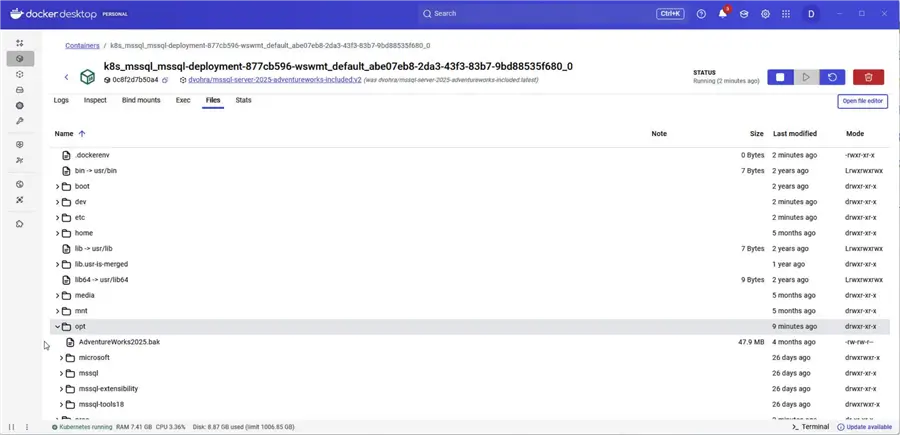
The AdventureWorks is not in the data directory yet. When we restore the AdventureWorks databases, as discussed next, it creates the data files for AdventureWorks in the data directory automatically.
Connecting to the SQL Server Running Within a Container
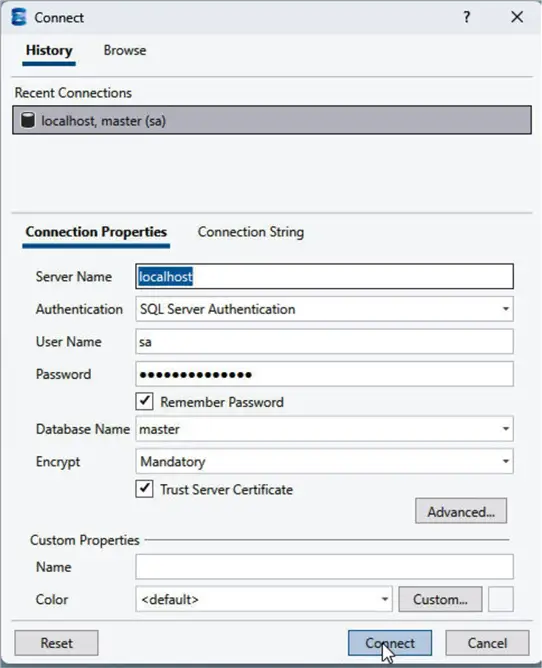
Let us connect to SQL Server with SQL Server Management Studio from a local machine. Select File > Connect Object Explorer.
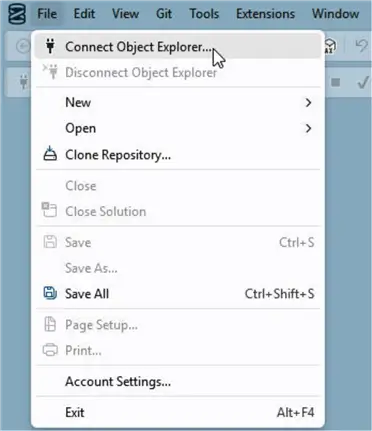
Specify connection details in Connect window including the Server Name as localhost, which is the external-ip we noted. Select Authentication as SQL Server Authentication. Specify Password for sa user. Click Connect.
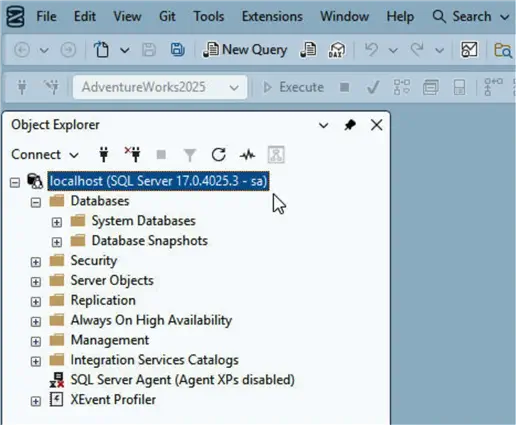
It adds a new connection to the Object Explorer.
Restoring the AdventureWorks Sample Databases
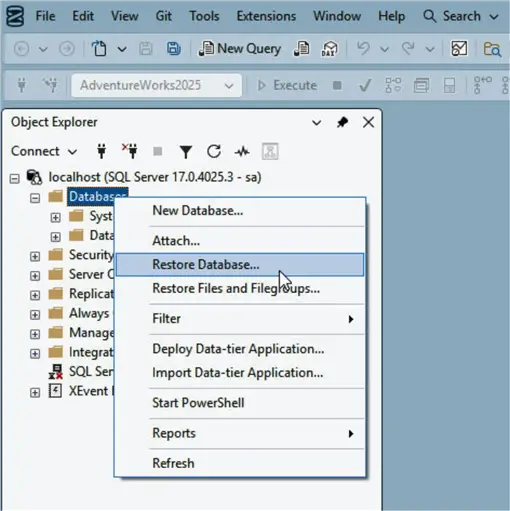
We are ready to restore the AdventureWorks sample databases. Right-click Databases and select Restore Database.
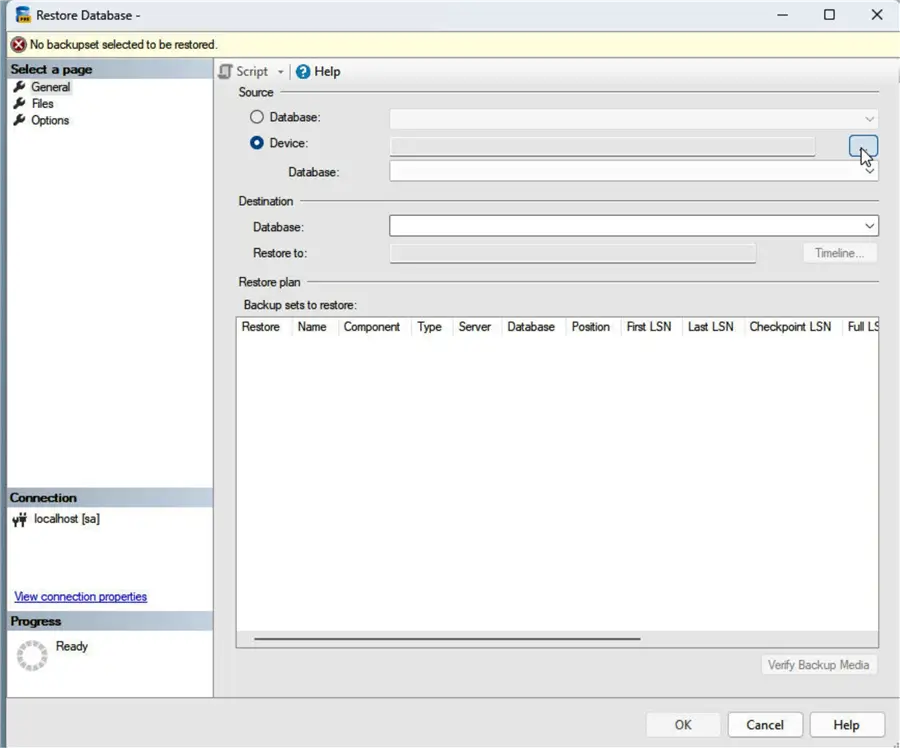
It open the Restore Database dialog. We need to select a backup set that is to be restored. Select Source as Device, and click the ellipsis (…).
It opens the Select backup devices dialog. Select Backup media type as File. Click Add to add a new backup media.
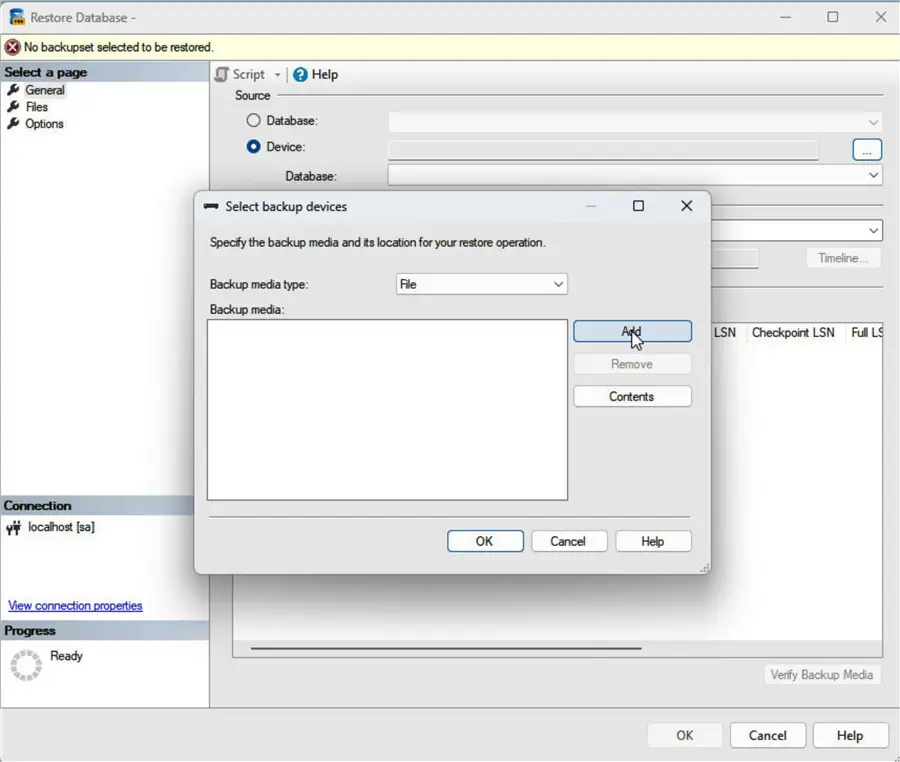
It opens the Locate Backup File dialog. Select the AdventureWorks.bat file in the /opt directory of the container’s file system, and click OK.
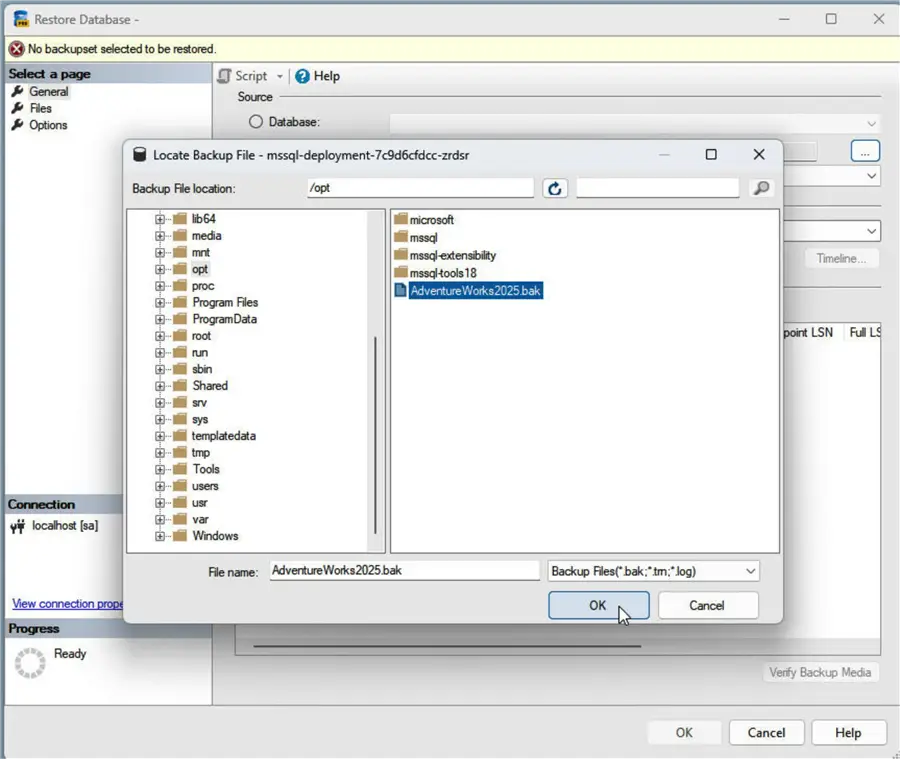
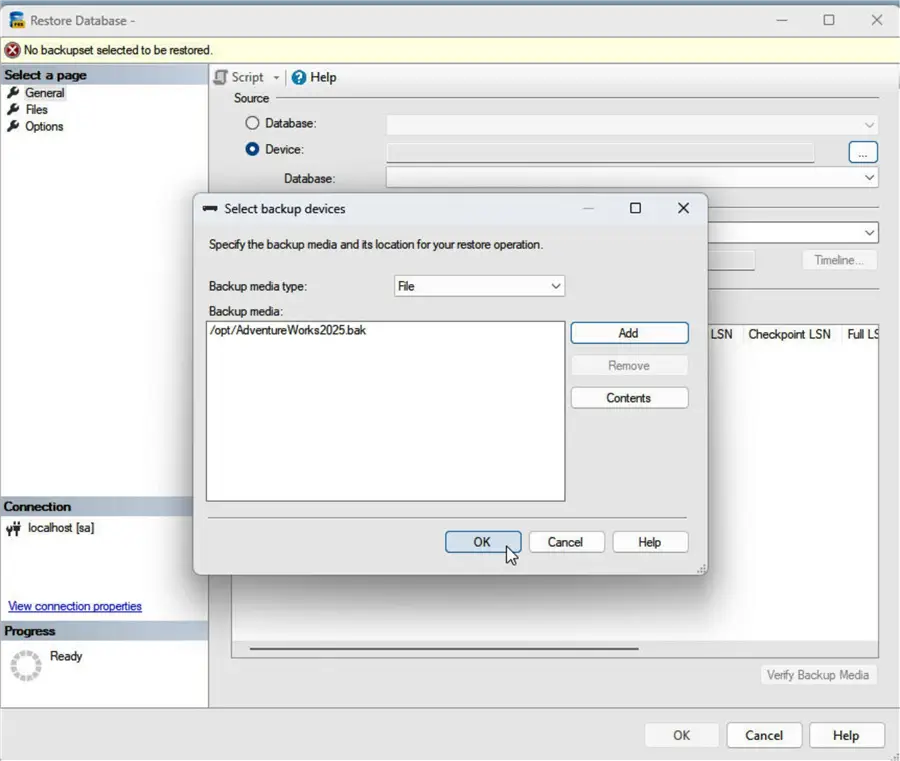
It should list the new backup media in the Select backup devices dialog. Click OK.
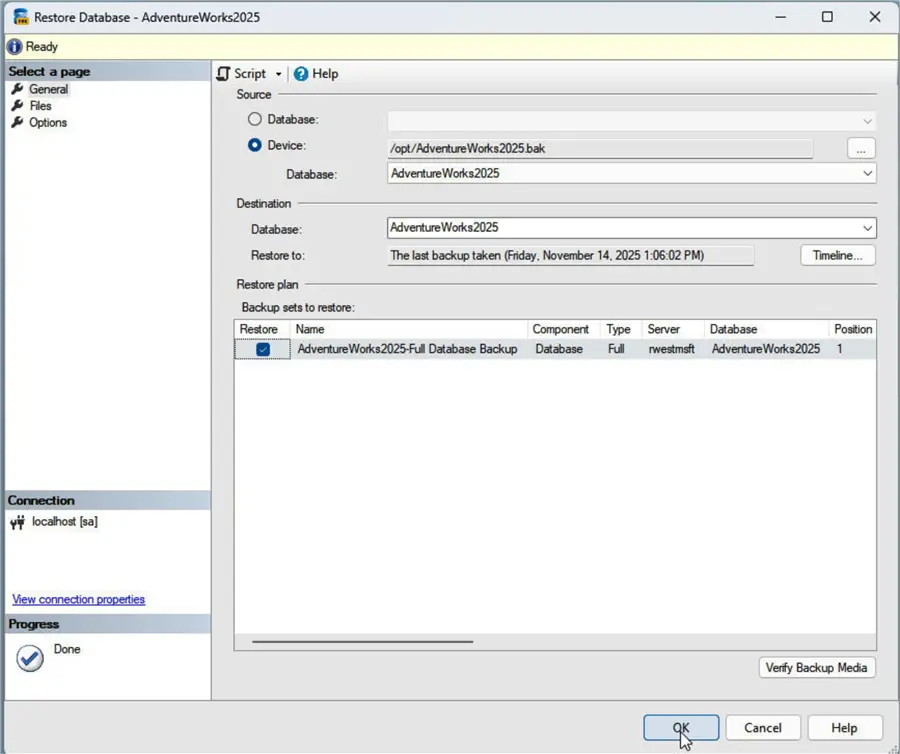
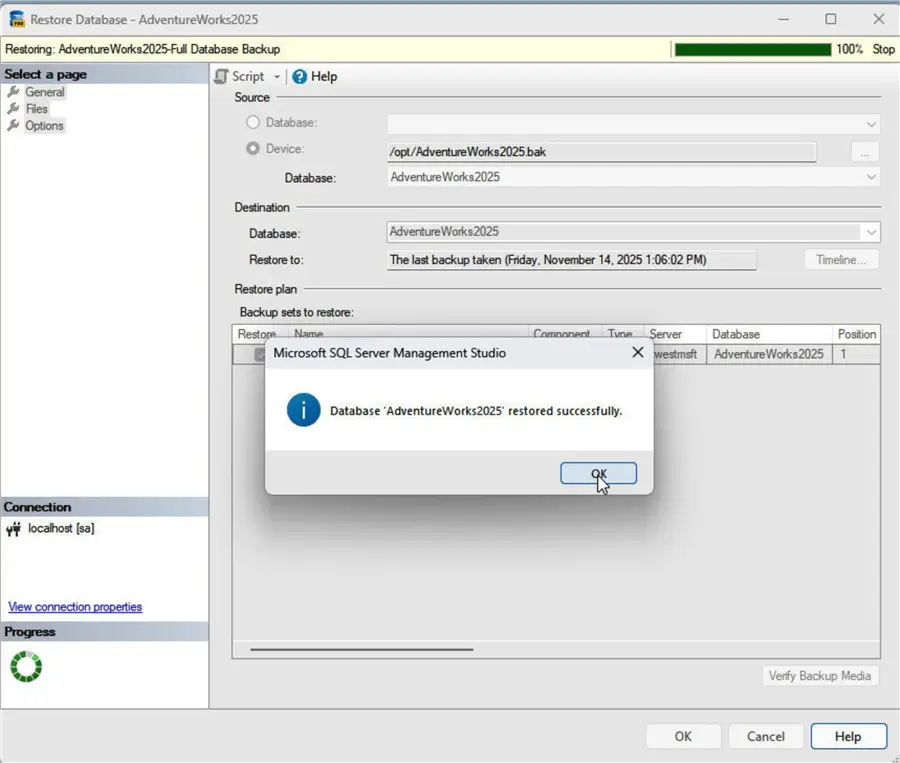
Back in the Restore Database dialog, it should list the AdventureWorks2025 database as Destination > Database, and the AdventureWorks2025-Full Database Backup under the Backup sets. Click OK.
The Restoring progress bar should indicate the progress by percentage that has been restored. A user can click Stop to stop the restore process before it has been completed. When it completes the restore, it shows 100%. Click OK in the dialog that indicates “Database ‘AdventureWorks2025’ restored successfully.
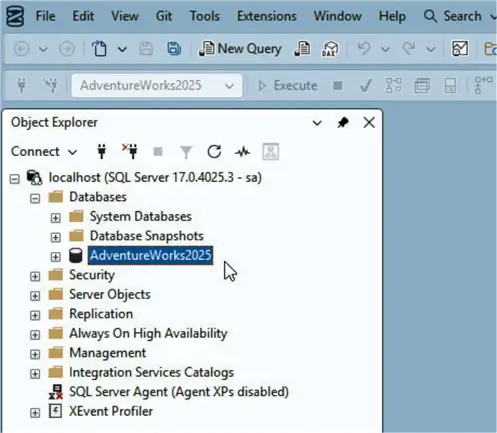
This adds the AdventureWorks2025 sample databases to Databases in Object Explorer.
Running a Query on an AdventureWorks Sample Database
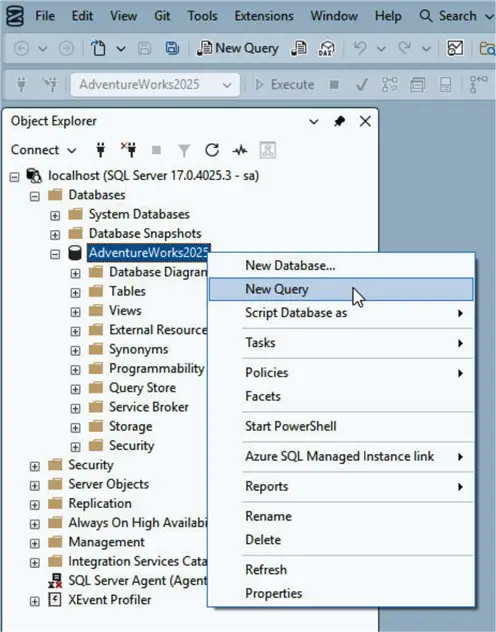
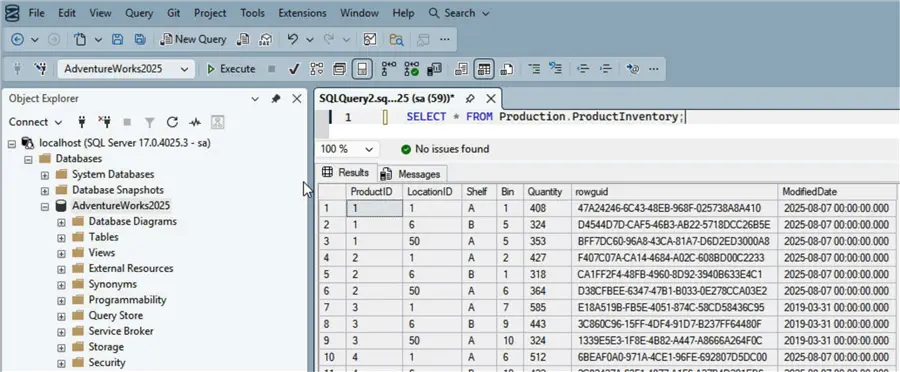
We run a query using the AdventureWorks databases next. Right-click AdventureWorks2025 and select New Query.
Copy the following script to the query editor:
--MSSQLTips.com (T-SQL)
SELECT * FROM Production.ProductInventory;
Click Execute.
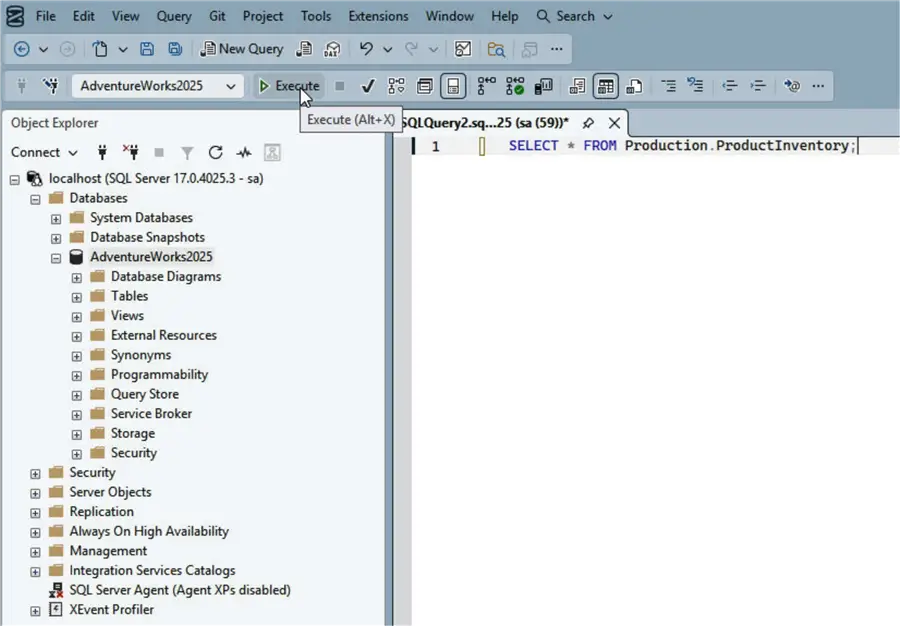
It runs the script and displays a result.
Method 2: Importing the AdventureWorks.bat Backup File
We can use this method when we are running SQL Server on Docker Desktop.
Creating a Kubernetes Pod with the Official SQL Server Docker Image
The procedure to run a Kubernetes pod is the same as discussed earlier. However, this time we use the official SQL Server Docker image mcr.microsoft.com/mssql/server:2025-latest in the configuration file.
We use the following configuration file (sqlserver-2025.yaml) to declare all these resources.
--MSSQLTips.com (YAML)
apiVersion: v1
kind: PersistentVolumeClaim
metadata:
  name: mssql-data-pvc
spec:
  accessModes:
    - ReadWriteOnce
  resources:
    requests:
      storage: 2Gi
---
apiVersion: apps/v1
kind: Deployment
metadata:
  name: mssql-deployment
spec:
  replicas: 1
  selector:
    matchLabels:
      app: mssql
  template:
    metadata:
      labels:
        app: mssql
    spec:
      containers:
      - name: mssql
        image: mcr.microsoft.com/mssql/server:2025-latest
        ports:
        - containerPort: 1433
        env:
        - name: ACCEPT_EULA
          value: "Y"
        - name: MSSQL_SA_PASSWORD
          value: "SqlServer@2022"
        - name: MSSQL_PID
          value: "Standard" # Sets the Product ID to Standard edition
        volumeMounts:
        - name: mssql-storage
          mountPath: /var/opt/mssql
      volumes:
      - name: mssql-storage
        persistentVolumeClaim:
          claimName: mssql-data-pvc
---
apiVersion: v1
kind: Service
metadata:
  name: mssql-service
spec:
  selector:
    app: mssql
  ports:
    - protocol: TCP
      port: 1433
      targetPort: 1433
  type: LoadBalancer
As before, use kubectl commands to apply the configuration file, list pods, and list services.
--MSSQLTips.com (CMD)
kubectl apply -f sqlserver-2025.yaml
kubectl get pods
kubectl get services
Importing the AdventureWorks.bat Backup File into the Container
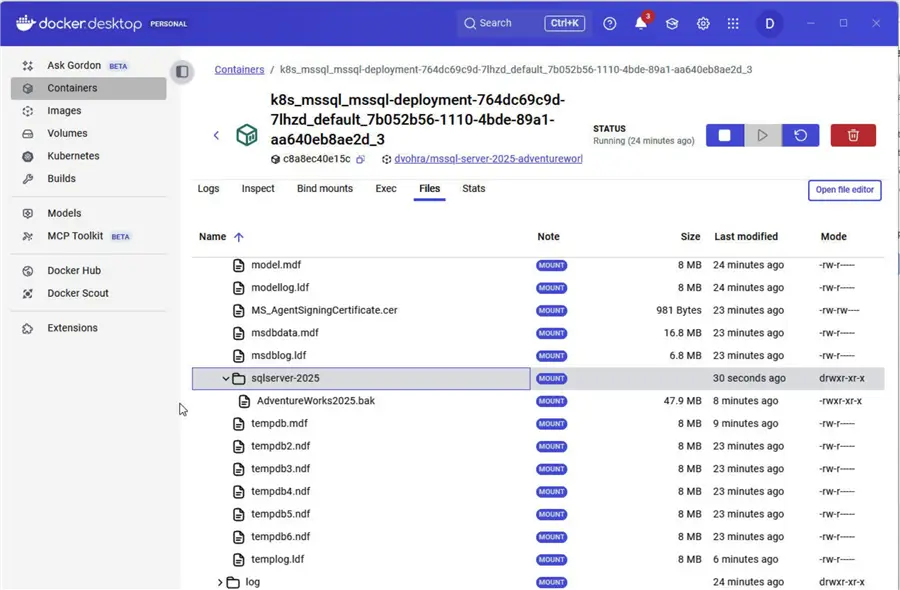
We need to access the container’s file system to import the AdventureWorks.bat backup file. Select the Containers tab in the margin like we did earlier. Select the running container for the new deployment and click the three vertical dots and select View details.
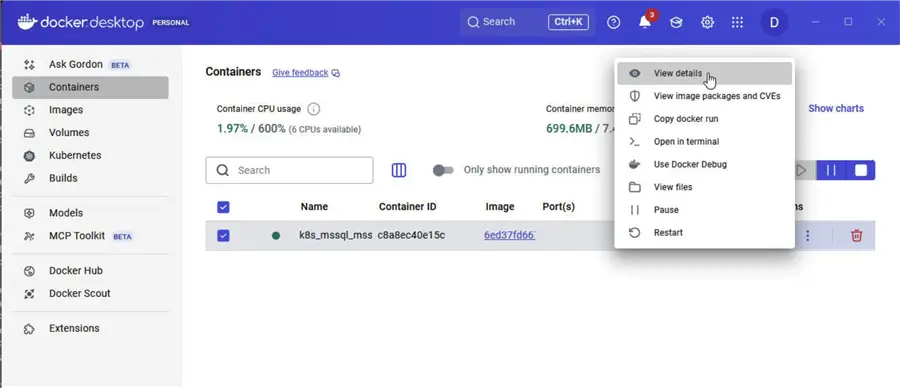
Like before, click the Files tab to list the container’s file system. Navigate to the /var/opt/mssql/data directory. This is the data directory for the SQL Server. Right-click the data directory and click Import.
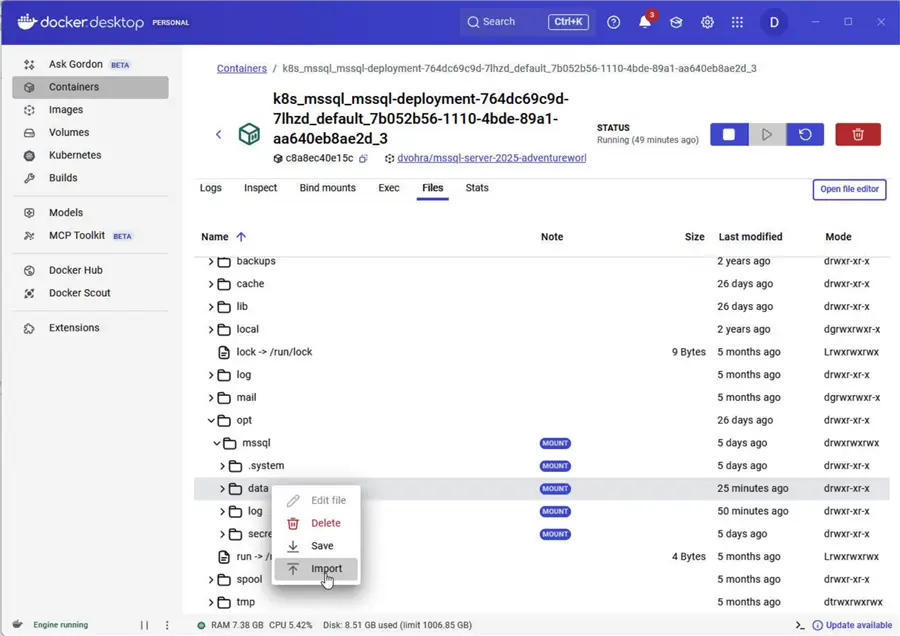
This time we are accessing the file system on our local machine, not the container’s file system. Select the folder in which you downloaded the AdventureWorks.bat file in Setting the Environment section. Click Select Folder.
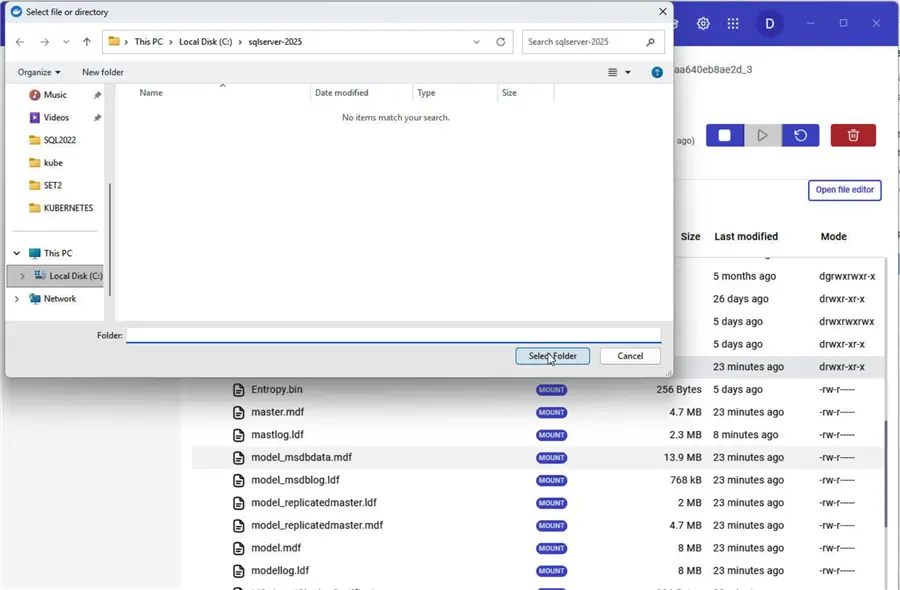
It adds the folder along with the AdventureWorks.bat file to the container’s file system. Note: We can use this Import feature to import any other database files, backup files, scripts, and tools into the container’s file system.
Connecting and Restoring the AdventureWorks Databases
Connect to the SQL Server running in a Docker container like before. Right-click Databases and select Restore Database.
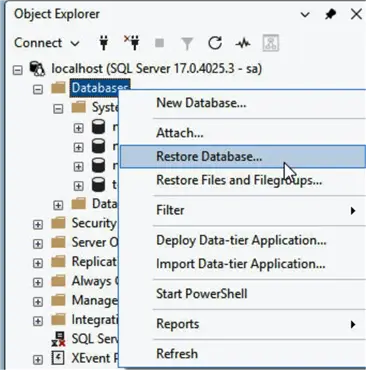
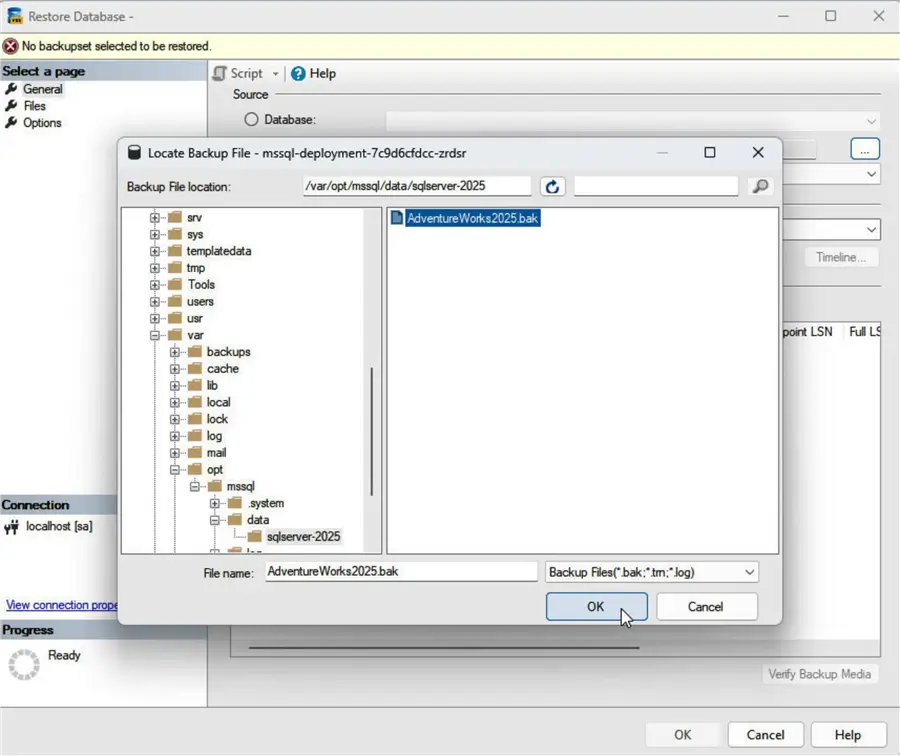
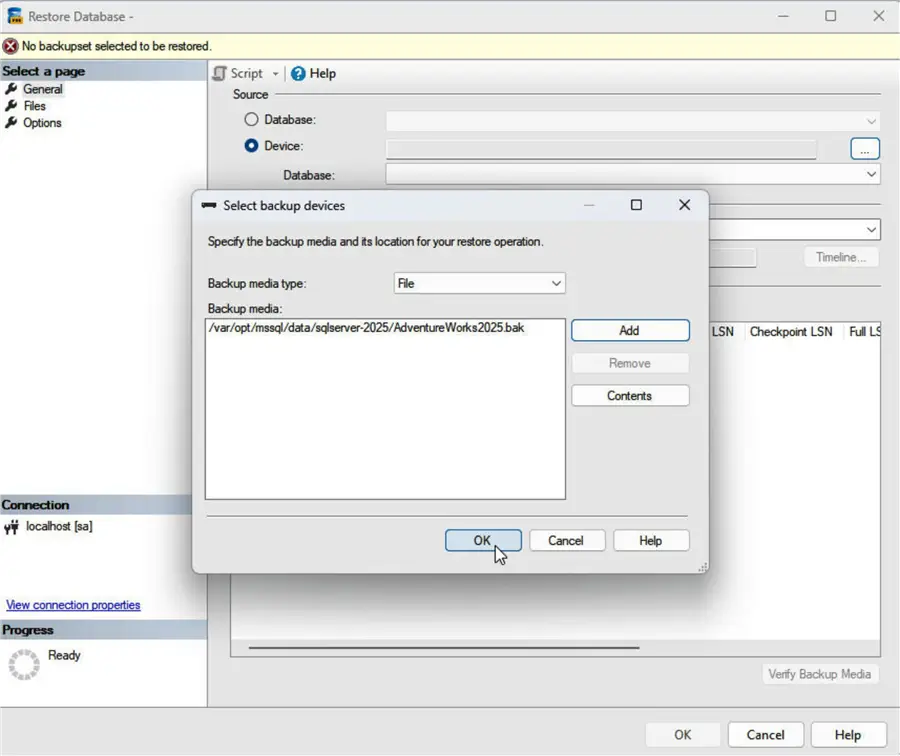
The Restore Database dialog opens. Select a backup set that it should restore. Select Source as Device, and click the ellipsis (…) next to it. The Select backup devices dialog opens. Select Backup media type as File. Click Add to add a new backup media. The Locate Backup File dialog opens. This time, select the AdventureWorks.bat file in the /var/opt/mssql/data/sqlserver-2025 directory of the container’s file system, and click OK.
It adds the new backup media. Click OK.
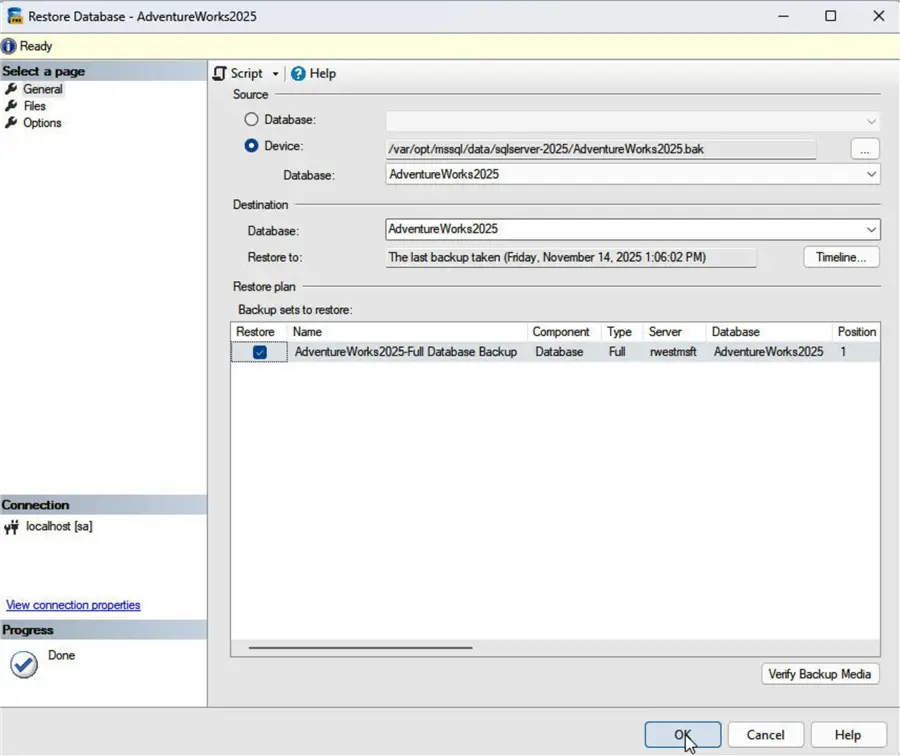
Back in the Restore Database dialog, it sets the AdventureWorks2025 database in Destination > Database, and the AdventureWorks2025-Full Database Backup under Backup sets to restore. Click OK.
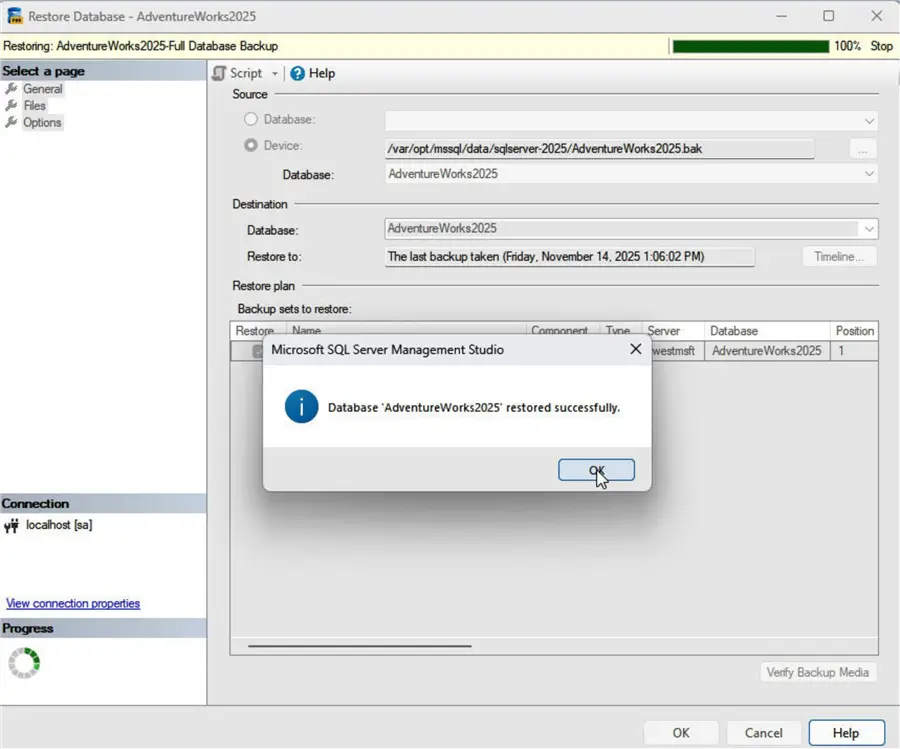
When it completes the restore, click OK in the dialog that indicates “Database ‘AdventureWorks2025’ restored successfully.
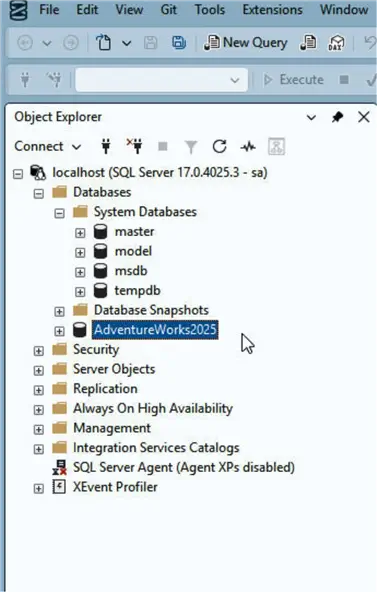
It adds the AdventureWorks2025 sample databases to Databases in Object Explorer.
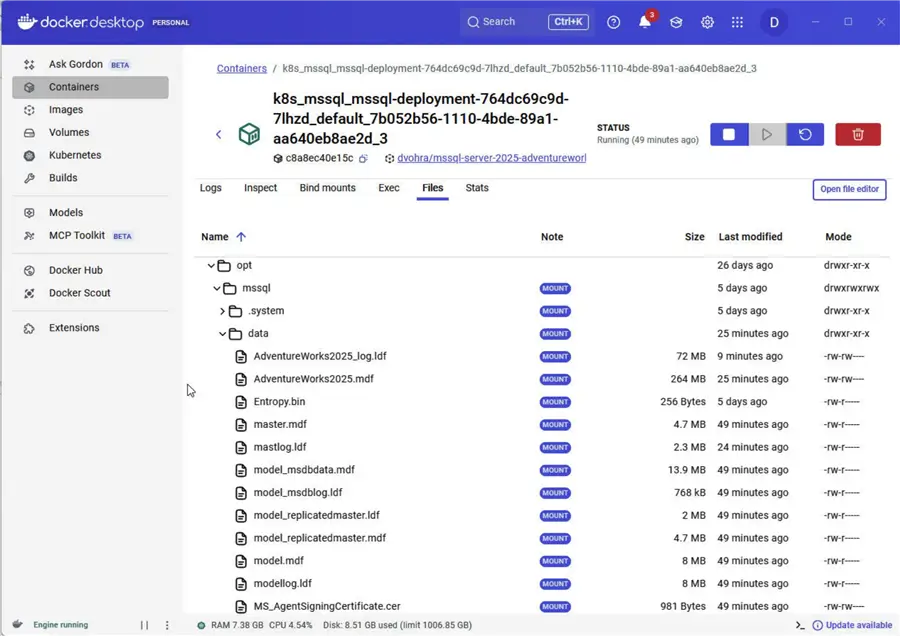
Verify that it lists the data files for the restored database in the /var/opt/mssql/data directory.
Running a Sample Query
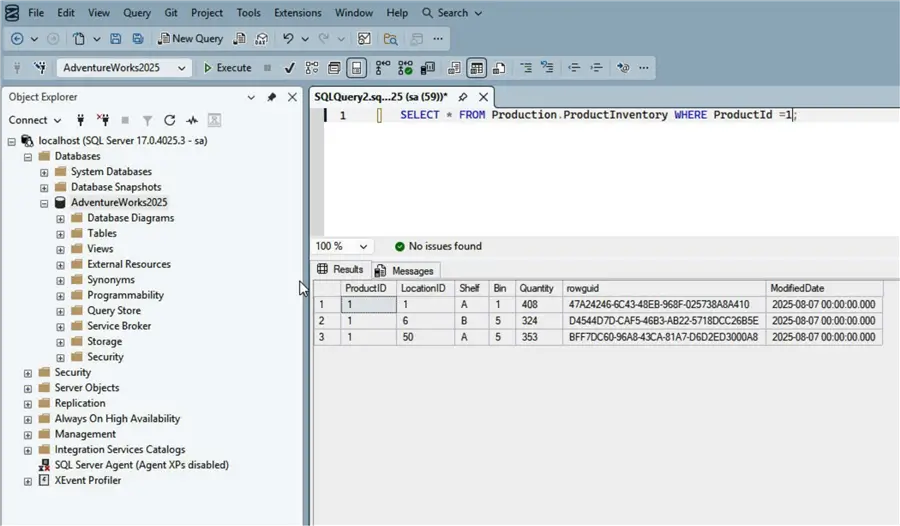
We can run a query using the AdventureWorks databases. For this, right-click AdventureWorks2025 and select New Query, and copy the following script to the query editor:
--MSSQLTips.com (T-SQL)
SELECT * FROM Production.ProductInventory WHERE ProductId=1;
Click Execute.
It runs the SELECT statement and displays a result.
Summary
In this article, we explore two methods to install the AdventureWorks sample databases in SQL Server 2025 that is running in a Kubernetes Pod.
Accordingly, in the first method we run a container from the official SQL Server Docker image, copy the AdventureWorks.bat file into the container’s file system, build a new image from the running container, upload the repackaged image to Docker Hub and use it to run a Kubernetes pod on Docker Desktop; thereby making the AdventureWorks.bat backup file available in the container’s file system when we perform a Restore Database. Even though we used Docker Desktop, we can use any managed service for containerization including the Amazon ECS, and Amazon EKS to run this repackaged image that includes the back up file for AdventureWorks sample databases.
In the second method, which applies to Docker Desktop only, we import the AdventureWorks.bat file into a running container’s file system with the Import button. Furthermore, we an copy/import any backup sets, not just the AdventureWorks.bat, using the same procedure. Additionally, we can copy/import other files into a container’s file system using the same procedure.
Next Steps
- Create a Docker Account
- Download and install Docker Desktop
- Download and install SQL Server Management Studio
- Explore the SQL Server Docker images
- Read up on related articles and documentation:

Deepak Vohra is an Oracle Certified Data Science Professional, and an author of more than 20 books. Hobbies include philately, golf, and cricket.