Problem
We are migrating our on-premises business intelligence solution to SQL Server 2025. We already have SSIS projects in an older version. Do we need to install a new Visual Studio instance? Can we move the existing projects to the new server?
Solution
SQL Server 2025 was released in November 2025. Like previous versions, it also includes Integration Services (SSIS), which is Microsoft’s on-premises ETL solution. Development of SSIS projects and packages is done in Visual Studio. In this tip, we show how to develop SSIS packages for SQL Server 2025, and how to migrate existing projects.
In the tip SQL Server Integration Services 2025 Download, Install and Configure, you can learn how to install SQL Server 2025 and SSIS 2025 on a server, and how you can enable the SSIS catalog.
This article covers the following:
- How to Configure the Development Environment for SSIS 2025
- Creating a SSIS 2025 Project and Package
- Migrating Existing SSIS Projects to SSIS 2025
Key Takeaways
- Migrating to SQL Server 2025 requires configuring the development environment and using Visual Studio.
- You can develop SSIS 2025 projects using Visual Studio Community Edition with the necessary extensions.
- To migrate existing SSIS projects, simply change the project version in Visual Studio 2026.
- Ensure to back up your project before migration; some third-party components might present issues.
- For more detailed guidance, explore related SSIS tutorials and tips on MSSQLTips.com.
How to Configure the Development Environment for SSIS 2025
To develop SSIS projects and packages, you need an instance of Visual Studio installed. Visual Studio Code doesn’t support SSIS, which also means you can only develop SSIS on a Windows PC. You can use the Visual Studio Community Edition to create SSIS projects. You can use the same edition for SSAS, SSRS and database projects as well. At the time of writing, the latest edition is Visual Studio 2026, which was used to create the screenshots.
To work with SSIS, Visual Studio needs to install an extension called SQL Server Integration Services Projects 2022+. This extension cannot be downloaded directly from Visual Studio (VS), you need to download it from the marketplace and install it separately. To verify if you already have the extension installed, you can go to Extensions > Manage Extensions… in VS.
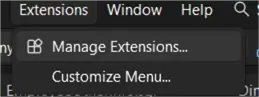
In the Extensions Manager, go to the Installed tab. If the extension is already installed, it will be listed there.

You can also check if there are any updates available for the extension. If it isn’t listed, you can use the search function in the browse tab to locate it,
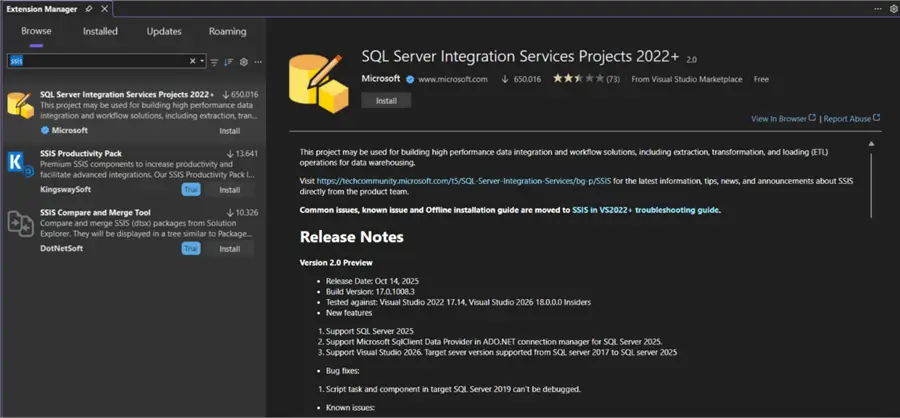
When you click on Install, it will take you to the VS Marketplace where you can download the extension.
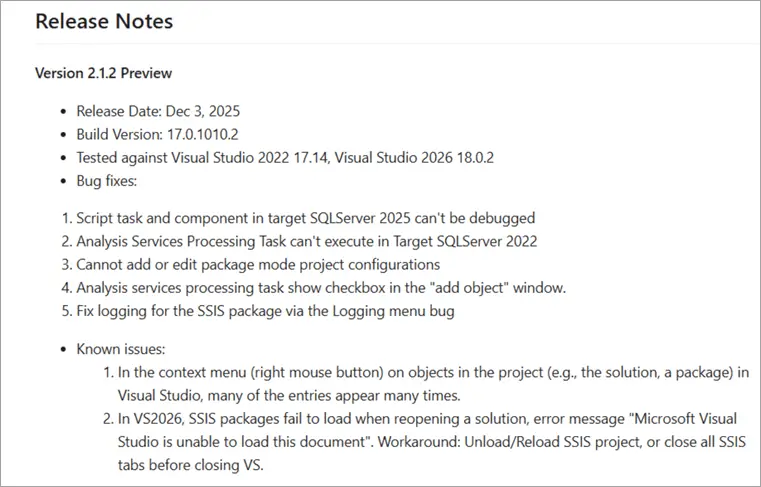
Release Notes
On the same site, you can also find the release notes. This is useful to see if there are known issues with the extension and version of VS that you’re using:
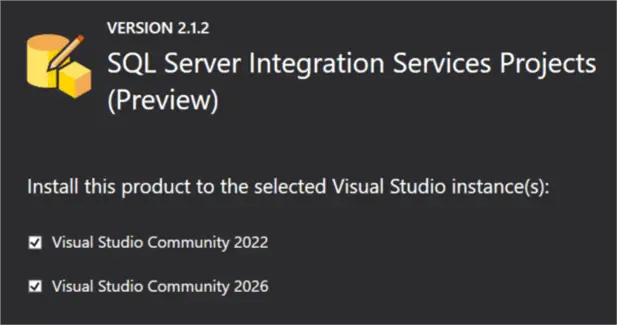
When you launch the installer of the extension and you have multiple instances of VS installed, you can choose into which instances you want to install the SSIS project type.
It’s also possible you’ll get the following error message:
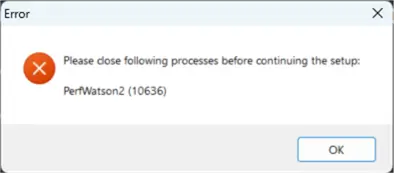
If this is the case, simply kill the PerfWatson2 process using task manager. If you have any open Visual Studio instances, you’ll need to close them as well (later versions of SQL Server Management Studio, like v21 or v22, use the Visual Studio interface as well, so you’ll need to close them too). After that, you can start the installation, which might take a while.

Once the setup is complete, you will be asked to restart the machine.
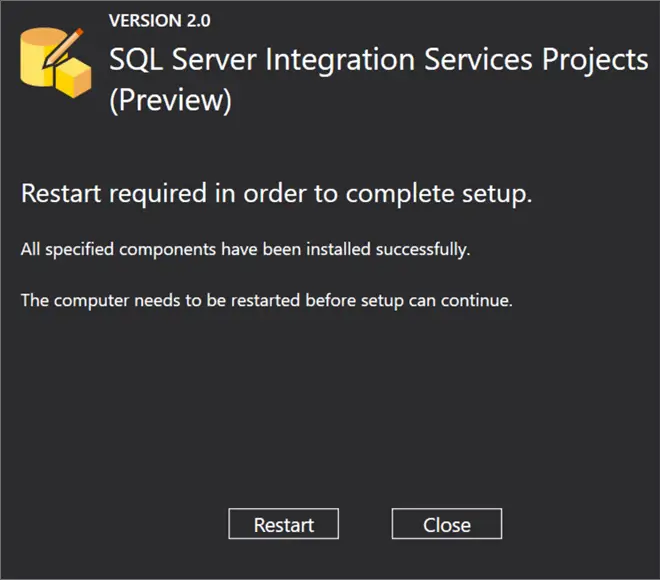
Creating your first SSIS 2025 Project and Package
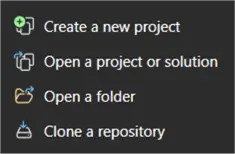
First, we need to create a new project in Visual Studio. Open an instance of VS and select Create a new project.
When creating a new SSIS project, there are two options: a “normal” SSIS project and an Azure-enabled SSIS project.
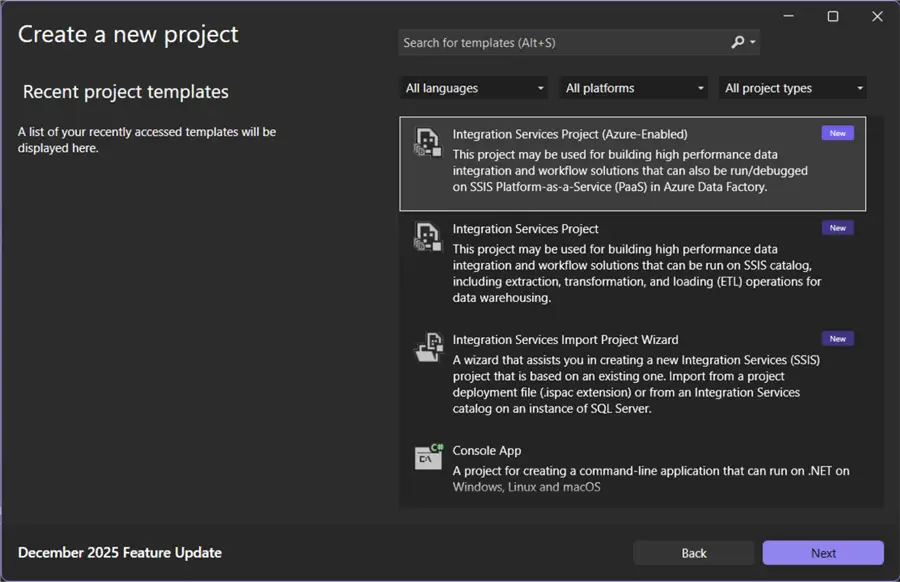
You use the Azure-enabled project when you want to debug your SSIS packages in an Azure-SSIS integration runtime inside Azure Data Factory. However, only the SQL Server 2017 version of SSIS supports this option:
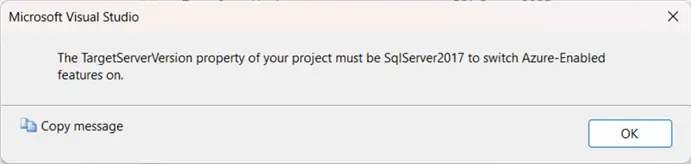
Since there are almost no changes for SSIS between 2017 and 2025, this might not be an issue if you want to develop SSIS package for ADF. For the remainder of the tip, we’ll use the regular SSIS projects.
Configuring SSIS Project
When configuring your new project, you’ll need to specify a name for the solution and the project, and a location where these will be stored.
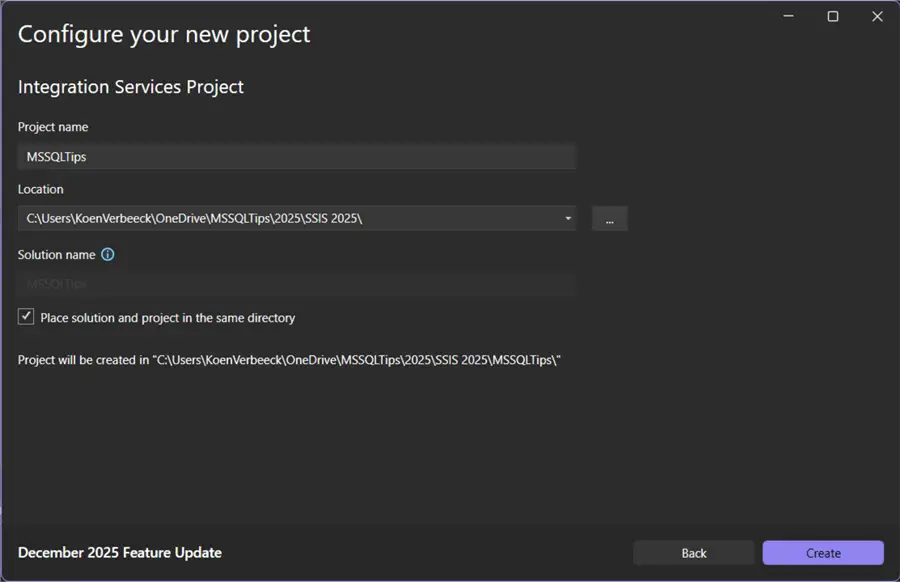
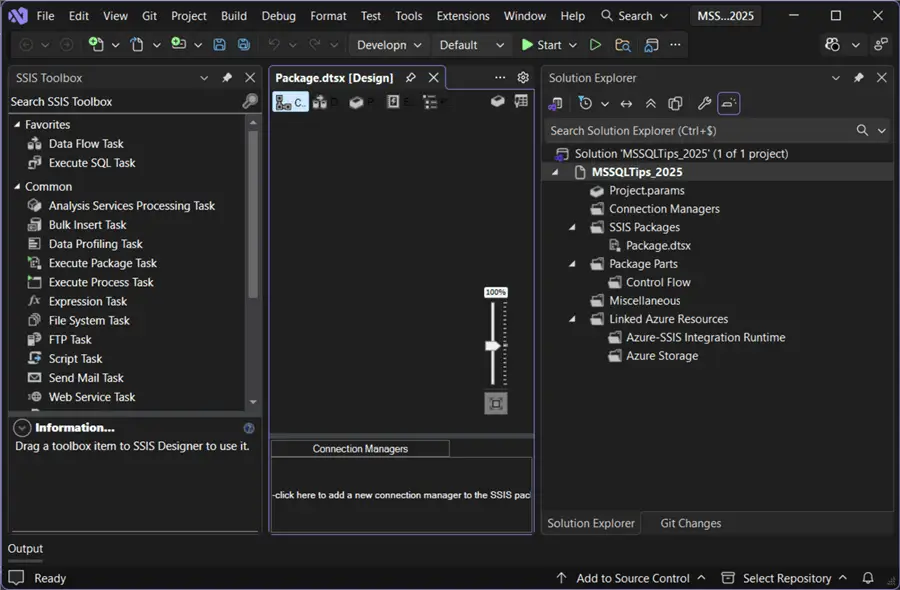
An SSIS project will be created with one empty package.
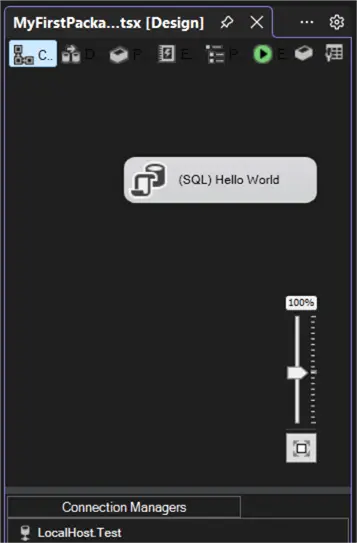
To test the package, you can add an Execute SQL Task that runs a simple SELECT statement.
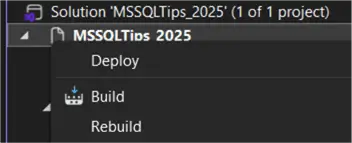
Right-click on the project and select Deploy.
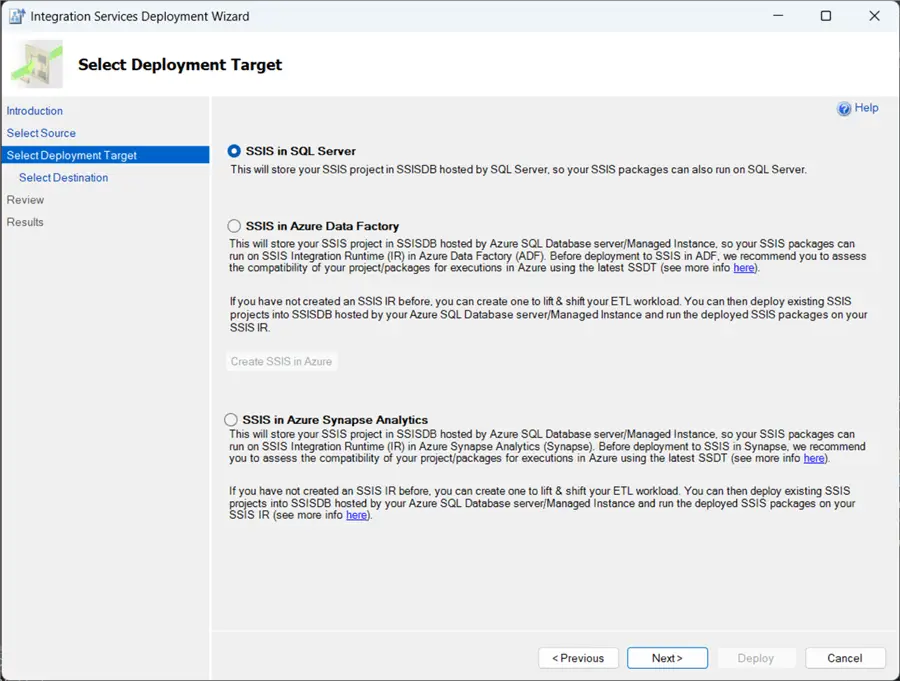
Select the first option as the deployment target:
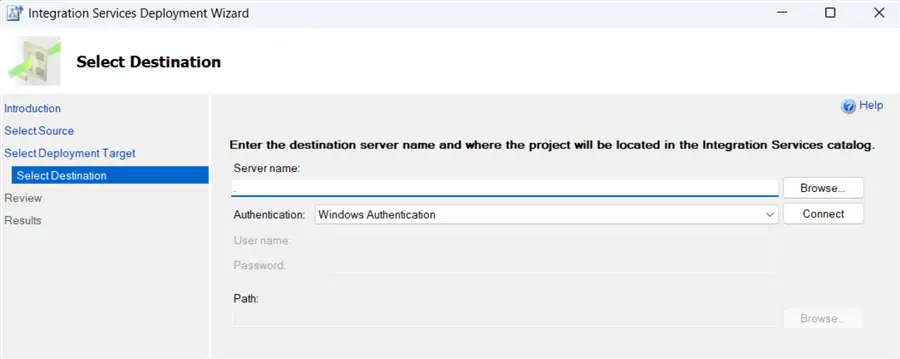
On the next screen of the wizard, enter the name of the server that hosts your SSIS catalog (check out the tip SQL Server Integration Services 2025 Download, Install and Configure to learn how to set this up) and hit Connect.
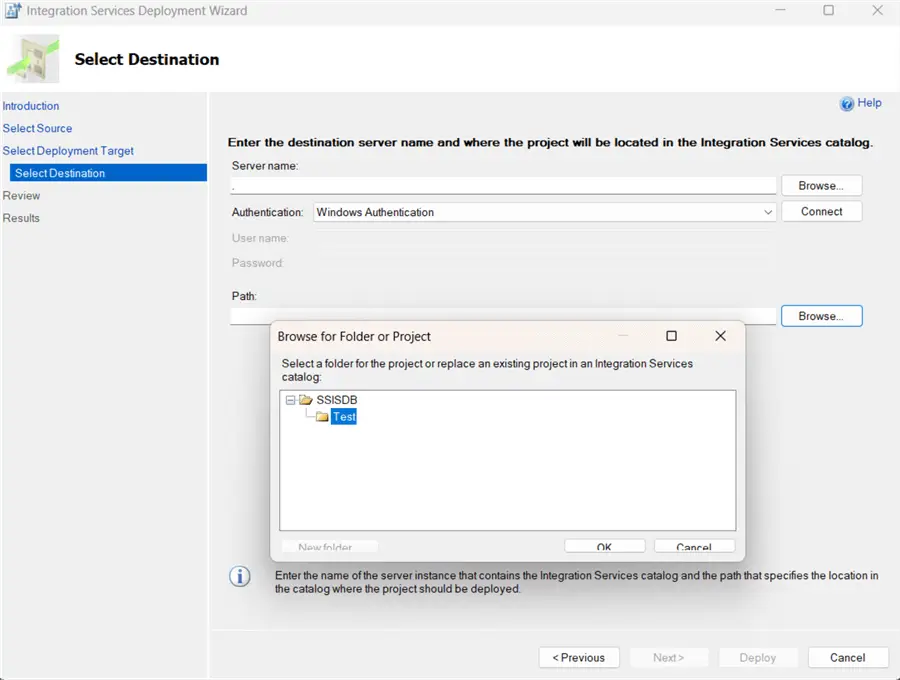
You’ll be asked to select a folder of the SSIS catalog (and possibly create one if there aren’t any folders yet):
In the final screen, hit Deploy to deploy the SSIS project to the catalog.
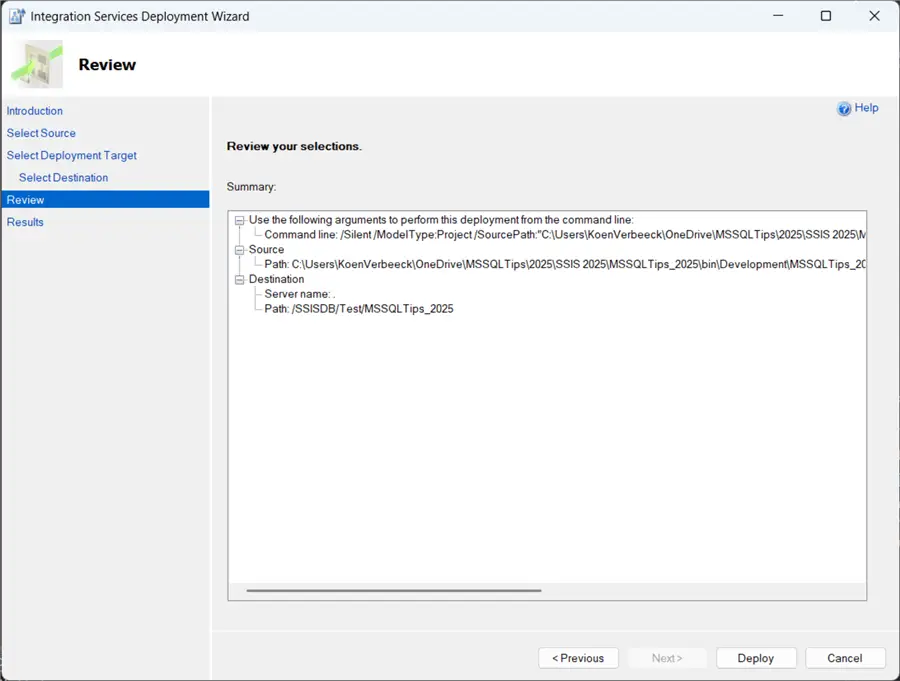
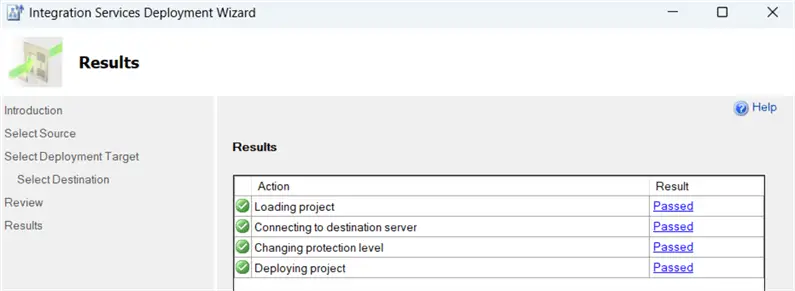
The wizard will then deploy the project and packages to the catalog, while changing the protection level (learn more about protection levels here and here).
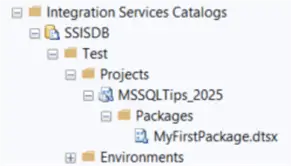
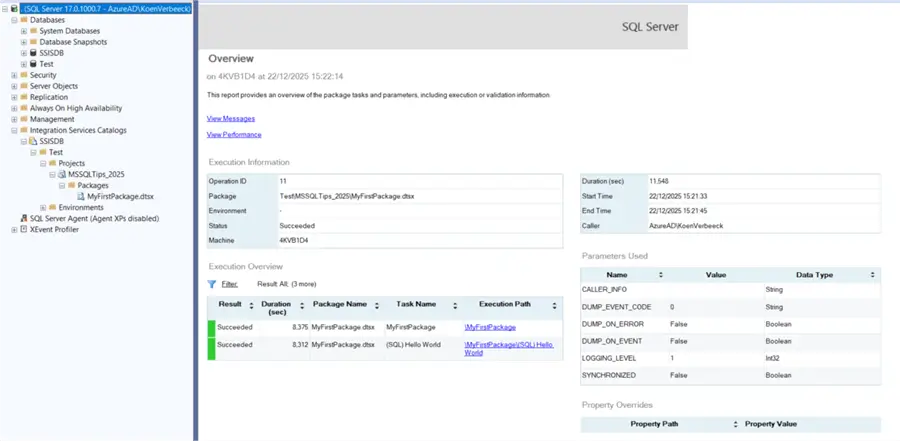
When browsing the catalog with SSMS, you can now see the new project and package:
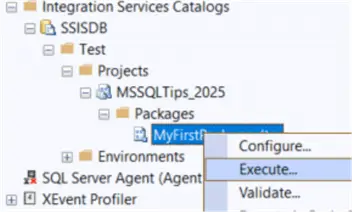
We can test the package by right-clicking it and selecting Execute.
Once execution has started, you’ll be asked if you want to open the Overview report, which is part of the standard SSIS catalog monitoring and reporting.
Migrate your Existing SSIS Projects to SSIS 2025
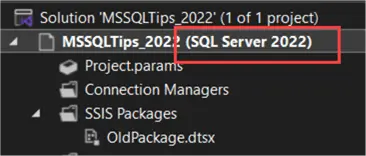
Suppose you have an SSIS project created for a previous version of SQL Server, using an older version of Visual Studio. For example, I have a project created in Visual Studio 2022 for SQL Server 2022. When you’re working with the latest version of the extension, it will assume SQL Server 2025 is the current version. If the project is set to SQL Server 2025, the version will not be displayed next to the project name, but if you are working with an older version it will be shown as in the following screenshot:
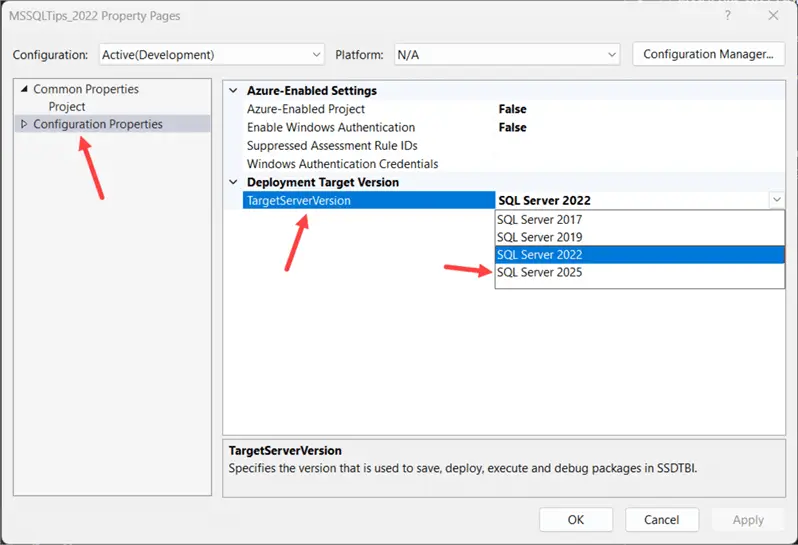
This project can be opened in Visual Studio 2026 without a problem, as SSIS supports backwards compatibility between the versions. Migrating to the latest versions can be done by simply changing the version in the project properties:
Migration Message
When you migrate to a different version, you’ll get the following message:
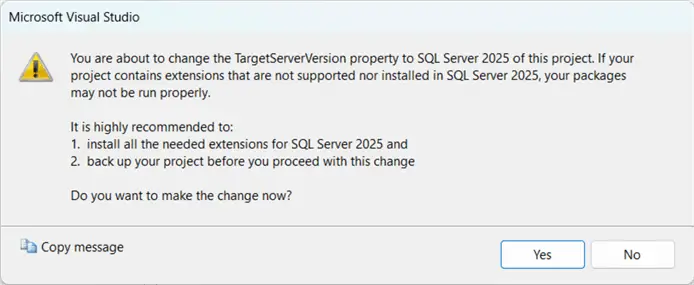
Taking a backup of the project or having the project in source control before you change the version is always recommended. Since there are almost no changes between SSIS 2017 and SSIS 2025, chances that changing the version will break something are small, but never zero. Some key points to take into consideration:
- Although the native SSIS tasks and components likely won’t have an issue, 3rd party components might. Check with the vendor to see if you can upgrade without issues.
- It’s possible that you need to open script tasks or script components, close them and save them to recompile the .NET code.
- The SQL Server Native client for OLE DB has been removed, you now need to use the Microsoft OLE DB Provider for SQL Server.
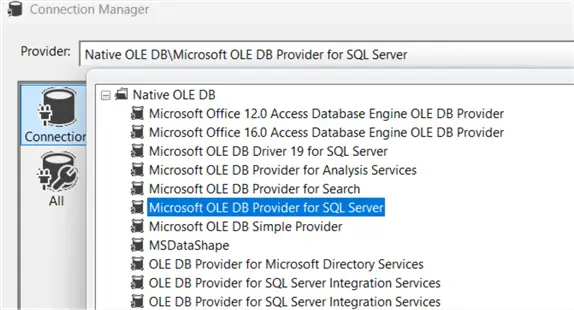
- BIML used to be quite popular to generate SSIS packages using a combination of .NET and XML, but it seems the open-source tooling hasn’t lately been updated by the vendor.
- Upgrading from SQL Server 2017 to 2025 is supported, but older versions of SSIS are not listed in the TargetServerVersion property. When opening older versions in a recent edition of VS, an upgrade wizard will assist you with upgrading the SSIS packages.
Next Steps
- You can learn more about SSIS in this tutorial.
- There are many tips about SSIS on MSSQLTips.com. Check them out here:
- Check out more SQL Server 2025 tips and SQL Server 2025 New Features and Enhancements.

Koen Verbeeck is a seasoned business intelligence consultant with over a decade of experience with the Microsoft Data Platform. He holds several certifications, including Azure Data Engineer. He’s a prolific writer, with over 375 articles on technologies such as Microsoft Fabric, SSIS, ADF, SSAS, SSRS, MDS, Power BI, Snowflake and Azure services. He has spoken at various events such as PASS, SQLBits, dataMinds Connect and many others. He frequently delivers educational webinars on MSSQLTips.com. For his efforts, Koen has been awarded the Microsoft MVP data platform award for many years.
- MSSQLTips Awards:
- Leadership Award (200+ Tips) – 2021
- Author of the Year – 2014/2020/2022
- Author Contender – 2024/2025