Problem
We’re an on-premises shop running all our services on our own machines. We’re planning to migrate to SQL Server 2025 and there are some older SSIS projects we might need. Is SQL Server Integration Services still supported in SQL Server 2025? If yes, how can we install it on our server? Do we still need Visual Studio to develop projects and packages, and how can we convert the older projects?
Solution
SQL Server Integration Services (SSIS) is an enterprise ETL-tool that has been included with SQL Server since SQL Server 2005. Over the years the product has grown into a fast, reliable and mature ETL product with great extensibility features. It does remain however an “on-premises” product, meaning you need to install it on a server (which can be a virtual machine in Azure). There’s also an option to run SSIS packages in Azure Data Factory which is a lift & shift scenario where you take your existing projects and move them to the cloud without making too many changes.
For companies who are still operating on-premises – and there are still plenty of those around – SSIS is still a valuable tool for your data integration needs. SSIS (and other tools like Analysis Services) are bundled with SQL Server. If you have a SQL Server license, you can install SSIS on the same server for free. With the release of SQL Server 2025, there’s now also an SSIS 2025 version available. Unfortunately, not many new features have been added to this product.
In this tip, we’ll guide you on how you can get SSIS 2025 installed on your servers.
Download SSIS 2025
You can download an evaluation edition of SQL Server 2025 here. The evaluation edition allows you to try out all Enterprise features during a 180-day period. You can also install SQL Server 2025 developer edition (which is free under the condition that it is used for development and testing purposes only), which can be downloaded here.
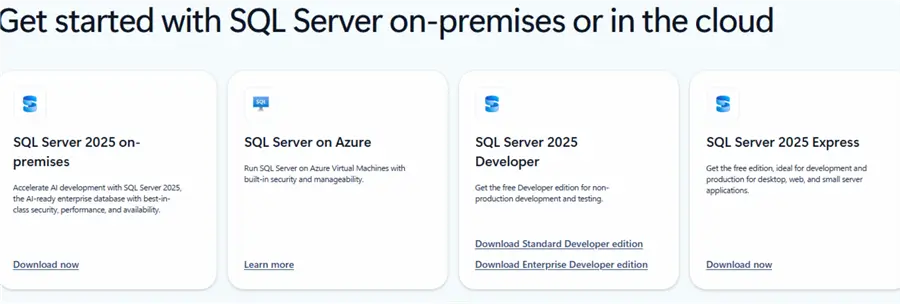
New in SQL Server 2025 is the availability of a Standard and Enterprise Developer edition. The Enterprise Developer edition is the same as the Developer edition of previous releases, meaning it contains all features. The Standard Developer edition only contains the features of SQL Server 2025 Standard Edition, which makes it easier to test out database functionality for applications that are meant to work with the Standard Edition. You can find more info in the tip Install SQL Server 2025 Standard Developer Edition. If you want to test SQL Server 2025 but don’t have a server available, there’s also a pre-configured VM in Azure available:

For most SSIS use cases, Standard edition is sufficient. There are a couple of advanced use cases, such as the SSIS scale out master, specialized adaptors (for Oracle, SAP or Teradata), data mining or SSAS processing transformations. You can find a list of which features are available in Standard or Enterprise edition in the documentation.
Install SSIS 2025
Once you’ve downloaded the edition that you need, you can start the SQL Server set-up. Choose the Custom installation.

You will be asked where to store the installation media. This can also be useful if you want to install SQL Server 2025 later on a machine that doesn’t have Internet access.

The SQL Server setup files will be downloaded to this location.
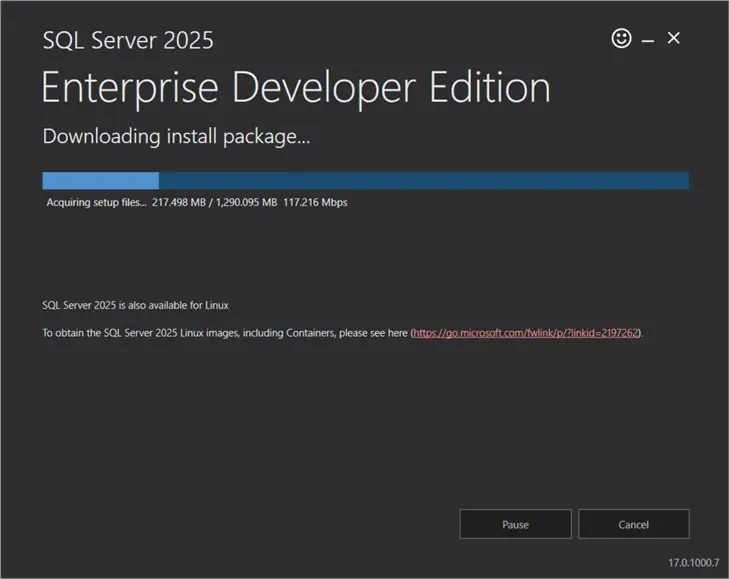
Once it’s finished, the SQL Server setup can be launched.
Installation Center
Go to Installation in the Installation Center.
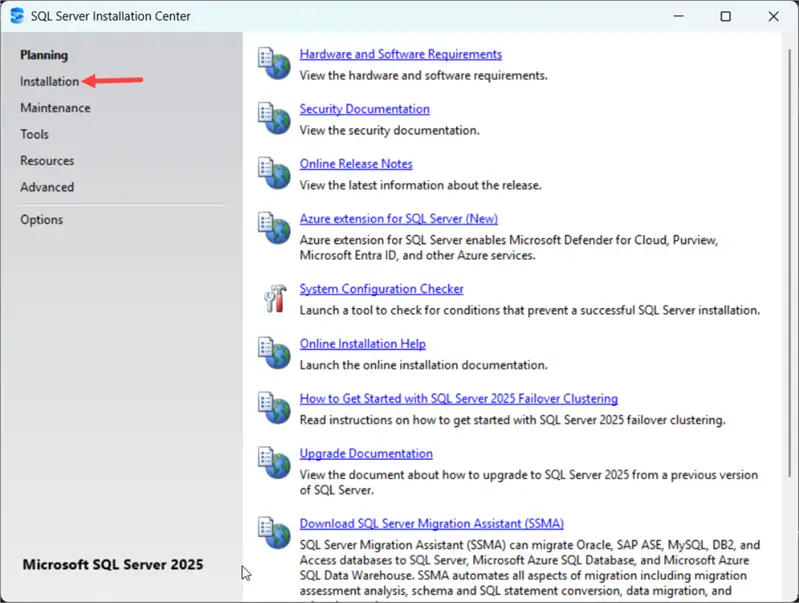
Choose to install a new SQL Server standalone installation.

Tip: SSRS (Reporting Services) can be installed by choosing the Power BI Report Server, and the client tools (SQL Server Data Tools or SQL Server Management Studio) are now separate downloads.
Installation Type
The SQL Server 2025 setup will be launched, and after a couple of screens (with product updates and rules checks), you can choose if you want to install a new instance of SQL Server or add features to an existing one. Pick the first option.
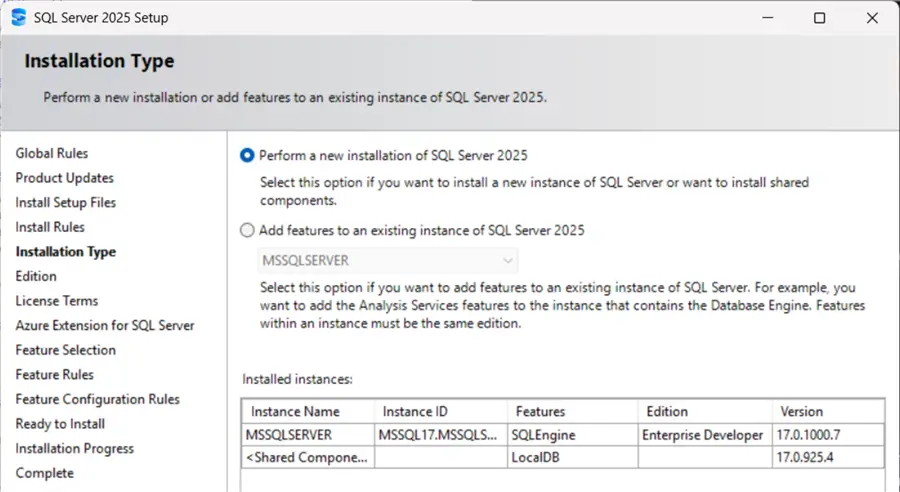
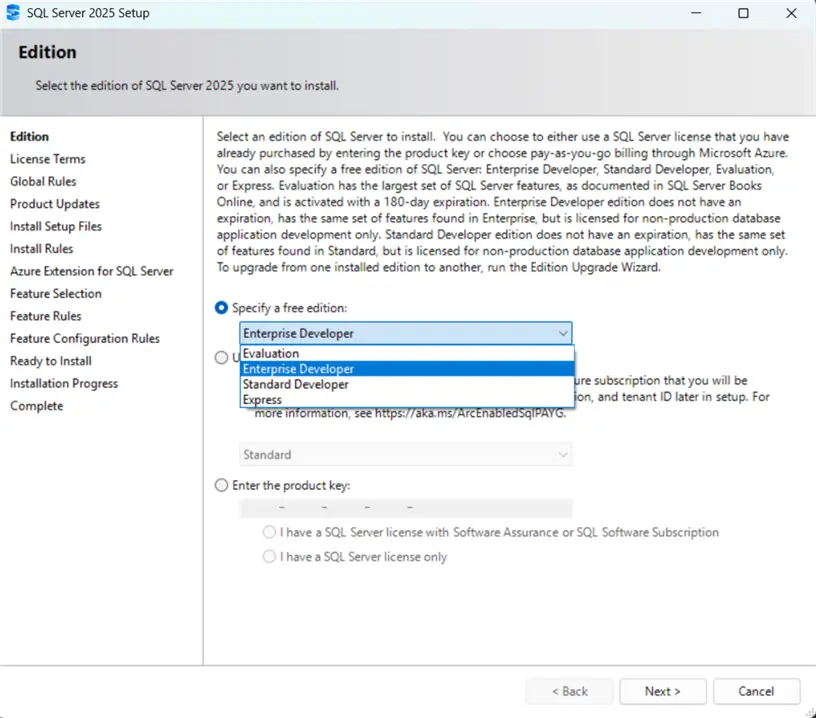
In the next screen, you can choose which edition you want to install (even though we downloaded the installer for Enterprise Developer edition, you still have the option to change):
Feature Selection
In the Feature Selection screen, you can choose which features of SQL Server 2025 you want to install. We need to database engine (to host the SSISDB catalog database), and Integration Services (the scale-out feature is off-topic for this tip).

In the next few screens, you need to configure your database instance (for more info, check out the tip Install SQL Server 2025 Standard Developer Edition). For SSIS you only need to configure the service account:

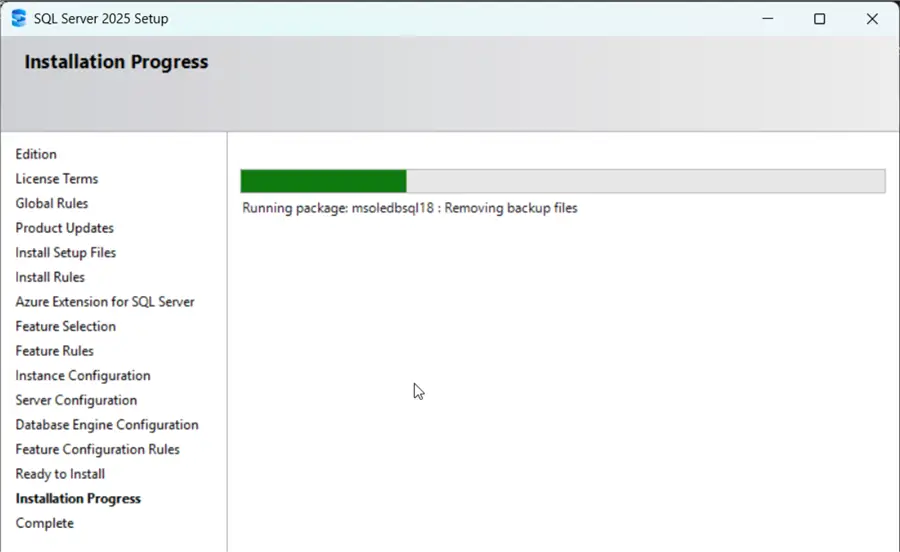
After that, you can go to the final screen where SQL Server 2025 will be installed.
SSIS Service in Configuration Manager
Once the installation is finished, you can find the installed services in the SQL Server 2025 Configuration Manager:

However, the SSIS service has been deprecated and is only used when you want to manage packages using the package deployment model in the msdb database. You can stop this service and set the start mode to Disabled.
Create SSIS Catalog
When you connect with SSMS to the new database instance, you can create a new SSIS catalog:
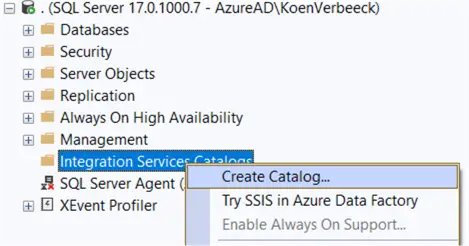
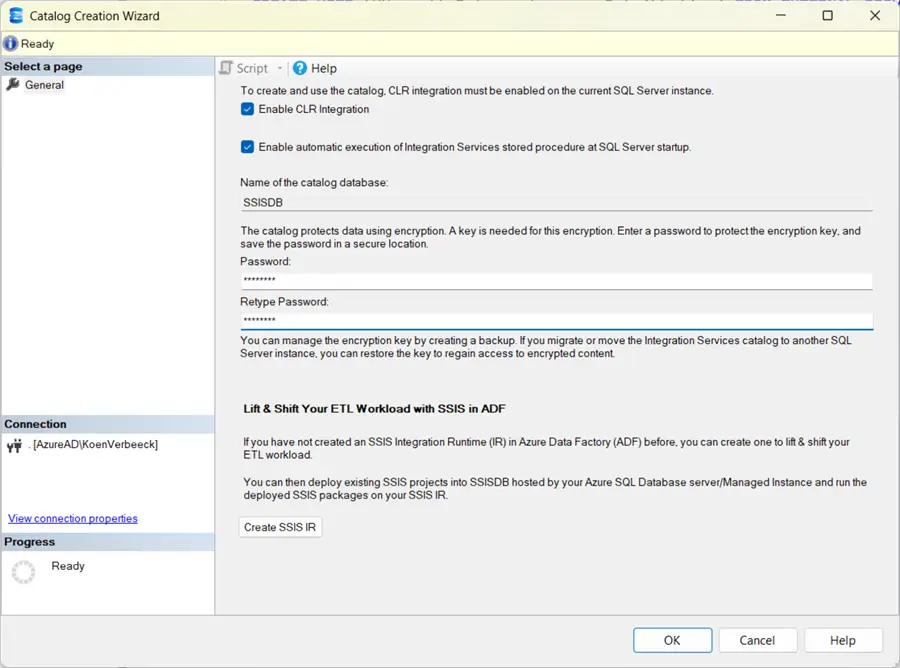
This will create a new catalog (you can have only one per database instance), and the underlying SSISDB of the same name.

You can find a list of SSIS catalog configuration best practices in the tip SSIS Catalog Best Practices. Your server is now configured to host SSIS projects and execute packages. In a following tip, we’ll guide you through the process of creating an SSIS 2025 project and how to create and deploy a package.
Next Steps
- You can learn more about SSIS in the SSIS 2016 tutorial (functionality-wise, there aren’t many changes between SSIS 2016 and SSIS 2025). The tutorial was expanded with later features such as the scale-out and Azure support for SSIS.
- More SSIS catalog tips:
- You can find more SQL Server 2025 tips in this overview.

Koen Verbeeck is a seasoned business intelligence consultant with over a decade of experience with the Microsoft Data Platform. He holds several certifications, including Azure Data Engineer. He’s a prolific writer, with over 375 articles on technologies such as Microsoft Fabric, SSIS, ADF, SSAS, SSRS, MDS, Power BI, Snowflake and Azure services. He has spoken at various events such as PASS, SQLBits, dataMinds Connect and many others. He frequently delivers educational webinars on MSSQLTips.com. For his efforts, Koen has been awarded the Microsoft MVP data platform award for many years.
- MSSQLTips Awards:
- Leadership Award (200+ Tips) – 2021
- Author of the Year – 2014/2020/2022
- Author Contender – 2024/2025