Problem
One issue with SQL Server Developer Editions was that Microsoft only had one version of SQL Server Developer Edition and it matched the features of SQL Server Enterprise Edition. Often firms would install Developer Edition on a Development Server and use Standard Edition in Production. The danger of this was a developer implementing an Enterprise feature in Development and expecting that to work on the Production SQL Server Standard Edition.
Often, I have seen SQL Standard Edition installed in Development Labs to ensure that Enterprise features were not available for use. In these cases, firms would either license at a VM level or during True-up would let it be known that the Standard Edition was installed on a Development Server and was not used in Production capacity. Now with the release of SQL 2025 Microsoft finally has the option to install SQL Server 2025 Standard Developer or SQL Server 2025 Enterprise Developer Editions.
Solution
This article will cover the steps for installing SQL 2025 Enterprise Developer Edition of SQL Server. This is one of the Free versions of SQL Server 2025 if used in a non-production capacity. With prior versions of SQL Server Developer Edition, it always had Enterprise features. Finally, Microsoft broke out SQL Server Developer Edition into a Standard and Enterprise version.
In this article I will cover both the Basic and Custom Install Options.
Download SQL Server 2025 Enterprise Developer
You can find the SQL Server 2025 Enterprise Developer on the Microsoft SQL Server Download site at: https://www.microsoft.com/en-us/sql-server/sql-server-downloads
Here you will see the SQL Server 2025 Developer download options. Click on “Download Enterprise Developer edition” to download the install file.

Basic Install – SQL Server 2025 Enterprise Developer
Go to your Download folder and find file: SQL2025-SSEI-EntDev.exe

Double click the file to launch the installation.
You will get prompted: “Do you want to allow this app to make changes to your device?” Hit YES.
You will see a splash screen and then a screen the shows Enterprise Developer Edition and you will get to choose a Basic or Custom install or to Download the Media.
First let’s go through the Basic install.
Click Basic.

Next you will need to Agree to licensing Terms. Click Accept.

Next is Specify the SQL Install location. I will keep the default. Hit Accept.

The SQL Install Download will begin.

Once the Download portion completes the Install will begin. It will take around 5 or 10 minutes to install.

Once the install completes you get the following screen showing that the installation has completed successfully. You can Close this screen and test your connection from SSMS or you can hit Connect Now.

Connect Now will pop up a cmd screen and connect to the SQL Server via the sqlcmd command line mode.
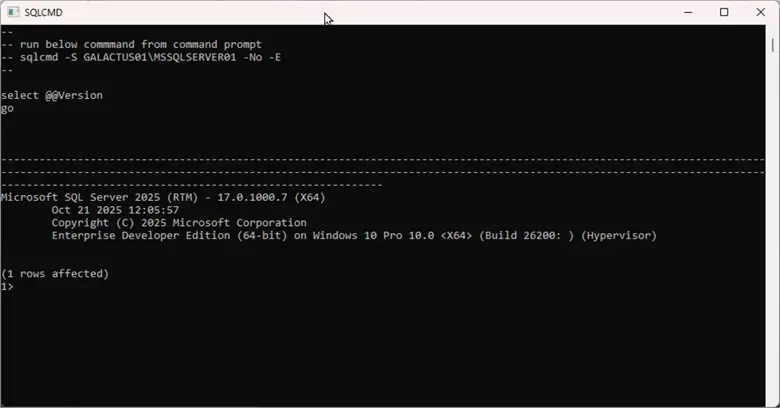
This concludes the Basic SQL Server 2025 Enterprise Developer Edition.
Custom Install – SQL Server 2025 Enterprise Developer
This time let’s run through the Custom installation.
Again launch the SQL2025-SSEI-EntDev.exe, This time Select Custom.
Choose the Media Download location or take the default. Click Install.

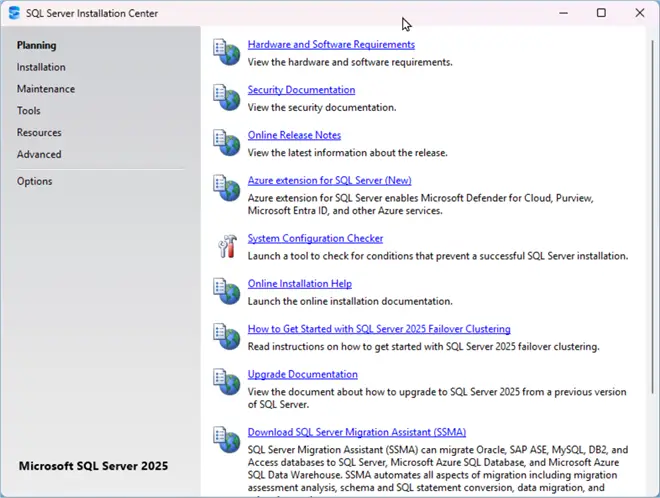
SQL Server Installation Center
This window will pop up.
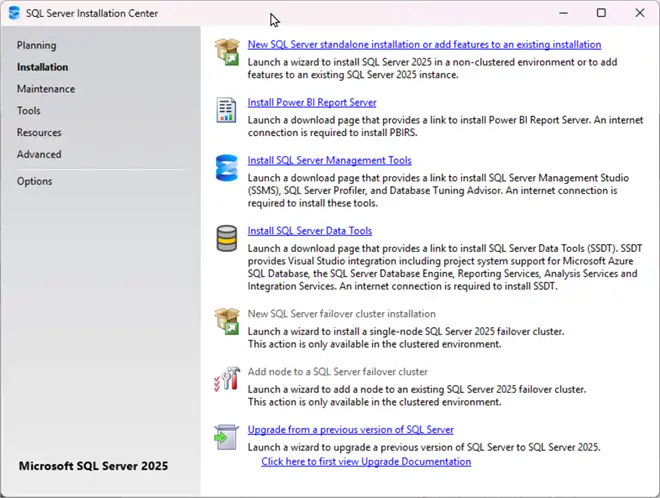
Installation
Click the Installation option on the left. You will see different custom install options. We will select the first option: New SQL Server standalone installation or add feature to an existing installation.
Edition
The next screen that pops up give the options:
- Specify a Free Edition
- Use pay-as-you-go billing through Microsoft Azure
- Enter a product key.
We will pick the first option to Install the Free Edition. Hit Next.

License Terms
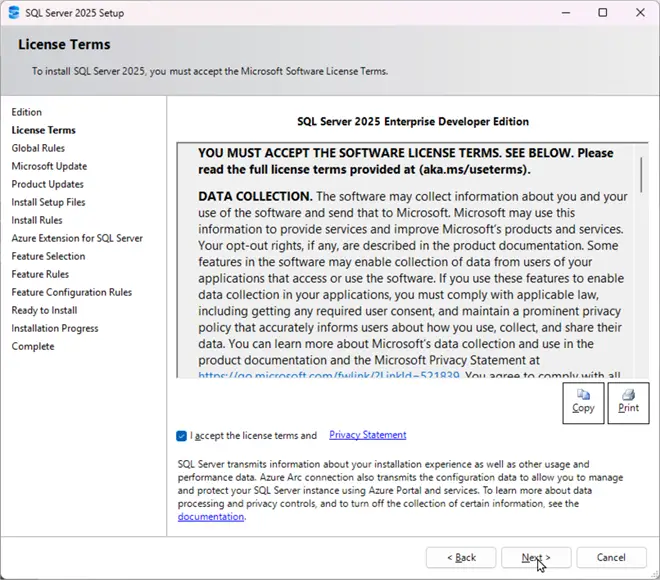
Agree to the Licensing Terms by checking the box and hit next. Note the list on the left is all the steps that the install will go through with the bolded step the one you are currently on.
Microsoft Update
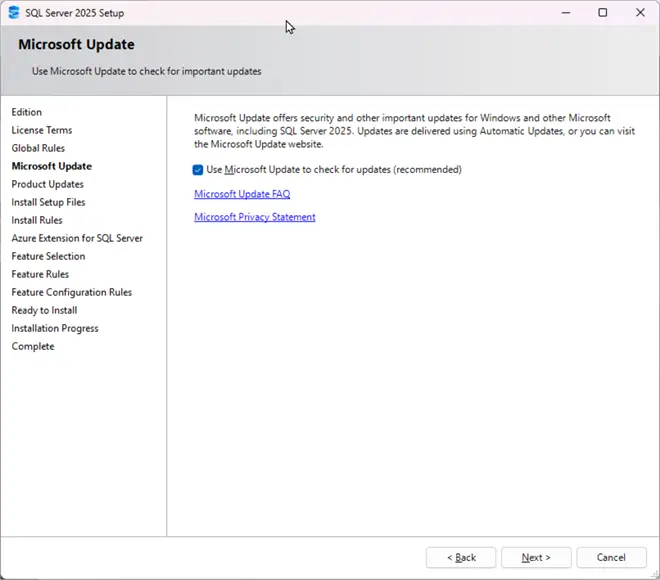
The next screen you can select to do Microsoft update by checking the box and hitting next. This is best practice to ensure you get patches and security updates.
Install Rules
Next are the Install Rules. If any of these are Red they will need to be resolved to continue the install. You may have to cancel the install to resolve those issues and then start from scratch again.
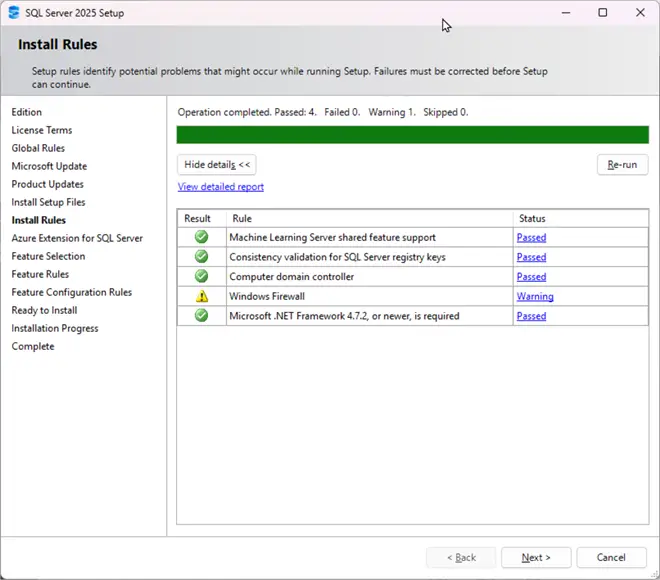
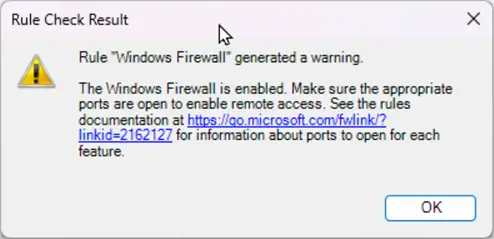
Often you will see the Windows Firewall Warning. If you click on the like you will get this popup. To move on hit OK and then hit Next on the Install Rules screen.
Azure Extension for SQL Server
Next screen is the Azure Extension for SQL Server. This is optional and I suggest you read more about this on Microsoft. I will not check any boxes here and will move on. Hit next.

Feature Selection
Select the feature you are interested in to install. For this I will just keep it simple and select the Database Engine Services. I’ll take the defaults for the Instance Root Directory and then hit Next.


Instance Configuration
Next is Instance Configuration. You can install as a named instance of SQL Server or the default instance. If SQL Server is not previously installed on the computer this will be the default instance. If you want to install this as a 2nd Instance of SQL Server, you can make this as a named instance and have multiple versions of SQL Server Running on one machine.
- Default Instance: this is the typical selection if it is the first time installing SQL on the computer. In this case SQL Server can be connected via the Computer name. The Default Instance name is MSSQLSERVER.

- Named Instance: Select when you want to run multiple versions of SQL Server on one computer. You can also set an instance name on the first install, which you might do if you intend to install another copy of SQL on the same machine. In this case the instance name will be required when connecting to the SQL Server.

For this installation because I already have an older version of SQL installed, I chose to go with the named instance.
Server Configuration
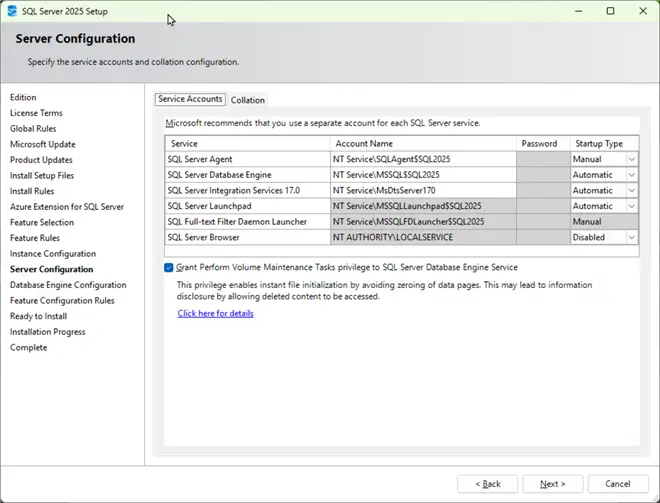
The next screen is Server Configuration. It has two tabs:
- Service Account: Here you can take the defaults or change the Service Account to meet your specs by providing the service account and passwords. Note because I chose to install an Instance of SQL Server with Instance Name SQL2025, the default service account names end in $SQL2025. Also, you can change the Service start up: Automatic, Manual, or Disabled. (The services list may differ based on the Services you chose to install.)
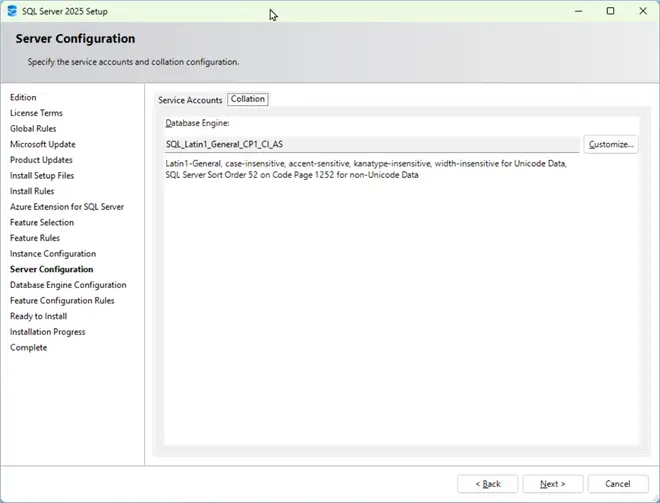
- Collation: Depending on your requirement or locale you may want to choose a different Collation. Here I keep the default.
Database Engine Configuration
Next screen is Database Engine Configuration. Here we have 6 tabs.
Server Configuration
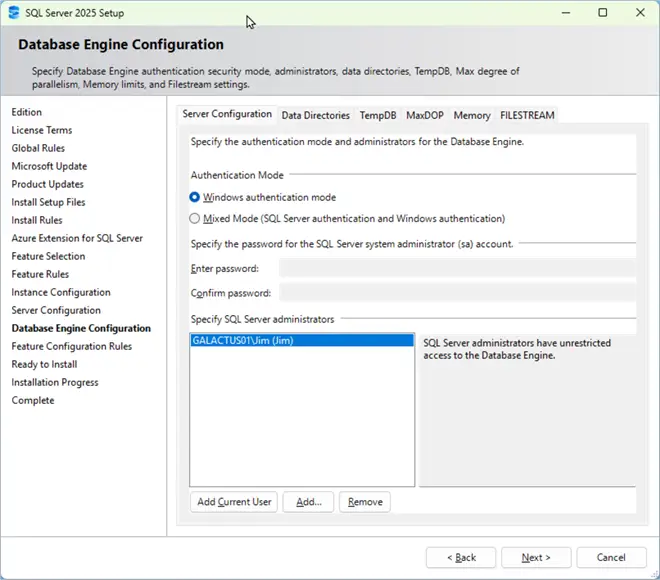
This shows an error: Missing system Administrator account. To correct this I will click Add Current User.
Also I will select Windows Authentication Mode. This is best practice for a more secure SQL Server.
The other Option is Mixed Mode which will require you provide a password for the “sa” account.
Data Directories
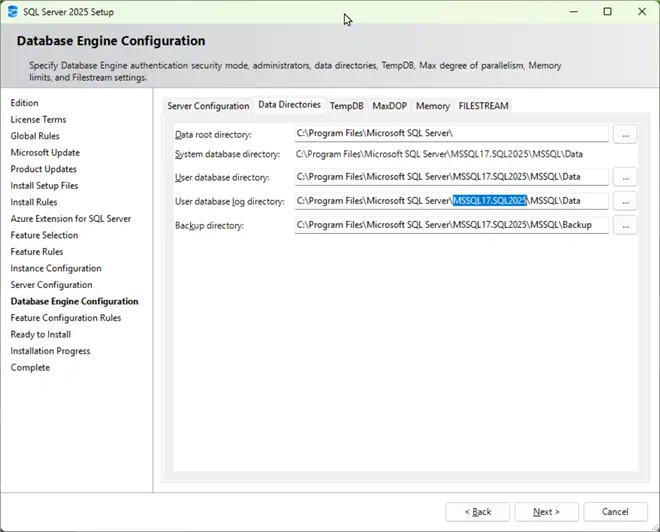
Often on a production grade Server you may have separate Drives set up for the Data, Logs and TempDB. For this install I will stick with the Defaults. Because I’m installing a Named Instance the default folders reflect that by including MSSQL17.SQL2025 as a Subfolder.
TempDB
There are several TempDB configuration options. These configuration can also be adjusted later. You can also add multiple Tempdb data files which will help performance. Also the Tempdb file and Log file location is configurable. I will stick with the defaults.

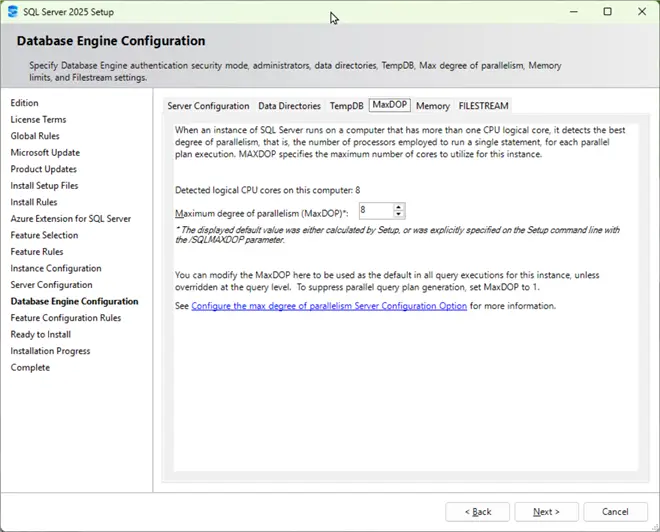
MaxDOP
Next is MaxDOP (Degree of Parallelism). The install detects your logical CPU core and provides a default based on your CPU. I’ll stick with the Default.
Memory
If you are installing this on a dedicated Server you likely have additional memory added to dedicate to SQL. The Memory can be configured based on your specs. You can also adjust these setting later. I will again keep the default.

FILESTREAM
The last tab is FILESTREAM. Its odd that this is in Upper case. For this install I’m not going into Filestream, so will be keeping the Default.
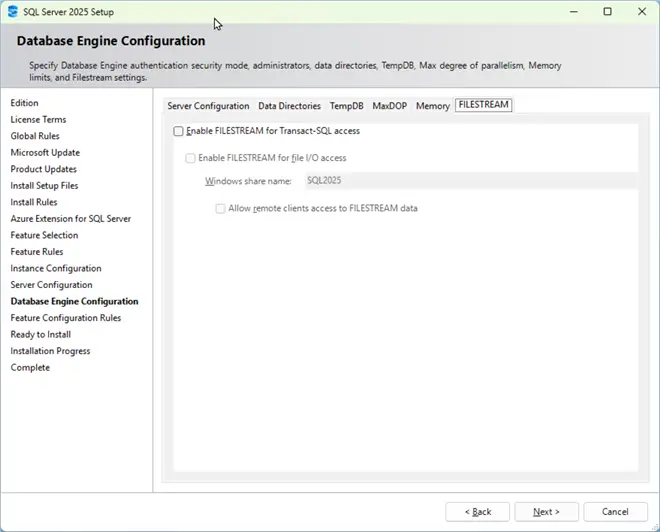
At this point we have set all the Database Engine Configuration options so it is time to hit Next.
Ready to Install
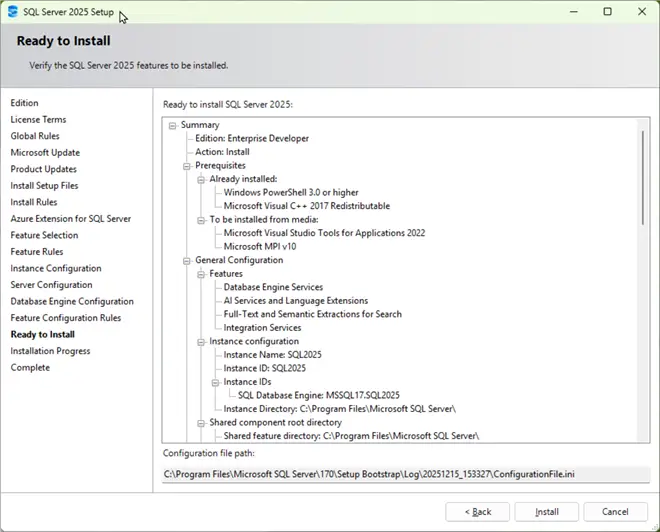
Next the install gives a summary of all the options you selected. Note the Configuration File path at the bottom of the screen. The Install will be based off the setting which are written to the Configuration File. The configuration file can be reused for other installs without having to go through all the install screens. Look for links below on installs via the config file. Alright, time to hit the Install button.
Installation Progress
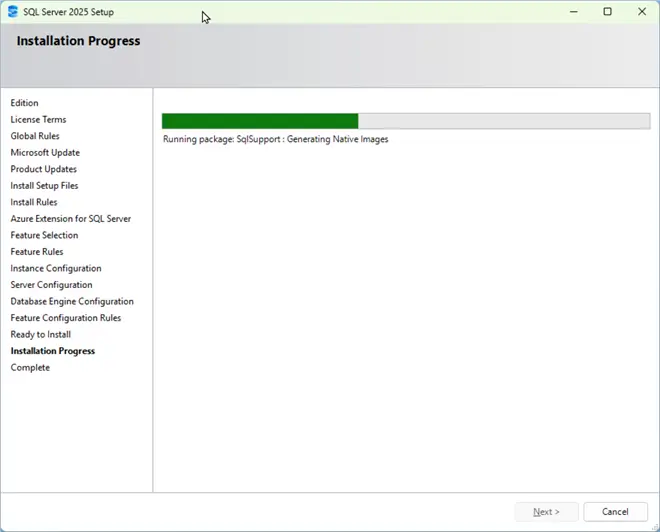
The next screen will show progress during the installation.
Complete
The final Screen confirms the install was successful. Note the link to the Summary Log file. Click the link to review it.

Hit Close to complete the install process.
This concludes the custom install of SQL Server 2025 Enterprise Developer Edition.
Wrap Up
This concludes the installation steps for installing SQL 2025 Enterprise Developer Edition. Below are suggested next steps for various learning paths.
DBA Path – Explore installing SQL Server using a configuration file to standardize SQL builds or run the installation from PowerShell or the command prompt. Review the setup bootstrap files to troubleshoot installation issues. Learn about and test out the Azure Extension for SQL Server and the AI Service and Language Extensions features which are part of the install options. This will give you a solid foundation for managing and troubleshooting your new environments.
Developer Path – Use the Developer Edition to practice writing T-SQL, building stored procedures, and designing schemas. Learn about the AI Service and Language Extensions feature in the install options to integrate AI into your Application code. Install and use the new version of SQL Server Management Studio and explore the AI CoPilot integration. Experiment with integrating SQL Server with Visual Studio or other development tools. These are some of the ways to see how SQL Server supports modern application development.
BI Path – Install and test SQL Server Integration Services (SSIS) or install Power BI Report Server alongside your SQL instance. Run sample ETL packages, design reports, and connect Power BI Desktop to your database. These tools will help you turn your SQL data into insights and prepare you for enterprise BI projects.
Next Steps
Review the links below for additional MSSQLTips articles regarding different SQL Installation topics.
- Install SQL Server from Configuration File with Installation Center
- SQL Server 2025 New Features
- Install SQL Server 2025 Standard Developer Edition
- Install SQL Server 2025 Demo Environment in Azure
- Review other articles author Jim Evans has written
- Microsoft Learn – SQL Server installation guide
- SQL Server technical documentation

Jim Evans is an IT professional who has worked with SQL Server since 1995. He has a passion for SQL Servers and working with the people who utilize it. As a C++ programmer early in his career he was mentored to learn T-SQL with optimizing for performance always a goal. He has supported many corporate business units and application, taken part in designing many databases, managed DBAs, BI Developer and Data Management teams. He is always up for a challenge, embraces new features and functionalities as they are rolled out and enjoys sharing his knowledge. When not working on SQL Server he has spends time coaching youth sports, coaching in a disability softball league and volunteering with Black Dagger Military Hunt Club providing outdoor activities for veterans.
- MSSQLTips Awards: Trendsetter (25+ tips) – 2022 | Author Contender – 2021 | Rookie Contender – 2019