Problem
Have you ever tried to justify the performance benefits of adding an index? One way is to use the percentage impact of the missing index recommendation in SQL Server Management Studio (SSMS). However, that percentage doesn’t mean much outside the SQL Server community. In the past, I’ve spent hours optimizing queries and had little to show for it. I would go to the business and say, “Hey, look, I made the query go from 10 milliseconds to three milliseconds.” They might say, “Great job,” out of respect. They are likely thinking, “What’s the big deal?” and I don’t blame them.
Generating meaningful metrics for your index strategies or code changes is challenging. Saying you shaved off 10 milliseconds on a query doesn’t carry much weight. However, people might pay attention if you can communicate performance gains at a larger scale. You might ask, well, how can I go about capturing these metrics? I’m glad you asked.
Solution
In this tip, I’ll introduce a free tool you can use with minimal effort. I plan to make this tip into multiple parts, so we’ll focus on getting you up and running. You might be saying, “What’s the catch?” Beyond understanding a few configuration options, there isn’t one. Stay tuned as we explore Adam Machanic’s SQLQueryStress.
Enter SqlQueryStress
So, what exactly does SqlQueryStress do? There is a detailed README located on the official GitHub maintained by Erik Ejlskov Jensen. I would boil it down to simulating multiple virtual users running single queries or stored procedures. One of the nice features is the ability to define how many iterations and threads (aka virtual users) to use.
Building Your Dataset
We are going to create a simple dataset with three tables. Our SalesOrder table will have one million rows.
/* MSSQLTips.com */
USE master;
GO

IF DATABASEPROPERTYEX('SqlQueryStressDemo', 'Version') IS NOT NULL
BEGIN
    ALTER DATABASE SqlQueryStressDemo SET SINGLE_USER WITH ROLLBACK IMMEDIATE;
    DROP DATABASE SqlQueryStressDemo;
END;
GO

CREATE DATABASE SqlQueryStressDemo;
GO

ALTER DATABASE SqlQueryStressDemo SET RECOVERY SIMPLE;
GO

USE SqlQueryStressDemo;
GO

CREATE TABLE dbo.SalesPerson
(
    Id             int            IDENTITY(1, 1) NOT NULL,
    EmployeeNumber nvarchar(8)    NOT NULL,
    FirstName      nvarchar(500)  NULL,
    LastName       nvarchar(1000) NULL,
    CreateDate     datetime       NOT NULL
        DEFAULT GETDATE(),
    ModifyDate     datetime       NULL,
    CONSTRAINT PK_SalesPerson_Id
        PRIMARY KEY CLUSTERED (Id)
);
GO

CREATE TABLE dbo.SalesOrder
(
    Id          int            IDENTITY(1, 1) NOT NULL,
    SalesPerson int            NOT NULL,
    SalesAmount decimal(36, 2) NOT NULL,
    SalesDate   date           NOT NULL,
    CreateDate  datetime       NOT NULL
        DEFAULT GETDATE(),
    ModifyDate  datetime       NULL,
    CONSTRAINT PK_SalesOrder_Id
        PRIMARY KEY CLUSTERED (Id),
    CONSTRAINT FK_SalesPerson_Id
        FOREIGN KEY (SalesPerson)
        REFERENCES dbo.SalesPerson (Id)
);
GO
Now that we have our databases and primary tables created, let’s run the script below to populate them. I’m using the GENERATE_SERIES function to populate both tables.
/* MSSQLTips.com */
WITH FirstName
AS (SELECT
        FirstName
    FROM
        (   VALUES ('Amanda'),
                   ('Noah'),
                   ('Henry'),
                   ('Sally'),
                   ('Liam')) AS v (FirstName) ),
     LastName
AS (SELECT
        LastName
    FROM
        (   VALUES ('Jones'),
                   ('Smith'),
                   ('House'),
                   ('Knocks'),
                   ('James')) AS v (LastName) )
INSERT INTO dbo.SalesPerson WITH (TABLOCK) (EmployeeNumber, FirstName, LastName)
SELECT
    CONCAT('000', ROW_NUMBER() OVER (ORDER BY (SELECT   NULL))) AS EmployeeNumber,
    FirstName.FirstName                                         AS FirstName,
    LastName.LastName                                           AS LastName
FROM
    FirstName
    CROSS JOIN LastName
    CROSS JOIN GENERATE_SERIES(1, 40) AS n;
GO

INSERT INTO dbo.SalesOrder WITH (TABLOCK) (SalesPerson, SalesAmount, SalesDate)
SELECT
    ABS(CHECKSUM(NEWID()) % 1000) + 1 AS SalesPerson,
    ABS(CHECKSUM(NEWID()) % 50) + 10  AS SalesAmount,
    DATEADD(
        DAY,
        RAND(CHECKSUM(NEWID()))
        * (1 + DATEDIFF(DAY, '20160101', '20220901')),
        '20160101')                   AS SalesDate
FROM
    GENERATE_SERIES(1, 1000000);
GO
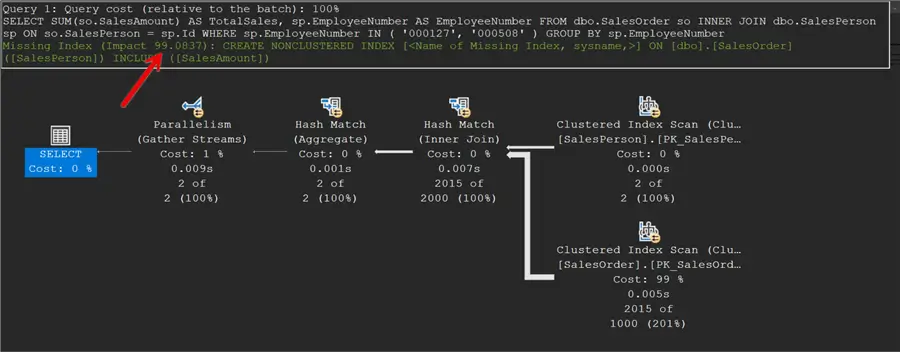
Below is a query our application runs constantly. When we look at the execution plan in SQL, it’s apparent that we’ll get a significant performance boost from adding an index. However, it would be helpful to communicate this benefit more broadly. That’s where SQLQueryStress comes into play.
/* MSSQLTips.com */
SELECT
    SUM(so.SalesAmount) AS TotalSales,
    sp.EmployeeNumber   AS EmployeeNumber
FROM
    dbo.SalesOrder             so
    INNER JOIN dbo.SalesPerson sp
        ON so.SalesPerson = sp.Id
WHERE   sp.EmployeeNumber IN ( '000127', '000508' )
GROUP BY sp.EmployeeNumber;
GO
Enabling the execution plan shows the query would benefit from a new index.
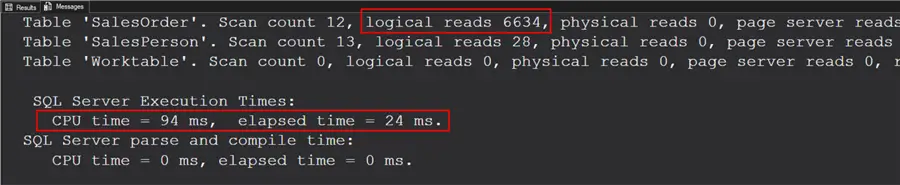
If you turn on Statistics Time and IO, you’ll see something like the screenshot below. Again, I think it would be nice to have this information on a larger scale.
Downloading SqlQueryStress Tool
The first thing you want to do is download the application. If you want to download the source code, you can from this Git repo. If you don’t want to dive that far in, you can download the latest build.
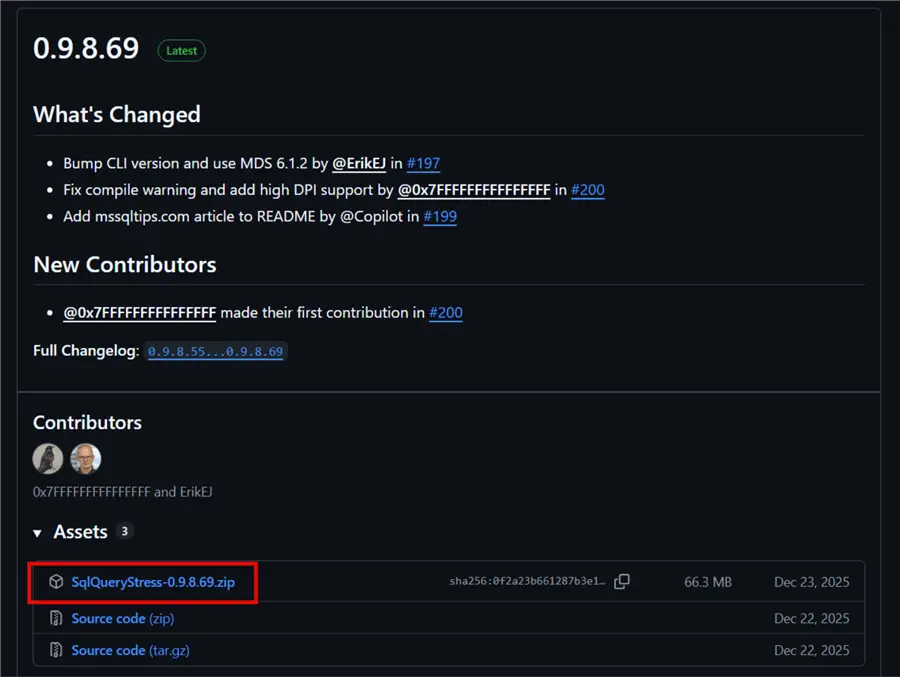
Once you have the .zip file, extract it to a convenient location. You’ll end up with something like the screenshot below.
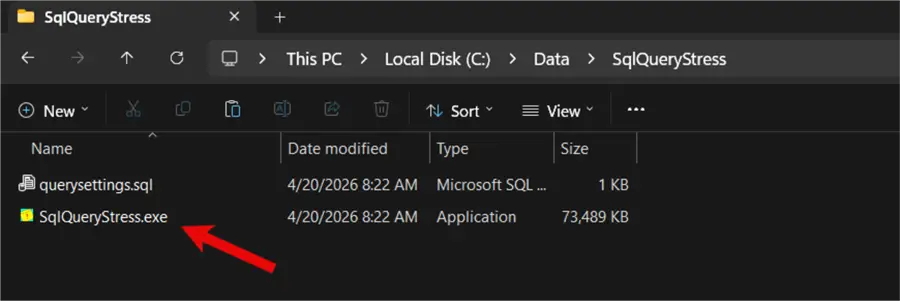
To start it, double-click on SQLQueryStress.exe.
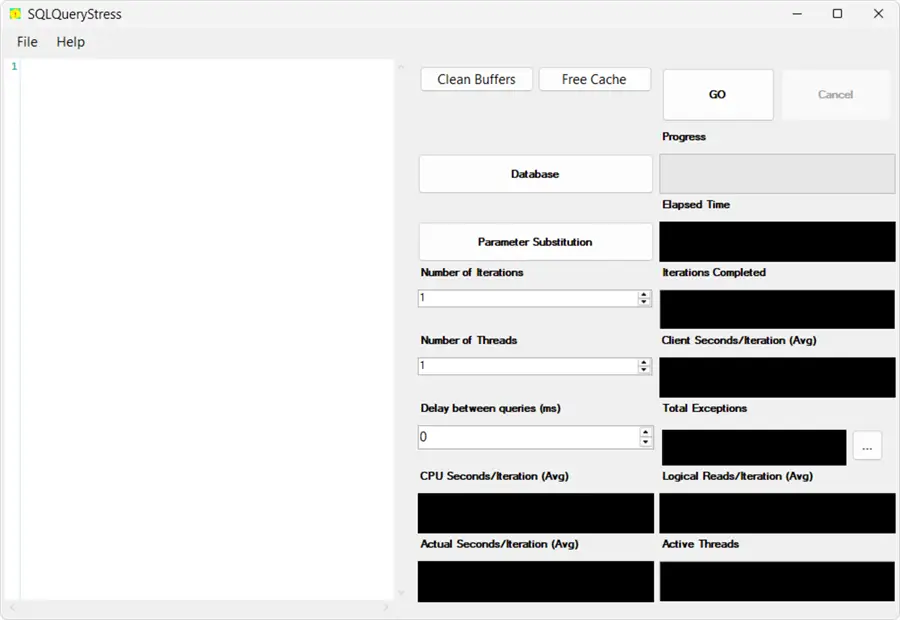
When the application opens, it should look like the screenshot below.
Database Connection
One of the first things you need to do is establish a connection with a database. Click the Database button. This demo was performed on my local machine. You’ll want to connect to the server as you would with SSMS or Azure Data Tools. Please make sure you’re doing all of this in a test environment. You will either need to use Integrated Authentication or SQL Server Authentication.
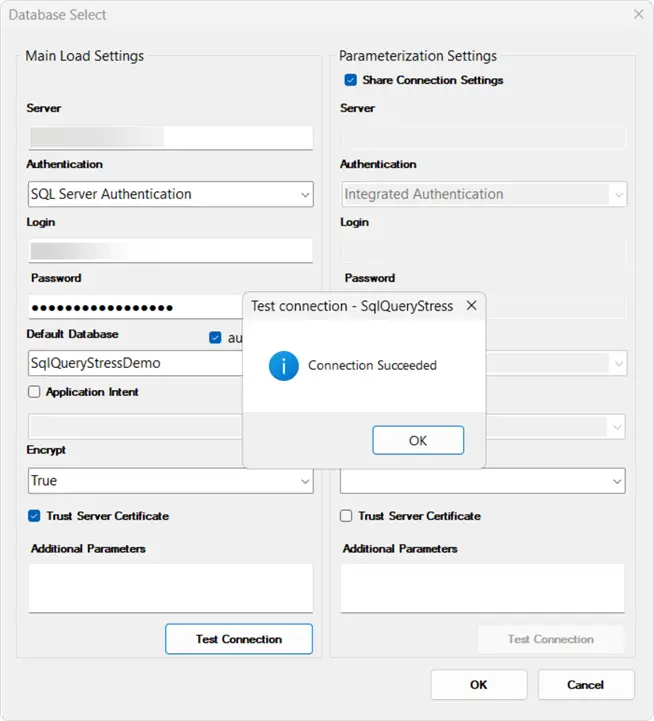
If desired, you can choose a default database, like in my screenshot. I generally don’t bother with application intent. Next, click Test Connection to ensure you can connect to the server. Finally, if you receive the Connection Succeeded message, click OK to establish the connection.
Configuration
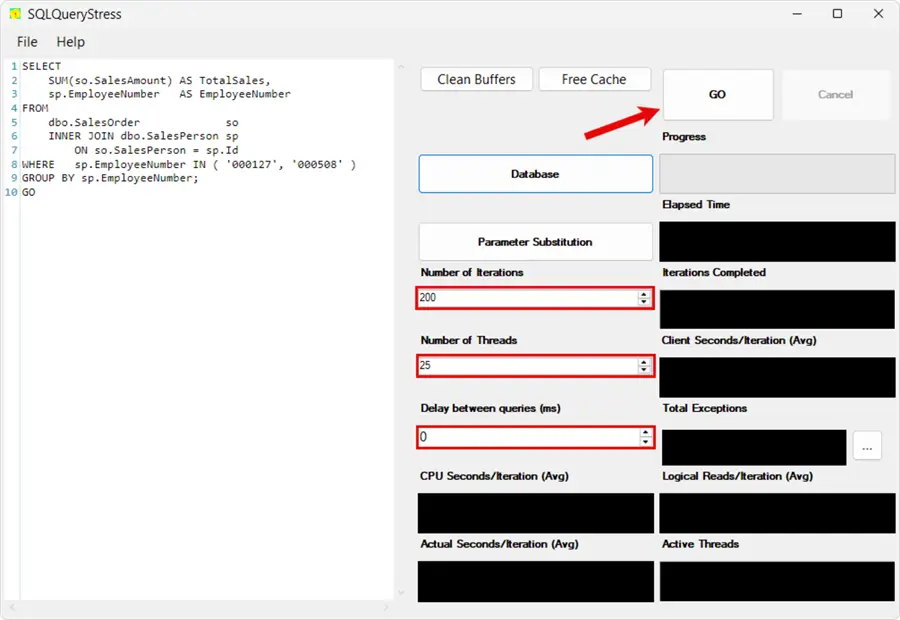
The area on the left is where you can enter your load testing query. You can see the statement in my example is the one from above. Now, let’s populate the Number of Iterations. This value indicates how many times the query will run per thread. It would only execute the query once if we left it at one. For our test, I’m going to choose 200.
Next, you have the Number of Threads. This value indicates how many virtual users will execute the query. You can also think of these as multiple query windows, each with its own SPID. The maximum value you can enter here is 200. I’m going to choose 25 for our example. In total, we’ll have 5000 executions.
The last value you can populate is the Delay Between Queries (ms). As the name implies, this will insert a brief pause between each execution. I’ll leave the default value at zero, but we might change that later.
Gather Before Metrics
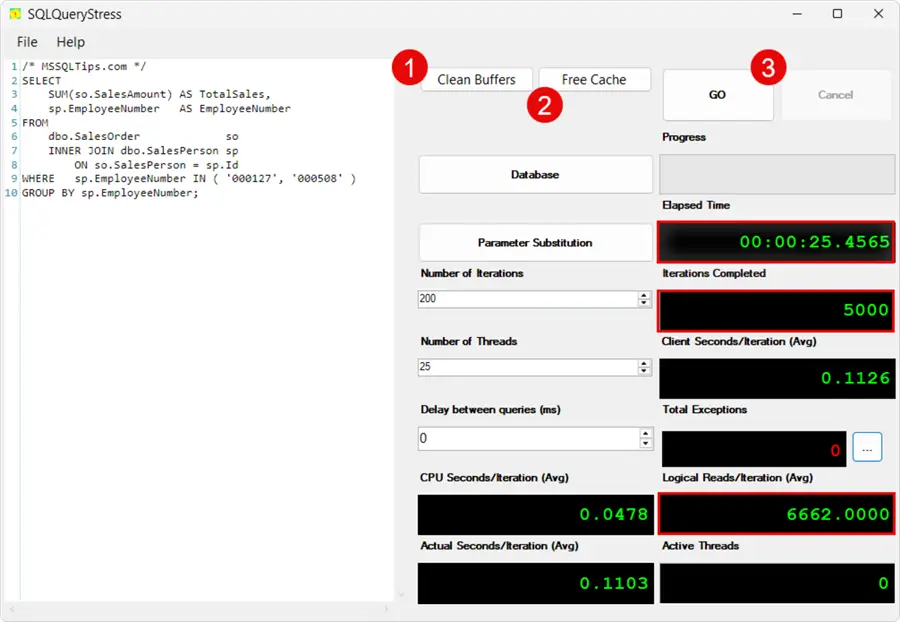
Now you’re ready to capture some metrics. If this is a test server that other people are not using, you can click the Clean Buffers & Free Cache buttons. When you’re ready, go ahead and click the Go button. I ran this three times, and the results were about the same each time.
Next, let’s create the following index and rerun the stress test.
/* MSSQLTips.com */
DROP INDEX IF EXISTS [IX_SalesOrder_SalesPerson-SalesAmount]
    ON dbo.SalesOrder;

CREATE NONCLUSTERED INDEX [IX_SalesOrder_SalesPerson-SalesAmount]
    ON [dbo].[SalesOrder] ([SalesPerson])
    INCLUDE ([SalesAmount]);
GO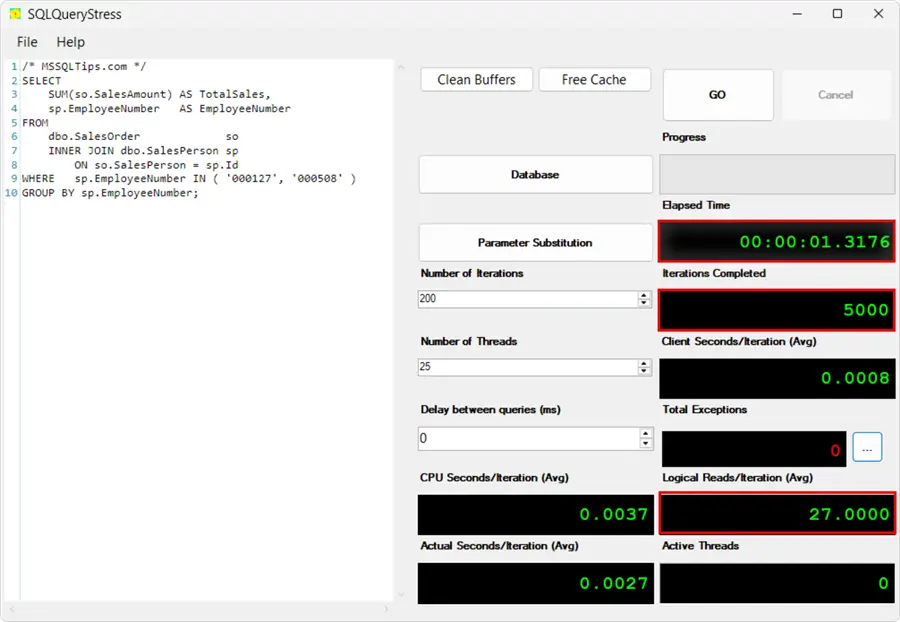
Wow, adding our index made a massive difference in performance. We went from reading 6,662 8K pages per iteration to 27. We also went from a total execution time of 25 seconds to under one second!
Here is a simple chart to illustrate the performance differences.
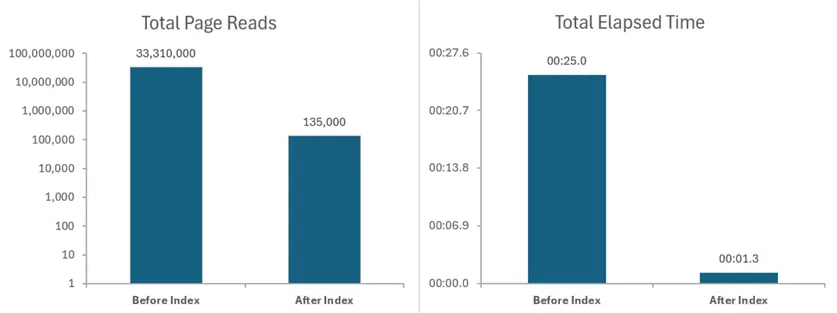
You can see the massive difference when looking at the metrics on a larger scale. Whenever I show the results to someone with little SQL experience, I’ll highlight the elapsed time. A process that takes less time to run is something we can all get behind.
In my next tip, I plan to explore some other functionality SQLQueryStress offers, including parameters.
Conclusion
In this tip, we download and unzipped SQLQueryStress. Next, we looked at the minimum configuration options to run the application. Finally, you saw how easy it is to run and capture metrics. I’m looking forward to hearing about your experiences with SqlQueryStress in the comments below.
Next Steps
- Get started today by downloading SQLQueryStress. Proceed with caution if you’re running this on a production server, or better yet, just don’t do this on a production system.
- If you would like access to an on-demand webinar I presented on SqlQueryStress, check out “Performance Testing SQL Queries with SqlQueryStress.”
- Would you like to gain a clearer understanding of pages and time statistics in SQL Server? Please check out “Getting IO and time statistics for SQL Server queries” by Tim Cullen.
- One of the options you have with SQLQueryStress is to clean buffers and free cache. Please check out “Different Ways to Flush or Clear SQL Server Cache” by Bhavesh Patel for details on what those options do under the hood.

Jared Westover is a SQL Server specialist with two decades of industry experience covering T-SQL development, performance tuning, administration and Microsoft Fabric. He is currently a software architect at Crowe, an author at Pluralsight and primary contributor at sqlhabits.com. On MSSQLTips.com, Jared is a respected award-winning author for his clever T-SQL solutions and bringing to light new real-world solutions to age-old development problems.
- MSSQLTips Awards
- Achiever Award (75+ tips) – 2026
- Author of the Year – 2023
- Author Contender – 2024/2025