Problem
Creating a Windows Failover Cluster for SQL Server is a great way to achieve high availability. In this article, we walk through the steps to create a Windows Server 2025 Failover Cluster.
Solution
This task can be done using the “Add Roles and Features” wizard and the Failover Cluster Manager. This guide walks through the Failover Clustering feature installation, cluster creation and configuration, with the purpose of then setting up SQL Server 2025.
Before We Begin
While it is possible to create a workgroup-based cluster (domainless cluster) with local accounts for SQL Server and certificate authentication, in this article the nodes (servers) are joined to a domain, which in my opinion represents the majority of Failover Clusters in the real world.
For instruction on how to create a domain and join servers, see the Install Active Directory on Windows Server 2025.
Also, while it is possible to create a Failover Cluster using Windows Admin Center or PowerShell, in our guide we will be using the Failover Cluster Manager which is a Microsoft management console snap-in for cluster creation.
Process Overview
Here is the high-level overview of the process:
- Windows Server Failover Clustering Feature
- Prerequisites and Requirements
- Server Requirements
- Software Requirements
- Active Directory Requirements
- Networking Requirements
- Quorum Configuration
- Storage Requirements
- Failover Clustering Feature Installation
- Creation of WSFC in Failover Cluster Manager
- Cluster Quorum Configuration
- Types of Witnesses for the Quorum
- File Share Witness Configuration
Windows Server Failover Clustering Feature
Windows Server Failover Clustering (WSFC) is a feature in Windows Server that groups two or more servers (called nodes) into a cluster.
WSFC in Windows Server 2025 is an updated, enterprise grade clustering platform that groups multiple servers (nodes) into a single high availability unit. When one node fails, WSFC automatically transfers ownership of clustered resources to another node with minimal downtime.
Using a WSFC provides:
- High availability for workloads like SQL Server, Hyper‑V, file servers, and applications
- Automatic failover capability: if one node fails, another node takes over
- Continuous service with minimal downtime
- Centralized management of clustered resources
WSFC is the high availability foundation for SQL Server 2025 Availability Groups (AGs). WSFC provides health monitoring, failover logic, quorum control, and resource orchestration that AGs depend on:
- Failover logic (Coordinating automatic failover, replica role transitions)
- Health detection (Monitoring replicas’ health)
- Quorum (Maintaining quorum and cluster state)
- Listener management
- Ensuring each replica runs on a different WSFC node
- Managing AG resource groups
Prerequisites and Recommendations
This guide assumes that the servers (nodes) are joined to an Active Directory domain. For instructions on how to create a domain and join servers, see the Install Active Directory on Windows Server 2025 article.
Server Requirements
- Minimum 2 nodes (Windows Server 2025 Standard or Datacenter)
- All nodes must run the same Windows version and edition
- Identical hardware or VM configuration strongly recommended (size, compute, hardware type, configuration, NICs, firmware, storage adapters, etc.)
- All hardware, servers or VMs must pass Cluster Validation Tests
Software Requirements
- Install the Failover Clustering feature on all nodes
- Run Cluster Validation Wizard before creation
- Windows Firewall must allow cluster ports
Active Directory Requirements
- All nodes must be joined to the same AD domain (according to our scenario)
- Cluster creation requires privilege to create the Cluster Name Object (CNO) in AD
Privilege to create CNO in AD – this is for the person (account) that creates the cluster. Easiest way is to use the domain administrator account that has all the required privileges.
And as mentioned, in our scenario we use an AD domain controller that provides DNS resolution for the WSFC nodes.
Networking Requirements
- Nodes must be able to resolve each other via DNS
- Required ports: TCP 135, 137, 3343, 5985, and dynamic RPC ports 49152–65535
- UDP 3343 for cluster communication
- Nodes recommended to be on the same subnet or properly routed
- NIC drivers and firmware should match across nodes
Two NICs per node recommended: one for public / client network, one for private / heartbeat network.
In my example, I use the same NIC for everything.
Quorum Configuration
A quorum witness is required for cluster stability, for two-node or even-node scenarios. A quorum witness is a small external resource that participates in the cluster’s quorum voting process. Each cluster node normally has one vote; the witness can add one extra vote. Witness can be one of the following:
- Disk witness
- File share witness
- Cloud witness
Storage Requirements
For Availability Groups, shared storage is not required.
Just remember that if you have an even number of nodes, WSFC needs quorum witness, which can be Disk witness (requires shared storage), File share witness, or Cloud witness. Latter two do not require shared storage.
SQL Server Requirements
Additionally, as we plan to deploy SQL Server Availability Groups, there are some requirements for SQL Server.
- SQL Server 2025 Enterprise edition
- Each availability replica must be on a different WSFC node
- Same collation, service accounts, patch level recommended
- Low latency between nodes is recommended for synchronous replicas
Failover Clustering Feature Installation
First, we will need to install Failover Clustering feature across all nodes that we are going to create WSFC from.
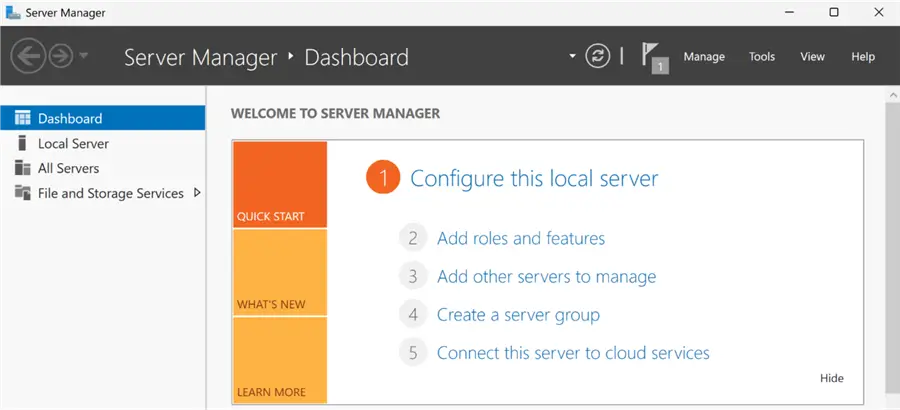
Launch Server Manager
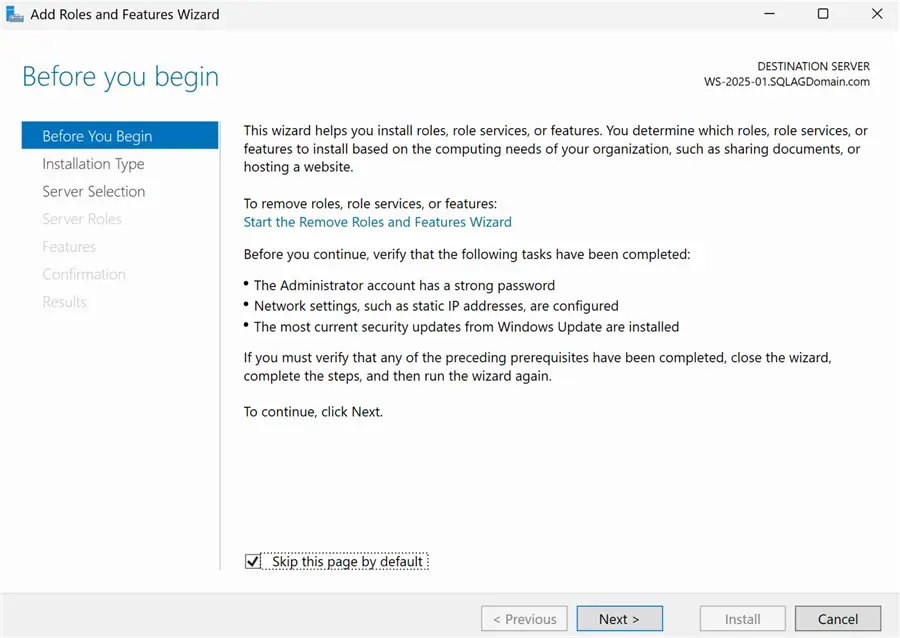
Click the “Add roles and features” link.
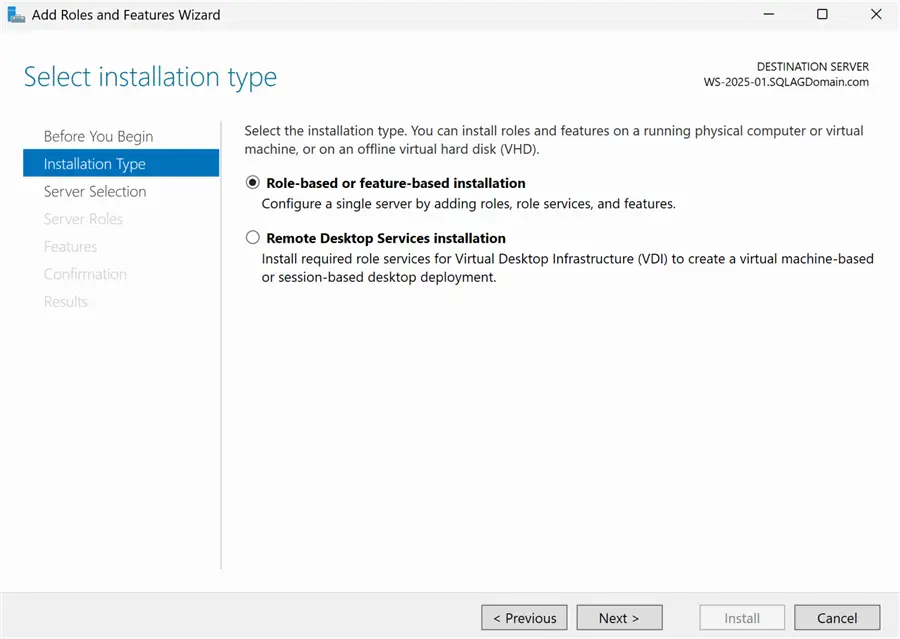
Installation Type
Pick “Role-based or feature-based installation”.
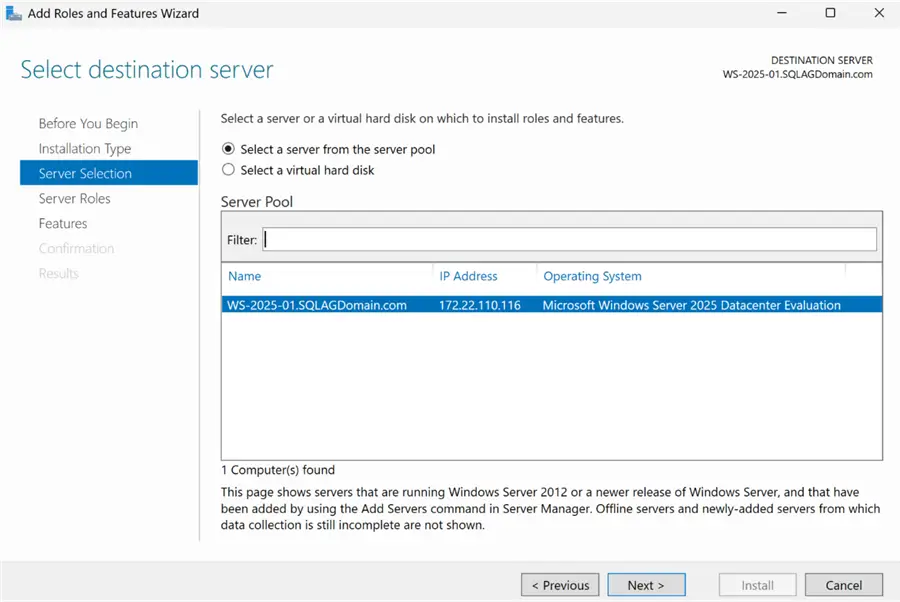
Server Selection
Pick a server to which FC feature will be installed.
In my example, the server name is “WS-2025-01” at “SQLAGDomain.com” domain. Yours of course can be different.
Server Roles
No need to select anything.
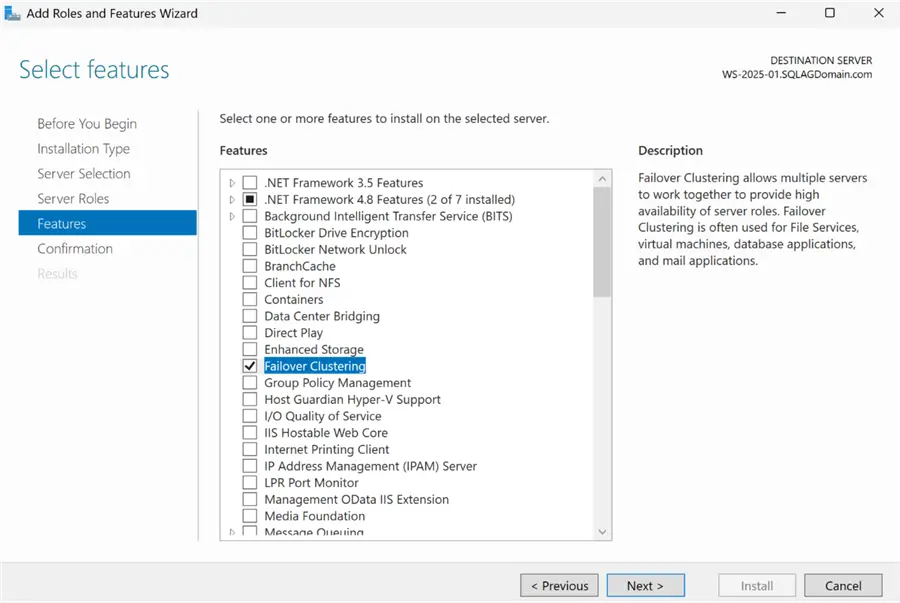
Features
Check the “Failover Clustering” box.
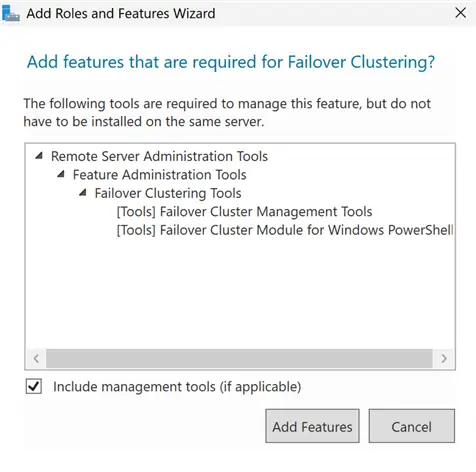
Check the “Include management tools” box, press Add Features button:
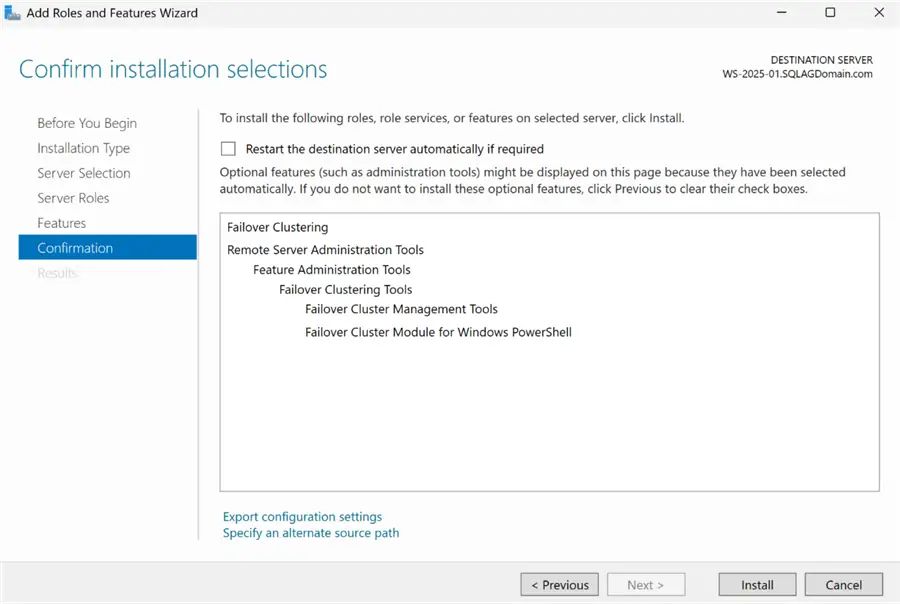
Confirmation
Review and press the Install button.
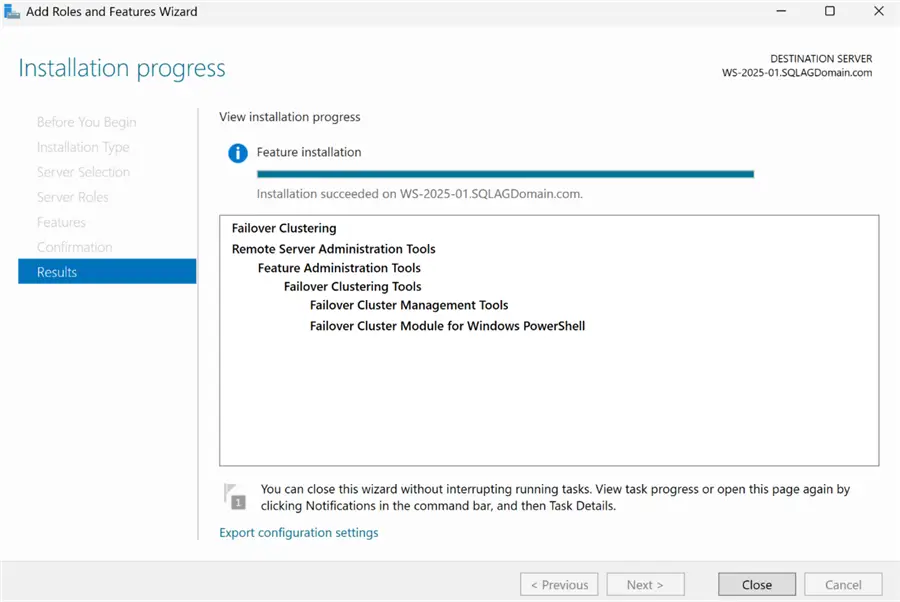
Results
After installation, view the Results, press Close.
Creation of WSFC in Failover Cluster Manager
The next step will be to create a Failover Cluster in a Failover Cluster Manager.
Important – logon to all nodes (Windows Servers) using the domain administrator account. It has all the necessary privileges to view and create clusters. Otherwise, you would have to grant your non-domain admin account special privileges to create and manage clusters. This can be done in Active Directory Users and Computers:
- Find the Cluster Name Object (the computer object representing the cluster)
- Open Properties > Security
- Add the account or group
- Grant Full Control
Now go to Server Manager > Tools > Failover Cluster Manager. Click “Create Cluster…” and a Wizard will open.
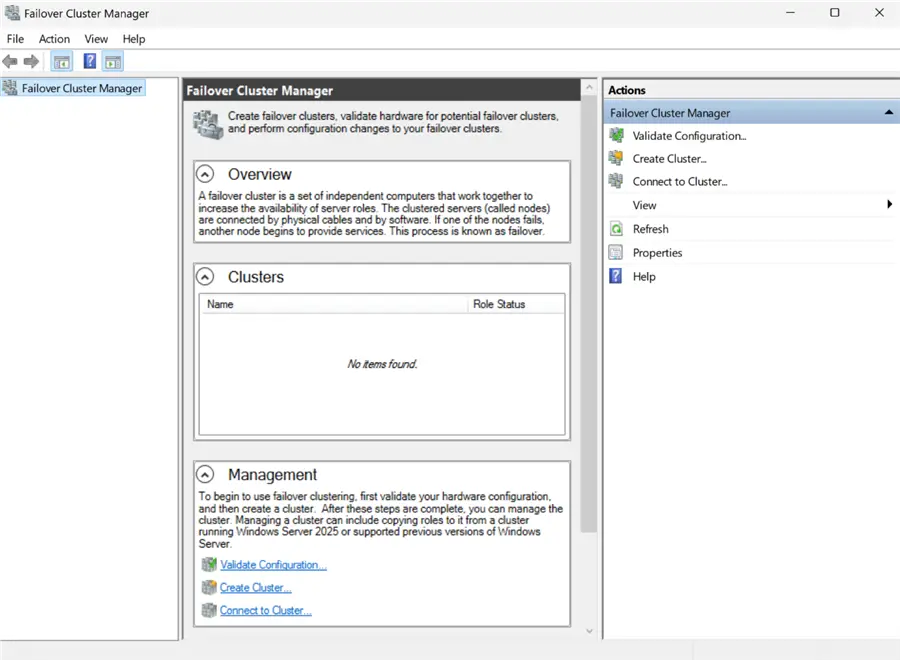
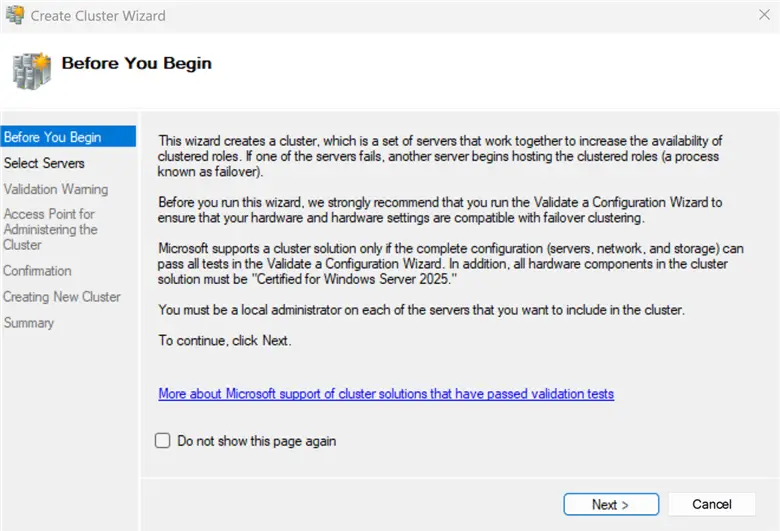
Create Cluster Wizard
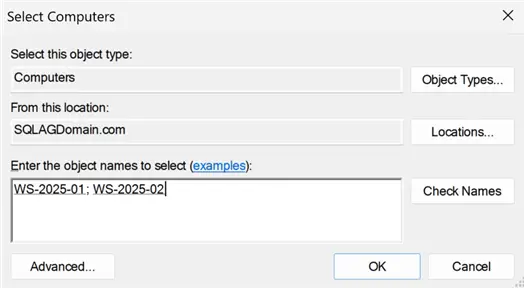
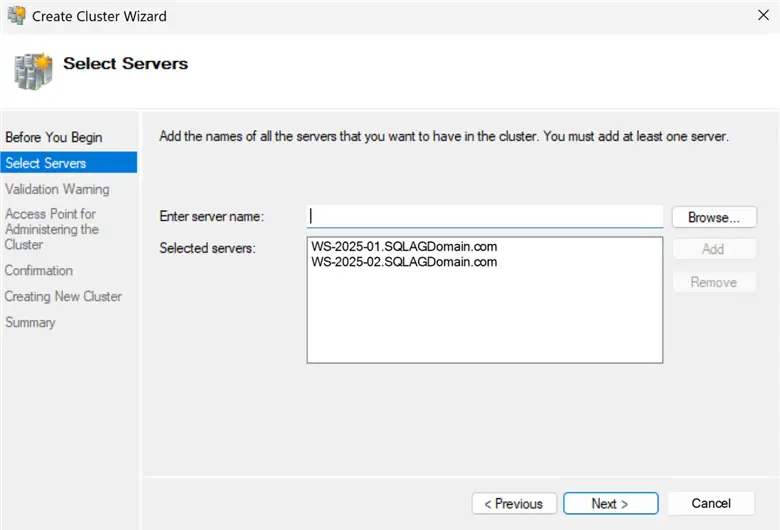
Select Servers
Add the servers that you are going to use as nodes for the cluster. In my example, these are WS-2025-01 and WS-2025-02.
Validation Warning
On this screen select the Yes option.
We want to run configuration validation tests before proceeding, to make sure our intended cluster is not Frankenstein and can be supported by Microsoft. Otherwise, you can select No (skip the tests).
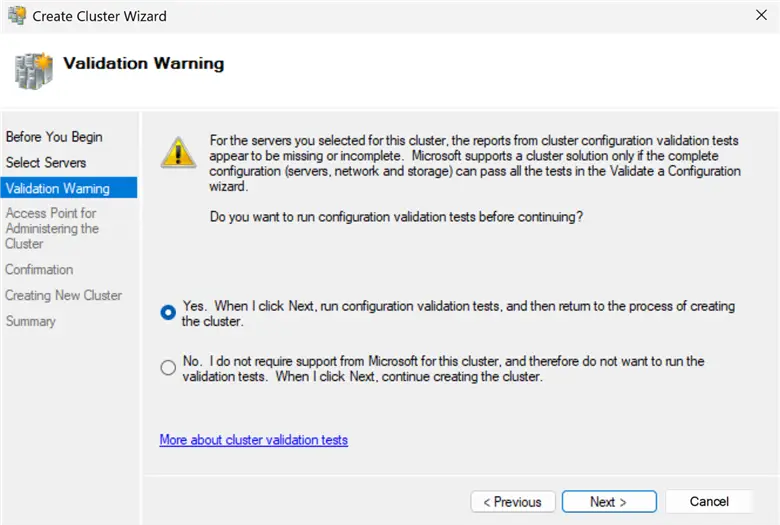
In our example, we proceed with tests. A new Wizard will open – Validate a Configuration Wizard.
Select Run all tests.
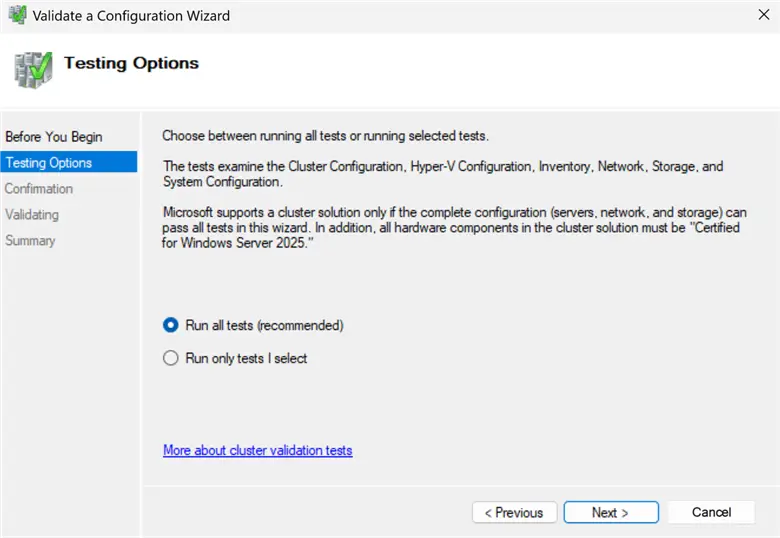
After tests are complete, review and press Finish and this gets us back to the Create Cluster Wizard.
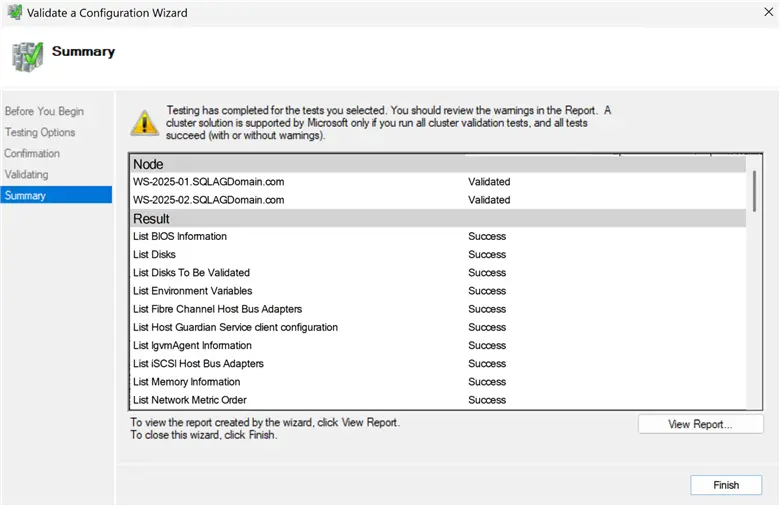
Access Point for Administering the Cluster
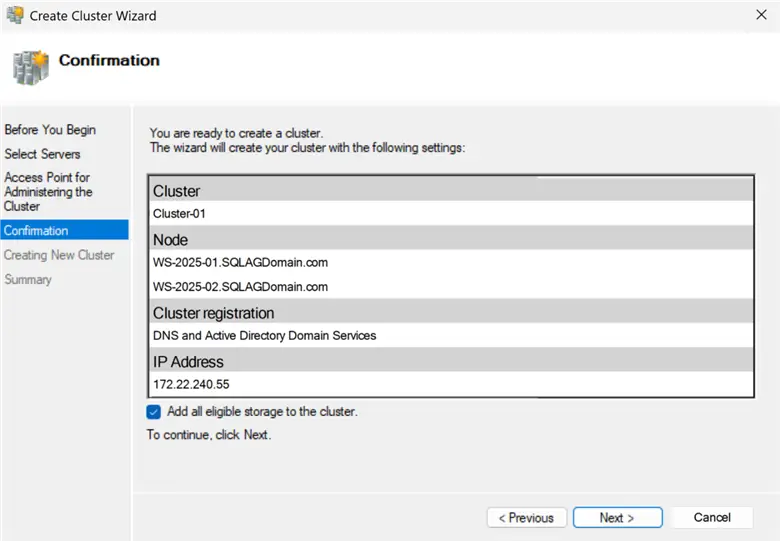
Specify the Cluster Name and IP address for the cluster. In my example, it is “Cluster-01” and 172.22.240.55
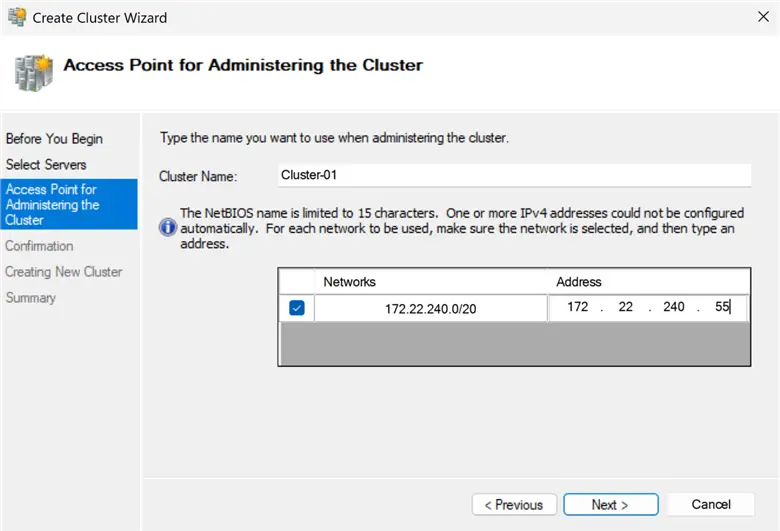
Confirmation
Review the Confirmation page and click Next.
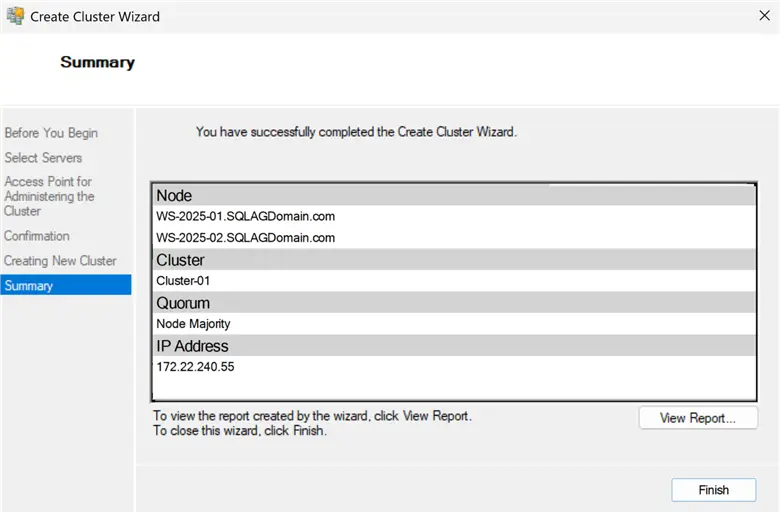
Summary
Review the summary and press Finish.
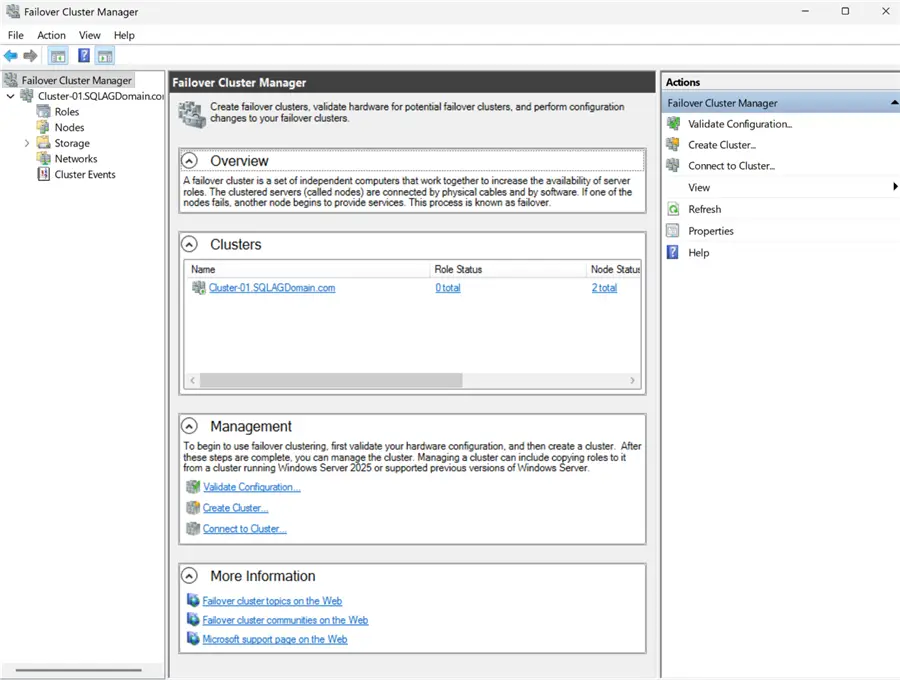
The newly created cluster will show up in Failover Cluster Manager.
Cluster Quorum Configuration
An important step is to configure a quorum. A Windows Server Failover Cluster (WSFC) uses a quorum to decide whether it is allowed to stay online. A quorum prevents “split brain” scenario – a situation where two nodes think they are the primary nodes.
- Quorum = majority of votes
- Each node = 1 vote
- A witness = 1 vote
If you have a cluster of three nodes, a witness is not necessary.
In a two node cluster (with an even number of nodes), a witness is not optional – it is required for the cluster to stay online during failures. Without a witness, a 2 node cluster is one failure away from a total outage, even if one node is still healthy.
In a two node cluster, a witness prevents the entire cluster – and your SQL Server AG – from going offline when one node fails.
Types of Witnesses for the Quorum
Witness can be one of the following:
- File Share witness
- Disk witness
- Cloud witness
It is relatively easy to configure a Cloud witness, if you have an Azure subscription and a storage account created.
It can get trickier with a Disk witness as it requires shared storage that all nodes have access to.
In our example, we will simply use a File Share Witness. It’s easy to configure and add to the cluster.
File Share Witness Configuration
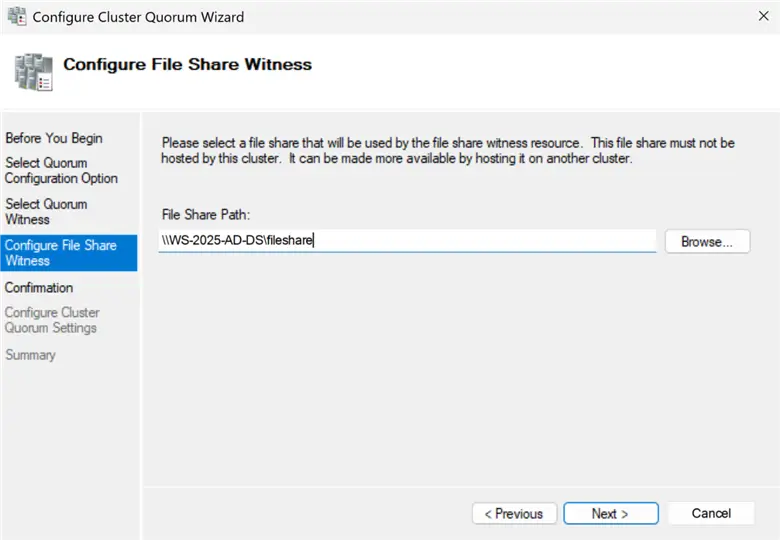
To configure the file share witness, first create a file share on a third server. File shares on one of two nodes (servers) that we already added to the Failover Cluster, will not work for the purpose of a quorum.
In my example, I am creating a file share on a third server, which is an Active Directory Domain Controller server.
Important – after a file share is created, we need to grant permissions on this file share to the cluster object. In this example, the cluster name is “Cluster-01” (It can be found in the Computers folder in ADUC). We need to grant Full Control permission to “Cluster-01”, on both Security and Sharing tabs of the file share properties.
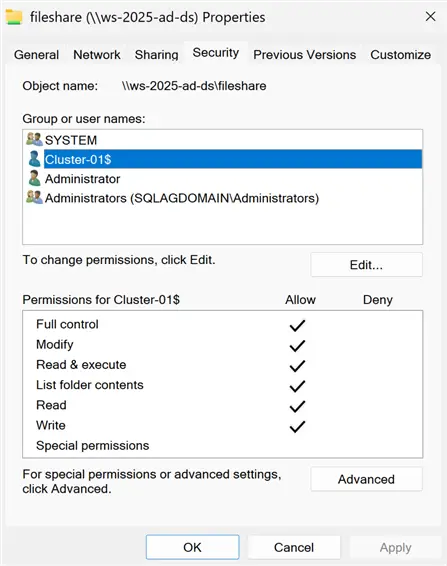
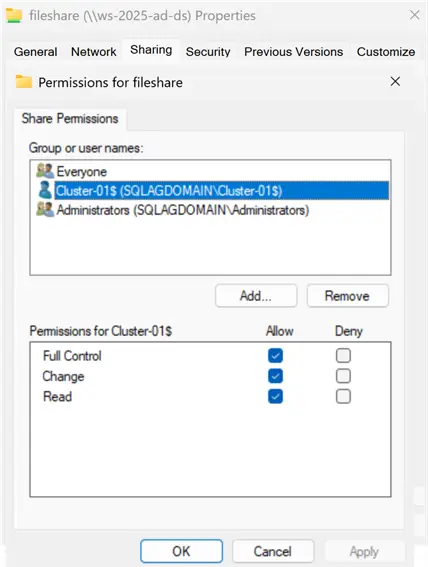
If no permissions have been granted to a Cluster’s CNO, adding a file share witness can fail with error:
An error was encountered while modifying the quorum settings.
Your cluster quorum settings have not been changed.
There was an error configuring the file share witness '\\WS-2025-AD-DS\fileshare'.
Unable to save property changes for 'File Share Witness'.
The system cannot find the file specified
After permissions have been granted, click on the cluster name link in the Failover Cluster Manager to enter the cluster’s configuration.
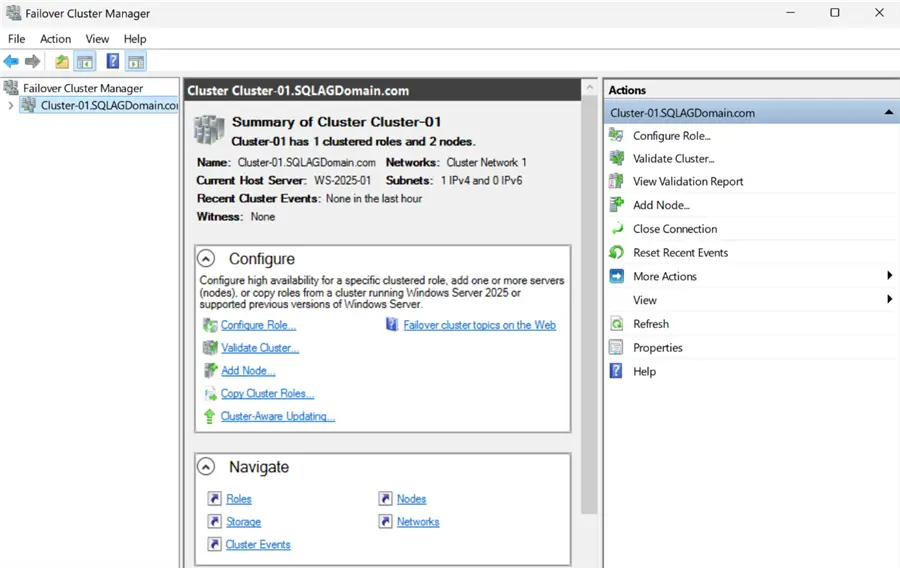
Go to More Actions > Configure Cluster Quorum Settings. A wizard will open.
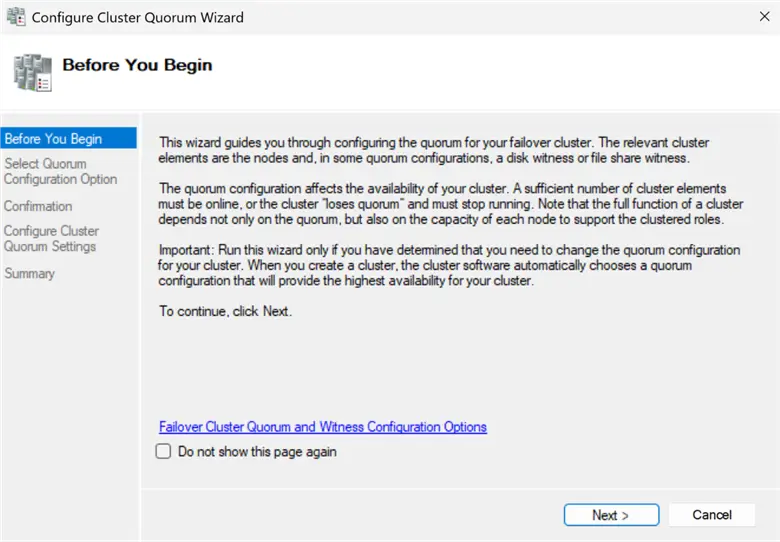
Configure Cluster Quorum Wizard
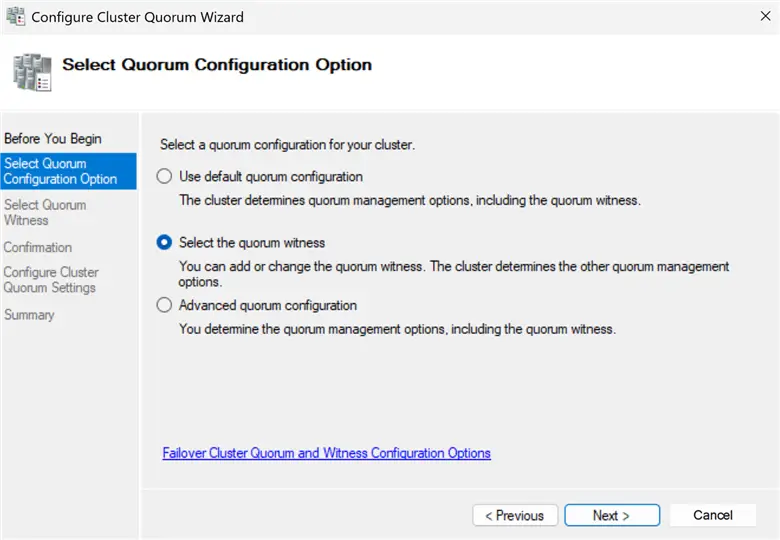
Select Quorum Configuration Option
The next step is to pick “Select the quorum witness”.
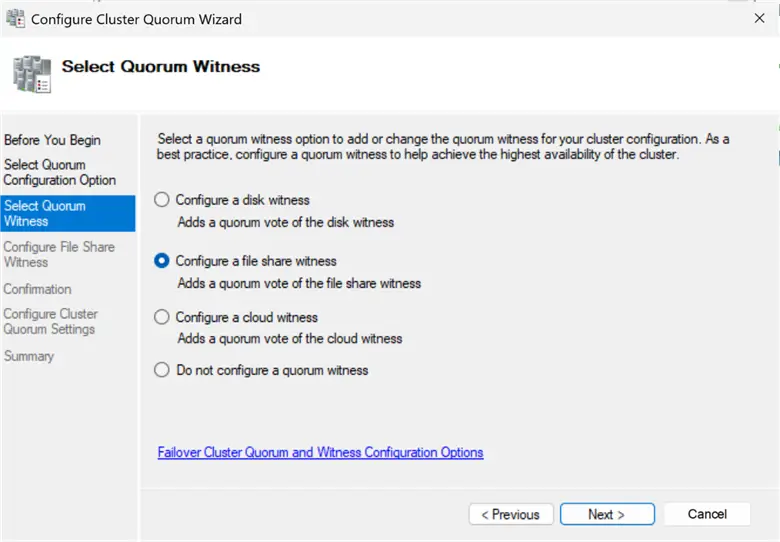
Select Quorum Witness
Pick “Configure a file share witness”.
Configure File Share Witness
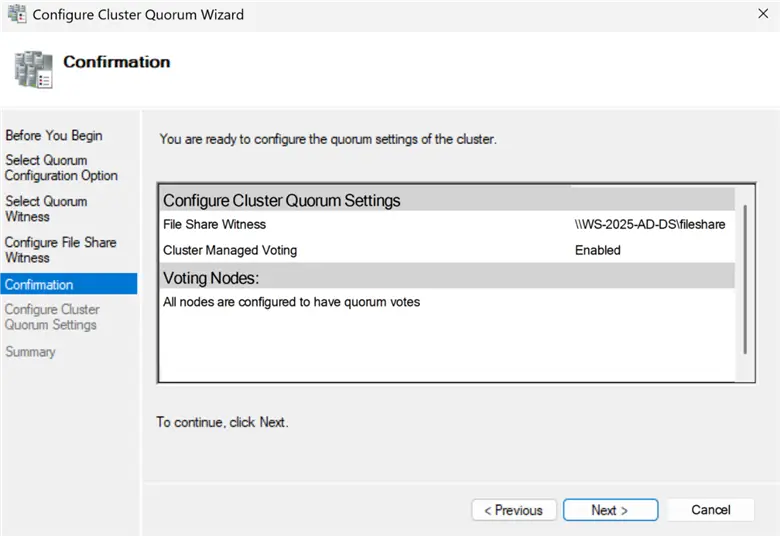
Confirmation
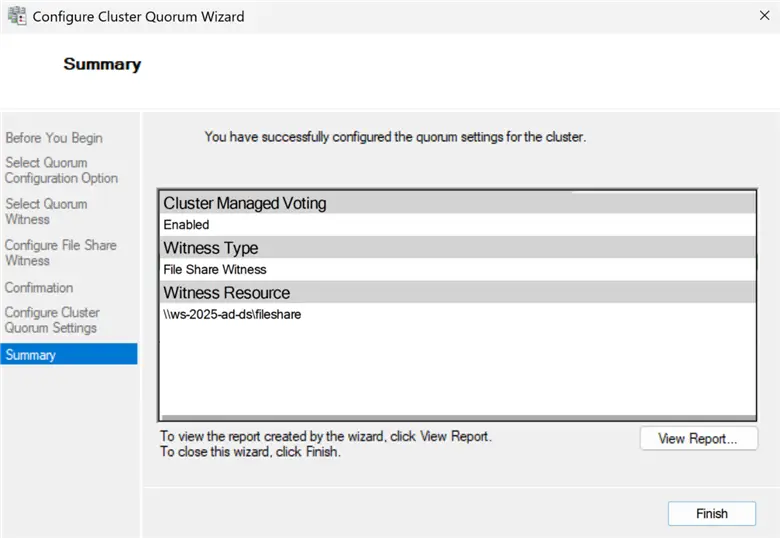
Summary
Press Finish to complete.
Cluster Core Resources
Now you should be able to see the File Share Witness on the Cluster Core Resources pane.
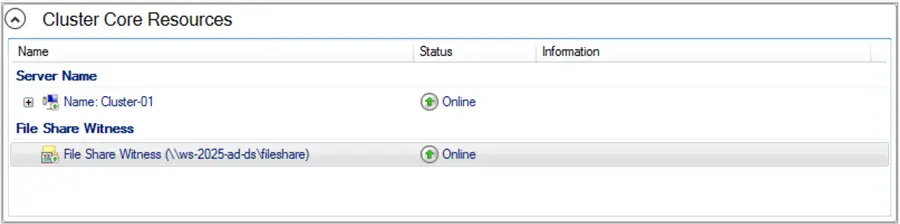
Congrats! We have created a Failover Cluster that can be now be used to install SQL Server and deploy a SQL Server Availability Group.
Summary
In this guide, we created a Failover Cluster with two nodes using the Failover Clustering feature and the Failover Cluster Manager snap-in. Nodes are Windows Server 2025 servers that are joined to a domain. A third server which was a domain controller, provides base for the cluster, such as DNS resolution, network sharing, file share witness and other things like group managed service accounts for the planned SQL Server 2025 Availability Group deployment.
Next Steps
- High Availability and Disaster Recovery Options for SQL Server and Azure SQL
- Azure High Availability and Disaster Recovery Options

Aleksey Vitsko is SQL Server DBA with several years of experience including production database administration, database development, performance tuning, security, high availability and disaster recovery, migrations, and more – both on-premises and in Azure SQL. He has earned these certifications: Microsoft Certified Solutions Associate (MCSA, 2020) and Microsoft Certified: Azure Database Administrator Associate (MCADAA, 2025). He can be reached at voodoosh2@gmail.com for any questions or help.