Problem
I have Windows Server 2025 and I want to turn it into Active Directory Domain Services server Domain Controller and create a domain. I needed to setup a test lab and these are the steps I followed to do this.
Solution
Let’s see the steps to follow to setup a server as an Active Directory Domain Services server.
This task can be done using Server Manager and the “Add Roles and Features” wizard. Additional pre- and post- configuration is required. This guide walks you through Active Directory Domain Services installation and configuration.
If You Want a Test Lab
In my case, I will be installing the Active Directory Domain Services role on my Windows Server that is hosted on Hyper-V virtual machine, using the free evaluation edition of Windows Server 2025.
You can install Windows Server 2025 on your own VM (Hyper-V, VMWare, etc.), on dedicated physical machine, or on VM in the cloud – using the steps provided below. This guide doesn’t depend on Hyper-V in any way.
If you want to have Windows Server 2025 AD DS for testing, you can download an evaluation edition ISO here Microsoft Evaluation Center – Download Windows Server 2025, and use Hyper-V if your system supports it.
Process Overview
Learn the Basics – What is Active Directory Domain Services and DNS
Active Directory Domain Services (AD DS) is a role in Windows Server. It is a directory service that stores and manages information about users, computers, groups, and other resources. AD DS is a database and rules that make centralized authentication and management possible. In a nutshell, AD DS is a service that provides identity and access management for a Windows domain.
Domain Controller (DC) – server that runs AD DS. Domain Controller is the machine that stores the AD database and handles logins, authentication, and security checks. DC is the computer that enforces the rules and stores the data defined by AD DS.
Domain is a logical group of users, computers, and resources managed under a single set of rules and a common database. It is like a container managed by AD DS and supported by a Domain Controller.
Domain Name System (DNS) is a service that translates human-friendly names (like server1.company.local) into IP addresses so computers can find each other. Active Directory Domain Services relies heavily on DNS because domain controllers register special DNS records that clients use to locate them for logons, authentication, and replication. Without DNS, computers wouldn’t know where the domain controllers are, and almost all AD functions would fail. In short, DNS is the “locator service” that makes AD DS work.
Prerequisites and Pre-Configurations
There are certain minimum requirements and pre-configurations that need to be done before installing AD DS role on a server.
- System Requirements
- Rename Computer Name
- Installing Windows Updates
- IP Address and DNS Configurations
System Requirements
For a small domain, it is enough to have following system specifications:
- 2 CPU cores
- 4 GB RAM
- 40-60 GB disk
Both Windows Server 2025 Standard and Data Center editions will work.
Rename Computer Name
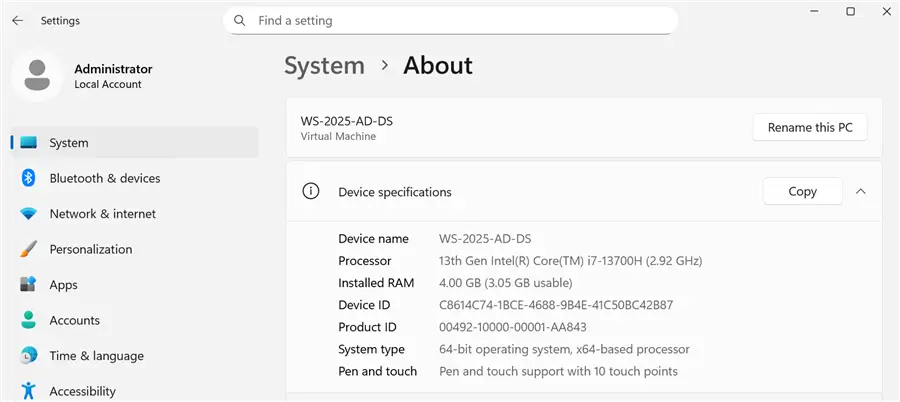
If you haven’t done it yet, it’s recommended to rename the computer from values like WIN-2K56YZF4TZN to something more meaningful like AD-01 or DC-01, before installing the AD DS role. After domain creation, it can be problematic. In my case, you will see “WS-2025-AD-DS” on the screenshots.
Press Windows button – type Settings, open it – find “About” – press “Rename this PC”.
Installing Windows Updates
Install the latest updates for Windows Server 2025. In Settings, find Windows Updates. Check for updates and install, reboot.
IP Address and DNS Configurations
Before installing AD DS role, it is necessary to configure IP address of the machine to be static.
First, we need to know which IP address the machine is currently using. In the command prompt (CMD), type command “ipconfig /all”. You will see “IPv4 Address”, “Subnet Mask” and “Default Gateway”. Note these values.
Go to Control Panel (small icons view) – Network and Sharing Center – click “Change adapter settings”.

Right click on adapter – Properties – Internet Protocol version 4 – Properties – click Use the Following IP Address.
- IP address: type the IPv4 Address you saw in CMD window previously (or you may choose different address, the point is to be static).
- Subnet mask: type the one you noted previously.
- Default gateway: type the one you noted previously.
Important:
- Preferred DNS server: this should be the same as IP address, i.e. machine’s own IP address.
DNS settings changes can break internet connectivity, for example if you are on Hyper-V VM like me. This is normal and will be fixed further.
Active Directory Domain Services and DNS Roles Installation
Now we are ready for the main part. Go to Server Manager, click the “Add Roles and Features” link.
Install AD DS and DNS

Add roles and features wizard:
- Installation Type: Role-based or feature-based installation
- Server selection: this server
- Server Roles: check box DNS (press “Add features required”), check box Active Directory Domain Services (press “Add features required”)

- DNS Server: next
- AD DS: next
- Confirmation: check the “Restart the destination server automatically if required”, press “Install”.

- Results: when installation is finished, click “Promote this server to a domain controller” link
Promote Server to a Domain Controller
New wizard will open. Here are the settings:
- Deployment Configuration: pick “Add a new forest”.
Since I am building a domain for the purpose of SQL Server Availability Group creation, I will name it SQLAGDomain.com. Yours of course can be different.

- Domain Controller Options: functional level – 2025, leave other defaults, type recovery password
- DNS Options: you may see warning, this is normal

Other options, just click next, press Install. System will reboot.
Notice how user sign in screen changed, now it shows domain name. Internet connectivity should restore, if it was broken after “Preferred DNS server” change in pre-configuration steps before.
Congrats, you have created your (first) Active Directory server!
Active Directory Related Tools in Server Manager
After successful AD DS installation, when you open Server Manager > Tools, you will see many new items related to Active Directory services. These are tools that help manage everything related to domain, such as users, computers, privileges, sites, domain controllers and so on.
Active Directory Administrative Center
AD AC is a management console for administering Active Directory with an improved interface and additional features. It supports tasks like managing users, groups, and fine‑grained password policies. It also shows the PowerShell commands behind your actions, making automation easier to learn.
Active Directory Domains and Trusts
This tool manages relationships between domains, known as trusts, which allow users in one domain to access resources in another. It also lets you configure domain functional levels and UPN suffixes. You typically use it when connecting multiple domains or forests.
Active Directory Module for Windows PowerShell
This module provides PowerShell cmdlets for managing AD objects programmatically. It’s ideal for automation, bulk operations, and advanced administrative tasks. Many admins rely on it to script repetitive work like creating users or updating attributes.
Active Directory Sites and Services
This tool defines the physical structure of your network within AD. It manages sites, subnets, and replication between domain controllers. You use it to optimize authentication and replication traffic across different geographic locations.
Active Directory Users and Computers
AD UC is console for managing everyday AD tasks like creating users, groups, computers, and organizational units. It provides a straightforward tree view of your domain structure. Most routine identity and access tasks happen here.
DNS
DNS is essential for Active Directory because it resolves names and helps clients locate domain controllers. This console lets you manage DNS zones, records, and name‑resolution behavior. If DNS is misconfigured, AD features like logins and replication often fail.
Group Policy Management
GPMC is the central tool for creating, editing, and linking Group Policy Objects (GPOs). It controls thousands of settings that affect users and computers across the domain. You can also use it to troubleshoot policy application and run modeling reports.
As a non-pro user, I find “Active Directory Users and Computers” and “DNS” tools most valuable / most often used in my simple tasks.
Join Servers to Domain
When you have other servers deployed and ready to join the domain, here is what needs to be done first.
On the machine that is about to join, configure below:
- Set IP to static (same as we did for AD server)
- Set “Preferred DNS Server” to Active Directory server’s static IP address
DNS configuration is important for domain join operation. Without it, the join to domain can fail with error “Active Directory Domain Controller could not be contacted”.
Try it, and it should work, if you have no network restrictions or firewalls.
If join still doesn’t work, here are the ports that need to be opened inbound on AD’s server, and outbound on the server to join:
- TCP/UDP 53 (DNS)
- TCP/UDP 88 (Kerberos)
- TCP/UDP 389 (LDAP)
- TCP/UDP 445 (SMB/CIFS)
- TCP/UDP 464 (Kerberos Change/Set Password)
- Additional ports like 135 (RPC) and ephemeral ports (49152-65535) are often required.
Next Steps

Aleksey Vitsko is SQL Server DBA with several years of experience including production database administration, database development, performance tuning, security, high availability and disaster recovery, migrations, and more – both on-premises and in Azure SQL. He has earned these certifications: Microsoft Certified Solutions Associate (MCSA, 2020) and Microsoft Certified: Azure Database Administrator Associate (MCADAA, 2025). He can be reached at voodoosh2@gmail.com for any questions or help.



Thanks for your post!!