Overview
In this section, we will look at how to find the current status of an extended events session and how to start and stop an extended events session.
Explanation
Check Status of Extended Events Sessions Using TSQL
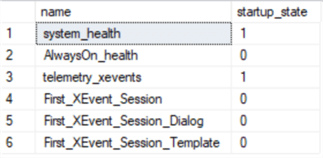
Before we get into how you can stop and start an extended event session, let’s take a look at how we can first check on the status of each session and determine its current state. Using T-SQL, we can get this information from the sys.server_event_sessions table. The simple query below will show each event session’s state.
select name, startup_state
from sys.server_event_sessions
Check Status of Extended Events Sessions Using SSMS
You can also get this information using SSMS by opening Object Explorer and expanding the “Management” node, then “Extended Events” and “Sessions.” Any session with the green play button icon is running, and the red down arrow icon means the session is stopped.

Start or Stop Extended Events Session Using SSMS
Since we have Object Explorer open, if we want to start a stopped session using the GUI, we simply right-click on the session name as shown below and click “Start Session”. Similarly, to stop a running session, we do the same and click “Stop Session.”

Start or Stop Extended Events Session Using T-SQL
Sessions can also be started and stopped using T-SQL. The following commands perform each of these actions.
-- start a session
ALTER EVENT SESSION First_XEvent_Session ON SERVER STATE = START;
-- stop a session
ALTER EVENT SESSION First_XEvent_Session ON SERVER STATE = STOP;
Additional Information

Ben Snaidero has been a Database Administrator for just over 10 years. Starting out working mainly with Oracle he got into SQL Server in 2005 and has worked primarily with SQL Server for the last 3 years. His main focus with both Oracle and SQL Server is in the area of performance tuning.
- MSSQLTips Awards: Achiever (75+ tips) – 2018 | Author of the Year Contender – 2016-2017