Problem
I have just inherited a SQL Server database server with numerous databases on it and I need to know if all the databases are in use or if they are old and can be removed. What is the best way to find out if databases are still active on my SQL Server?
Solution
I have come across this problem a few different times in my career. I’ll change jobs and they’ll be numerous database servers that I inherit that I know nothing about. It’s a process to learn what each server does, what applications use them, and what databases are no longer used and can be removed.
There is no “tried and true” method to knowing if a database is truly no longer used, but I have three different suggestions that may help with your research. These suggestions are all based around capturing user connections.
SQL Server User Connection Count
One suggestion to finding orphan databases is to get connection counts. In most cases, if a database has zero user connections over a long period of time, it may be time to look into removing this database. The following query will capture server name, database name, number of connections, and time the query was executed and it will also filter out system databases because they are needed:
USE master;
GO

SELECT @@ServerName AS server
 ,NAME AS dbname
 ,COUNT(STATUS) AS number_of_connections
 ,GETDATE() AS timestamp
FROM master.sys.databases sd
LEFT JOIN master.sys.sysprocesses sp
     ON sd.database_id = sp.dbid
WHERE database_id NOT BETWEEN 1 AND 4
GROUP BY NAME
GO
I’m using a server named BUADMIN for this example. As you can see I have 3 active connections to the database SQLCensus. This is a good indication that this database is in use. MonitorDB and SSISDB have 0 connections, so I may need to monitor them further. The easiest way to monitor these databases is to create a stored procedure using this query so I can schedule it. You can also put this query directly into a SQL Server Agent Job and set a schedule.
Before setting a schedule, you will need to create a table that will hold the results. To create a table using the following code:
USE master;
GO

SET ANSI_NULLS ON
GO

SET QUOTED_IDENTIFIER ON
GO

CREATE TABLE [dbo].[Connections](
 [server] [nvarchar](130) NOT NULL,
 [name] [nvarchar](130) NOT NULL,
 [number_of_connections] [int] NOT NULL,
 [timestamp] [datetime] NOT NULL
) ON [PRIMARY]
GO
Next, create a stored procedure that will INSERT the results into the table:
USE master;
GO

SET ANSI_NULLS ON
GO

SET QUOTED_IDENTIFIER ON
GO

CREATE PROCEDURE dbo.usp_ConnectionsCount
AS
BEGIN
 SET NOCOUNT ON;

 INSERT INTO master.dbo.Connections
 SELECT @@ServerName AS server
 ,NAME AS dbname
 ,COUNT(STATUS) AS number_of_connections
 ,GETDATE() AS timestamp
 FROM master.sys.databases sd
 LEFT JOIN master.sys.sysprocesses sp
     ON sd.database_id = sp.dbid
 WHERE database_id NOT BETWEEN 1 AND 4
 GROUP BY NAME
END
Once the stored procedure is created you can create a SQL Server Agent Job and set it to run on a schedule. I’ll set it to run every 10 minutes.
Let this run a few days, a few months or however long you think is appropriate and then go back and examine the results. Once you are happy with the timeframe chosen, use the following query to select the MAX number of connections per database:
USE master;
GO

SELECT NAME
 ,MAX(number_of_connections) AS MAX#
FROM master.dbo.Connections
GROUP BY NAME
GO
From here you will be able to determine if any databases have not had a user connection in the timeframe specified.
Detailed SQL Server Connection Information
The above suggestion is good if you just need connection counts. However, sometimes a count isn’t good enough. Sometimes you need to know exactly what is connecting. This suggestion helps in that aspect.
It’s basically setup the same way, create a stored procedure, insert data into a table, set a job schedule and examine the results.
The following query gives you more information:
USE master;
GO

SELECT @@ServerName AS SERVER
 ,NAME
 ,login_time
 ,last_batch
 ,getdate() AS DATE
 ,STATUS
 ,hostname
 ,program_name
 ,nt_username
 ,loginame
FROM master.sys.databases d
LEFT JOIN master.sys.sysprocesses sp
     ON d.database_id = sp.dbid
WHERE database_id NOT BETWEEN 0 AND 4
AND loginame IS NOT NULL
GO
This query is a detailed view of what is happening. As you can see, currently I have 10 connections to the SQLCensus database. You can view information such as login time, last batch, status hostname, program name, and login name. I’ve resized some of the columns for security purposes, but this is a good way to see where connections are coming from and what login is making the connection.
If you choose to use this suggestion, simply do what I explained above. Create a stored procedure, table, and job.
SQL Server Logon Trigger
The third suggestion is to create a simple logon trigger that records an entry every time a user logins.
Logon triggers fire stored procedures in response to a LOGON event. This event is raised when a user session is established with an instance of SQL Server. Logon triggers fire after the authentication phase of logging in finishes, but before the user session is actually established. Therefore, all messages originating inside the trigger that would typically reach the user, such as error messages and messages from the PRINT statement, are diverted to the SQL Server error log. Logon triggers do not fire if authentication fails. – Technet
There are many different variations of logon triggers. Some are used for auditing purposes and some are used to restrict access. The logon trigger used in this example is for logging purposes.
First, create a table that will store the logon information:
USE master;
GO

SET ANSI_NULLS ON
GO

SET QUOTED_IDENTIFIER ON
GO

SET ANSI_PADDING ON
GO

CREATE TABLE [dbo].[ServerLogonHistory](
 [SystemUser] [varchar](512) NULL,
 [HostName] [varchar](512) NULL,
 [DBUser] [varchar](512) NULL,
 [SPID] [int] NULL,
 [LogonTime] [datetime] NULL,
 [AppName] [varchar](512) NULL,
 [DatabaseName] [varchar](512) NULL
) ON [PRIMARY]
GO
Next, create the logon trigger:
USE master;
GO

SET ANSI_NULLS ON
GO

SET QUOTED_IDENTIFIER ON
GO

CREATE TRIGGER [Connections]
ON ALL SERVER WITH EXECUTE AS 'sa'
FOR LOGON
AS
BEGIN
   INSERT INTO master.dbo.ServerLogonHistory
   SELECT ORIGINAL_LOGIN(), HOST_NAME(), USER, @@SPID, GETDATE(), APP_NAME(), DB_NAME()
END
GO

SET ANSI_NULLS OFF
GO

SET QUOTED_IDENTIFIER OFF
GO

ENABLE TRIGGER [Connections] ON ALL SERVER
GO
This trigger will fire every time someone logs into SQL Server capturing login, computer name, user, SPID, date/time, application, and database name. It will INSERT this information into our newly created table.
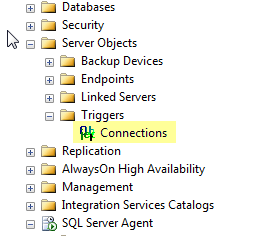
Once created, you can verify this trigger in SSMS under Server Objects > Triggers:
The result set should look something like this:

Keep in mind, this table can grow fast because it’s creating a record for every time a login occurs. If there is a login that connects periodically (for example, the login that an application uses) and you don’t want to capture the data you can create a WHERE clause in the trigger that ignores a login.
The code below is the same trigger code except for the WHERE clause to exclude ‘sa’.
USE master;
GO

SET ANSI_NULLS ON
GO

SET QUOTED_IDENTIFIER ON
GO

CREATE TRIGGER [Connections]
ON ALL SERVER WITH EXECUTE AS 'sa'
FOR LOGON
AS
BEGIN
   INSERT INTO master.dbo.ServerLogonHistory
   SELECT ORIGINAL_LOGIN(), HOST_NAME(), USER, @@SPID, GETDATE(), APP_NAME(), DB_NAME()
   WHERE ORIGINAL_LOGIN() <> 'sa'
END
GO

SET ANSI_NULLS OFF
GO

SET QUOTED_IDENTIFIER OFF
GO

ENABLE TRIGGER [Connections] ON ALL SERVER
GO
There are numerous ways to create logon triggers. I suggest you research and experiment with logon triggers on a test server before implementing one in production.
Summary
All of these methods are just suggestions and will help you track user connections. Just because a database has 0 connections doesn’t mean it is no longer used. Also, before dropping ANY database, make sure to create a backup and test the backup then store it in a safe place just in case someone needs data off of it.
Note: the logon trigger captures the database the logon uses when making the initial connection to SQL Server. This will primarily be the default database assigned to the login unless a specific database is used when the connection is made.
Another thing to note, is if a query is run from let’s say the “master” database using three part naming such as SELECT * FROM test.dbo.test the connection is still from the master database and not from the test database. The “test” database will not show up on the list. You will need to dig deeper into actual query statements that are run to see if things are being executed across databases.
Take database offline before deleting. If you think there are databases that are not being used, the safest option is to take the database offline and see if there is any impact prior to deleting the database.
If anyone has any other suggestions regarding this topic, feel free to add them to the comment section below.
Next Steps
- I encourage any one that is looking to remove a SQL Server from production to use at least one of the suggested methods in this tip to make sure nothing is connecting to the SQL Server.
- MSSQLTips.com offers some great tips that relate to this one:

Brady has been in the IT industry for 10+ years. He has worked in administrative roles using MSSQL 2000 to 2012 as well as Sharepoint 2007 and 2010. He currently serves as a Database Administrator in Nashville, TN. You can view his blog @ http://www.sqlbrady.com.
- MSSQLTips Awards: Trendsetter (25+ tips) – 2013

Hi be aware before you run this trigger :
My SQL server is 2014. I created this trigger and enabled. suddenly no users are accepting to the instance. even supper user . luckily I enabled DAC and login from command prompt and disable the trigger. if this didnt work I dont know what to do. please be aware.
023-03-07 11:44:59.39 spid95 Error: 208, Severity: 16, State: 1.
2023-03-07 11:44:59.39 Logon Error: 17892, Severity: 20, State: 1.
2023-03-07 11:44:59.39 Logon Logon failed for login due to trigger execution. [CLIENT: <local machine>]
2023-03-07 11:45:00.78 spid95 Error: 208, Severity: 16, State: 1.
2023-03-07 11:45:00.78 Logon Error: 17892, Severity: 20, State: 1.
2023-03-07 11:45:00.78 Logon Logon failed for login due to trigger execution. [CLIENT: <local machine>]
2023-03-07 11:45:00.79 spid95 Error: 208, Severity: 16, State: 1.
2023-03-07 11:45:00.79 Logon Error: 17892, Severity: 20, State: 1.
2023-03-07 11:45:00.79 Logon Logon failed for login ‘ due to trigger execution. [CLIENT: <local machine>]
2023-03-07 11:45:04.45 spid95 Error: 208, Severity: 16, State: 1.
The code has been reviewed, slightly modified, and tested with SQL Server 2022 and is functioning as it should. Let us know if you see any issues.
Need some help.
I need to find databases which are not used in last 6 months in a SQL server instance.