Problem
I have a reporting requirement where users want to enter report parameters by either selecting values from a dropdown list or entering To and From range values. How can I do this in a Reporting Services report?
Solution
This tip assumes that you have experience building a simple SSRS report and T-SQL skills. In my previous tips I have explained optional query parameters and cascaded report parameters in SSRS, it is recommended to read these tips as well.
In SSRS we can’t enable or disable report parameters based on other parameter values. If we have a report parameter, then we have to provide a value. SSRS doesn’t provide any functionality to choose query parameters from report parameters, but we have a workaround.
In this article we show how to choose query parameters based on report parameters. I will use the AdventureWorksDW2008R2 sample database for SQL Server and SQL Server 2012 Reporting Services to demonstrate the solution.
To demonstrate the solution, I will create a report which will give two different choices to filter the data:
- Users can either filter the data using a Multi Select Parameter or
- Users can filter the data using a Range Parameter, using To and From values.
Step 1 (A): Add Dataset
I have already created an embedded data source connection to the AdventureworksDW2008R2 database. Let’s create a new dataset for our report.
DataSet Query
IF @QueryParameterType=1
(
SELECT       ProductKey, EnglishProductName
FROM            DimProduct Where ProductKey IN(@Product)
)
else if @QueryParameterType=2
(
Select ProductKey, EnglishProductName From DImProduct
Where Productkey >=@ProductFrom and Productkey <= @ProductTo
)
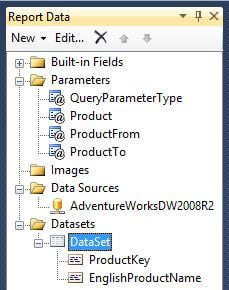
This dataset has four query parameters and it returns Productkey and EnglishProductName.
The @QueryParameterType query parameter value will decide the dataset query.
- If user provides 1 as a value for @QueryParameterType then the user can filter the data by providing values for @Product query parameter.
- If user provides 2 as a value for @QueryParameterType then the user can filter the data by providing values for @ProductFrom and @ProductTo query parameters.

As you can see from the below image the dataset has been created and SSRS has automatically created four report parameters.
Step 1 (B): Add Parameter Dataset
As you know our recently created dataset has one @Product query parameter which can accept multiple values, so we have to create a new dataset for our Product report parameter. This dataset will be used to return a list of available values for the Product report parameter.
Product DataSet
WITH MYCTE AS
(SELECT  -2147483648 AS ProductKey, '(Parameter Not Applicable)' AS EnglishProductName,
2 AS ParameterType)
SELECT        ProductKey, EnglishProductName, ParameterType FROM MYCTE AS MYCTE_1
WHERE        (ParameterType = @QueryParameterType)
UNION ALL
SELECT        ProductKey , EnglishProductName, ParameterType FROM
(SELECT DISTINCT ProductKey, EnglishProductName, 1 AS ParameterType FROM   DimProduct) AS A
WHERE        (ParameterType = @QueryParameterType)
ORDER BY EnglishProductName
This Dataset has one query parameter.
Based on @QueryParameterType query parameter value, this dataset will return the records as follows:
- If @QueryParameterType query parameter value is 1 then it will return all values from the database.
- If @QueryParameterType query parameter value is 2 then it will return only one record whcih is “Parameter Not Applicable”.

Step 2: Report Parameter Configuration
We have to configure the report parameters and in this step we will configure each parameter one by one.
Parameter 1 – QueryParameterType
Double click on the QueryParameterType report parameter. It will open the Report Parameter Properties window. Change Data type to Integer from Text. You can also modify the parameter Prompt as per your choice. You can refer to the below image.

Click on Available Values, choose the Specify Values radio button and click on the Add button to add two parameter values as shown below.

These parameter values will decide the query for your report. If the Multi Select Parameter value is selected then users can choose parameter values from the list of available values. If Range Parameter value is selected then users can filter report data using a Range Parameter and the user has to enter values for the ProductFrom and ProductTo parameters.
Parameter 2 – Product
Double click on the Product report parameter, it will open the Report Parameter Properties window. Change data type to Integer from Text and check the Allow multiple values checkbox. You can also modify the parameter Prompt as per your choice. You can refer to the below image.
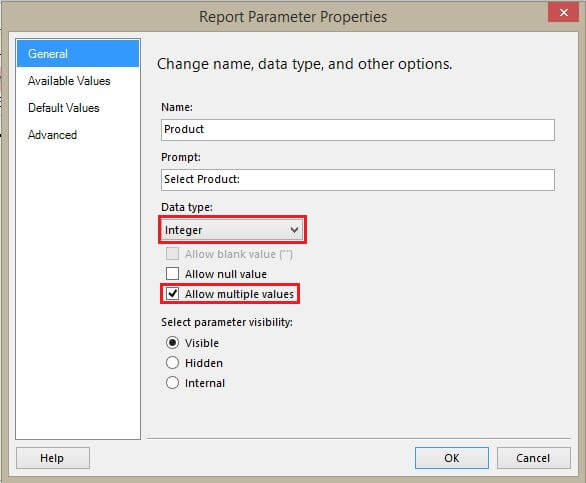
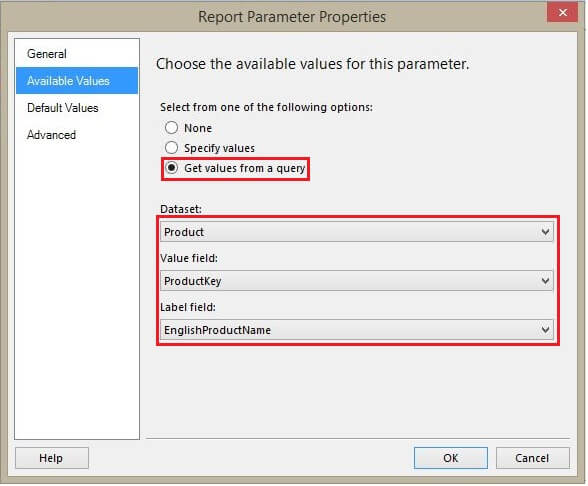
We have to get a list of values for this parameter, so click on the Available Values tab, choose the Get values from a query radio button and select Product for the dataset, ProductKey for the Value field and EnglishProductName for the Label field. You can refer to the below image.
Click on the Default Values tab, choose the Specify Values radio button and click on the Add button. We have to set a default value using an expression, so click on the expression button as shown below.
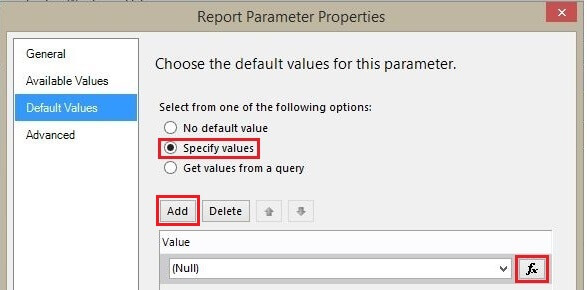
Once you click on the expression button it will open the Expression window. Set the expression as shown below.
=iif(Parameters!QueryParameterType.Value=2,-2147483648,nothing)
You can refer to the below image as well.
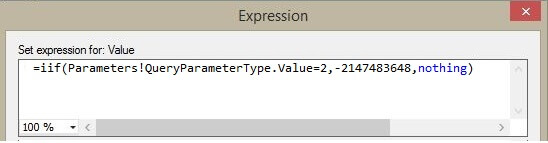
This expression will set (Parameter Not Applicable) as the default value for Product when the QueryParamterType parameter value is chosen as Range Parameter (value = 2).
Parameter 3 – ProductFrom
Double click on the ProductFrom report parameter, it will open the Report Parameter Properties Window. Check the Allow blank value (“”) checkbox. You can also modify the parameter prompt as per your choice. You can refer to the below image.
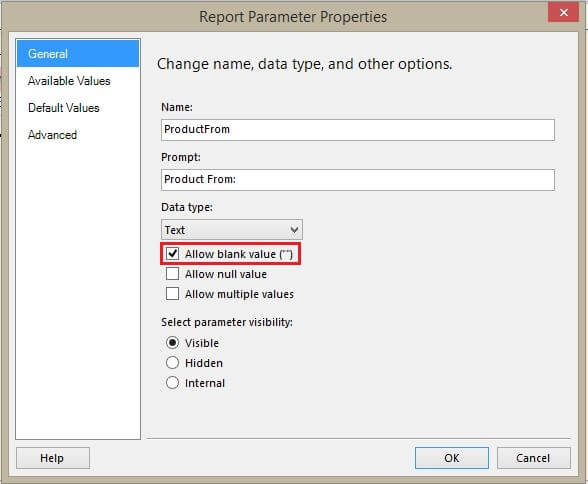
Click on the Default Values tab, choose the Specify Values radio button and click on the Add button. We have to set the default value using an expression, so click on the expression button as shown below.
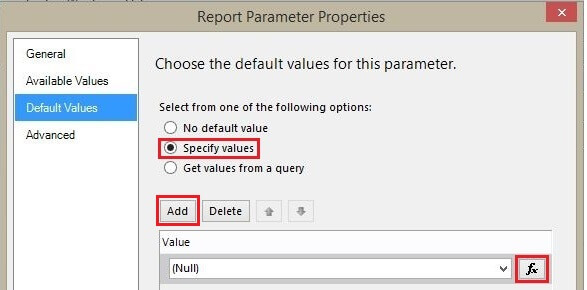
Once you click on the expression button it will open the Expression window. Set the expression as shown below.
=iif(Parameters!QueryParameterType.Value=1,"(Parameter Not Applicable)","")
You can refer to the below image as well.
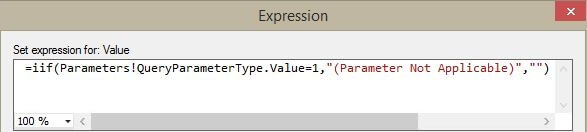
This expression will set (Parameter Not Applicable) as the default value for ProductFrom when the QueryParamterType report parameter value will be selected as Multi Select Parameter (value = 1).
Parameter 4 – ProductTo
Double click on the ProductTo report parameter, it will open the Report Parameter Properties Window. Check the Allow blank value (“”) checkbox. You can also modify the parameter prompt as per your choice. You can refer to the below image.

Click on the Default Values tab, choose the Specify Values radio button and click on the Add button. We have to set the default value using an expression, so click on the expression button. You can refer to the below image.

Once you click on the expression button it will open the Expression window. Set the expression as shown below.
=iif(Parameters!QueryParameterType.Value=1,"(Parameter Not Applicable)","")
You can refer to below image.
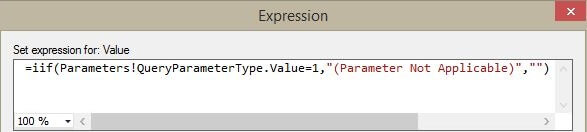
This expression will set (Parameter Not Applicable) as the default value for ProductTo when QueryParamterType report parameter value will be selected as Multi Select Parameter (value = 1).
Step 3: Add Tablix
For data viewing purposes I am adding a Tablix into my report. This Tablix will show Productkey and EnglishProductName. You can refer to the below image.

Step 4: Preview Report
We have made all necessary changes, now let’s preview the report. As you can see from the below image, the first parameter of the report gives two options to filter the data. You can either filter using a Multi Select Parameter or Range Parameter.

When I select Multi Select Parameter, my next parameter gets enabled with a list of available values. You can refer to the below image.

I can choose the desired values from the list of available values. For this report run, the default values for the ProductFrom and ProductTo parameters will be (Parameter Not Applicable), so I don’t need to enter any value for these. Even if I enter a value for ProductFrom or ProductTo it will not impact the report data.
Let’s view the report, as you can see below, the report is showing data only for the selected values in the Product parameter.

Now I will select Range Parameter in my first report parameter, this will allow me to filter the data using the Range Parameter. The Product parameter value will be automatically set to Parameter Not Applicable and this is the only value available in this case. I have to enter the ProductFrom and ProductTo values to filter the report data. As you can see from the below image, the report is showing data for the range parameter values from 1 to 10.

Next Steps
- Try to implement the same solution using optional query parameters.
- Check out Optional Query parameter in SSRS.
- Check out Cascaded Report parameters in SSRS
- You can find more SSRS parameter tips here.
- Check out all of the SQL Server Reporting Services tips

Ghanesh Prasad is a Microsoft BI lead developer for an industry leading Indian IT Service Company in Bangalore. He has over 5 years of work experience with Microsoft Business Intelligence and expertise in SQL Server, SQL, T-SQL, SSRS, SSIS, SSAS, and MDX languages. In his organization he is responsible for developing end to end data loading solutions, cube development, report development, migration, testing, deployment and maintenance.
You can also use this on the Parameter Dataset Products:
IF @QUERYPARAMETERTYPE = 1
SELECT DISTINCT
ProductKey
, EnglishProductName
FROM DimProduct
ELSE
SELECT 32342343 as ProductKey
, ‘(Parameter Not Applicable)’ AS EnglishProductName
Hi Chandra,
One option is to UNION the results together, so they are in one dataset.
-Greg
i want to create a report in SQL with below two queries in one Dataset
SELECT V_GS_NETWORKPRINTERS0.ResourceID, DEV.Netbios_Name0 AS Netbios_Name, PrinterQueue0 AS PrinterName, PrintServer0 AS PrinterServer,
PrinterLocation0 AS PrinterLocation, PrinterDriver0 AS PrinterDriver, DateInventoried0 AS Timestamp, ‘Network Printer’ AS Type FROM V_GS_NETWORKPRINTERS0
LEFT JOIN v_R_System_Valid DEV ON DEV.ResourceID = V_GS_NETWORKPRINTERS0.ResourceID ORDER BY DEV.Netbios_Name0
SELECT ResourceID, SystemName0 AS Netbios_Name, Caption0 AS PrinterName, SystemName0 AS PrinterServer, SystemName0 AS PrinterLocation,
DriverName0 AS PrinterDriver, TimeStamp AS Timestamp, ‘Local Printer’ AS Type FROM V_GS_PRINTER_DEVICE
ORDER BY PrinterName
And a parameter AS @type with a drop down for Network and Local printers selection for end users
When i execute the report it is showing me only the network printers and not getting any details from the local Printers, if i select in parameter field as local Printer
Hi Prasad,
I have an existing stored procedure for an old crystal report. I have tried to write the parameter in the where clause but it doesn’t work. If write it as a query for my dataset, would I write the parameters in the where clause?
Either way I am going in circles as I have done it multiple ways and cant get the multi, multi value parameters to work.
My query/SP:
SELECT
distinct
syStudent.StuNum,
RTRIM(systudent.firstname) + ‘ ‘ + RTRIM(systudent.lastname) AS Fullname,
sycampus.Descrip AS CampusDescrip,
syStudent.email AS PrimaryEmail,
syStudent.OtherEmail AS SecondaryEmail,
syStudent.Phone AS HomePhone,
syStudent.MobileNumber AS MobilePhone,
REPLACE(REPLACE(syStudent.Addr1, char(13), ”), char(10), ”) AS Addr1,
syStudent.Addr2,
syStudent.City,
syStudent.State,
syStudent.Zip,
SyCountry.Descrip AS Country,
syStudent.ARBalance AS SABalance,
AdEnroll.CreditsReq,
AdEnroll.CreditsEarned,
AdProgram.Descrip AS ProgramDescrip,
AdProgramVersion.Descrip AS ProgramVersionDescrip,
RTRIM(AdTerm.Descrip) as Descrip,
dbo.fn_AdConcentrationsByEnroll(adenroll.adenrollid) AS Concentrations,
SySchoolStatus.Descrip AS SchoolStatus,
(vw_StudentEnrollmentAdvisors.AdvisorFirstName + ‘ ‘ + vw_StudentEnrollmentAdvisors.AdvisorLastName) AS AcademicAdvisor,
CASE (Ex_cont.Exam_or_Continuation_Enrolled)
when ‘Y’ then ‘Yes’
else ‘No’
END AS EnrolledIn_Ex_or_Continuation,
CASE (HoldGrp.HoldMsg)
when ‘Y’ then ‘InAHoldGroup’
else ”
END AS HoldFlag,
CASE (DualEnroll.DualEnroll)
when ‘Y’ then ‘InDualEnrollment’
else ”
END AS DualEnrollFlag
into ##ActiveNonRegStu
from
syStudent (nolock)
join AdEnroll (nolock) on syStudent.SyStudentId = AdEnroll.SyStudentID
join AdTerm(nolock) on AdEnroll.AdtermID=Adterm.AdtermID
–inner join @CampusList Campus
–on AdEnroll.SyCampusID = Campus.SyCampusID
join SyCampus on AdEnroll.SyCampusID = SyCampus.SyCampusID
join (
select distinct
AdEnroll.AdEnrollID
from AdEnroll (NOLOCK)
where AdEnroll.SySchoolStatusID in (13, 14, 16, 66, 68, 82, 86)
and AdEnroll.AdEnrollID not in (select AdEnrollID
from AdEnrollTerm (nolock)
where AdEnrollTerm.TermCreditsSched > 0)
) AS NoEnroll
on AdEnroll.AdEnrollID = NoEnroll.AdEnrollID
Left Join SyCountry (nolock) on SyStudent.SyCountryID = SyCountry.SyCountryID
join AdProgram (nolock) on AdEnroll.AdProgramID = AdProgram.AdProgramID
join AdProgramVersion (NOLOCK) on AdEnroll.adProgramVersionID = AdProgramVersion.AdProgramVersionID
join SySchoolStatus (nolock) on AdEnroll.SySchoolStatusID = SySchoolStatus.SySchoolStatusID
left join vw_StudentEnrollmentAdvisors (nolock) on AdEnroll.AdEnrollID = vw_StudentEnrollmentAdvisors.AdEnrollId
and vw_StudentEnrollmentAdvisors.AdvisorStaffGroupCode = ‘ACAD’
left Join (
select AdEnrollSched.AdEnrollID, ‘Y’ Exam_or_Continuation_Enrolled
from AdEnrollSched (nolock)
join adclassSched (nolock) on adenrollsched.adclassschedid = adclasssched.adclassSchedid
where
(adclasssched.code like ‘EX%’
or adclasssched.descrip like ‘%Continuation%’)
andAdEnrollSched.Status = ‘S’
) As Ex_cont
on AdEnroll.AdEnrollID = Ex_cont.AdEnrollID
left join (
select systudgrp.SyStudentID,
‘Y’ AS HoldMsg
from SyStudGrp
join SyHold on SyStudGrp.SyGroupsID = SyHold.SyGroupsID
join SyGroups on SyHold.SyGroupsID = SyGroups.SyGroupsID
where SyGroups.Active = 1
and(SyStudGrp.DateOff is null or SyStudGrp.DateOff = ”)
) AS HoldGrp
on AdEnroll.SyStudentID = HoldGrp.SyStudentID
left join (
select AdEnroll.SyStudentID,
‘Y’ AS DualEnroll
fromAdEnroll
where SySchoolStatusID in (13, 14,16, 66, 68, 82, 86)
group by SyStudentID
having count(adenroll.adenrollid) > 1
) AS DualEnroll
on AdEnroll.SyStudentID = DualEnroll.SyStudentID
where
AdEnroll.AdProgramID not in (7, 14, 17, 18)
and AdEnroll.SySchoolStatusID in (13, 14, 16, 66, 68, 82, 86)
I want to add 3 multi value parameters based off of this. 1-Term(adterm.descrip), 2-Campus(sycampus.Descrip) and 3.Advisor ((vw_StudentEnrollmentAdvisors.AdvisorFirstName + ‘ ‘ + vw_StudentEnrollmentAdvisors.AdvisorLastName)).
I have tried adding them and adding a separate dataset for each, adding parameters to main report dataset filter and even tried adding them to tablix filter. Any help you can provide would be greatly appreciated. I am driving myself crazy trying to get this to work!!!
Adina Burrows