Overview
Creating backups using SQL Server Management Studio is pretty simple as well. Based on how simple the T-SQL commands are, there is a lot of clicking that needs to occur in SSMS to create a backup.
Explanation
The following screen shots show you how to create a full backup and a transaction log backup.
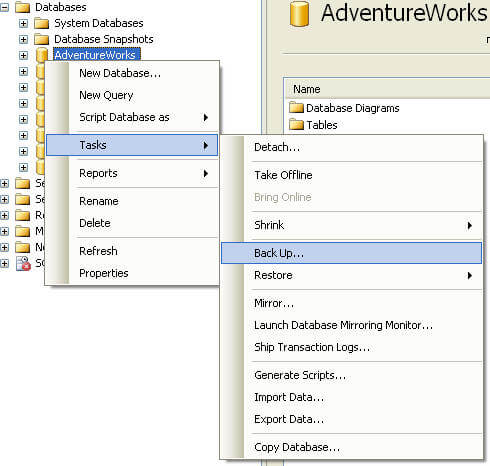
- Expand the “Databases” tree
- Right click on the database name you want to backup
- Select “Tasks” then “Back Up…” as shown below
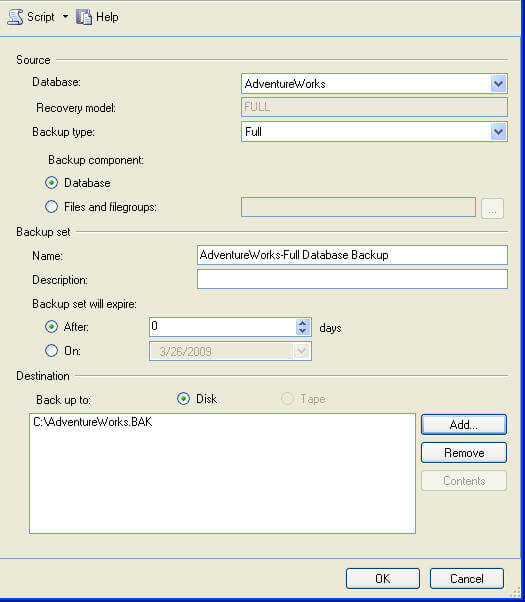
- Specify the “Backup type”; Full, Differential or Transaction Log

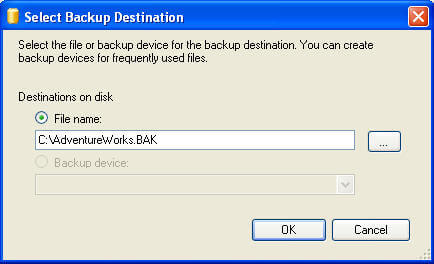
- Click on “Add…” to add the location and the name of the backup file
- Click “OK” to close this screen
- And click “OK” again to create the backup

Greg Robidoux has been working with databases for 35+ years with extensive hands on SQL Server experience from version 6.5 to 2025. He has authored over 250 technical articles and delivered several presentations online and at various conventions. Greg is also the President and founder of Edgewood Solutions, a technology services company delivering services and solutions for Microsoft SQL Server.


