Problem
This tip will introduce a few PowerShell cmdlets related to accessing and handling Windows event logs. The event logs capture various system events that occur for both Windows and specific applications like SQL Server. If anything goes wrong with your SQL Server box then the event logs would be one of the first places to look to help troubleshoot the issue. In this tip I will explain how to access the event logs using Windows PowerShell cmdlets.
Solution
You are probably already aware of the different event logs you can use to monitor your SQL Servers and in this tip we look at how to access and analyze these logs using PowerShell cmdlets.
With PowerShell we can read, filter, update, change, etc… using PowerShell cmdlets to manage either local or remote computers. Open PowerShell and then we can look at some of these commands.
Opening Windows Event Viewer from PowerShell
We can use the Show-EventLog cmdlet to launch the Windows Event Viewer console. Just open the PowerShell window and type “show-eventlog”. When you hit enter the event viewer console will appear.
–launch event viewer through PowerShell cmdlet

Show-eventlog

–launch eventlog of a remote computer

Show-eventlog -computername SERVERNAME
Getting a List of Event Logs
The Get-EventLog cmdlet is used to display logs which are configured on your server. If you only use get-eventlog, it will ask you to enter the event log you want to display.
–To find all logs configured on your box

Get-EventLog -list

Using this command we can also get the event log of a remote computer.
–Get eventlog names for a remote computer named SERVERNAME.

Get-EventLog -computername SERVERNAME -list
Viewing a Specific Event Log
Suppose we want to see only the system log. We can add “-LogName” in Get-EventLog and pass the log name as a parameter, as shown below. You can see all event log entries are showing in PowerShell console in the below screenshot. To stop the scrolling of events you can use CTRL-C.
–Get even log entries for system event log.

Get-EventLog -LogName “system”

Getting the Last 20 Log Entries
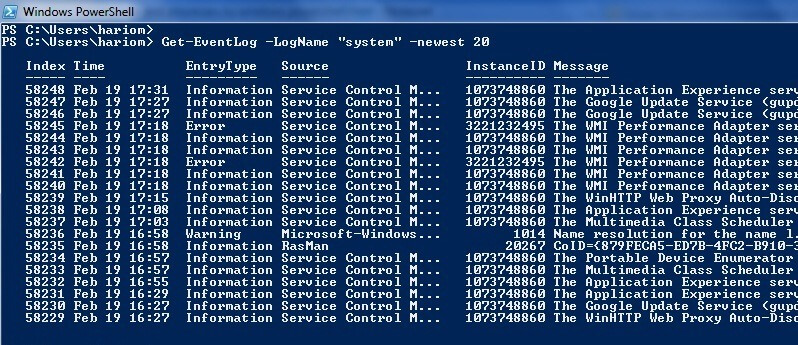
If you want to check the newest log entries then you can add the “-newest” parameter. The below cmdlet will display the last 20 events for the system log.
Get-EventLog -LogName “system” -newest 20
Filtering the Event Log
We can also filter the output of these cmdlets. We can use another cmdlet “where-object” to filter any logs. Suppose we want to check all SQL server related logs from the application event log. We can add both cmdlets with the use of a pipe “|” and filter it as shown below. The output of the first cmdlet (before the pipe) is saved in $ and we can use this to access the output. Here we are searching for “SQL” in the source column.
–this will search the application log for any source values that have SQL in the string

Get-EventLog -LogName “application” | Where-Object {$_.source -like “*SQL*”}

We can also search the logs between a given time frame too by using the same cmdlets.
Viewing Specific Event Log Columns
You can see in the above screenshot that the source column is showing only SQL entries. You can use another cmdlet “select-object” to select specific columns from the event logs. Suppose you want to display only these columns: index, entry type and message. You can use the below cmdlets to get the result.
Get-EventLog -LogName “application” | Select-Object Index,entrytype, message
–You can also use all three cmdlets together to filter more accurate result. Suppose you want to filter all SQL Server related logs with only three columns.
Get-EventLog -LogName “application” | Where-Object {$_.source -like “*SQL*”} | select-Object Index,entrytype, message
Here is another example to further filter the log for any SQL errors after a certain date.
Saving the Output to a CSV File
We can also save the output of our event logs to a local or remote disk.
Get-EventLog -LogName “system” -newest 20 | export-csv c:\tools\top_20_events.csv
–export all events related to SQL for three columns to c:\tools\SQL_Server_logs.csv.
Get-EventLog -LogName “system” | Where-Object {$_.source -like “*SQL*”} | select-Object Index,entrytype, message | export-csv C:\tools\sql_server_logs.csv
Saving the Output to a Text File
In a similar way you can save the data as a text file.
Get-EventLog -LogName “system” -newest 20 |out-file c:\tools\top_20_events.txt
–export all events related to SQL for three columns to c:\tools\SQL_Server_logs.txt.
Get-EventLog -LogName “system” | Where-Object {$_.source -like “*SQL*”} | select-Object Index,entrytype, message | out-file C:\tools\sql_server_logs.txt
Clearing an Event Log
The Clear-EventLog cmdlet deletes all the logs from specified event log. Here I am showing how to delete all entries for a specified event log. Open Windows PowerShell command prompt in “Run as Administrator” mode. Check the list of event logs configured on your box. Here we can see all event logs configured on our machine in the below screenshot. Suppose we want to delete all entries from the “Windows PowerShell” event log. You can see there are 118 entries in that event log. Then you can run the clear-eventlog to delete all these entries.
–Check all configured event logs.

Get-EventLog -list

–Clear the given event log entries.

Clear-eventlog -Logname “Windows PowerShell”

–Check event logs again.

Get-EventLog -list

We can see that all entries have been deleted for that log.

Next Steps
- Try to use PowerShell cmdlets in your day to day activities. PowerShell is becoming more popular to be used for SQL Server support.
- Read more tips on PowerShell.

Manvendra is a passionate database lover currently working as a Technical Architect at one of the top MNCs. He has extensive experience on all versions of SQL Server since 2000 and has built Big Data skills. He has lead projects on the following database features: Database Mirroring, Always ON, Replication, Log Shipping, Geo-Clustering and Performance Tuning and delivered many SQL Server projects on consolidation, upgrades, heterogeneous replication, HA / DR solutions, automation and major performance tuning projects. You can also follow Manvendra on his blog, Twitter, LinkedIn and Facebook.
- MSSQLTips Awards: Champion (100+ tips) – 2018 | Author Contender – 2015-2018, 2021-2022
I am searching for code to get windows events into SQL sever table but unfortunately, I didn’t get any solution. I am using below code but getting some erros.
Providing all input parameter
$variable= (Get-EventLog -ComputerName $comp -log $log -EntryType $EventTypes -After $Begin -Before $End | select @{Expression={$($comp) }<br> ;Label = "ComputerName"} ,index,TimeGenerated,EntryType,Source,InstanceID,Message )
$valuedatatable = Write-DataTable -InputObject $variable Write-DataTable -ServerInstance Test_Srv\sql2016
-Database AllcustData -TableName EventViewer -data $valuedatatable
Regards,
Pankaj Firke