Problem
With SQL Server 2012, Microsoft introduced a new licensing model; licensing per core replaced the licensing per processor. We need to adjust budget to reflect licensing changes for our next Enterprise Agreement renewal, but we do not have processor core information from any of our server inventory tools. How can we quickly gather information about each server’s processor cores without logging in to each server?
Solution
In this tip we will provide a PowerShell script that you can use to query your servers for the number of processors (CPUs) and cores. The entire licensing process is more complicated than just the number of CPUs or cores (you have to take into consideration SQL Server edition and virtualization), but this script is a good start.
If you are not familiar with the SQL Server 2012 licensing model changes you can read this tip. This tip describes the licensing changes and also it has several useful links to Microsoft documentation.
PowerShell Function to Find Number of SQL Server Processors and Cores
We will create a PowerShell function that utilizes Win32_Processor and Win32_ComputerSystem WMI classes. The function accepts ComputerName as a parameter that can be piped from a text file.
param([string]$SQLServerList=$(Throw `
"Paramater missing: -SQLServerList ConfigGroup"))

Function Get-CPUInfo{
    [CmdletBinding()]
    Param(
    [parameter(Mandatory = $TRUE,ValueFromPipeline = $TRUE)]   [String] $ServerName
    )
    Process{

            # Get Default SQL Server instance's Edition
            $sqlconn = new-object System.Data.SqlClient.SqlConnection(`
                        "server=$ServerName;Trusted_Connection=true");
            $query = "SELECT SERVERPROPERTY('Edition') AS Edition, SERVERPROPERTY('MachineName') AS MachineName;"
            $sqlconn.Open()
            $sqlcmd = new-object System.Data.SqlClient.SqlCommand ($query, $sqlconn);
            $sqlcmd.CommandTimeout = 0;
            $dr = $sqlcmd.ExecuteReader();
            while ($dr.Read()) {
             $SQLEdition = $dr.GetValue(0);
             $MachineName = $dr.GetValue(1);}
            $dr.Close()
            $sqlconn.Close()

            #Get processors information
            $CPU=Get-WmiObject -ComputerName $MachineName -class Win32_Processor
            #Get Computer model information
            $OS_Info=Get-WmiObject -ComputerName $MachineName -class Win32_ComputerSystem


           #Reset number of cores and use count for the CPUs counting
           $CPUs = 0
           $Cores = 0

           foreach($Processor in $CPU){
           $CPUs = $CPUs+1

           #count the total number of cores
           $Cores = $Cores+$Processor.NumberOfCores

          }

           $InfoRecord = New-Object -TypeName PSObject -Property @{
                    Server = $ServerName;
                    Model = $OS_Info.Model;
                    CPUNumber = $CPUs;
                    TotalCores = $Cores;
                    Edition = $SQLEdition;
                    'Cores to CPUs Ratio' = $Cores/$CPUs;
                    Resume = if ($SQLEdition -like "Developer*") {"N/A"} `
                        elseif ($Cores -eq $CPUs) {"No licensing changes"} `
                        else {"licensing costs increase in " + $Cores/$CPUs +" times"};
    }
   Write-Output $InfoRecord
          }
}
#loop through the server list and get information about CPUs, Cores and Default instance edition
Get-Content $SQLServerList | Foreach-Object {Get-CPUInfo $_ }|Format-Table -AutoSize Server, Model, Edition, CPUNumber, TotalCores, 'Cores to CPUs Ratio', Resume
Save the script as “Cores_to_CPU_Ratio.ps1” PowerShell file.
Running the PowerShell script to Find Number of Cores and Processors
The script requires a list of SQL Servers as the input parameter. This could just be a simple text file with one column (without a column header) containing host names only. You do not use the SQL Server named instance, because we want to look at the physical box.
Use the “SL” command to change to the directory where you saved the script and run the script as shown below:
SL "M:\DBA\Scripts\powerShell"
.\Cores_to_CPU_Ratio.ps1 -SQLServerList "C:\SQLSrvList1.txt"
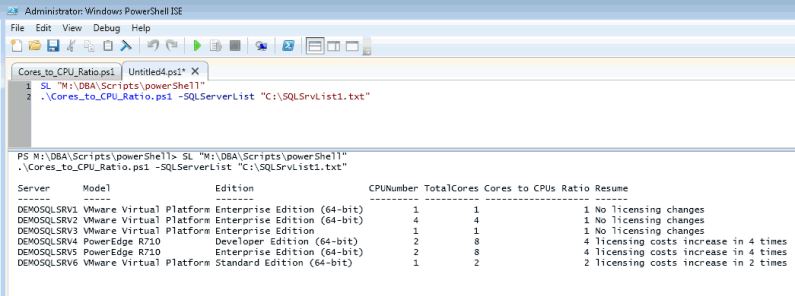
Here are the results for the demo environment:
Interpreting the results for the Number of Processors and Cores
The information about potential licensing is in the “Resume” column. If we have the same number of CPUs as number of Cores then we do not have to worry about licensing more cores.
Another set of useful information could be obtained analyzing “Model”, “Edition” and “Ratio” columns. In our example we have more than 50% of our SQL Servers on VMware. Most of them are Enterprise Edition. We also have DEMOSRV5 which is a physical server where we will see the highest increase in licensing costs. Based on this information we can see that it would be beneficial to migrate DEMOSRV5 to a virtual server and to take advantage of the Maximum Virtualization licensing. Note, you can only take advantage of this if you have Software Assurance (SA) coverage. Read more about Microsoft SQL Server 2012 Virtualization Licensing here.
Next Steps
- Read more PowerShell tips here.
- Read Microsoft’s “Determining SQL Server 2012 Core Licensing Requirements at SA Renewal” document.
- Read Microsoft’s “SQL Server 2012 Licensing Guide” document.
- Use the script to assess your environment if you have not transitioned yet to the new licensing model or use it just to review your current environment. You will need to take into consideration the highest Edition installed on your server. For example, if you have Standard and Enterprise Edition installed on the same server as different SQL Server instances you will need to apply Enterprise licensing for that server.
- Use this script to find out if you can take advantage of the Maximum Virtualization licensing mode.

Svetlana has been working in IT for more than 17 years. Most of her career has focused on Database Administration (both SQL Server and Oracle) and Database Development. Databases are Svetlana’s passion, but she also has fun helping co-workers and friends in troubleshooting non-database related issues. Svetlana tries to explore and learn as many SQL Server features as possible. Her favorite SQL Server features are Policy Based Management, SSIS, SSRS and Master Data Services. One of Svetlana’s areas of expertize is cross systems / database integration. Svetlana is currently a hands-on Database Team Lead in Calgary, Canada where she promotes SQL Server.
Svetlana likes to share her knowledge with others and enjoys learning herself. Her hobby is photography, but now she spends her free time away from Database Administration with her little girl who proudly wears her MSSQLTips shirt. Svetlana blogs at http://databaserefresh.com and posts her pictures to https://plus.google.com/u/0/111115767149899859037/posts. Her Twitter account is @magasvs.
- MSSQLTips Awards: Rising Star (50+ tips) – 2018 | Author of the Year Contender – 2015-2017
How did you get all the servernames at the same time? Did you create a separate file for servernames? I have over 20servers and how do I do that using that script instead of running it in each server?
The server names are to be listed one per line and put into the file named “C:\SQLSrvList1.txt”
Hi Venkat,
Sorry, not that I know of. There is sys.dm_os_sys_info dynamic management view that has some CPU info, but it’s pretty tricky to correlate cpu_count with hyperthread_ratio. Also, you can’t really analyze results from SSMS. You will need t export it somewhere and apply additional logic.
Thanks,
Svetlana
Hi,
Is there anyway that we can fetch the same information thru SSMS please
Thanks,
Venkat