Problem
You have data in SQLite databases on mobile devices you would like to import into SQL Server. In this tip we walk through the steps on how to import this data into SQL Server.
Solution
This describes a simple method of importing data from a SQLite database into SQL Server using a linked server. You can find other methods of course, so see the links below in “Next Steps” for additional options.
Overview
These are the steps we will follow:
- Download an ODBC driver for SQLite
- Install the driver
- Create a System DSN for the database
- Create a linked server in SQL Server
- Select the data from the source and insert it into a SQL Server database table
1. Download an ODBC driver for SQLite
Go to this SQLite ODBC driver source page.
Configuring the correct driver is sometimes the most difficult part because of that I suggest downloading both the 32 and 64 bit drivers.
2. Install the driver
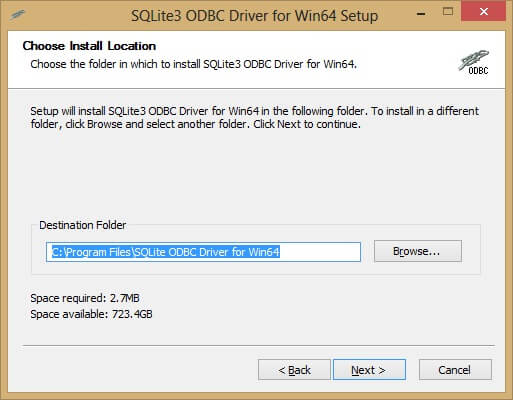
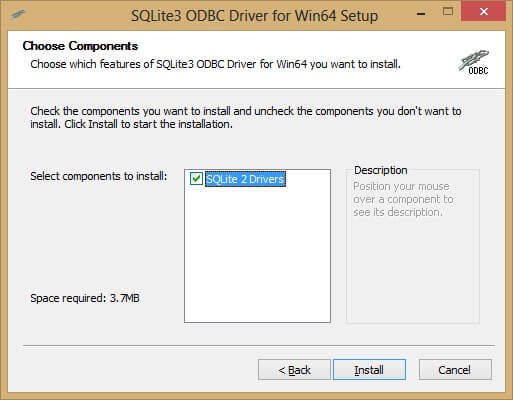
Run either the 32 bit or 64 bit driver exe file. Choose the one that suits the operating system you are using.



3. Create a System DSN for the database
Click Start Run and type odbcad32 and press return for the 64 bit administrator.

Click Start Run and type C:\Windows\SysWOW64\odbcad32.exe and press return for the 32 bit administrator.

Click on the System DSN tab.

Click add.

Select the appropriate driver. If you do not know which one to use then try them in turn.
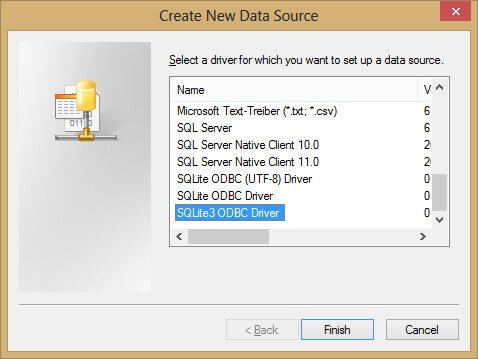
Enter your SQLite database path. Note that some of the options are documented at the driver site. I suggest leaving them as they are initially.

Notice the 32 bit driver is only editable from a 32 bit administrator and the 64 bit driver is only editable from the 64 bit administrator.

Notice the remove and configure buttons greyed out.

4. Create a linked server in SQL Server
If you are new to linked servers then you may wish to check these Linked Server tips at MSSQLTips first.
I suggest you simply use this T-SQL to create the linked server to your SQLite database.
There are no login accounts or any security context with this linked server.
USE [master]
GO
EXEC sp_addlinkedserver
   @server = 'Mobile_Phone_DB_64', -- the name you give the server in SSMS
   @srvproduct = '', -- Can be blank but not NULL
   @provider = 'MSDASQL',
   @datasrc = 'Mobile_Phone_DB_64' -- the name of the system dsn connection you created
GO
5. Select the data from the source and insert it into a SQL Server database table.
Now click on the linked server stem and expand it all the way to the tables.
Then simply query the tables.
I suggest this SQLite browser if you want to view the tables or export the data as SQL.
Select *
from openquery(Mobile_Phone_DB_64 , 'select * from db_notes')
GO
You can create a table in your destination SQL Server with this sort of TSQL:
Select * into SQLite_Data -- This creates a table
from openquery(Mobile_Phone_DB_64 , 'select * from db_notes')
GO
Then modify the data types in your destination SQL Server database table using alter commands.
Check these suggestions by Michelle Gutzait or you may decide to not even import the data.
Data Types
Data types in SQLite are found at SQLite.org.
Next Steps
- Read about Openquery at Microsoft.
- Read this tip by Greg Robidoux Different Options for Importing Data into SQL Server.
- You may be able to use SQL Server Data Tools
- See these MSSQLTips on SQL Server Data Tools
- You could export the SQLite data as SQL using this SQLite browser then edit that SQL into TSQL manually.

Graham is currently a SQL Server DBA and has been working with database systems since 1984. He has been specializing in SQL Server since 2007. He earned a Bachelor of Applied Science Information Technology (With Distinction) from RMIT University in 2006. He is a DBA who has worked for various companies in Western Australia including the government and private sector including mining, oil and gas, health, an ISP and educational institutions. He has worked for Fujitsu as a DBA team leader and at Computer Sciences Corporation as a DBA contractor.
- MSSQLTips Awards: Author of the Year Contender – 2018

Thanks very much Graham.
I tried loading my triggers one at a time without success, but it turns out that other simpler triggers work just fine.
The problem appears to be that SQLite v3.33.0 supports UPDATE-FROM, but, when used in a trigger, the linked server fails.
That is, when I rewrote the UPDATE-FROM queries in the triggers into the “WHERE EXISTS” format (“correlated query”), the linked server worked.
https://sqlite.org/lang_update.html#upfrom
“The UPDATE-FROM idea is an extension to SQL that allows an UPDATE statement to be driven by other tables in the database. … UPDATE-FROM is supported beginning in SQLite version 3.33.0 (2020-08-14).”
https://sqlite.org/forum/forumpost/fbad1e84e1?raw
For interest, shows the difference between UPDATE-FROM and WHERE EXISTS:
“`
update t1
set zipcode = t2.zipcode
from t2
where t2.code_stat = t1.code_stat<br>;
“`
or as a correlated query:
“`
update t1
set zipcode = (
select zipcode
from t2
where t2.code_stat = t1.code_stat
)
where exists (
select *
from t2
where t2.code_stat = t1.code_stat
)<br>;
“`
The fix may come with an updated driver one day.
Cheers,
pcross
Hello pcross
Sorry I am not familiar with SQLite triggers.
If you have to use triggers why not add only one trigger at a time and test it.
All the best.
Regards
Graham Okey
Thanks, this is still a very helpful guide and the comments help too.
In SQL Sever my Test connection: succeeded; but “An error occurred while preparing the query”
I found the only way to return data was to drop all triggers from the SQLite database.
Are triggers generally not allowed when used with a linked server or should I go looking for problems with these particular update triggers?
Hi Zbynek,
it looks like the issue is with a BLOB column. Not sure if the other messages below will help you.
-Greg
Hi, does anyone managed to load text data FROM SQL server TO SQLite database? I don’t have any problem with loading floats/integers into SQLite database but when it comes to text data I always ran into this error “Das abfragebasierte EinfÜgen oder Aktualisieren von BLOB-Werten wird nicht unterstÜtzt.”. I’ve tried converting the input data to ntext, text, nvarchar, varchar etc. but without any success.