Problem
A feature in SQL Server is the ability to clone a database that will create a new database that contains just the schema of all the objects and statistics from the specified source database. A cloned database can be used to troubleshoot queries without having to run the query against the production database. Follow this tip to learn how to clone a database.
Solution
First released in SQL Server 2014 SP2, a new management command DBCC CLONEDATABASE creates a new database that contains the schema of all the objects and statistics from the specified source database. Cloned databases copy all schema and metadata of the source database without coping any data. DBCC CLONEDATABASE should be used to create a cloned database only for troubleshooting and diagnostic purposes. A cloned database created by DBCC CLONEDATABASE must not be used as a production database.
The below command is used to create a cloned database named “Manvendra_Cloned” from its source database “Manvendra”.
DBCC CLONEDATABASE(Manvendra, Manvendra_Cloned)You might be thinking how does SQL Server manage the data file names and the size of a cloned database as we have not passed any details except the source database name and the cloned database name. The size and growth settings of the database files for a cloned database are inherited from the model database whereas the database file names will follow the source file name with some random number appended to the file name. I will show you this later in this tip.
There are few restrictions for a cloned database like the source database must be a user database. Cloning of system databases isn’t allowed. The source database must be online or readable. A database that uses the same name as the clone database must not already exist. If these restrictions are present, the cloned database will not be created and it will fail.
Let’s start with creating a database that has three data files and a log file then we will create a table and insert some data. After this we will clone this database.
Step 1 – Create a SQL Server Database
First we will create a database named “Manvendra” with three data files (1 primary and 2 secondary data files) in one filegroup and one log file by running the below T-SQL code. You can change the name of the database, file path, file names, size and file growth according to your needs.
CREATE DATABASE [Manvendra]
 CONTAINMENT = NONE
 ON  PRIMARY
( NAME = N'Manvendra_Test', FILENAME = N'C:\MSSQL\DATA\Manvendra.mdf',SIZE = 5MB , MAXSIZE = UNLIMITED, FILEGROWTH = 10MB ),
( NAME = N'Manvendra_Test1', FILENAME = N'C:\MSSQL\DATA\Manvendra1.ndf',SIZE = 5MB , MAXSIZE = UNLIMITED, FILEGROWTH = 10MB ),
( NAME = N'Manvendra_2', FILENAME = N'C:\MSSQL\DATA\Manvendra2.ndf' ,SIZE = 5MB , MAXSIZE = UNLIMITED, FILEGROWTH = 10MB )
 LOG ON
( NAME = N'Manvendra_log', FILENAME = N'C:\MSSQL\DATA\Manvendralog.ldf',SIZE = 10MB , MAXSIZE = 1GB , FILEGROWTH = 10%)
GO
Step 2 – Create a SQL Server Table and Insert Data
Next, I will create a table named Test_Data and insert 10,000 rows into this table by running the below command.
--Create Table.
USE Manvendra;
GO
CREATE TABLE [Test_Data] (
    [Sr.No] INT IDENTITY,
    [Date] DATETIME DEFAULT GETDATE (),
    [City] CHAR (25) DEFAULT 'Bangalore',
    [Name] CHAR (25) DEFAULT 'Manvendra Deo Singh');
GO
--Insert 10000 Rows
INSERT INTO Test_DATA DEFAULT VALUES;
GO 10000
Once the above command executes, we will check the table count to verify the data insertion. I have also created statistics on this table to validate the copy of statistics into the cloned database.

Step 3 – Clone the SQL Server Database
Now we will use this database as the source database to create a clone database. Run the below T-SQL command to create a cloned database of “Manvendra”.
USE MASTER
GO
DBCC CLONEDATABASE(Manvendra, Manvendra_Cloned)
The T-SQL command executed successfully and the output is shown below.

Below is the complete output from running the clone command.
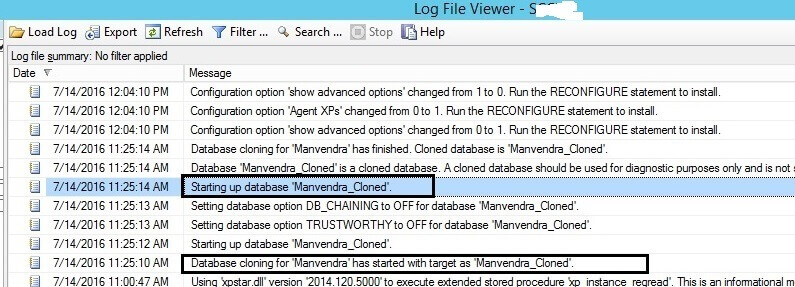
Database cloning for 'Manvendra' has started with target as 'Manvendra_Cloned'.
Database cloning for 'Manvendra' has finished. Cloned database is 'Manvendra_Cloned'.
Database 'Manvendra_Cloned' is a cloned database. A cloned database should be used for diagnostic purposes only and is not supported for use in a production environment.
DBCC execution completed. If DBCC printed error messages, contact your system administrator.
As mentioned, a cloned database should not be used as production database. The output from the command includes this text: “A cloned database should be used for diagnostic purposes only and is not supported for use in a production environment”.
Database cloning creates a cloned database by running few operations in the background. The first command creates a database then takes an internal snapshot of all schema and metadata from the source database for transactional consistency that is needed to perform the copy. Then the copy operation is executed for the schema, statistics and metadata.
Step 4 – Review Row Counts in the SQL Server Table
Now we will check the row count of the table in the cloned database to check and verify whether data has been copied along with the statistics.
USE MANVENDRA_Cloned
GO
SELECT COUNT (*) from [dbo].[Test_Data]
We can see the cloned database “Manvendra_Cloned” on left side of the screenshot below which is in Read-Only mode. The total number of rows from the query is zero which means data was not copied. We can see the schema, objects and statistics have been copied to the cloned database.

Step 5 – Review the SQL Server Database Files for the Cloned Database
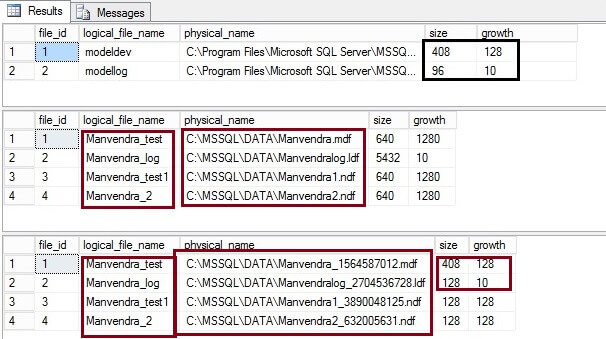
I discussed earlier that size and growth settings of the database files for a cloned database are inherited from the model database and the database file names will follow the source file name with some random number appended. Here I will validate and verify these rules. Run the below commands to get the details of all three databases: model, Manvendra and Manvendra_cloned.
USE model
GO
SELECT file_id, name as [logical_file_name],physical_name, size,growth
FROM sys.database_files
GO
USE MANVENDRA
GO
SELECT file_id, name as [logical_file_name],physical_name,size,growth
FROM sys.database_files
GO
USE Manvendra_Cloned
GO
SELECT file_id, name as [logical_file_name],physical_name,size,growth
FROM sys.database_files
GO
When you look at size and growth columns of database “model”, you will find the same values for the cloned database, since the settings were inherited from the model database. The size of log file is a little different because there were fewer objects created in the database. Similarly if you compare the database file locations and names then these options are inherited from the source database. Database files have been created in this format [sourcedatabasefile_number].
Identifying a Cloned SQL Server Database
To identify a cloned database among other databases we can run the below command. If the output returned is 1 that means the database is a clone.
SELECT DATABASEPROPERTYEX('Manvendra','ISCLONE')
GO
SELECT DATABASEPROPERTYEX('Manvendra_Cloned','ISCLONE')
GO
If we run the above command for both databases the output shows the source database is not a cloned database because its output is 0 whereas the “Manvendra_cloned” database returns 1 which means it is a cloned database.

Another option to identify a cloned database is through the SQL Server Error Log. Whenever you create a cloned database the below entries will be logged in the SQL Server Error Log.
Next Steps
- Never use a cloned database as a production database as it’s not supported by Microsoft.
- Explore more knowledge in these SQL Server Database Administration Tips

Manvendra is a passionate database lover currently working as a Technical Architect at one of the top MNCs. He has extensive experience on all versions of SQL Server since 2000 and has built Big Data skills. He has lead projects on the following database features: Database Mirroring, Always ON, Replication, Log Shipping, Geo-Clustering and Performance Tuning and delivered many SQL Server projects on consolidation, upgrades, heterogeneous replication, HA / DR solutions, automation and major performance tuning projects. You can also follow Manvendra on his blog, Twitter, LinkedIn and Facebook.
- MSSQLTips Awards: Champion (100+ tips) – 2018 | Author Contender – 2015-2018, 2021-2022



Thank you for sharing great information.